
Integration of Mirakl with BigQuery
📢 Introduction
This module integrates with the Mirakl Seller API, enabling you to collect marketplace sales data — orders, offers, transactions, returns and shop information — and store it in Google Cloud BigQuery. Gain deeper insights into your data and optimize the performance of your marketplace sales with real-time data collection.
📝 Configuration Guide
Follow the steps below to connect Mirakl with BigQuery. Once the setup is complete, your marketplace data will be automatically transferred to your BigQuery project.
💡 Tip: Before starting the configuration, make sure you have the address of your marketplace's Mirakl instance (given by the marketplace operator, e.g.
https://your-marketplace.mirakl.net) and access to the marketplace's seller back office, where you generate the API key.
🔧 Module Setup
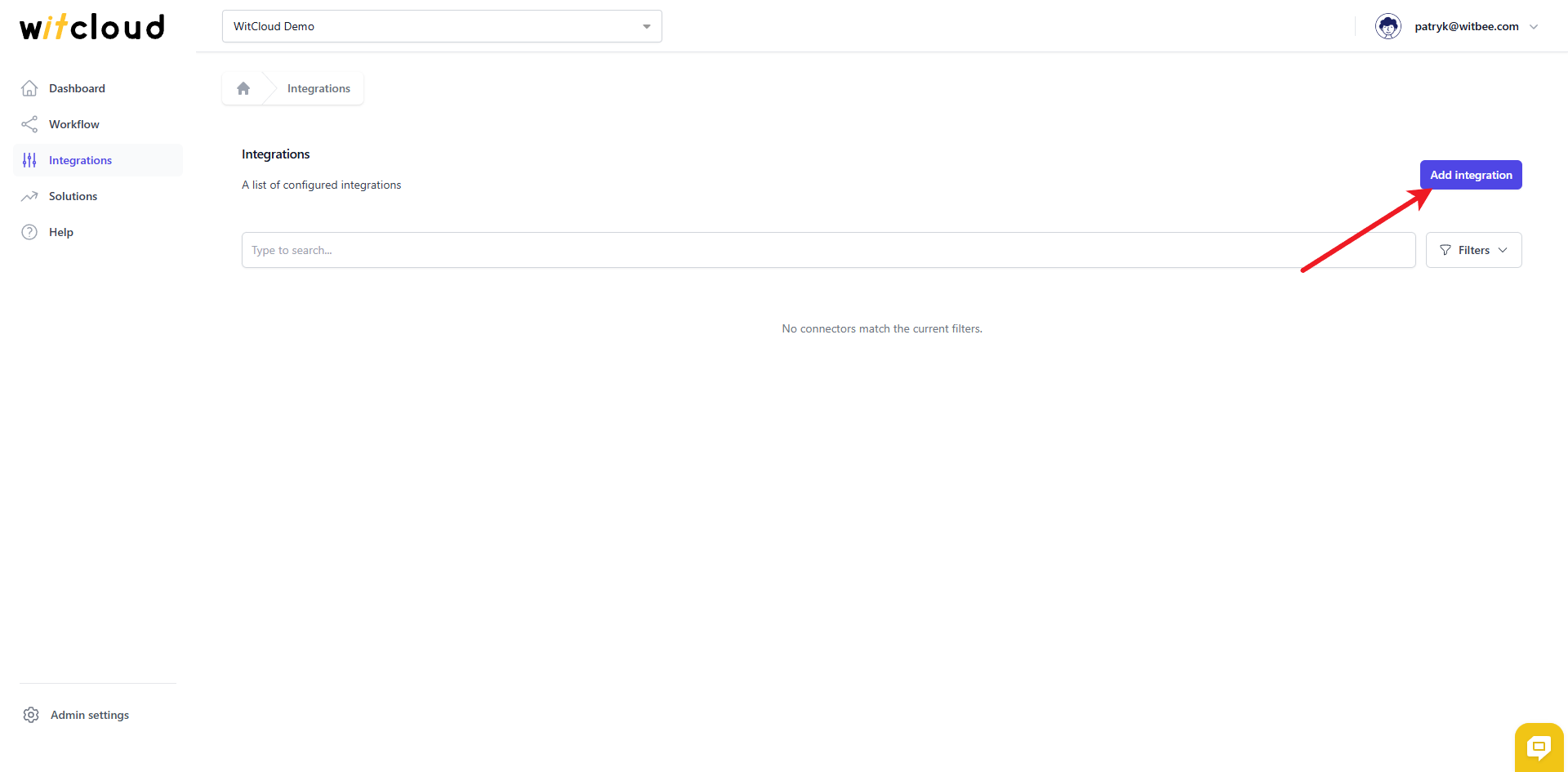
Go to the Integrations section in the menu > Click Add integration.
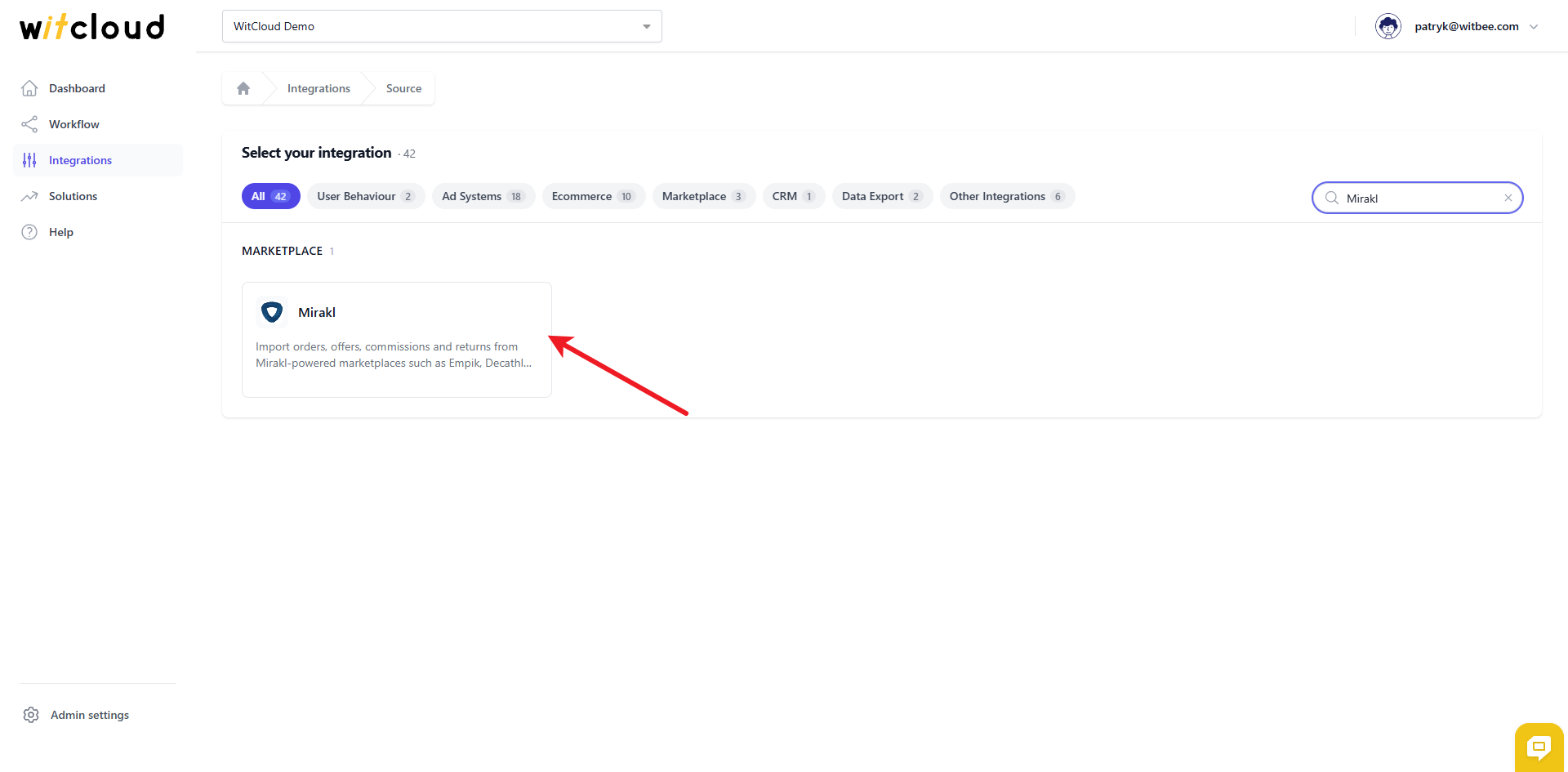
Select Mirakl from the list of available integrations.
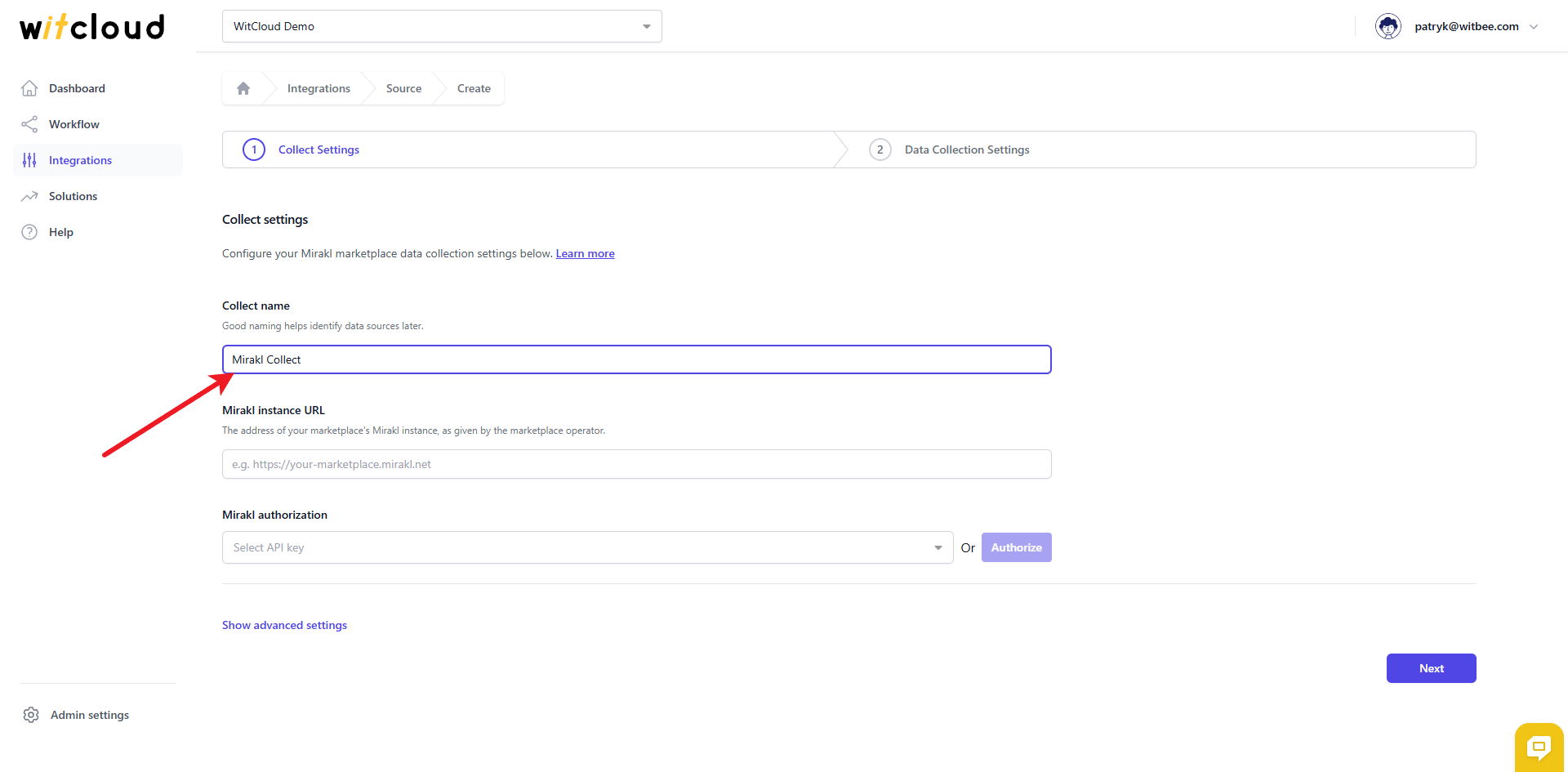
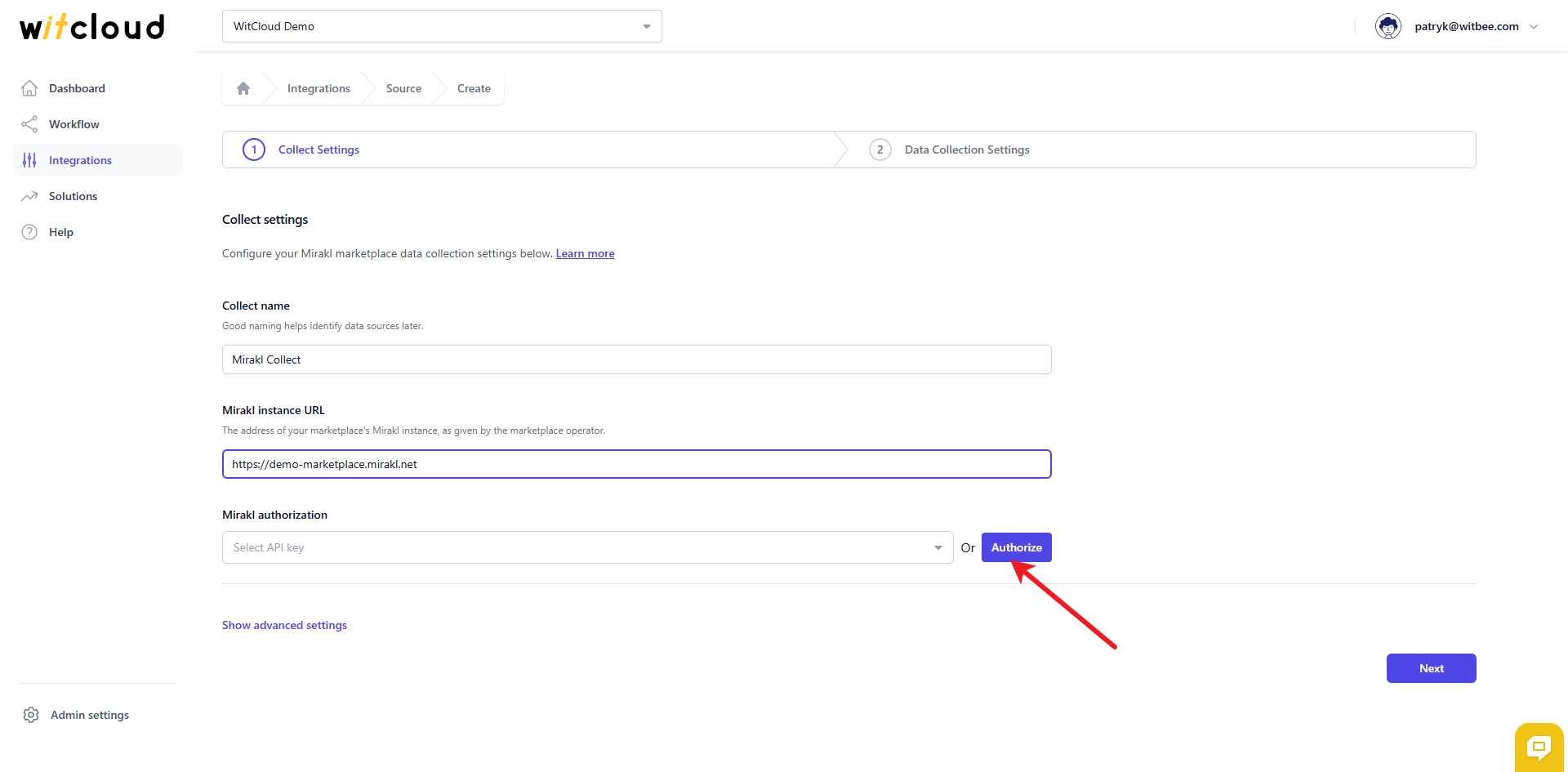
Enter the Collect Name, e.g., "Mirakl Collect".
Enter the Mirakl instance URL — the address of your marketplace's Mirakl instance, as given by the marketplace operator, e.g. https://your-marketplace.mirakl.net.
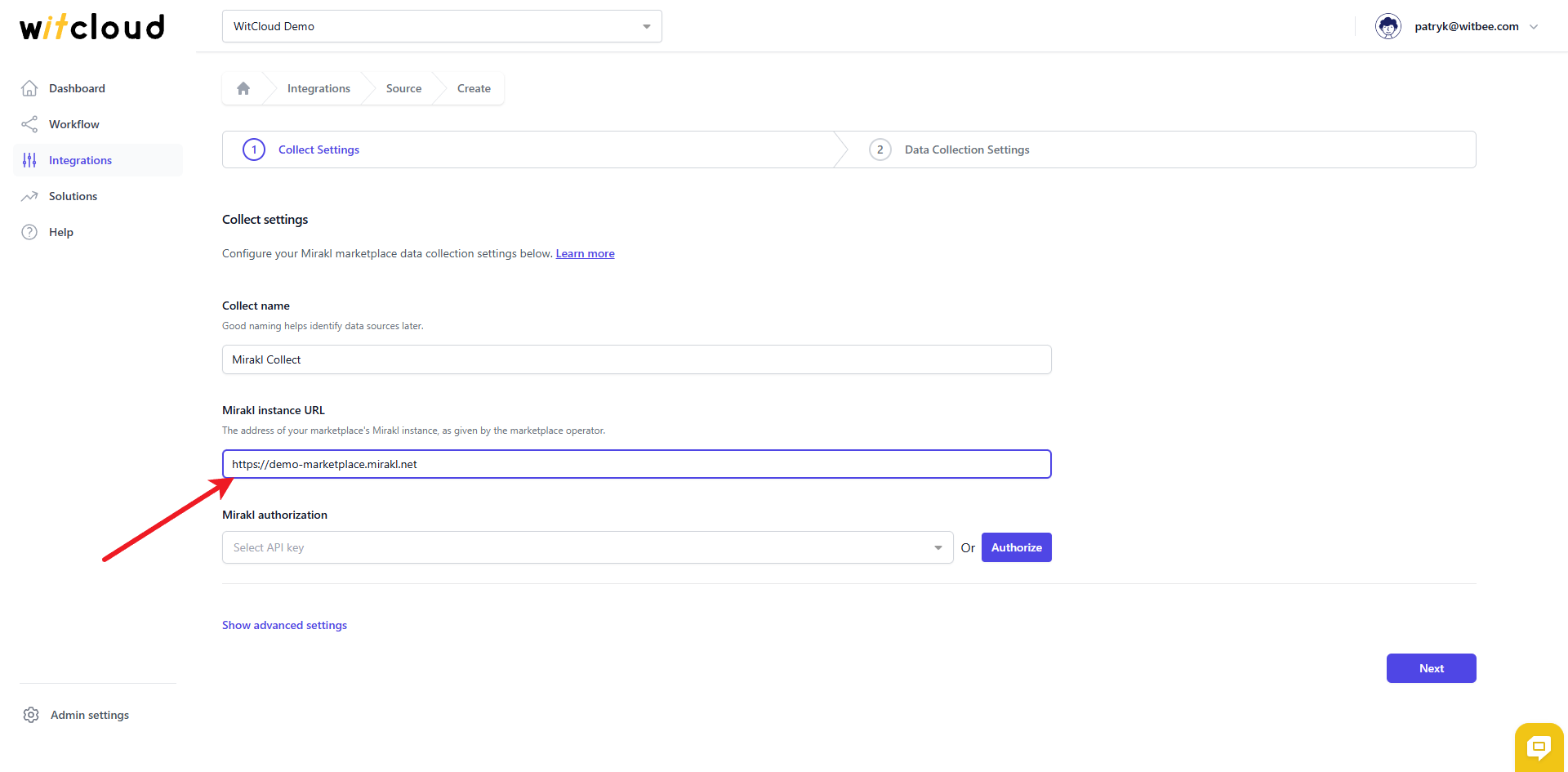
💡 Tip: The Authorize button stays disabled until a valid instance URL is entered — the API key is verified against this instance.
🔑 Authorization
💡 Tip: If you have already created a Mirakl authorization for this marketplace, simply pick it from the drop‑down and skip ahead to the advanced settings.
Mirakl does not use a Google consent window — you authorize it with an API key generated in the marketplace's seller back office.
Click Authorize.
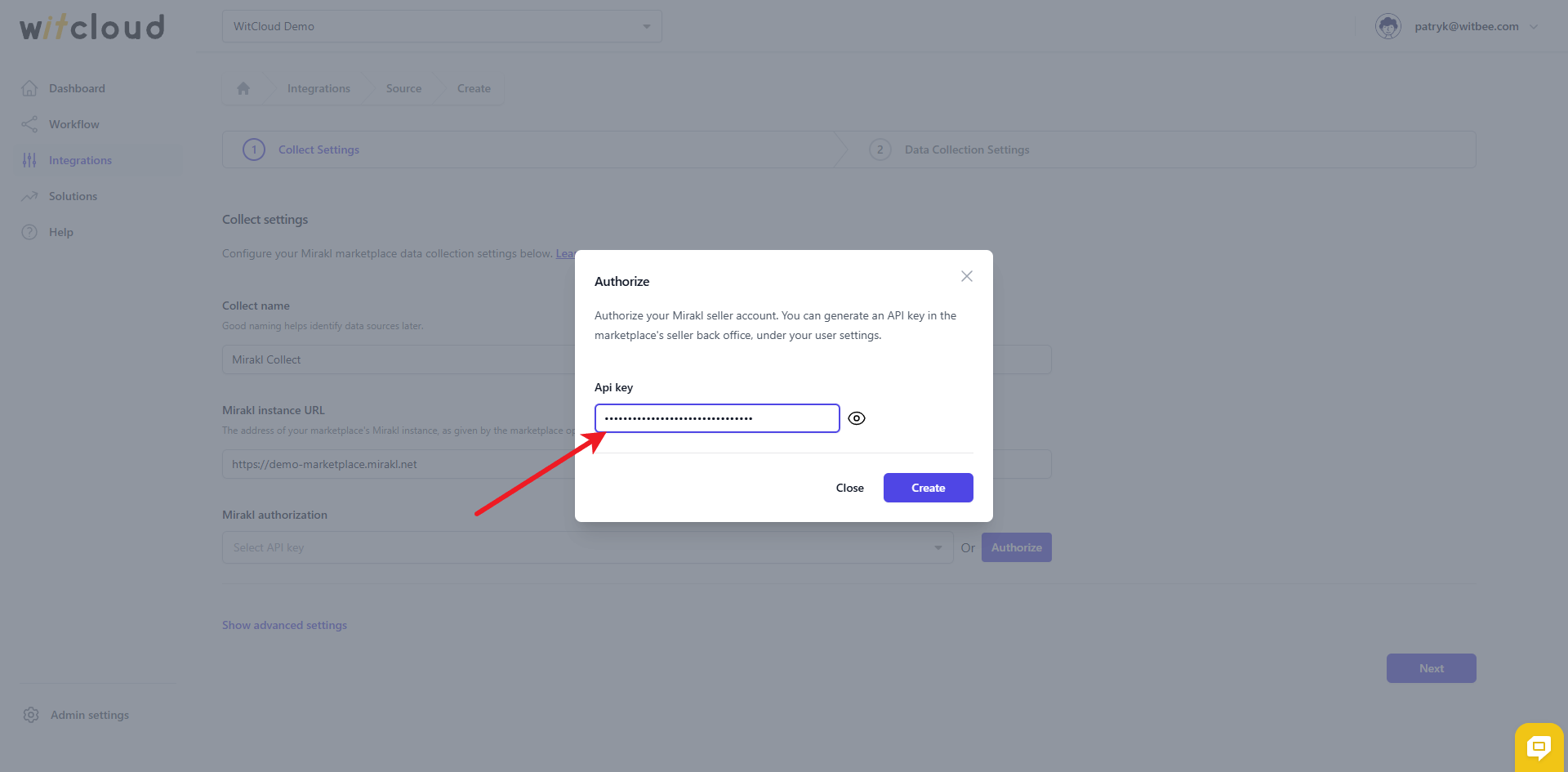
In the authorization window, paste the API key generated in the marketplace's seller back office, under your user settings.
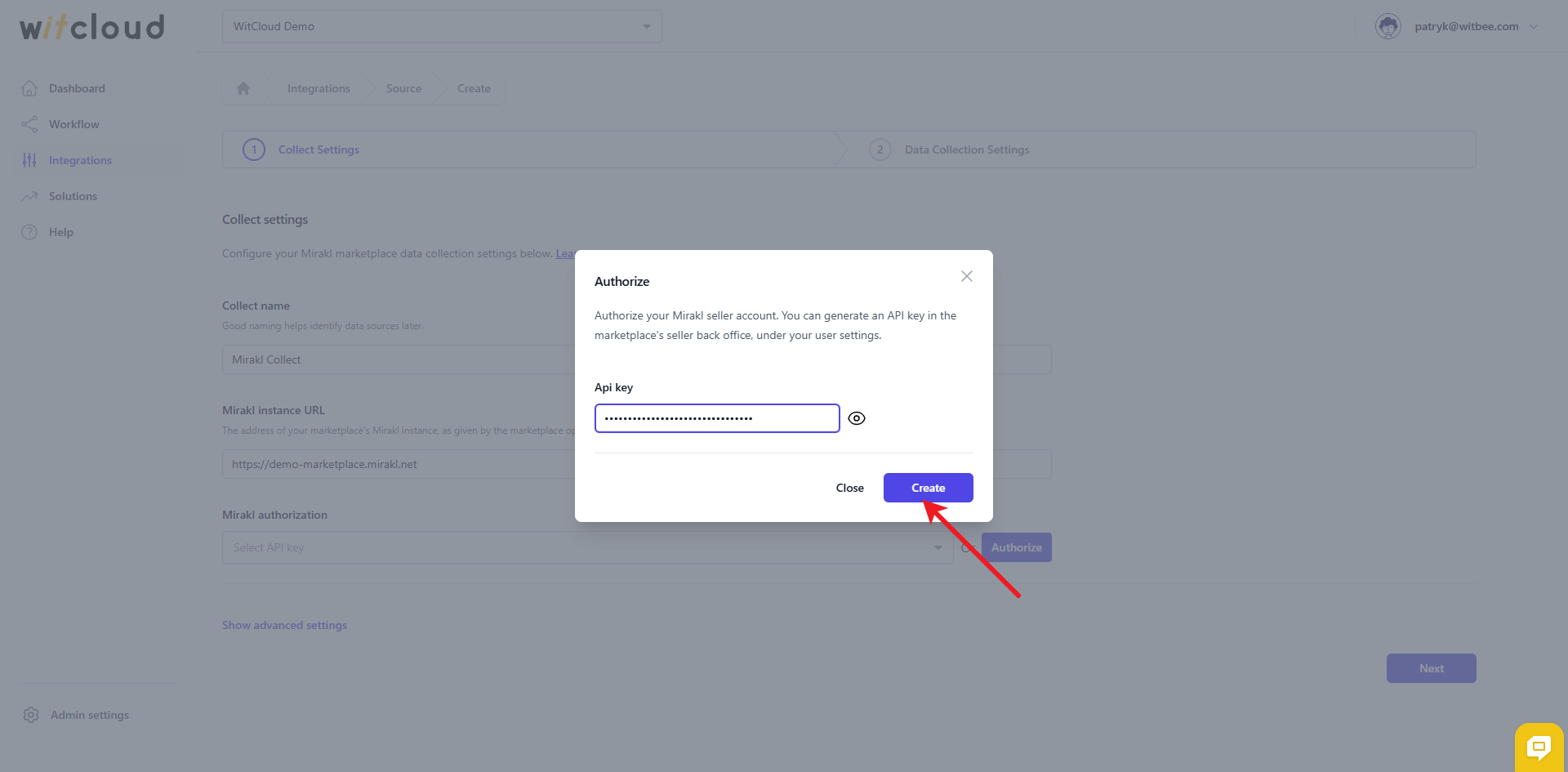
Click Create to save the authorization.
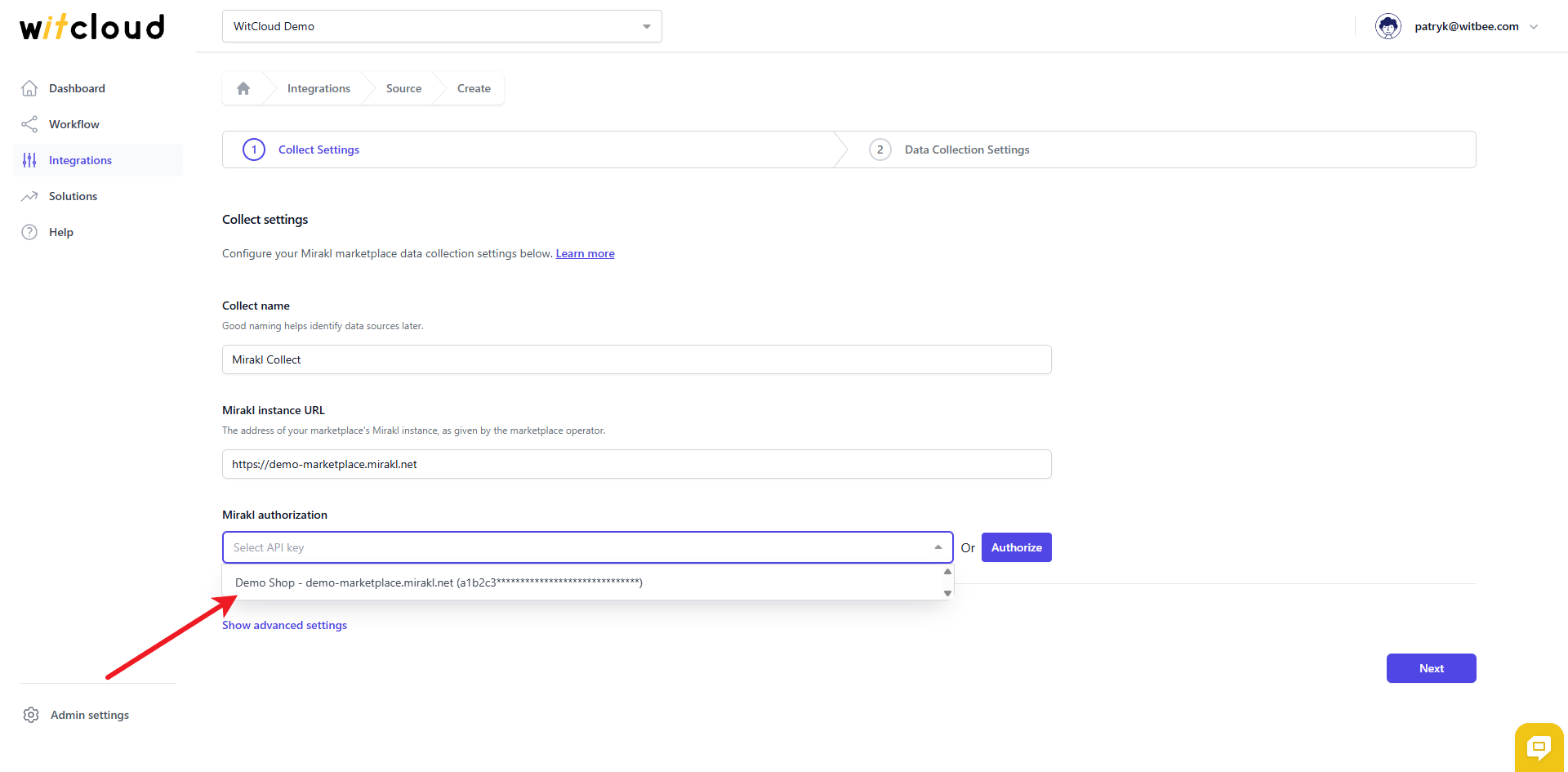
The saved authorization now appears in the Mirakl authorization drop‑down. Pick the one you want to use — it is labelled with the shop name, the instance address and a masked fragment of the key, so several keys stay easy to tell apart.
💡 Tip: Data is collected for the shop the API key belongs to — there is no separate shop to select. To collect several shops or marketplaces, add a separate authorization and a separate collect for each key.
Optionally, expand Advanced settings to adjust:
- Data freshness (offers, shop) — how often, in hours, tables like offers and shop should be refreshed (minimum 4, maximum 12 hours; default 4).
- Static IP — when enabled, all requests originate from a fixed IP address (34.118.32.227), which you can provide to your marketplace operator for whitelisting.
- Tables to collect — narrow down the tables if you don't need every one. By default all of them are collected.
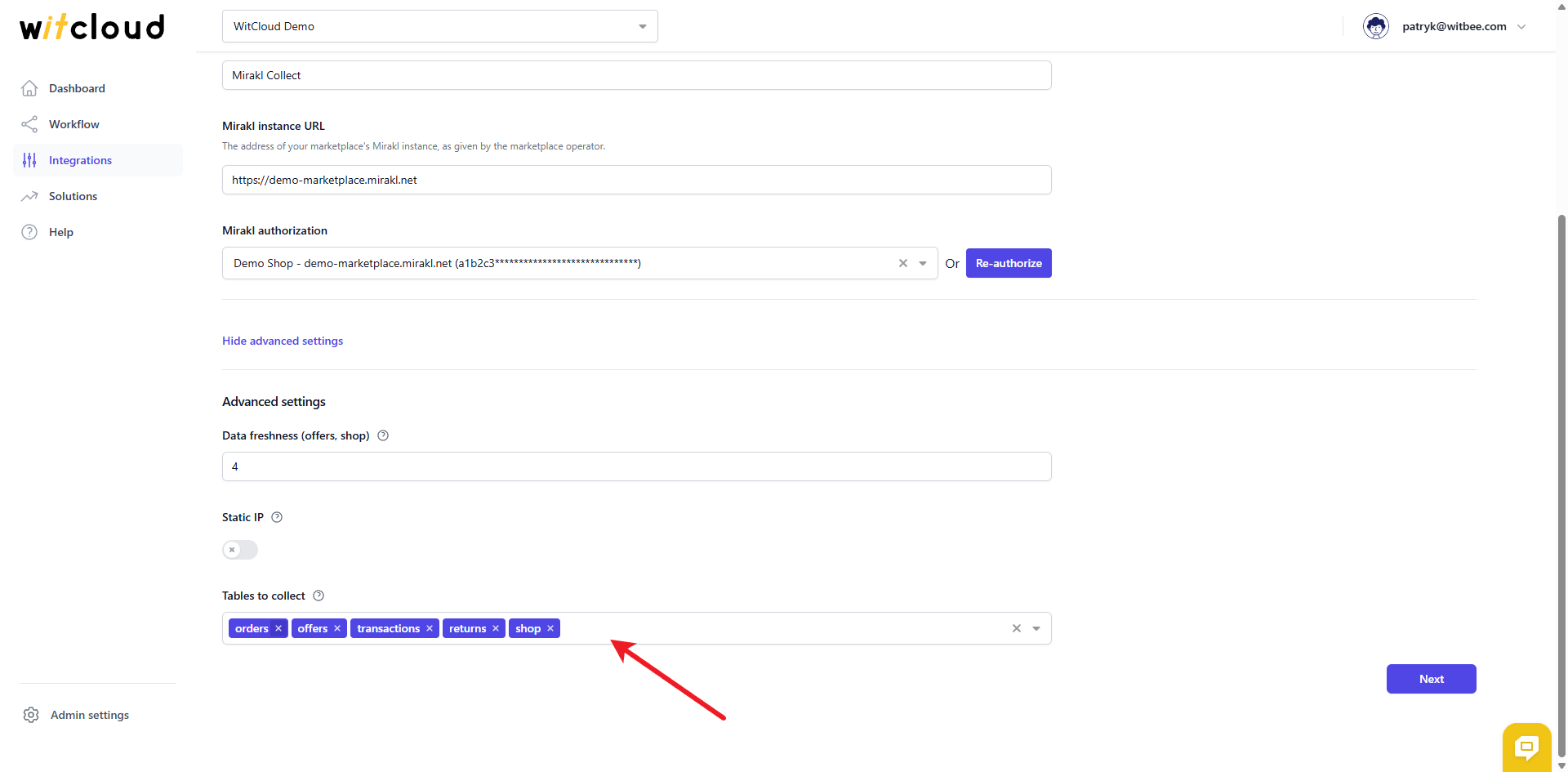
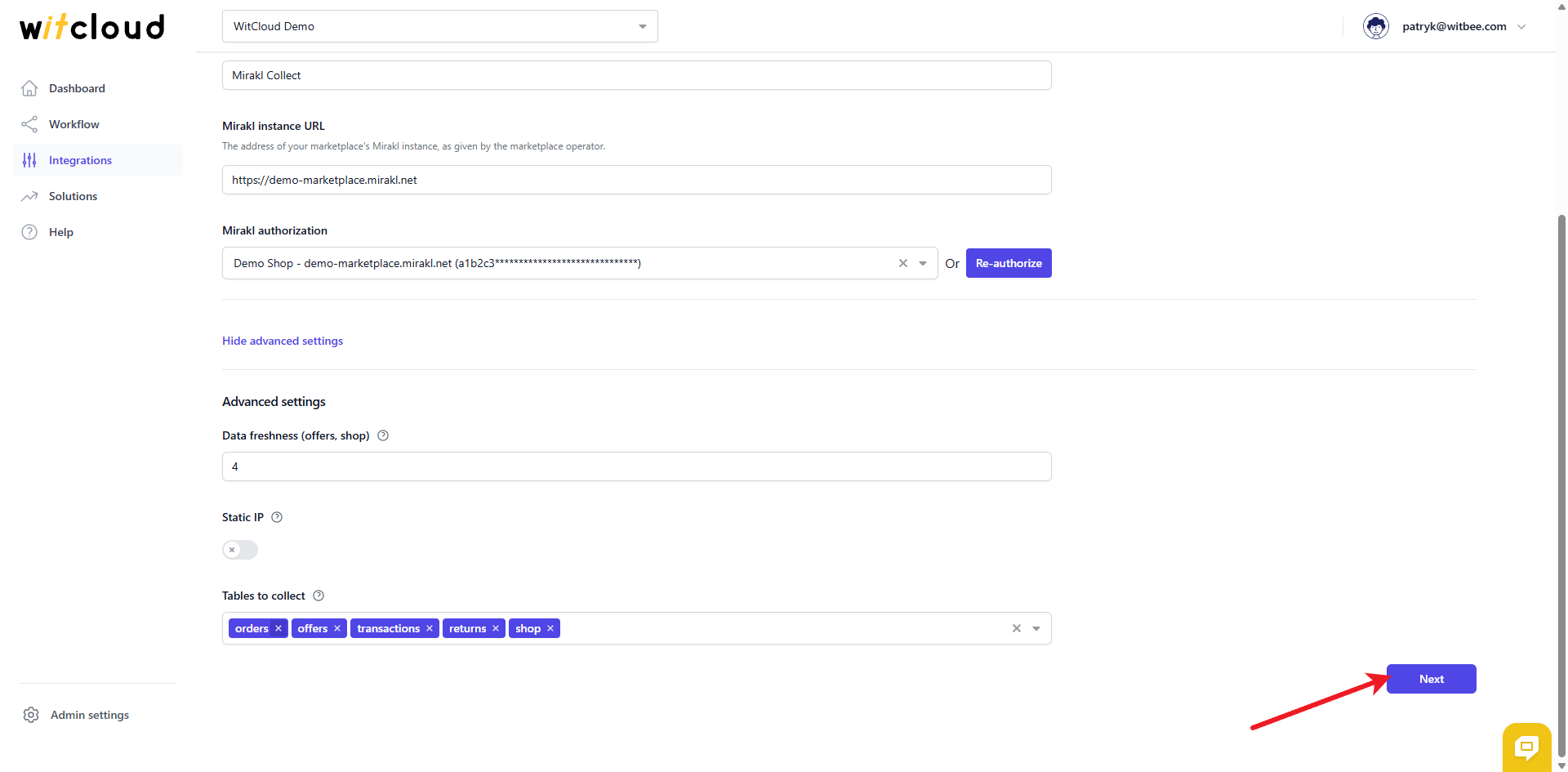
Click Next to move on to the data collection settings.
⏳ Historical Data and Scheduling
Enter the number of days of historical data you want to fetch.
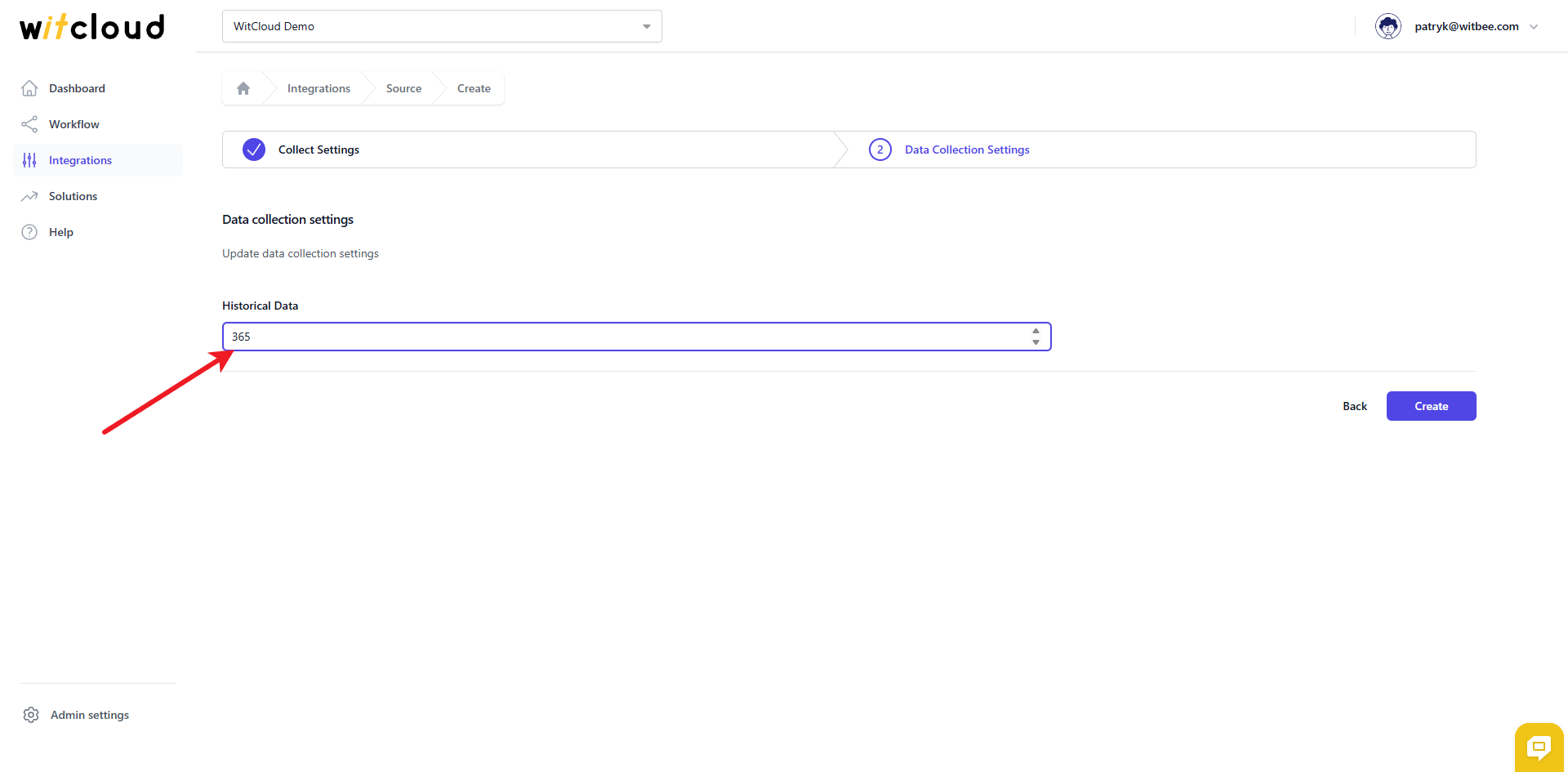
During the initial setup, you can retrieve data going back up to 365 days, with the possibility of importing older data.
A data synchronization schedule will be created automatically. More information on this topic can be found here.
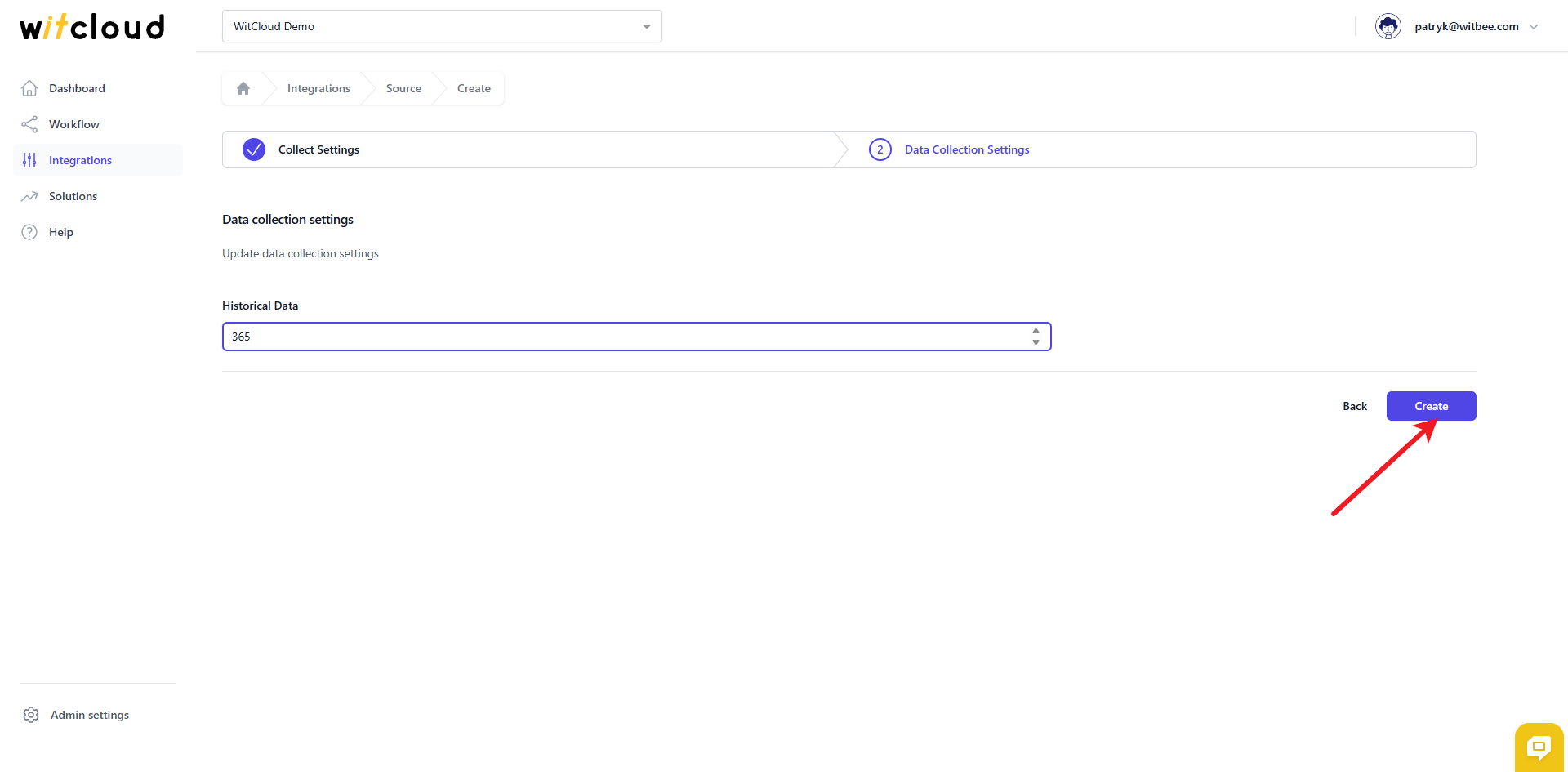
Click Create to complete the configuration.
✅ Done! Your Mirakl data will now be synchronized with BigQuery, providing you with detailed insights into the performance of your marketplace sales.
📊 Data Schema
Expand the tables below to view the full data schema collected from Mirakl.