
XML Feed Integration
📢 Introduction
The Feed module allows you to automatically generate XML files based on data from BigQuery tables. This is especially useful for generating product feeds, for example, from eCommerce connector data or from prepared and processed data using the Query Job module.
📝 Configuration Guide
Follow the steps below to create Feed module
🔧 Module Setup
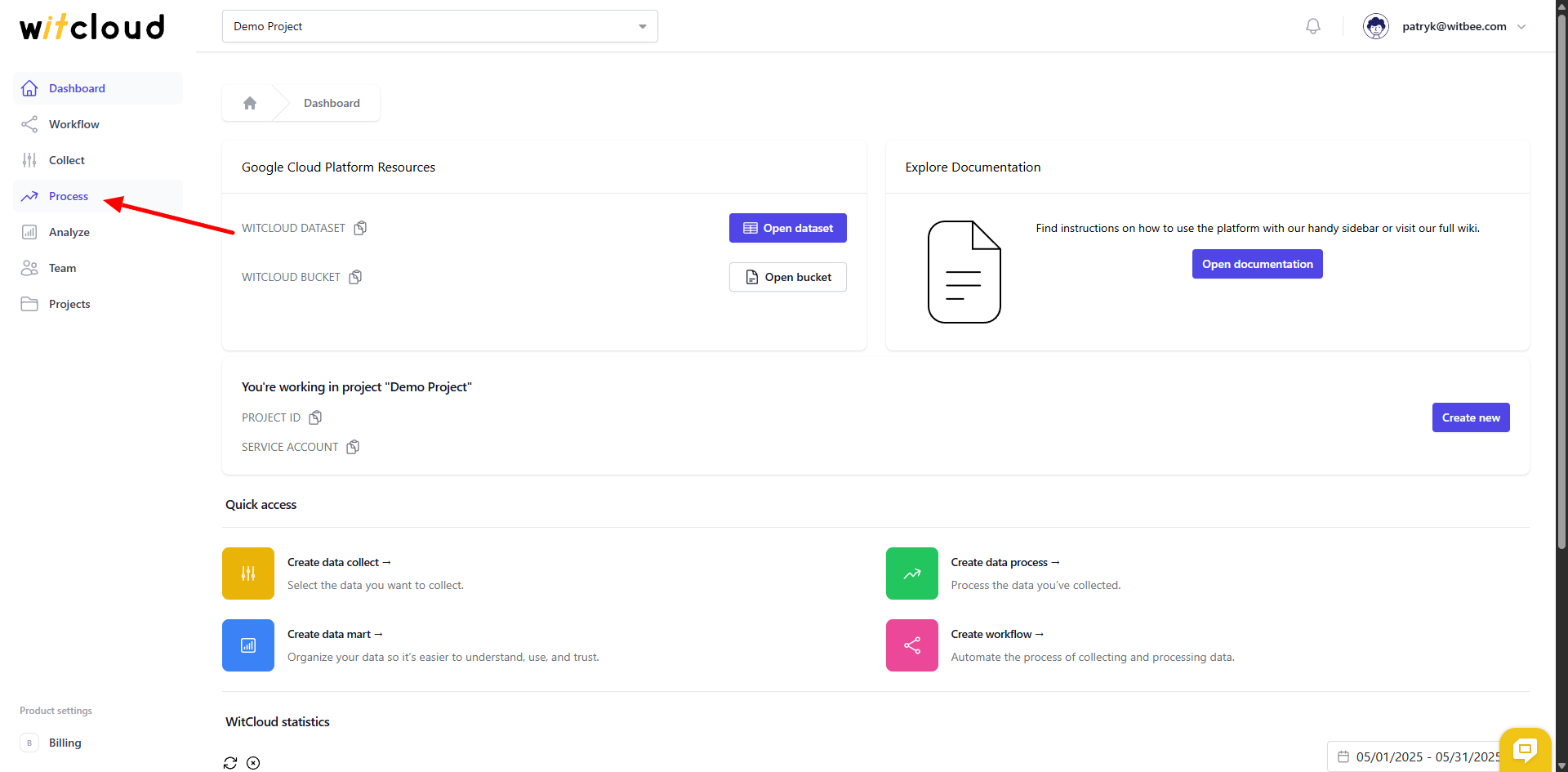
Go to the Process section in the menu > Click Create Data Process.
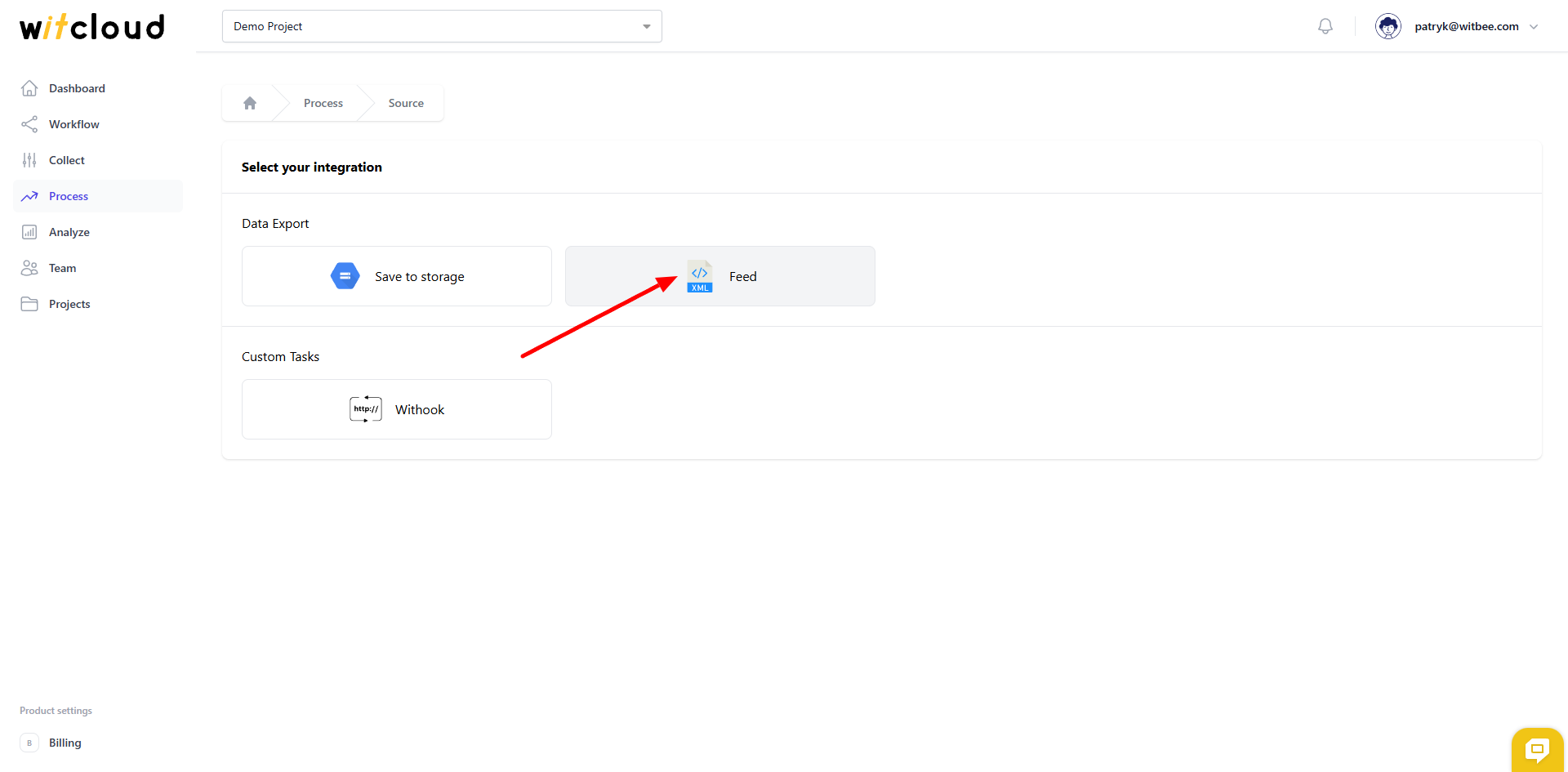
Select Feed from the list of available integrations.
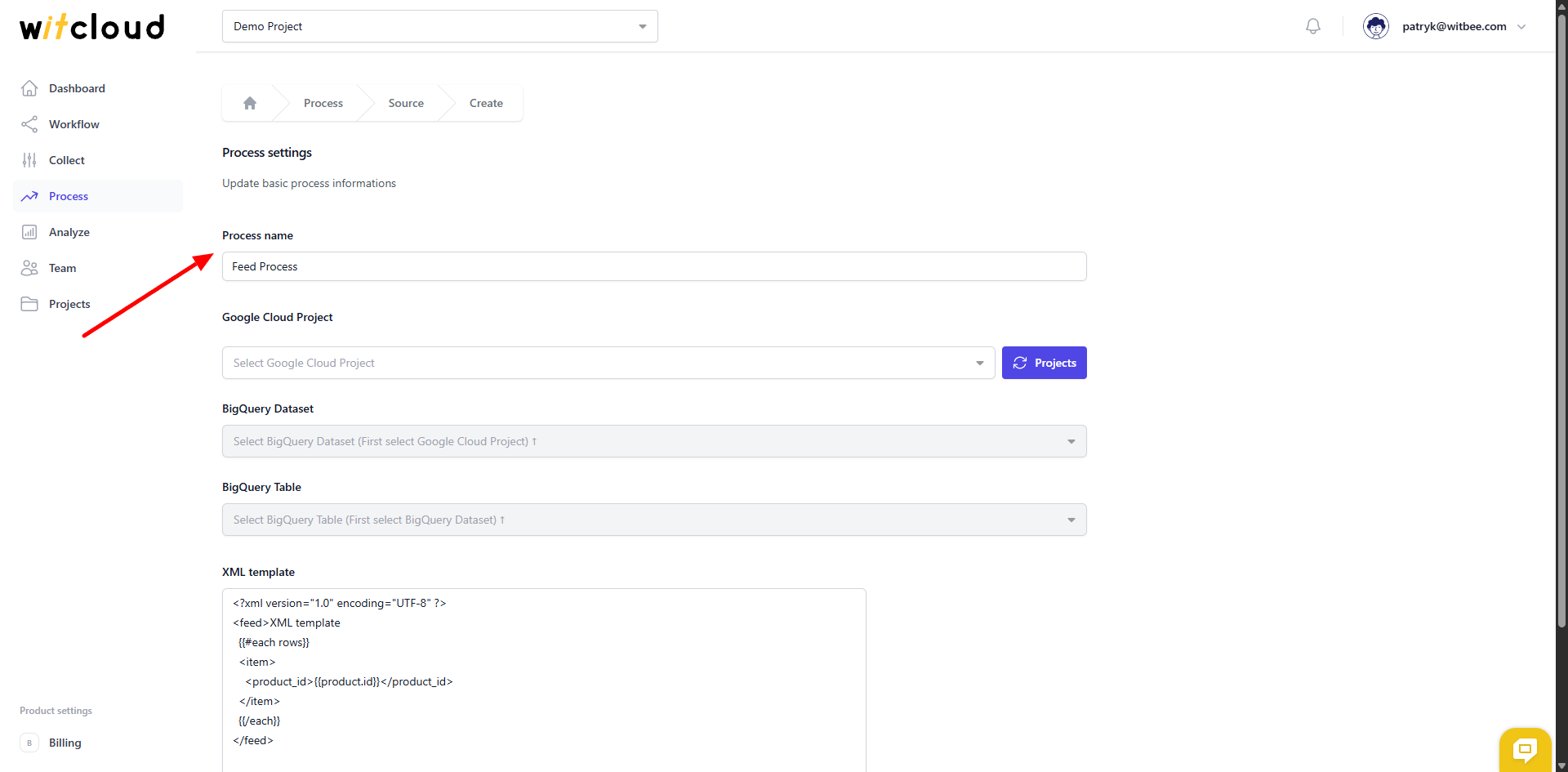
Enter the Process Name, e.g., "Feed".
Start by selecting the Google Cloud Project where your data is stored.
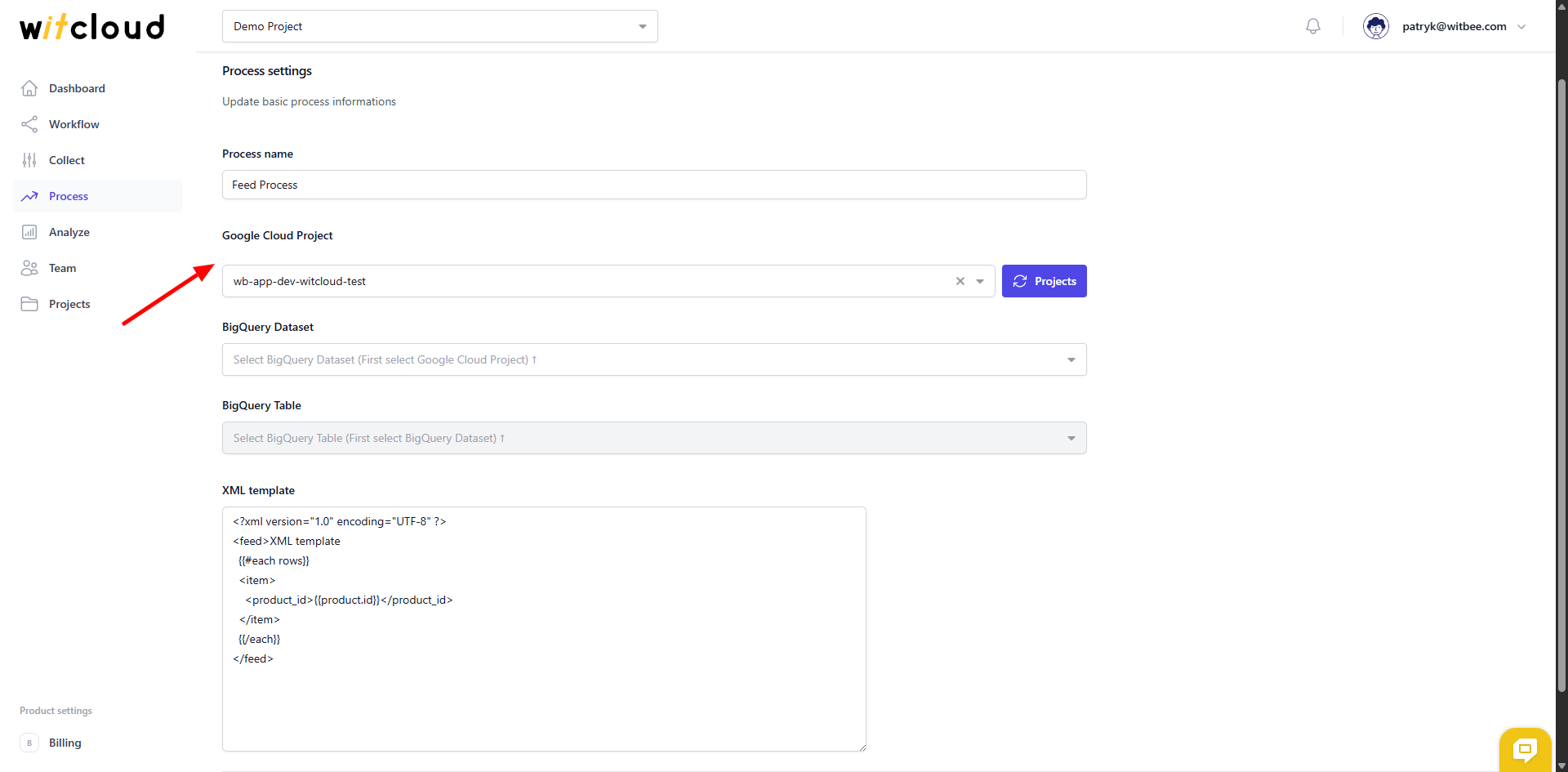
Next, pick the BigQuery dataset that contains the table you want to use.
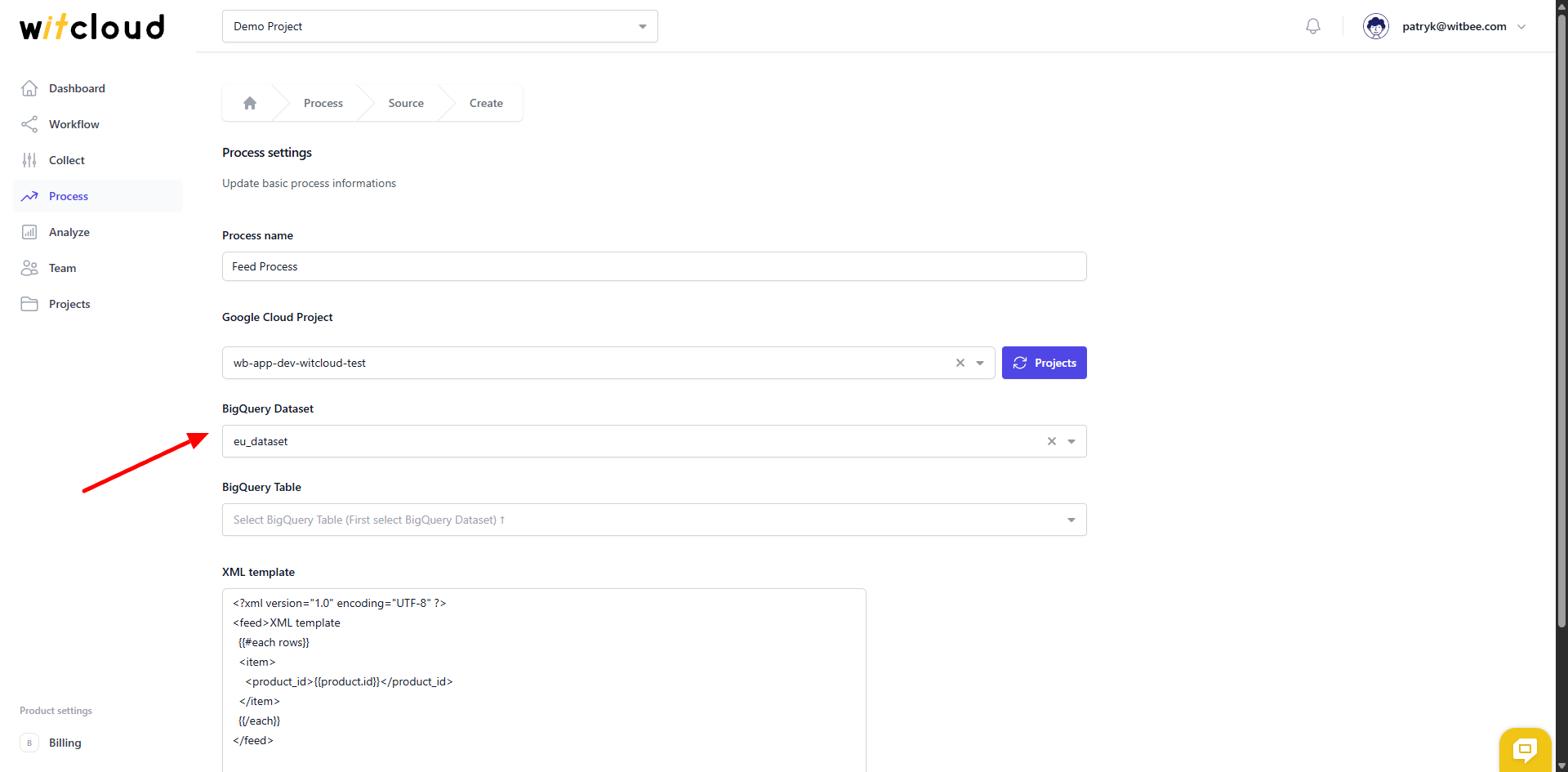
Now choose the specific BigQuery table you want to generate the feed from.
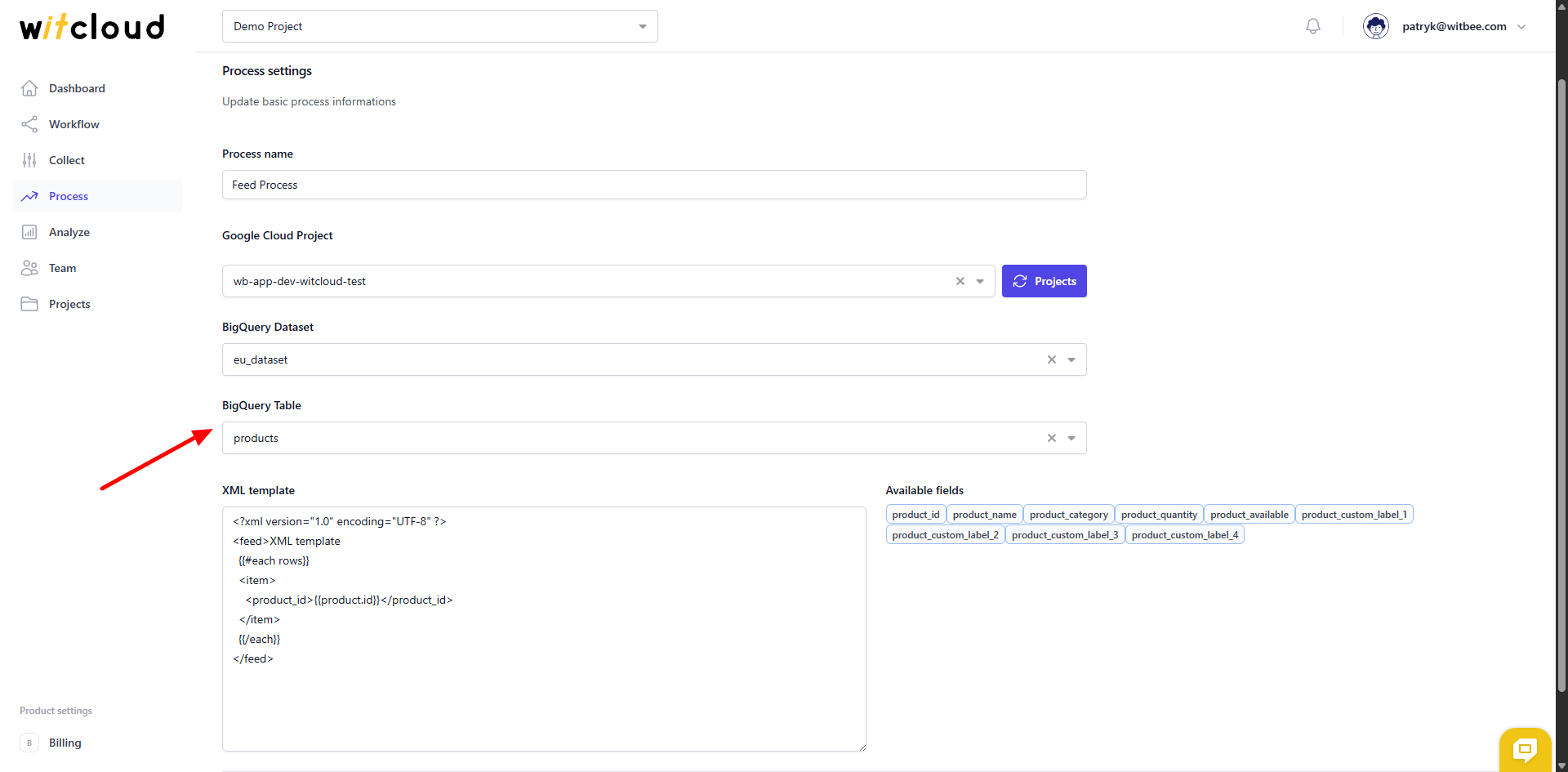
In the XML template field, you define the structure of your XML file. On the right side, we’ve fetched the available fields from the selected table, which will be automatically inserted into the XML file. Each row from the table will appear in the XML file as a separate item.
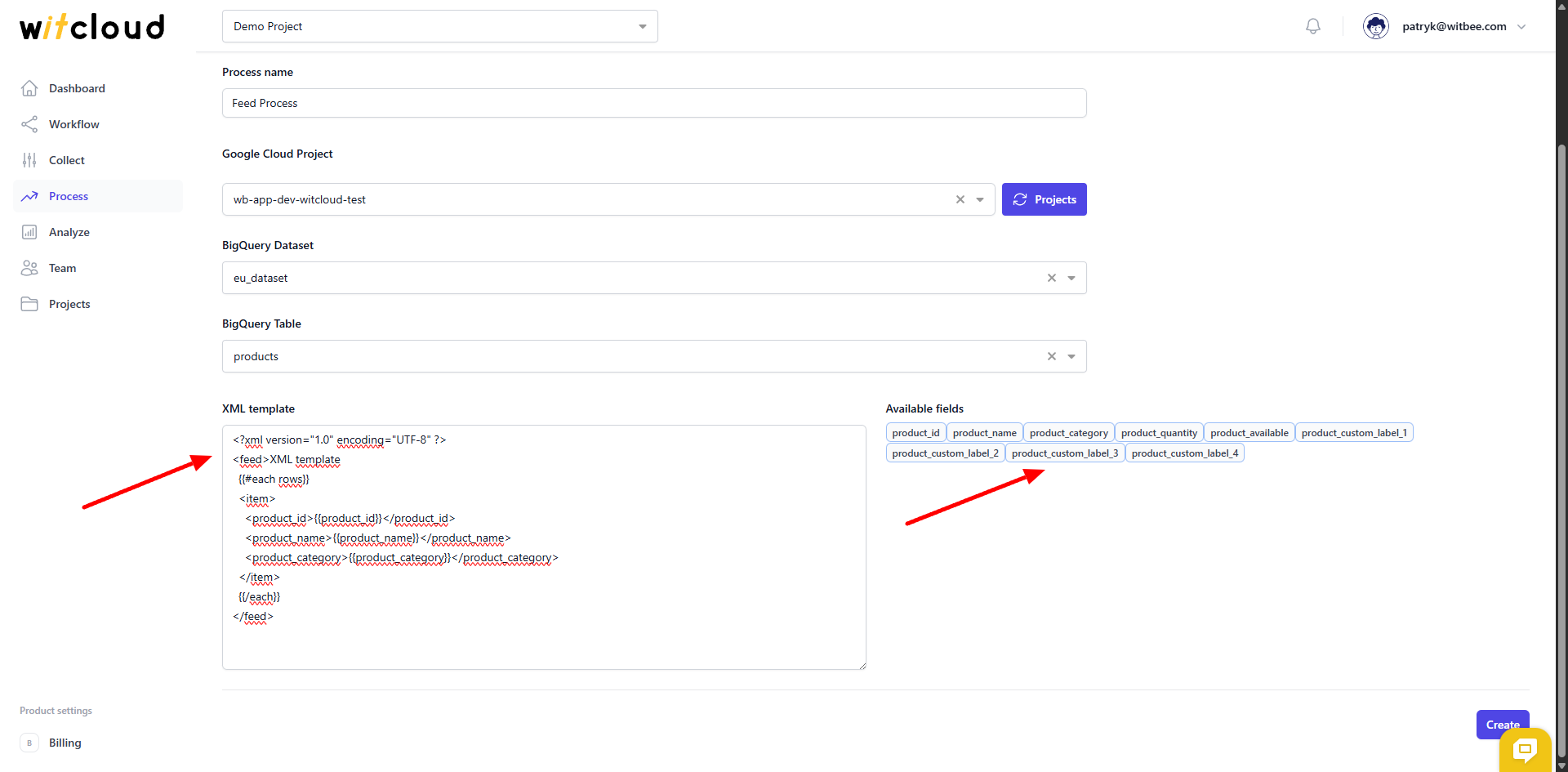
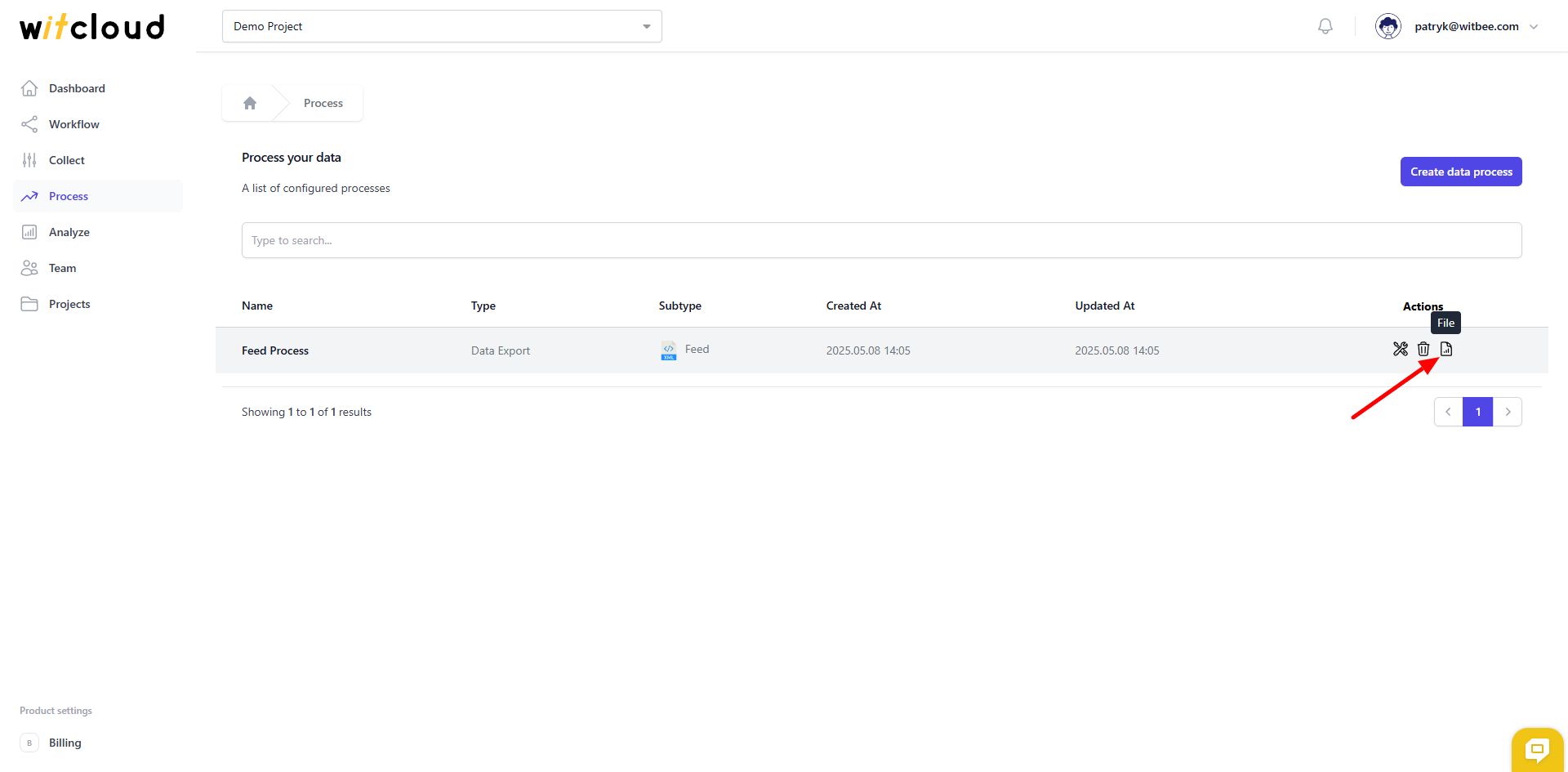
✅ Done! Feed module is now ready to use. You can find your xml file using File icon in the process list.
Remember that the file will only appear after you execute the module in the Workflow!
⏳ Execution and scheduling
To run the module and assign it a schedule, you need to configure a Workflow. You can read more about it here.