
Save to Storage Module Integration
📢 Introduction
The Save to storage module allows you to export data from BigQuery directly to Google Cloud Storage. You can either export the results of a Query Job or export data directly from a selected BigQuery table. This is particularly useful for archiving, sharing, or further processing your data outside of BigQuery.
📝 Configuration Guide
Follow the steps below to create and configure the Save to storage module.
🔧 Module Setup
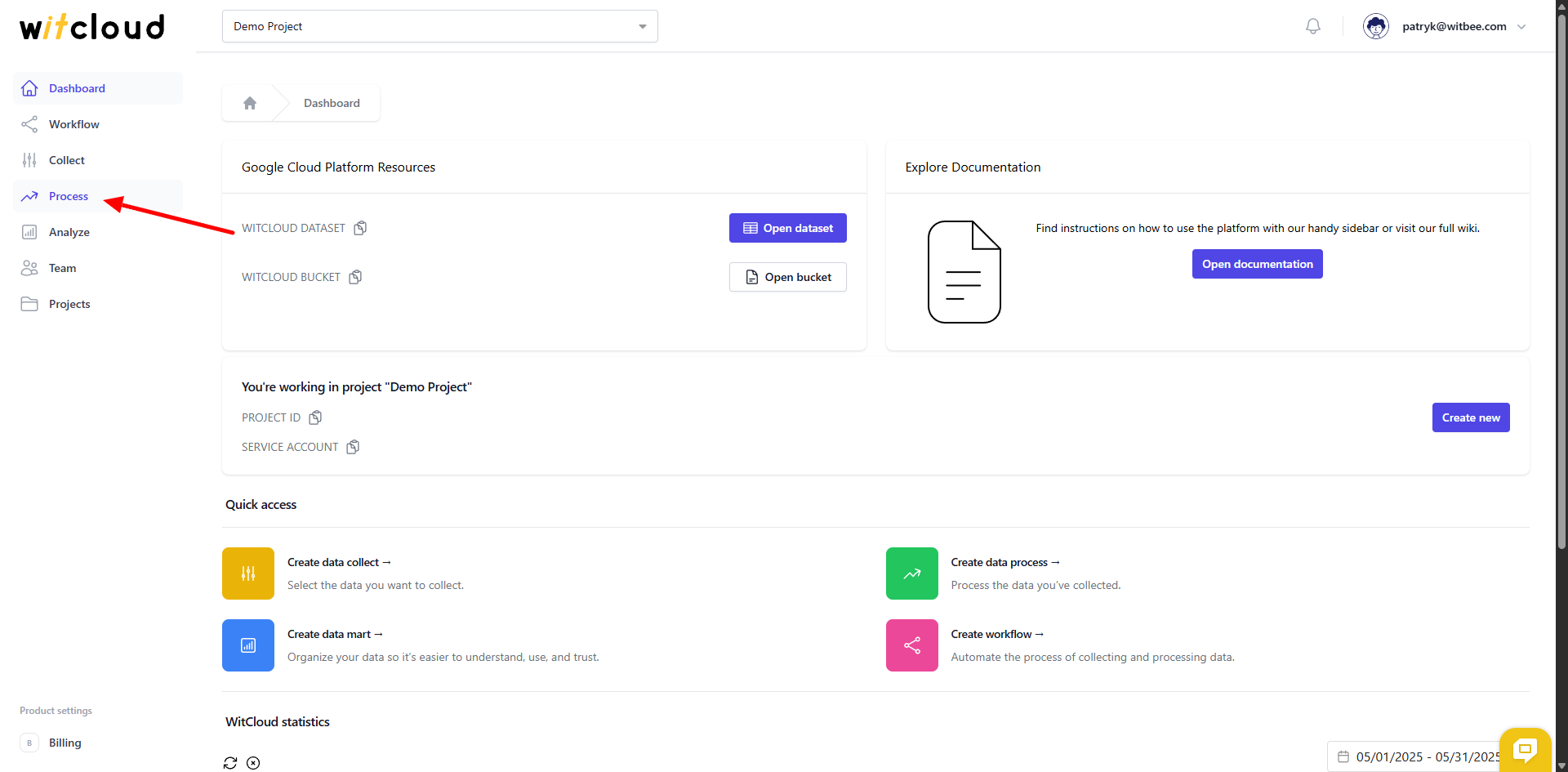
Go to the Process section in the sidebar menu and click Create Data Process.
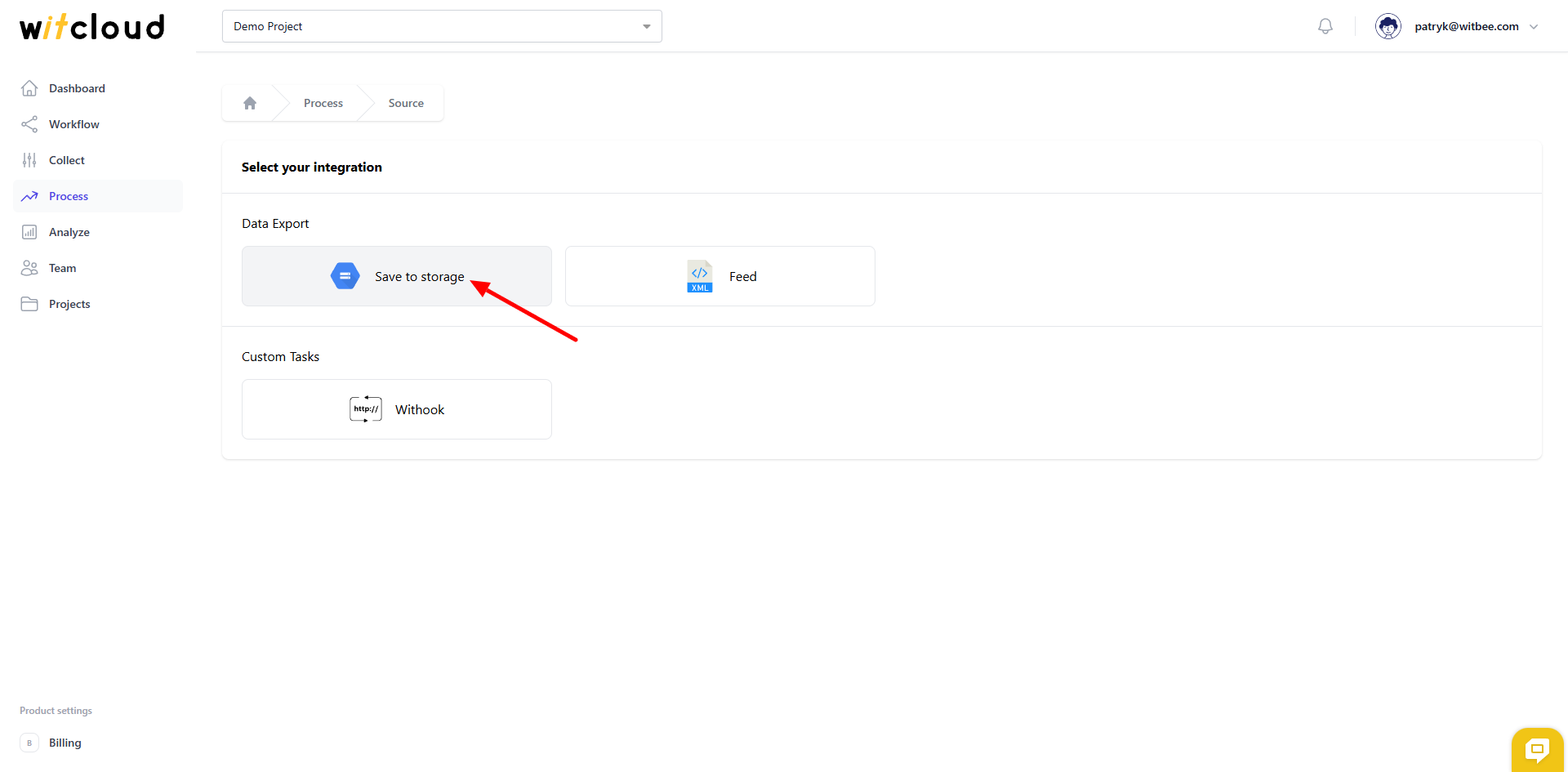
From the list of available integrations, select Save to storage.
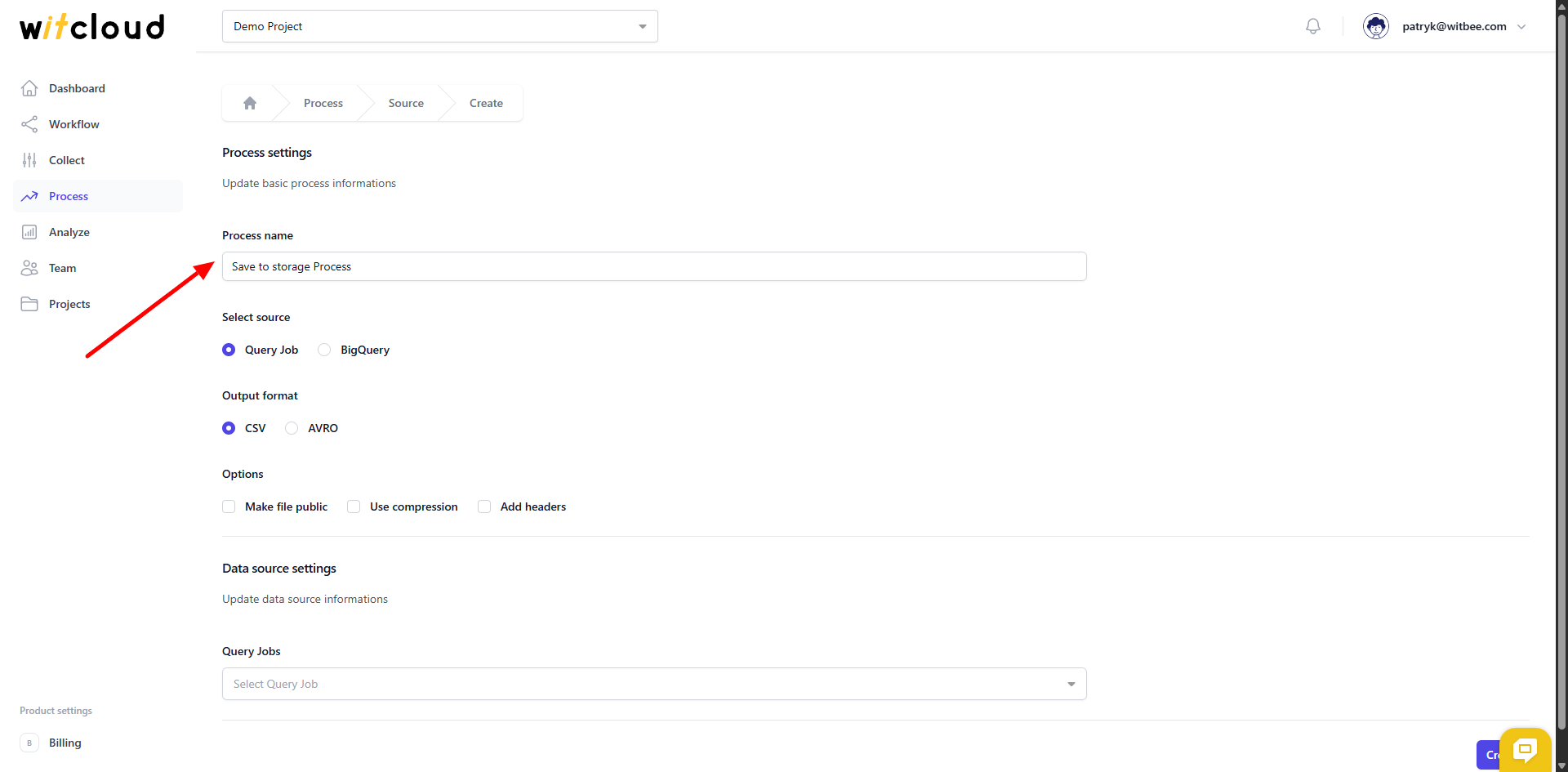
Give your process a descriptive name, e.g., "Save to storage Process".
🔹 Choose Data Source
You can choose between two data source options:
- Query Job – export the result of a saved query.
- BigQuery – export data directly from a specific BigQuery table.
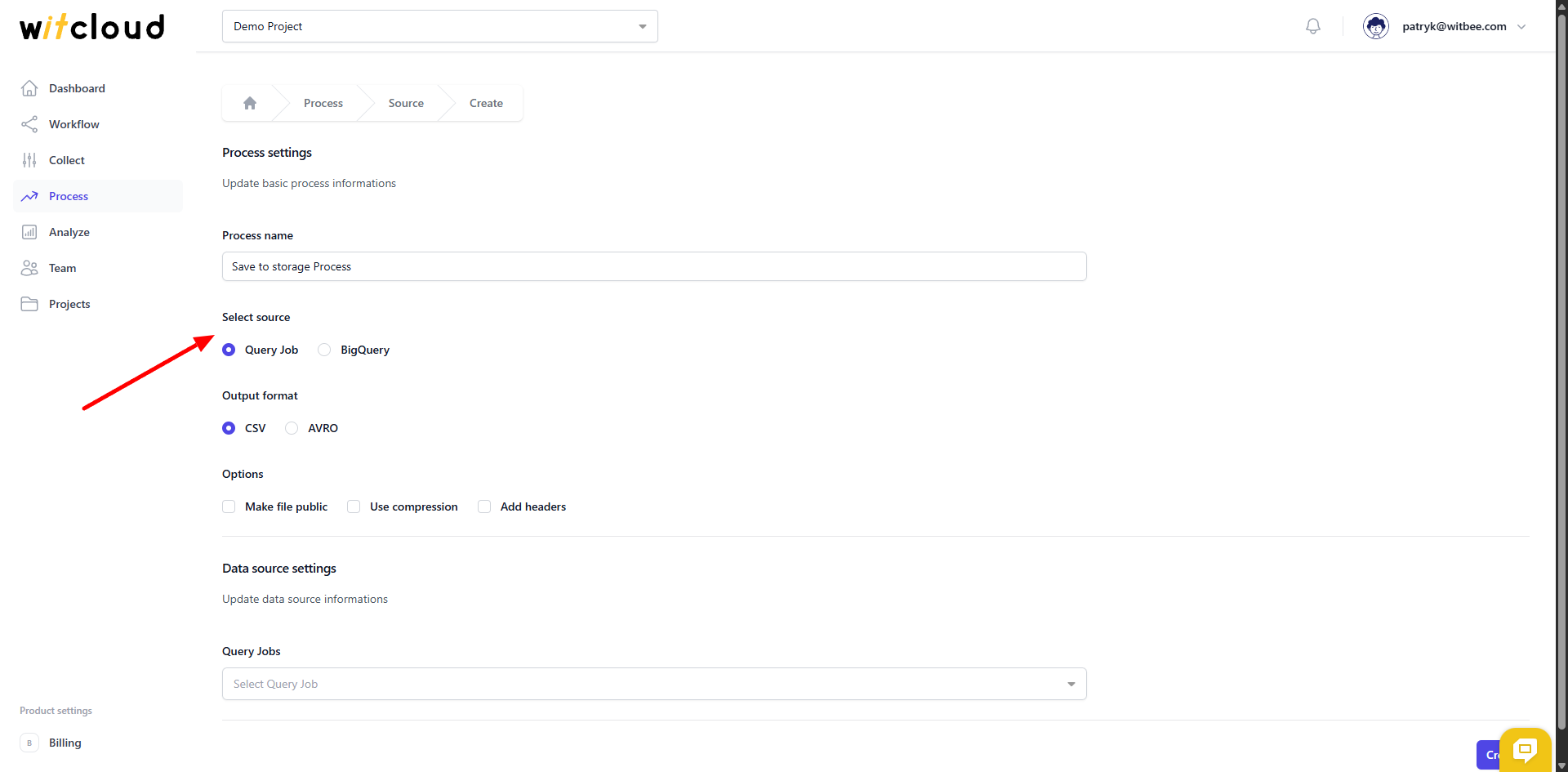
If you select Query Job, choose a predefined query from the dropdown.
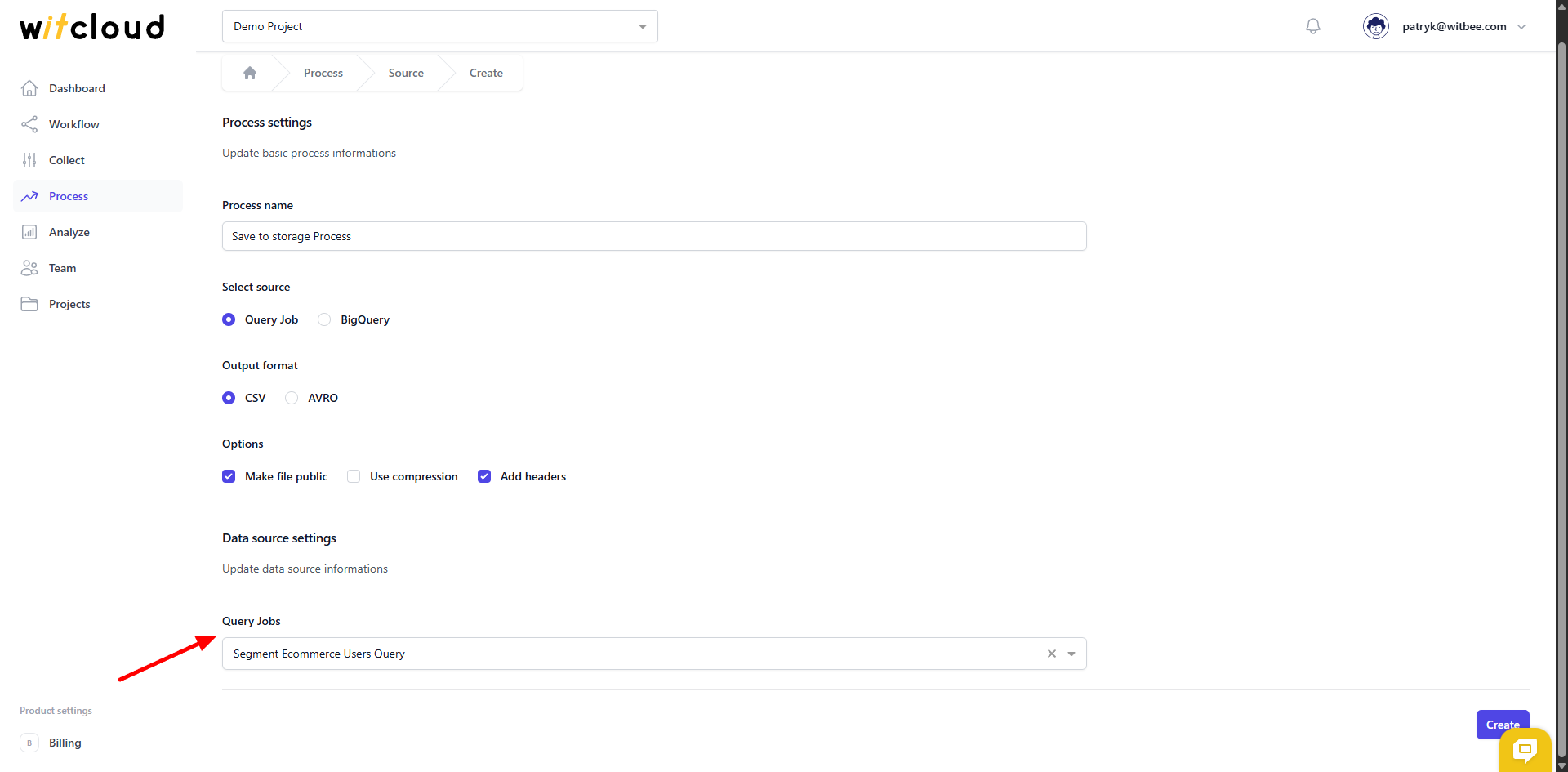
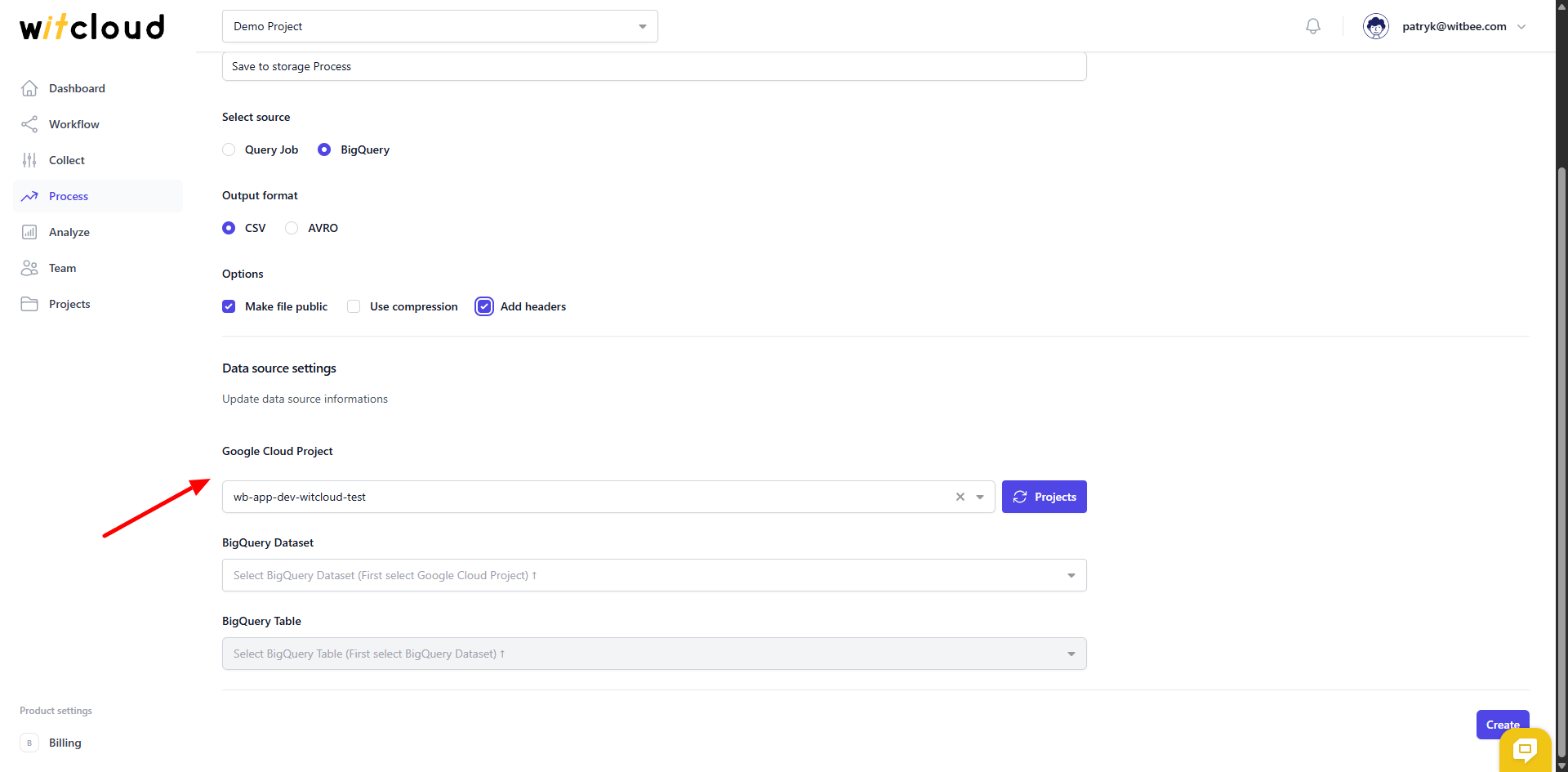
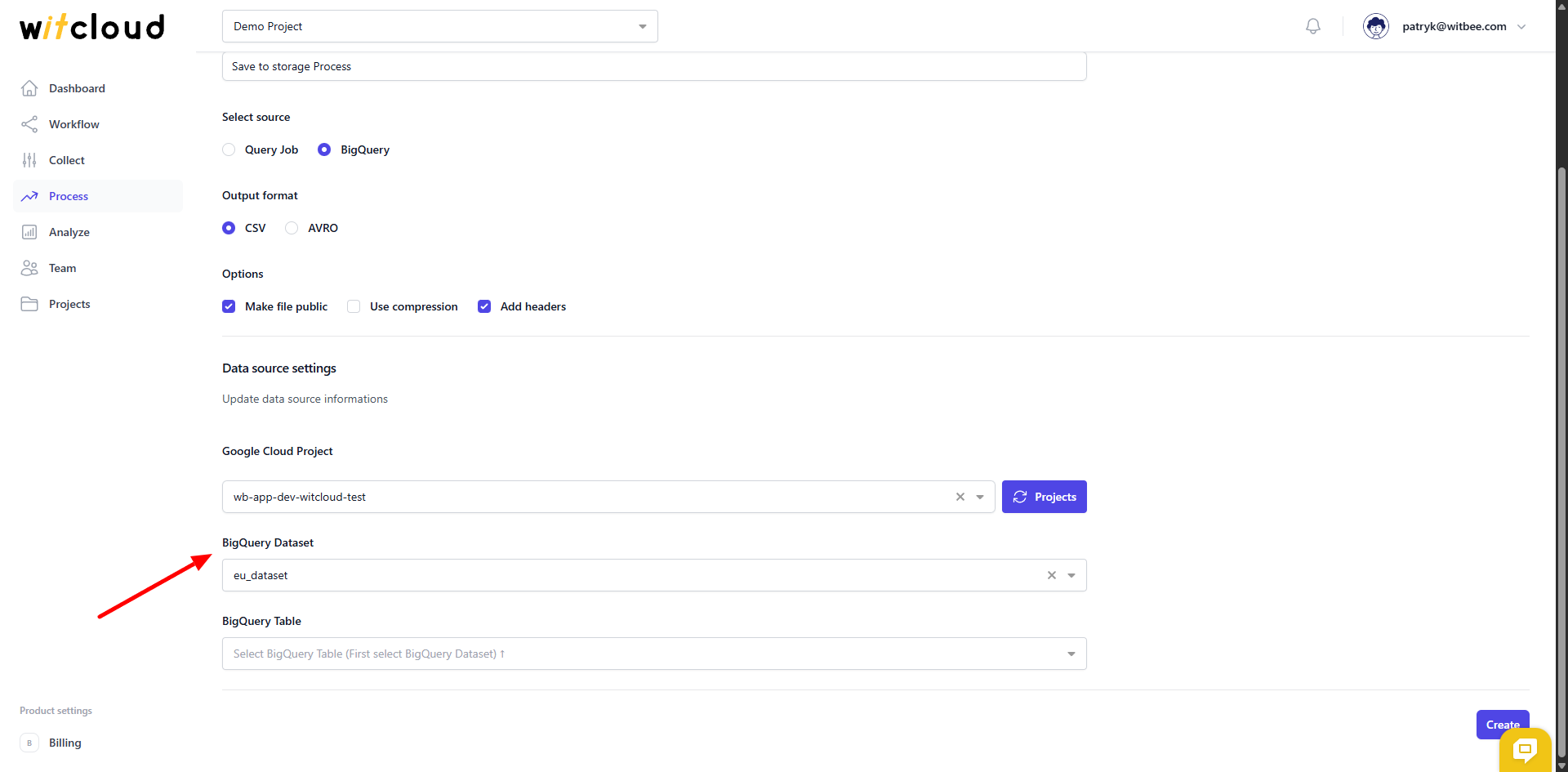
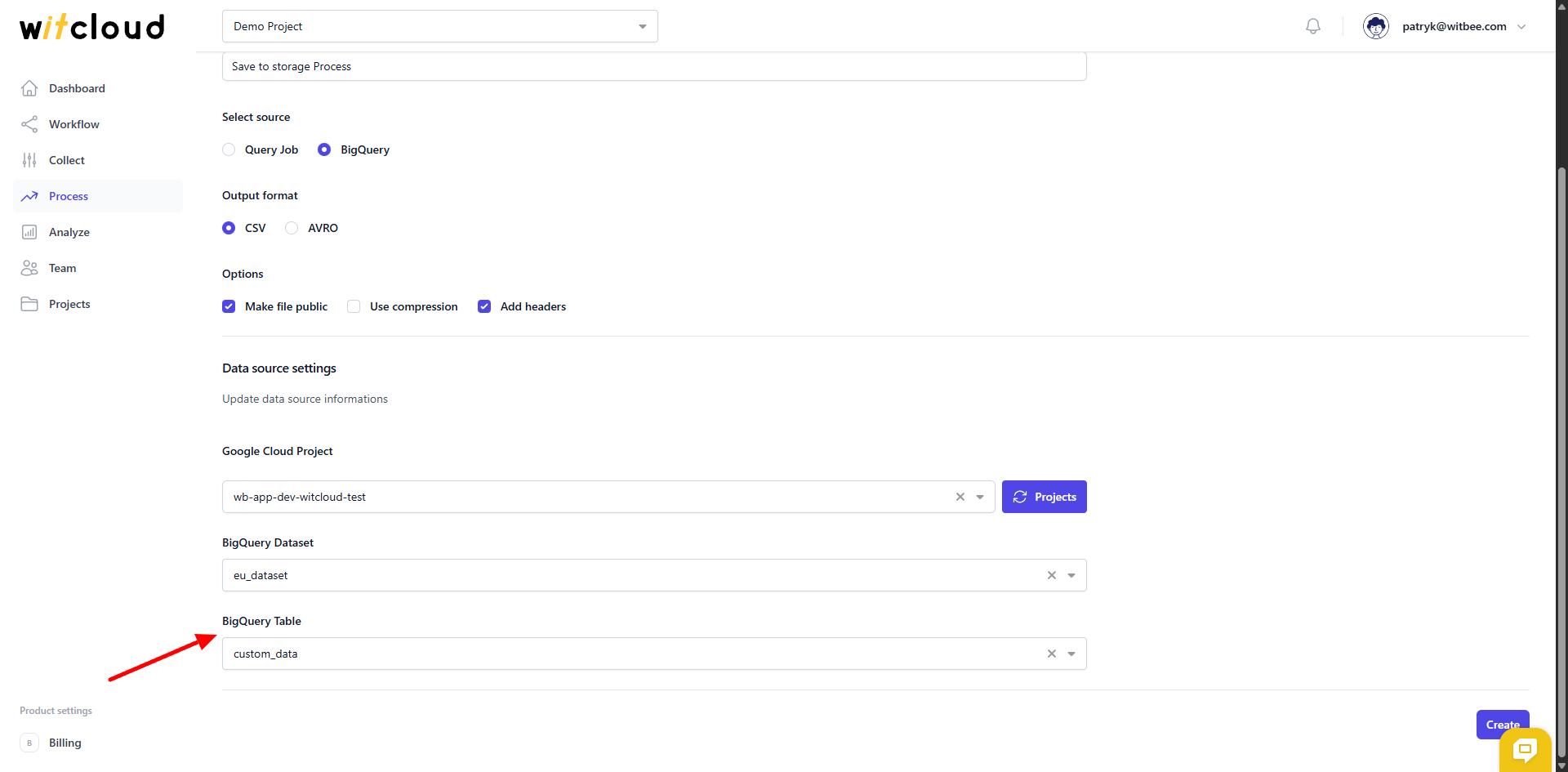
If you select BigQuery, you'll need to:
- Choose a Google Cloud Project.
- Select the BigQuery Dataset.
- Pick the BigQuery Table you want to export from.
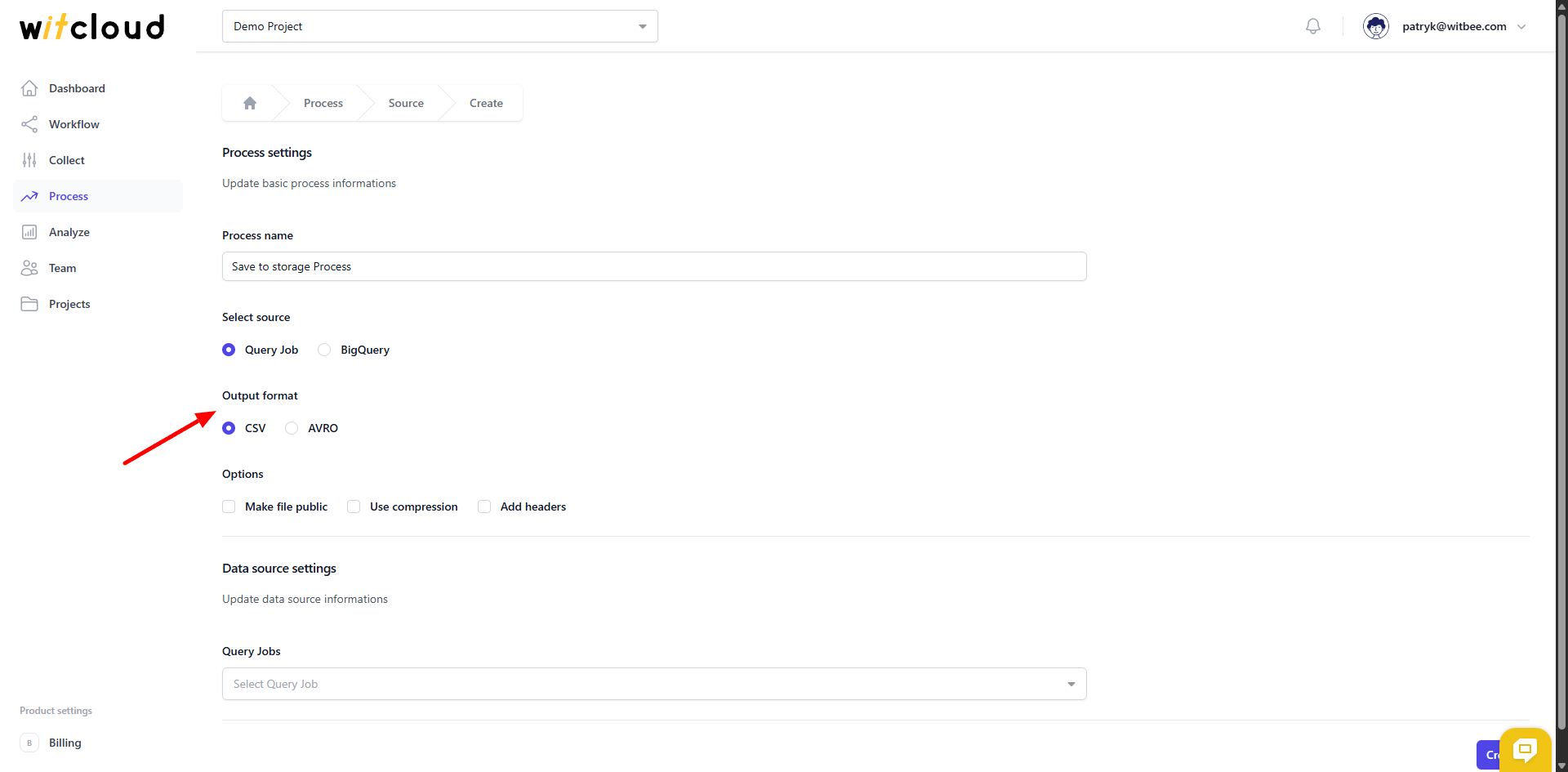
🔍 Output Format
Select the desired output format for your export:
- CSV (default)
- AVRO
💾 Export Options
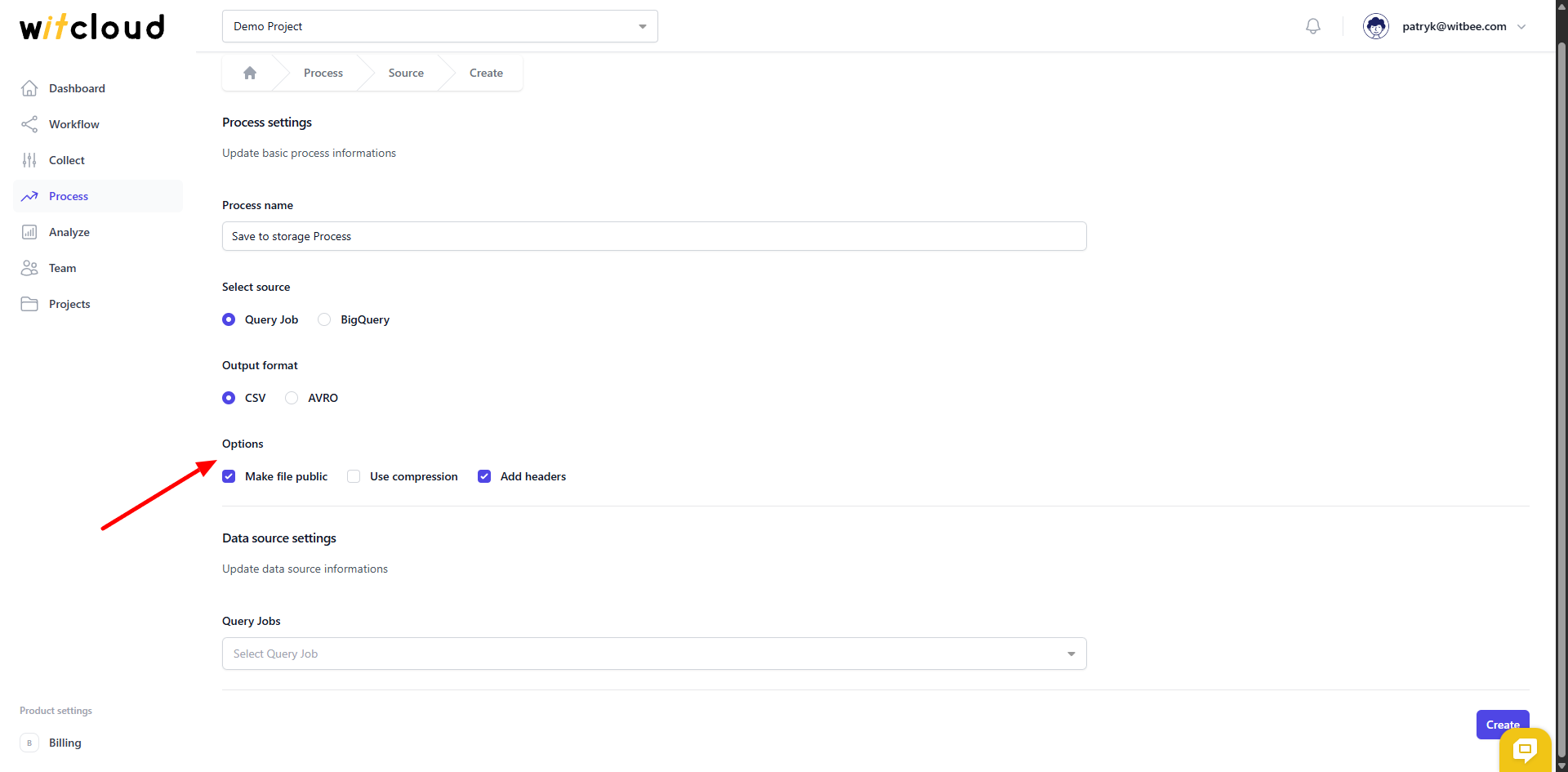
You can also configure additional export options:
- Make file public – allows public access to the file in storage.
- Use compression – compress the exported file.
- Add headers – include column names as headers (applies to CSV only).
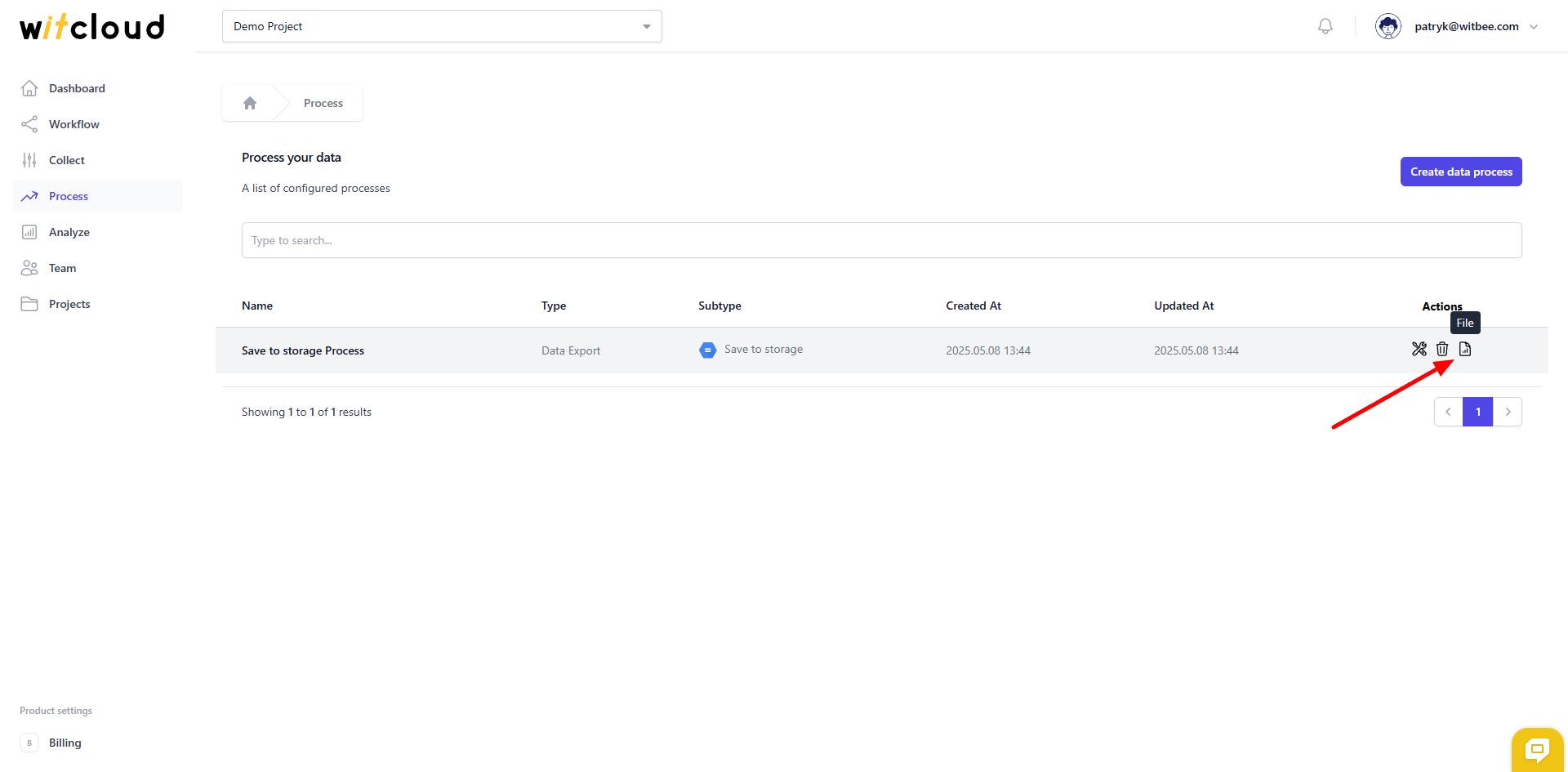
✅ Done! Save to storage module is now ready to use. You can find your file using File icon in the process list.
Remember that the file will only appear after you execute the module in the Workflow!
⏳ Execution and scheduling
To run the module and assign it a schedule, you need to configure a Workflow. You can read more about it here.