
Integration of Search Console with BigQuery
📢 Introduction
This module integrates with the Search Console API, enabling you to collect campaign data and store it in Google Cloud BigQuery. Gain deeper insights into your data and optimize the performance of your seo efforts with real-time data collection.
📝 Configuration Guide
Follow the steps below to connect Search Console with BigQuery. Once the setup is complete, your ad data will be automatically transferred to your BigQuery project.
💡 Tip: Make sure you have admin access to your Search Console account before starting the configuration.
🔧 Module Setup
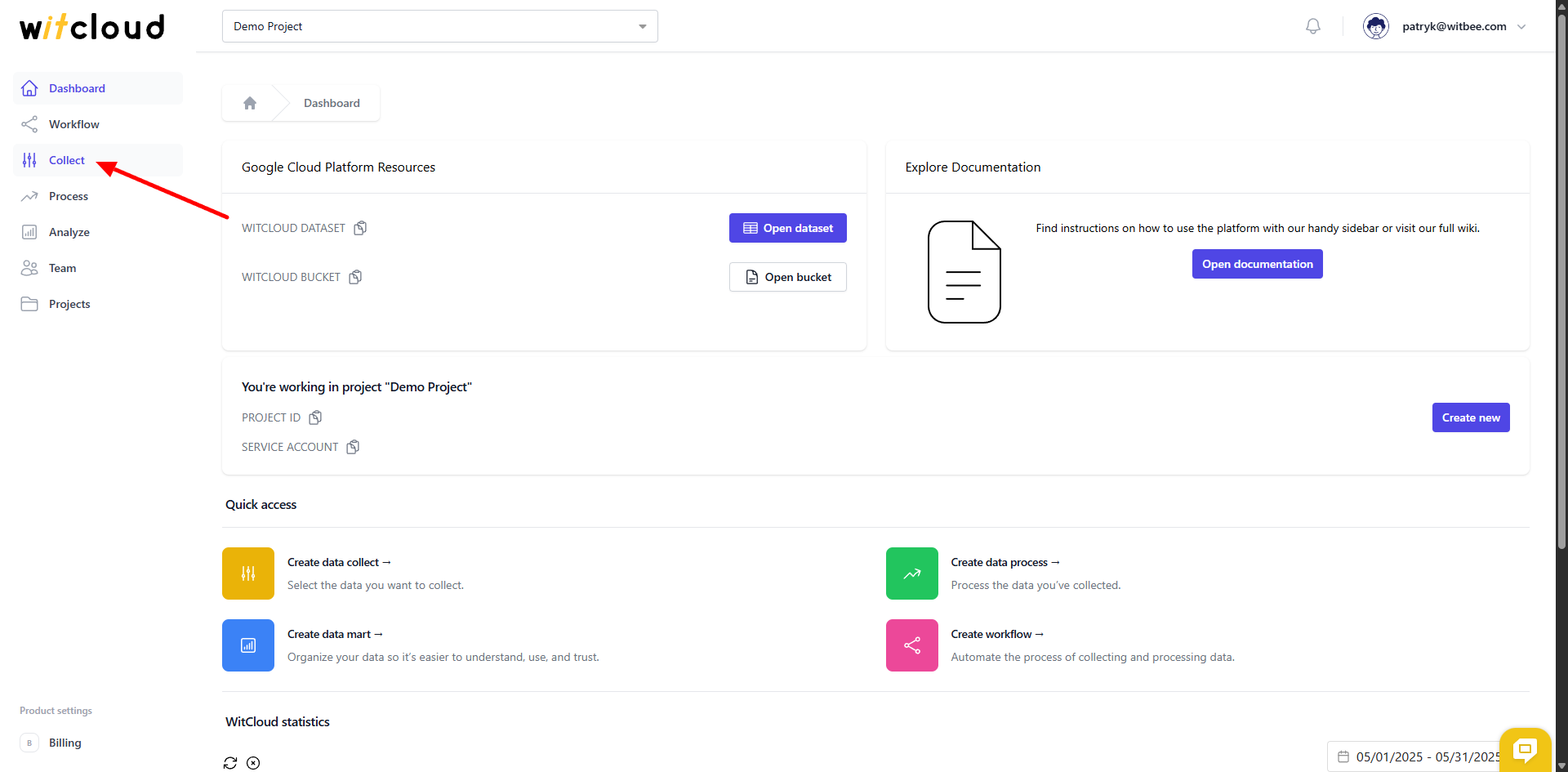
Go to the Collect section in the menu > Click Create Data Collect.
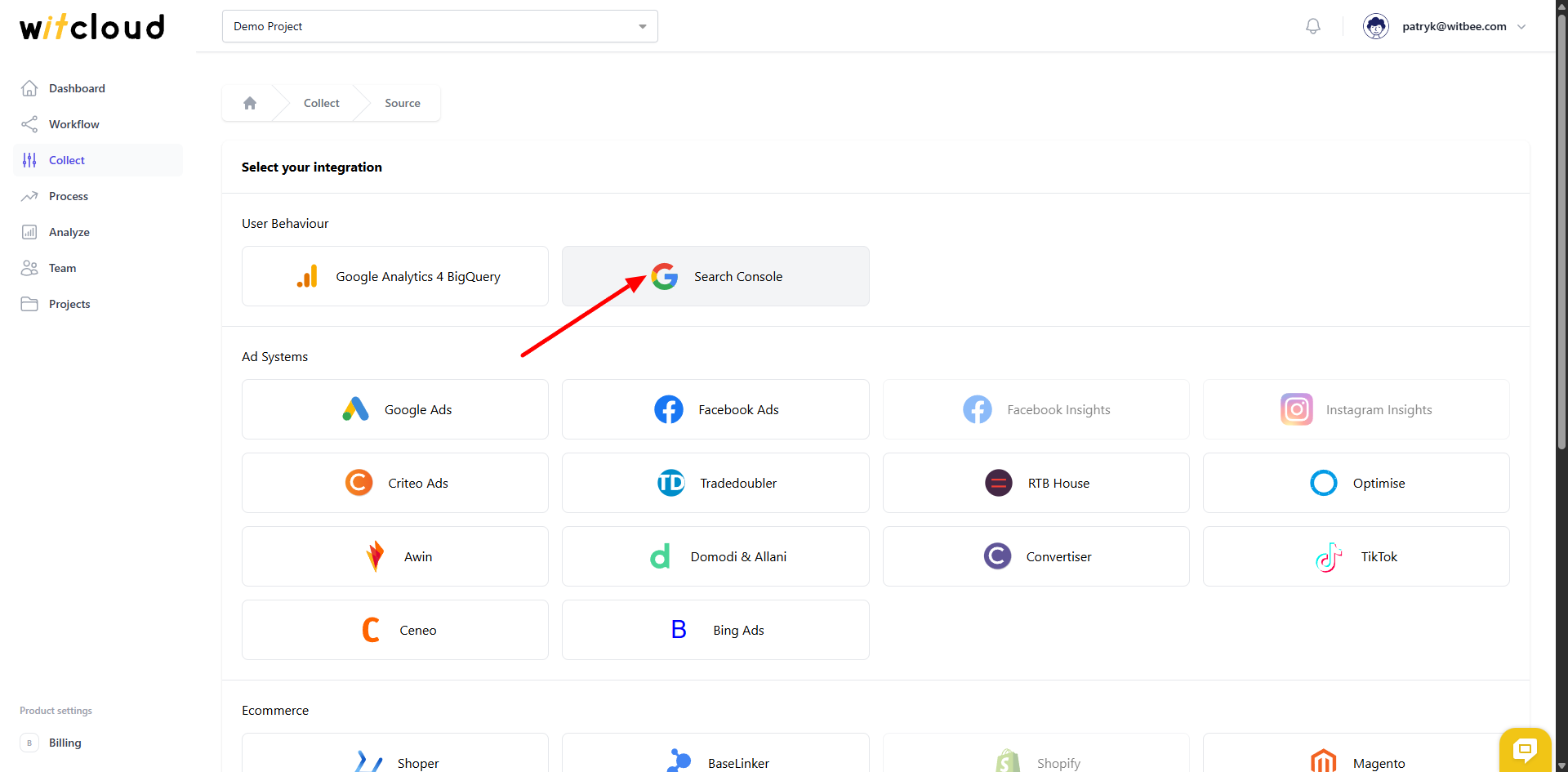
Select Search Console from the list of available integrations.
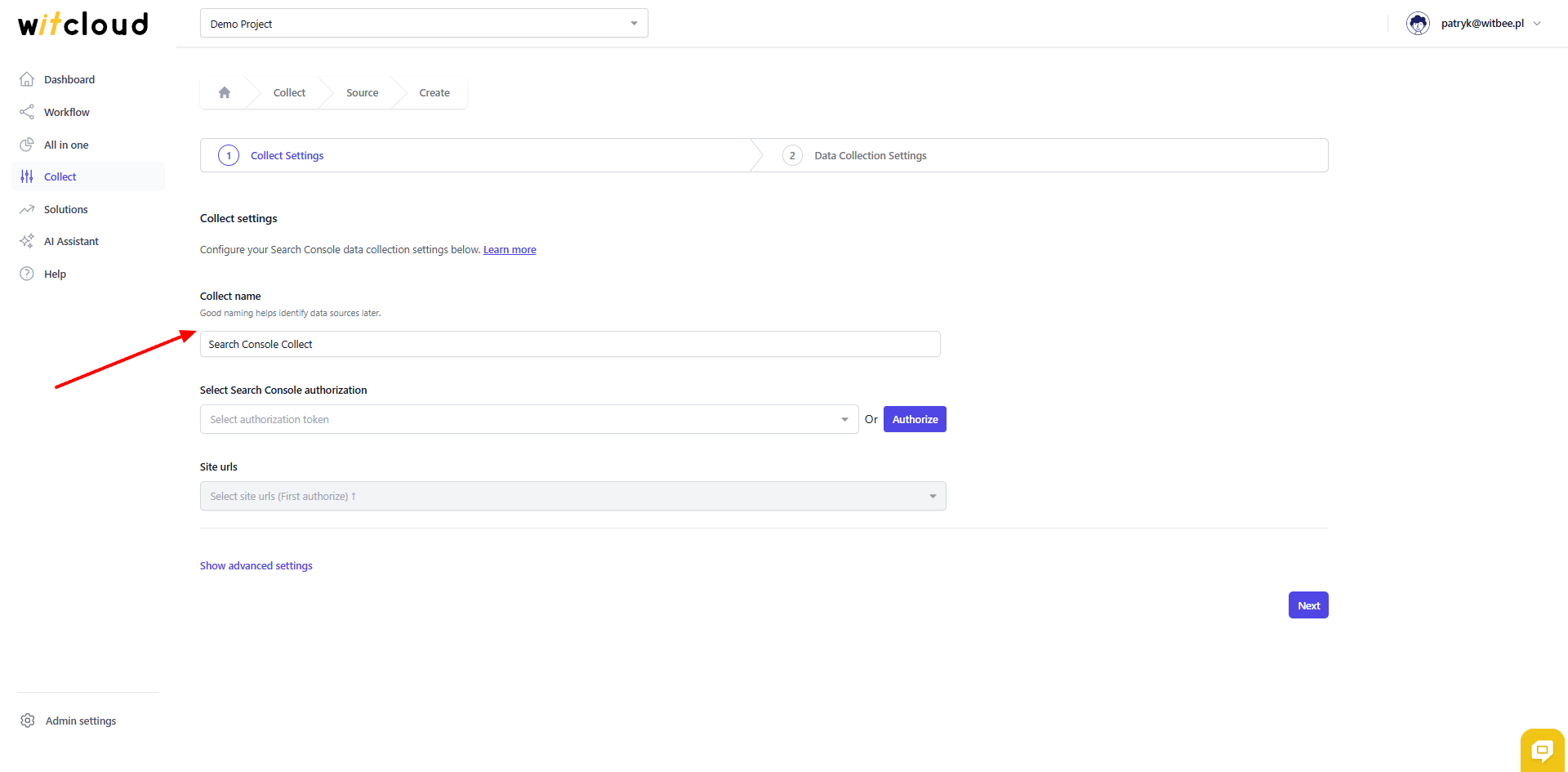
Enter the Collect Name, e.g., "Search Console Collect".
🔑 Authorization
💡 Tip: If you have already created a Search Console token and it still has the correct scopes, simply pick it from the drop‑down and skip this step.
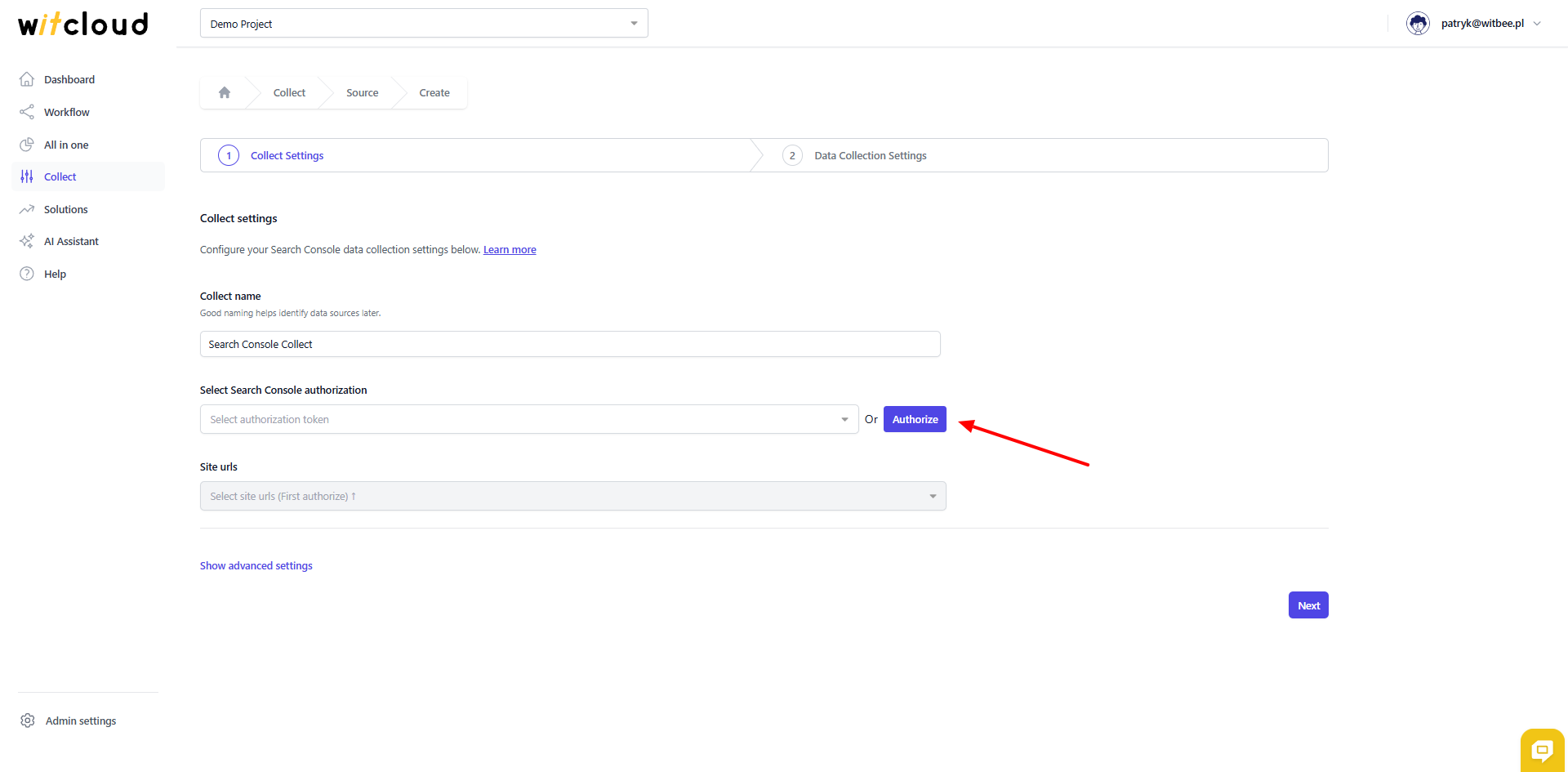
Click Authorize.
In the Google consent window:
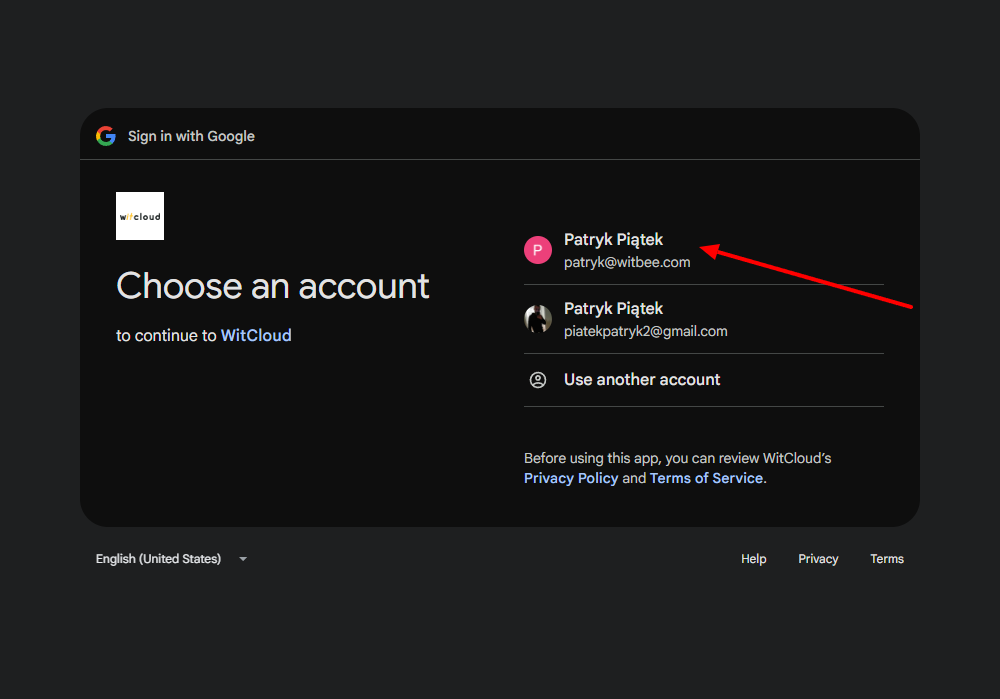
- Select the Google account you want to use.
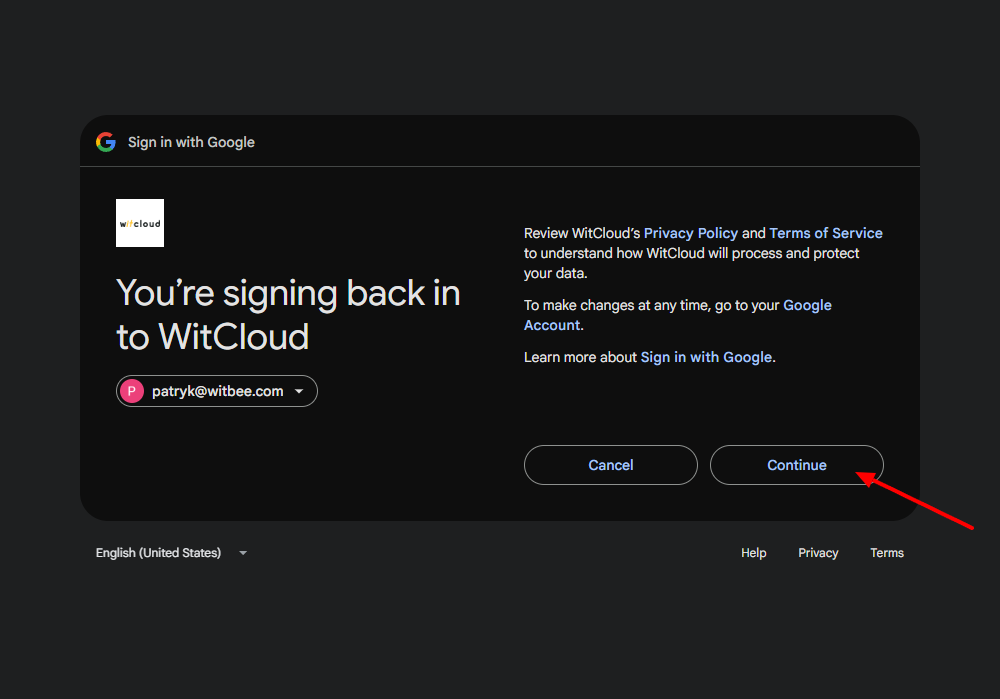
- Click Continue.
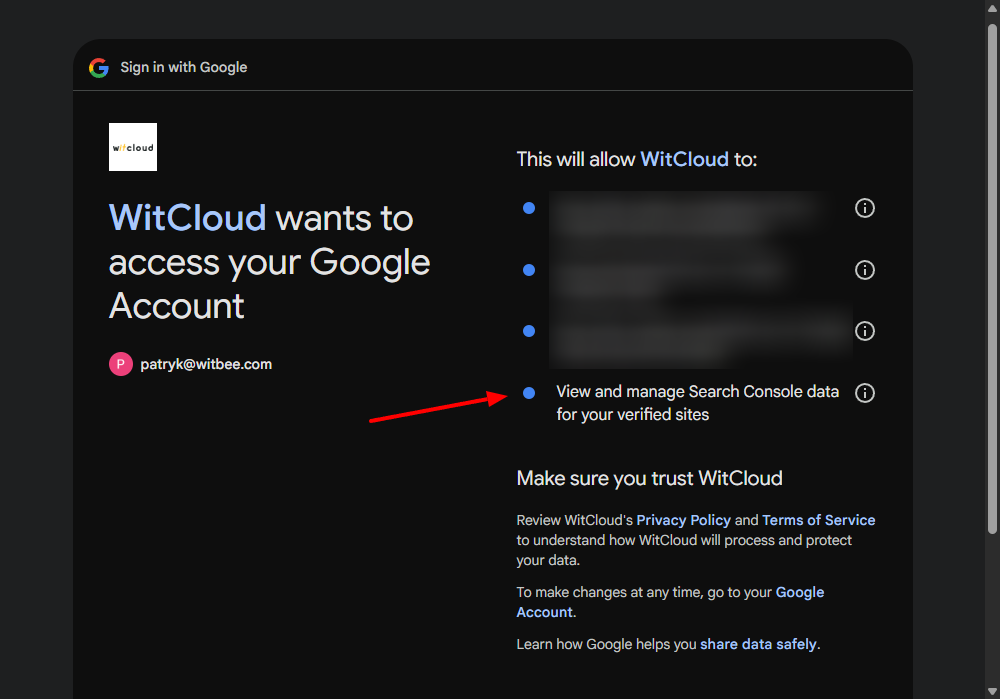
- Grant the permission “View and manage Search Console data for your verified sites”
- Click Allow.
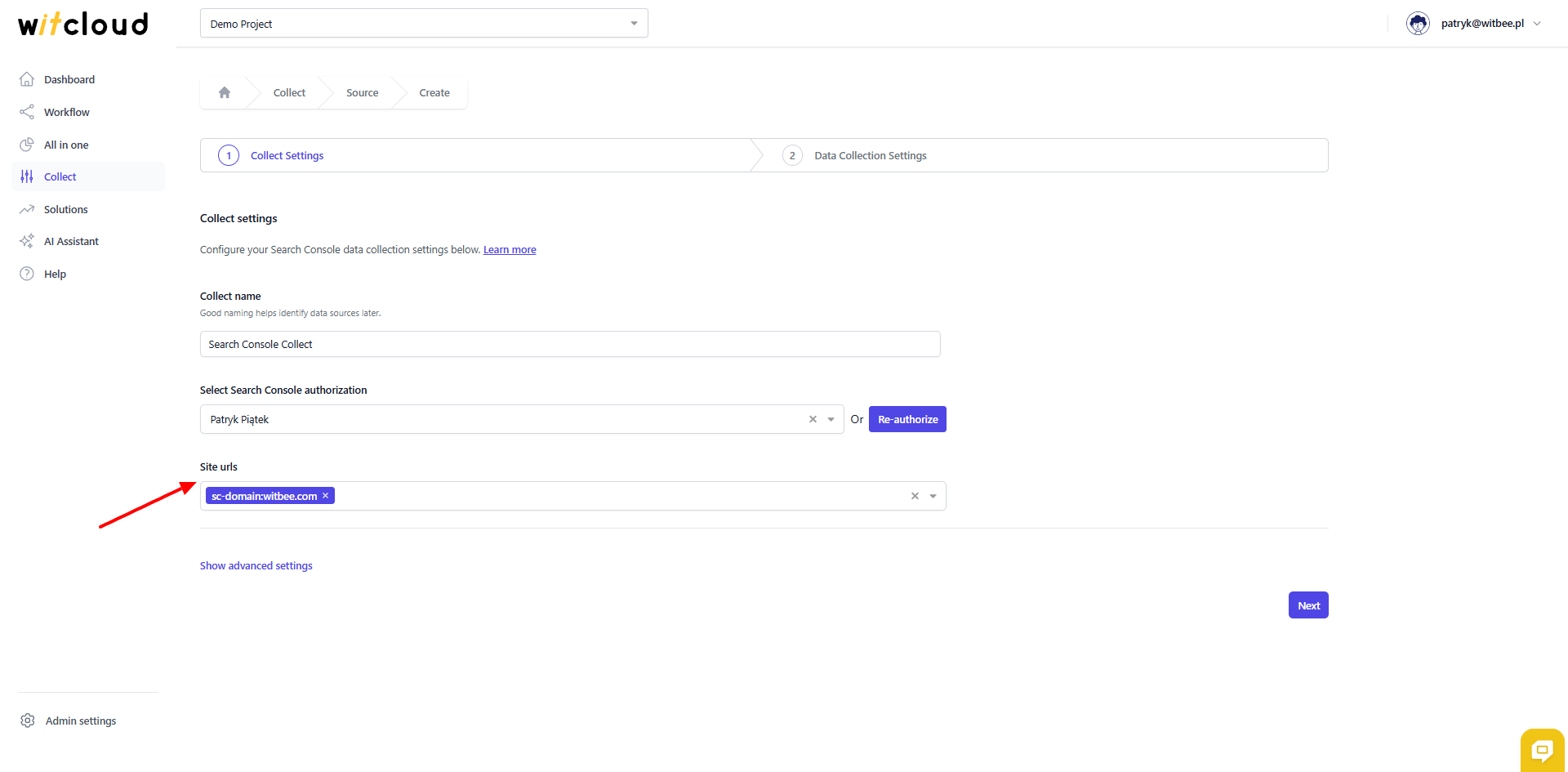
Back in WitCloud, choose the Search console site urls you wish to export.
⏳ Historical Data and Scheduling
Select the date range for which you want to fetch historical data.
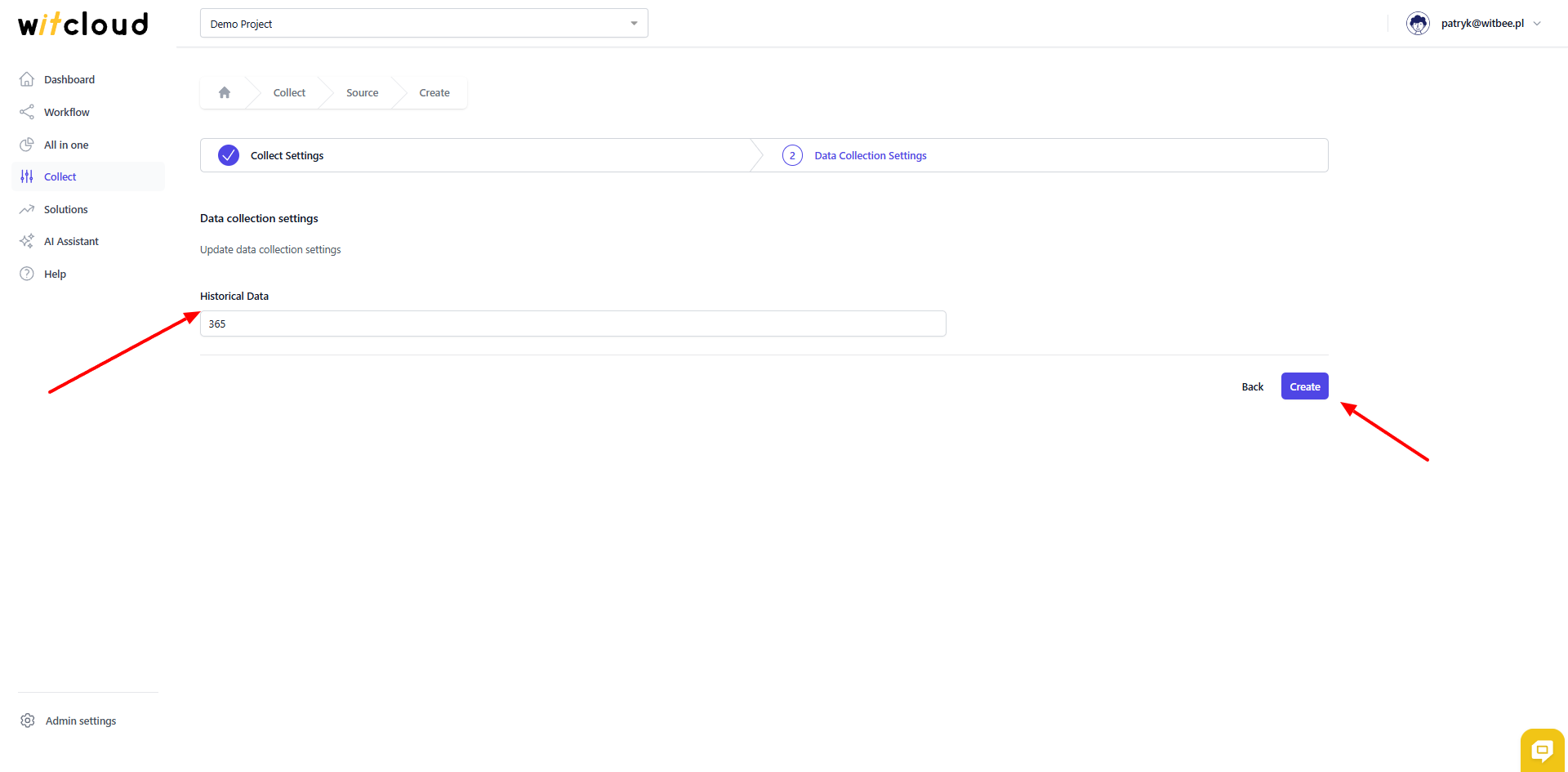
During the initial setup, you can retrieve data going back up to 12 months, with the possibility of importing older data.
A data synchronization schedule will be created automatically. More information on this topic can be found here.
Click Create to complete the configuration.
✅ Done! Your Search Console data will now be synchronized with BigQuery, providing you with detailed insights into the performance of your seo.
📊 Data Schema
Expand the tables below to view the full data schema collected from Search Console.