
Integration of Shopify with BigQuery
📢 Introduction
This module integrates with the Shopify, enabling you to collect ecommerce data and store it in Google Cloud BigQuery. Gain deeper insights into your data and optimize the performance of your ecommerce efforts with real-time data collection.
🧩 Before You Start: Custom App Setup
To authorize WitCloud with your Shopify store, you need to create a custom application in Shopify Partners and obtain the Client ID and Client Secret credentials. Follow the steps below to complete this process.
💡Tip: You need access to Shopify Partners dashboard to create a custom app. If you don't have a Partners account, create one at partners.shopify.com.
Step 1: Access the Dev Dashboard
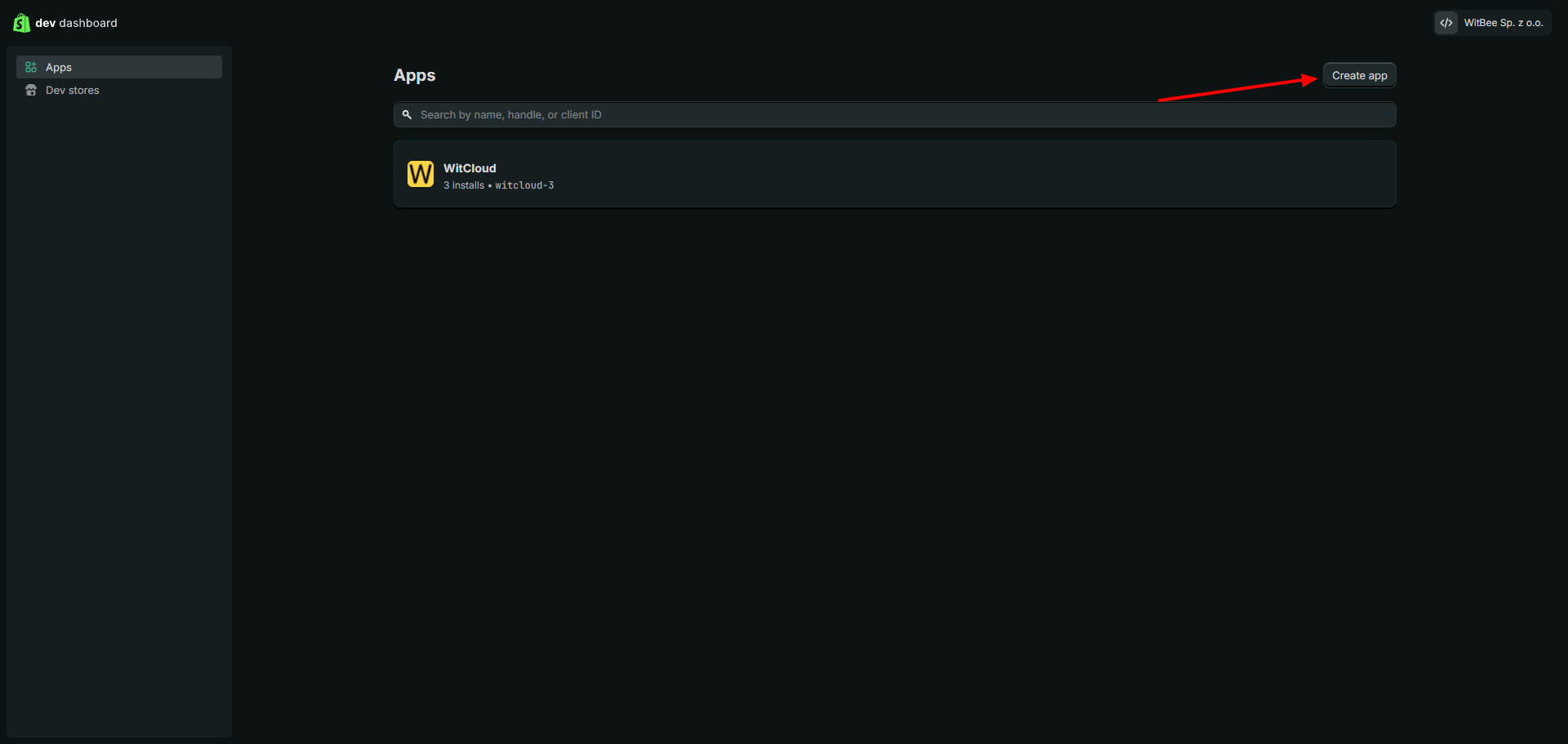
Go to Shopify Dev Dashboard and navigate to the Apps section. Click Create app in the top right corner.
Step 2: Create a New App
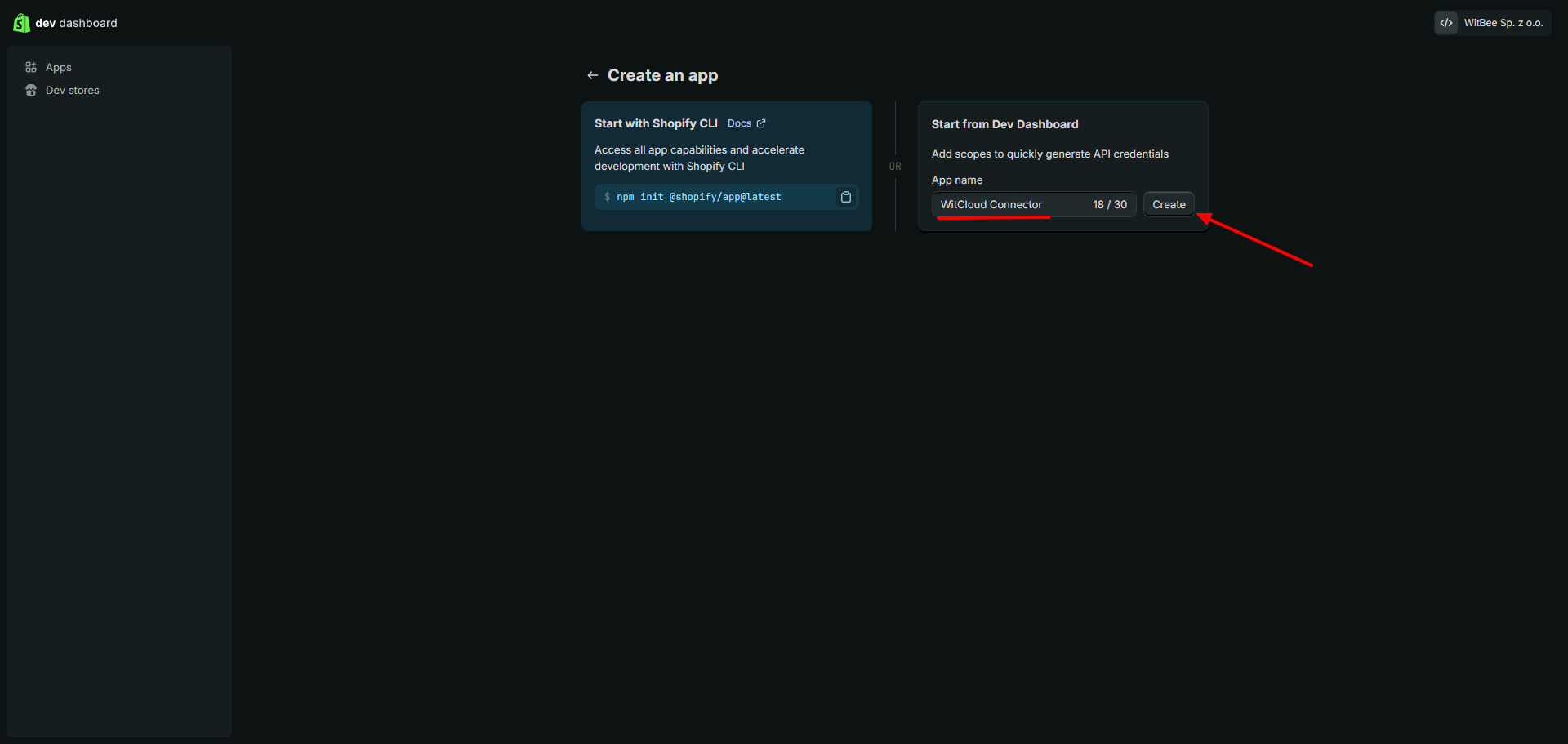
In the "Create an app" screen, select Start from Dev Dashboard option on the right side. Enter the App name (e.g., "WitCloud Connector") and click Create.
Step 3: Create a New Version
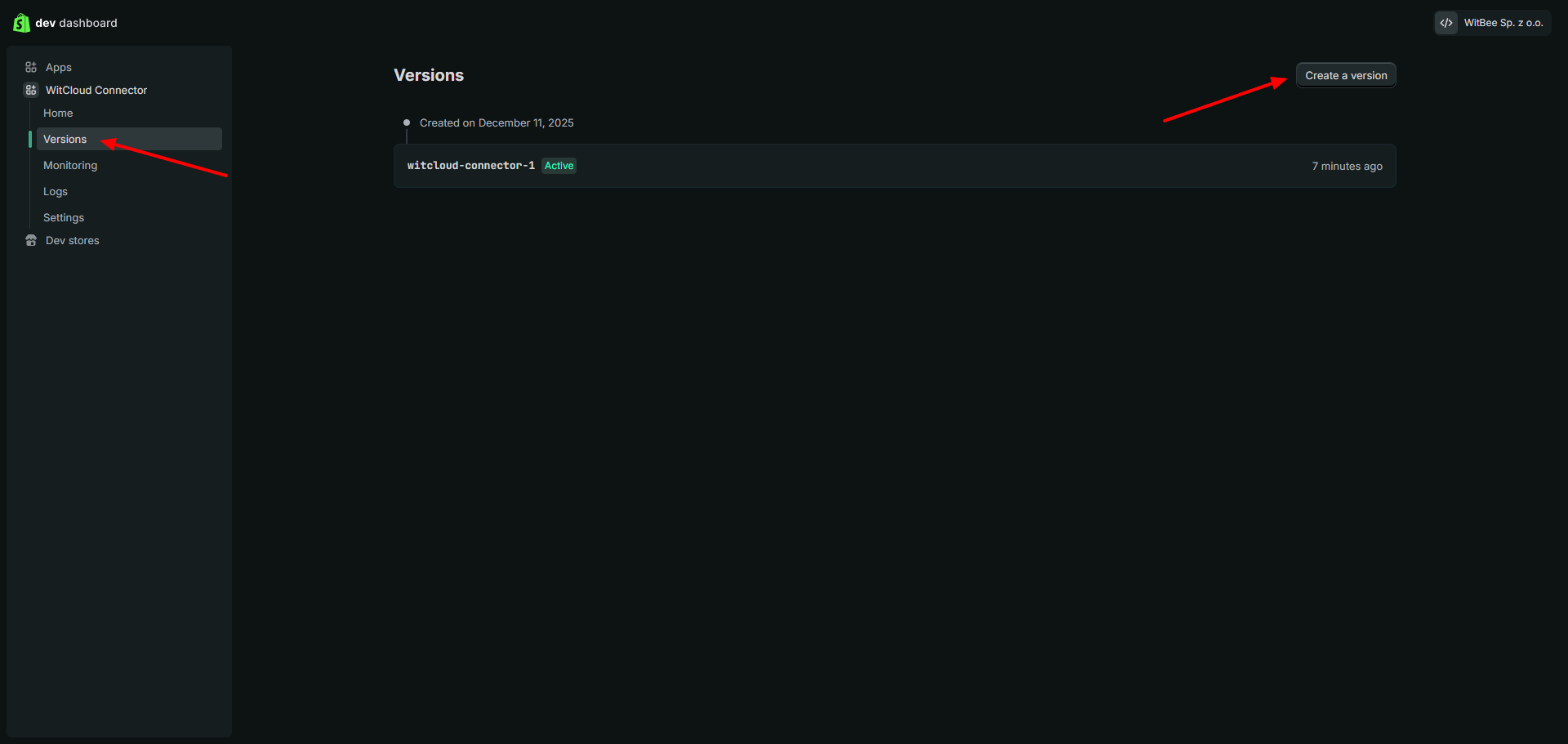
Go back to the Dev Dashboard and navigate to the Versions section. Click Create a version to create a new app version with the required scopes.
Step 4: Configure Scopes and Release
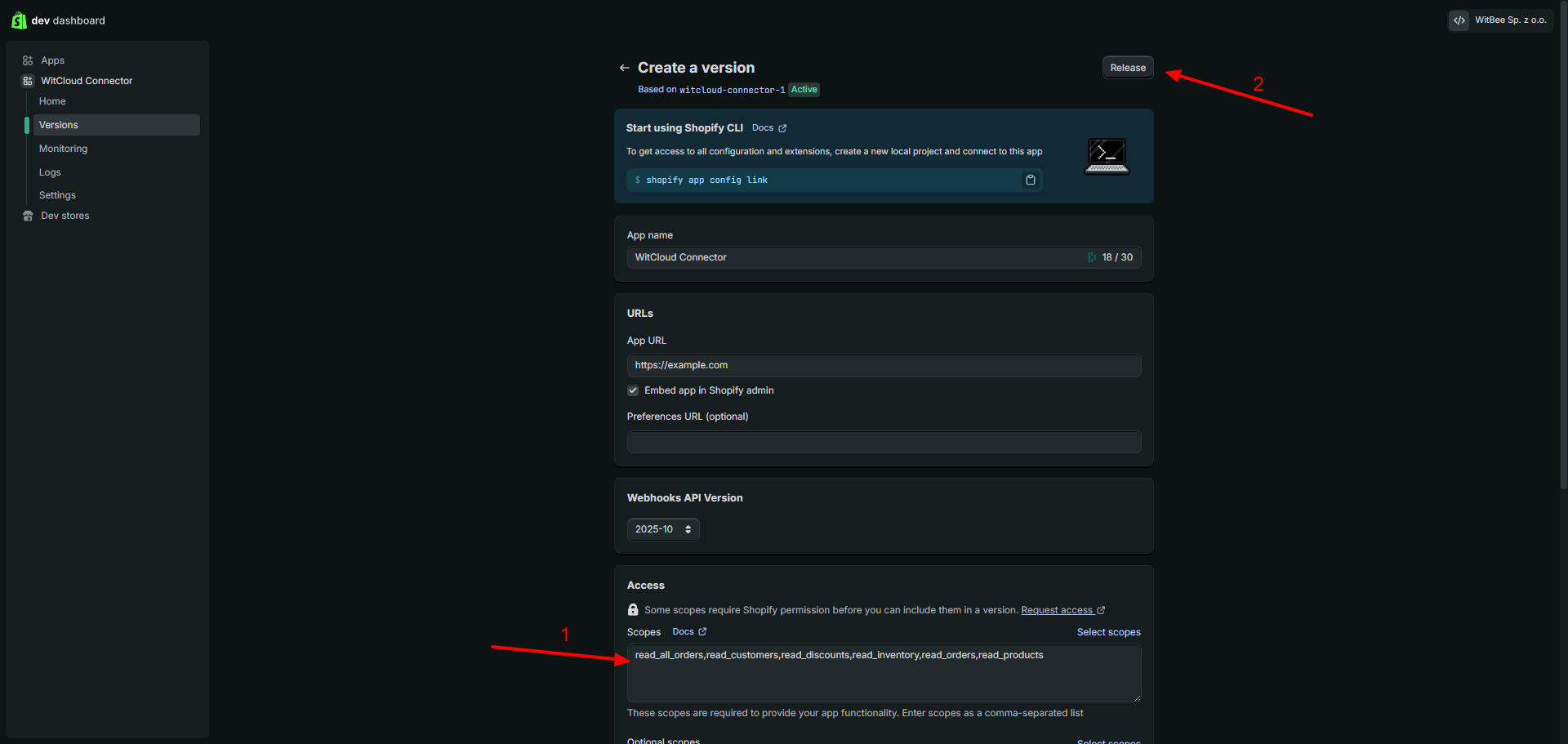
In the version configuration:
- Add the required Scopes for WitCloud integration:
read_all_ordersread_customersread_discountsread_inventoryread_ordersread_productsread_returns
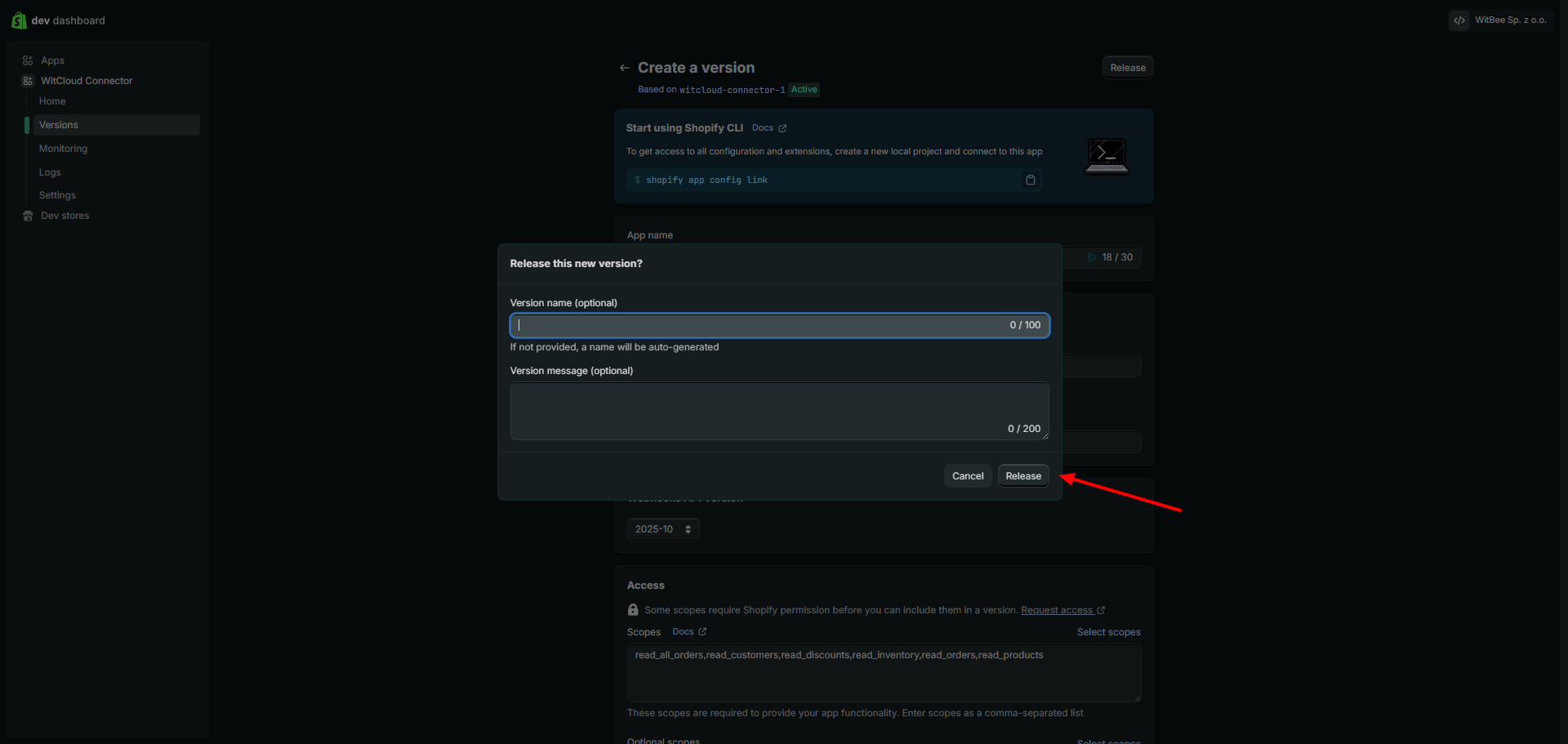
- Click Release to publish this version.
Step 5: Confirm Release
In the release dialog, you can optionally provide a version name and message. Click Release to confirm.
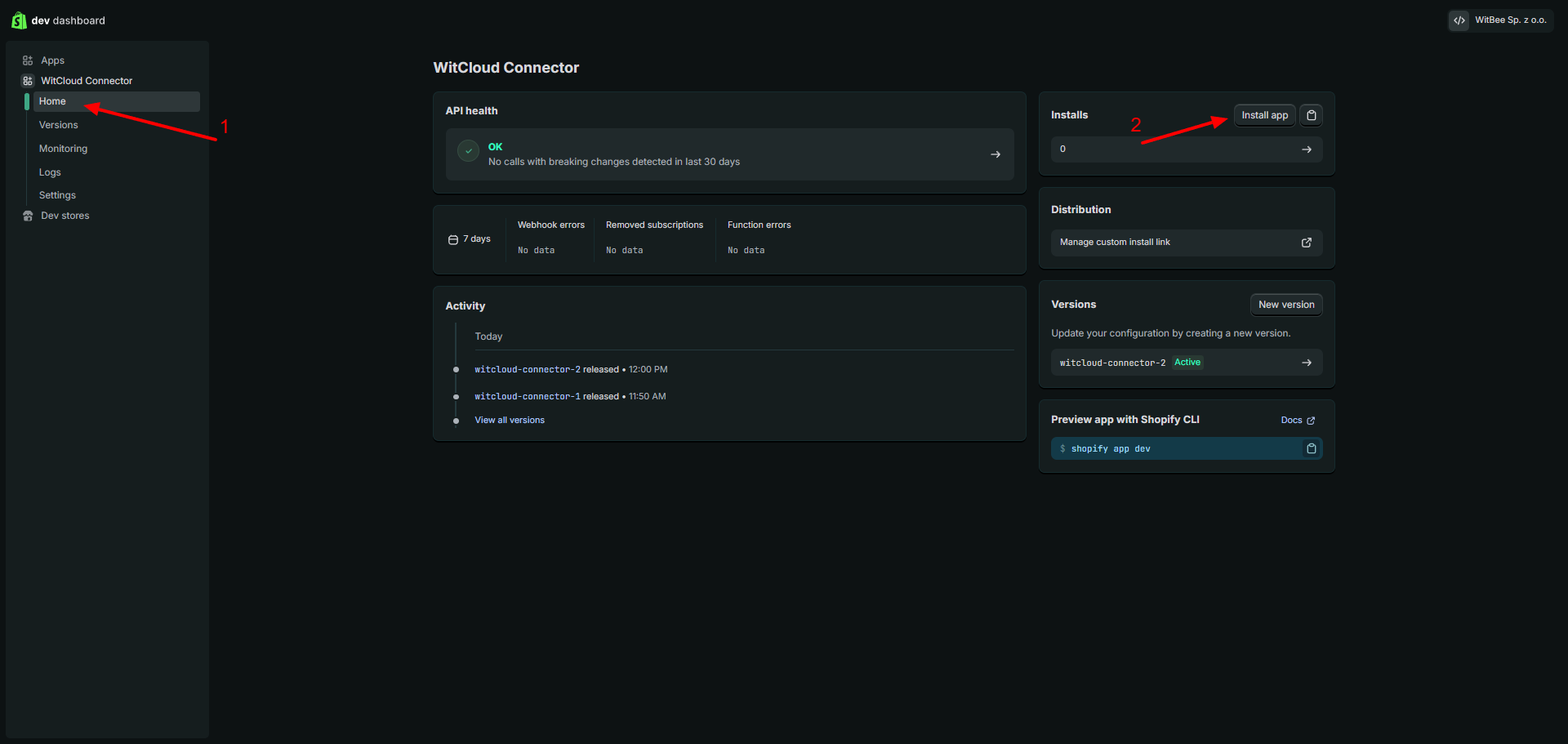
Step 6: Install the App
Go to your app's Home section and click Install app to install it on your store.
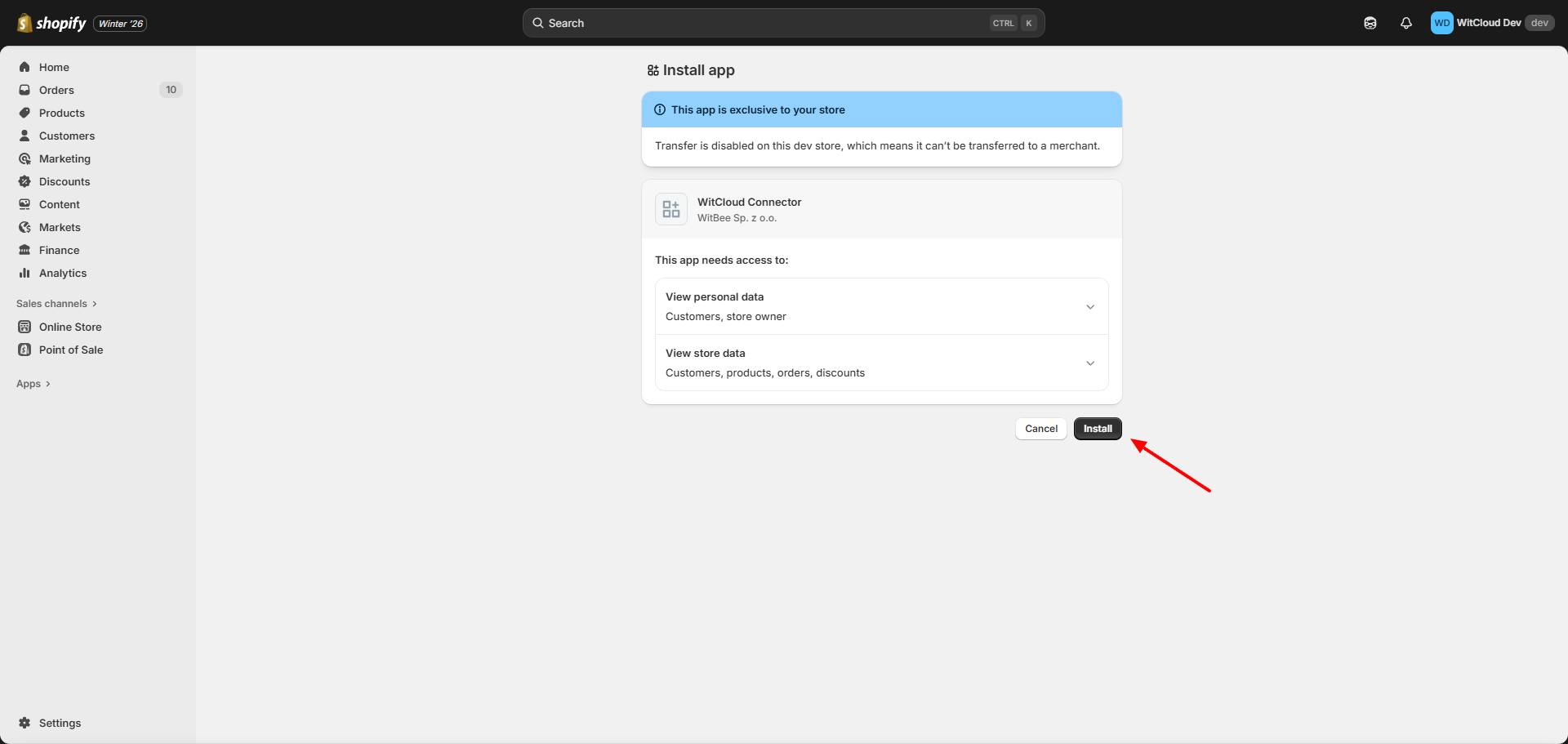
Step 7: Authorize App Installation
When installing the app on your store, you will see a permission request screen. Review the permissions:
- View personal data (Customers, store owner)
- View store data (Customers, products, orders, discounts)
Click Install to authorize the app.
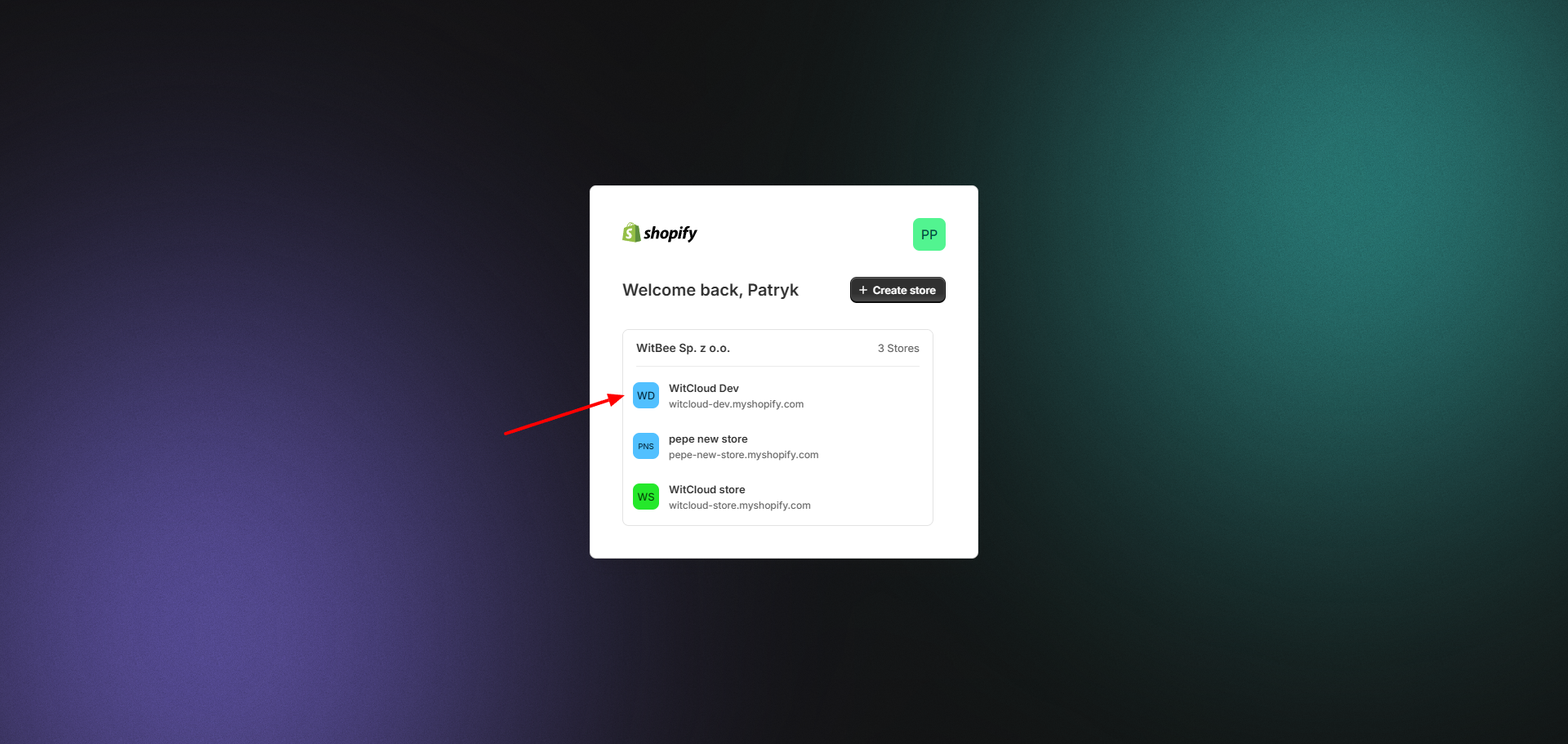
Step 8: Select Store (if multiple stores)
If you have multiple stores, select the appropriate store where you want to install the app.
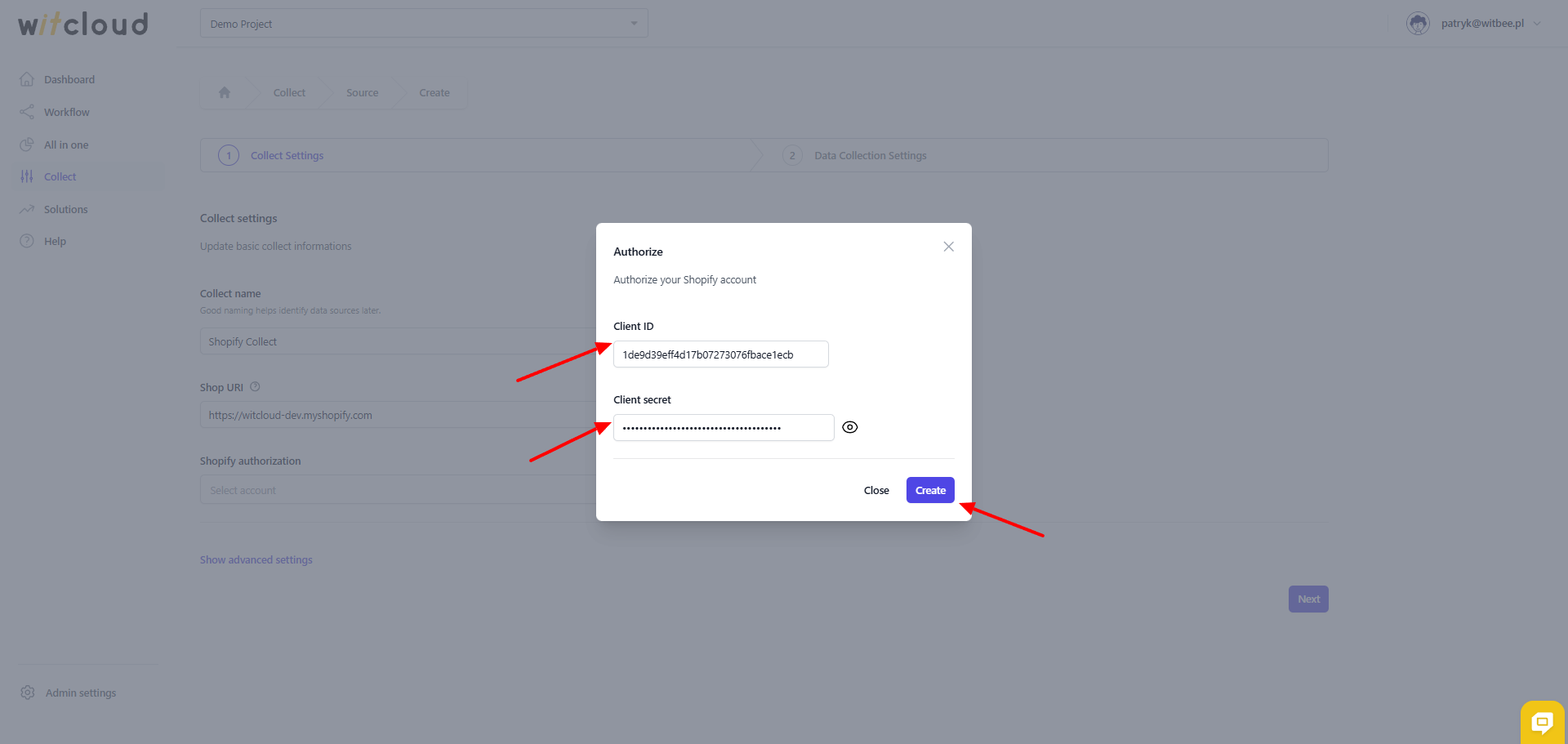
Step 9: Copy Client ID and Client Secret
Navigate to the Settings section of your app. Here you will find the Credentials section with:
- Client ID — copy this value
- Secret — click the eye icon to reveal and copy the secret
These credentials are required for WitCloud authorization.
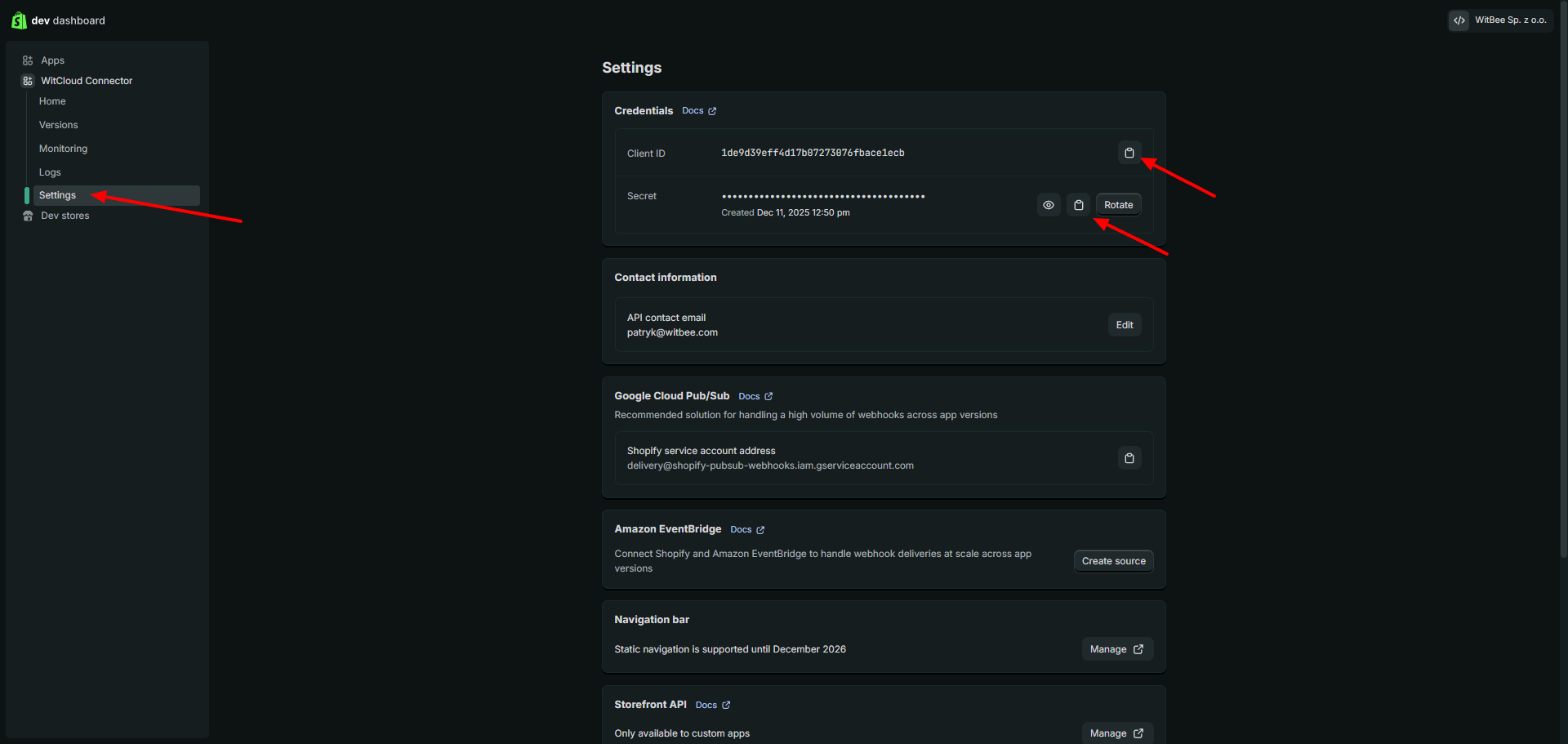
Done! You now have the Client ID and Client Secret needed to authorize Shopify in WitCloud. Use these credentials in the authorization form when setting up the Shopify integration.
📝 Configuration Guide
Follow the steps below to connect Shopify with BigQuery. Once the setup is complete, your ad data will be automatically transferred to your BigQuery project.
💡 Tip: Make sure you have admin access to your Shopify account before starting the configuration.
🔧 Module Setup
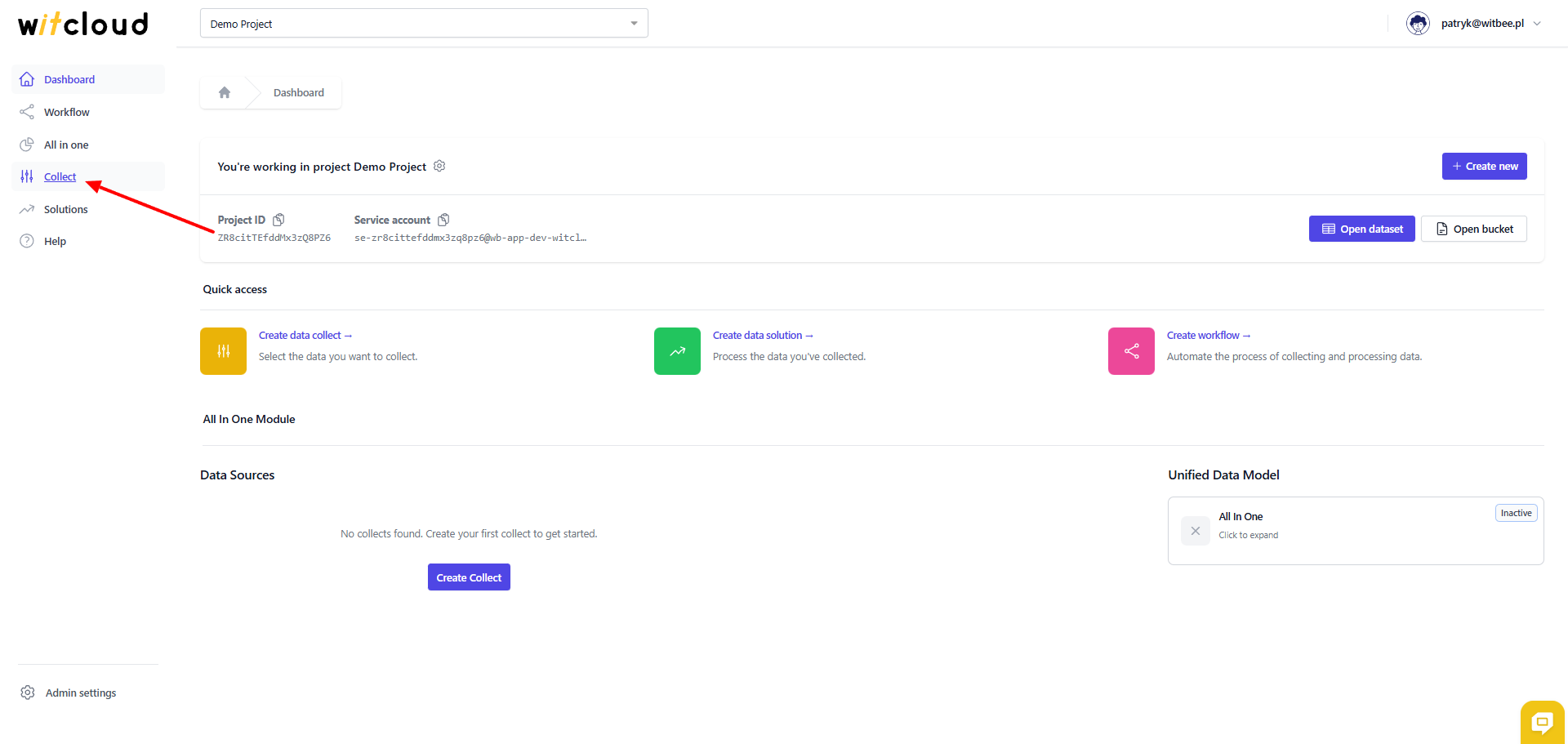
Go to the Collect section in the menu > Click Create Data Collect.
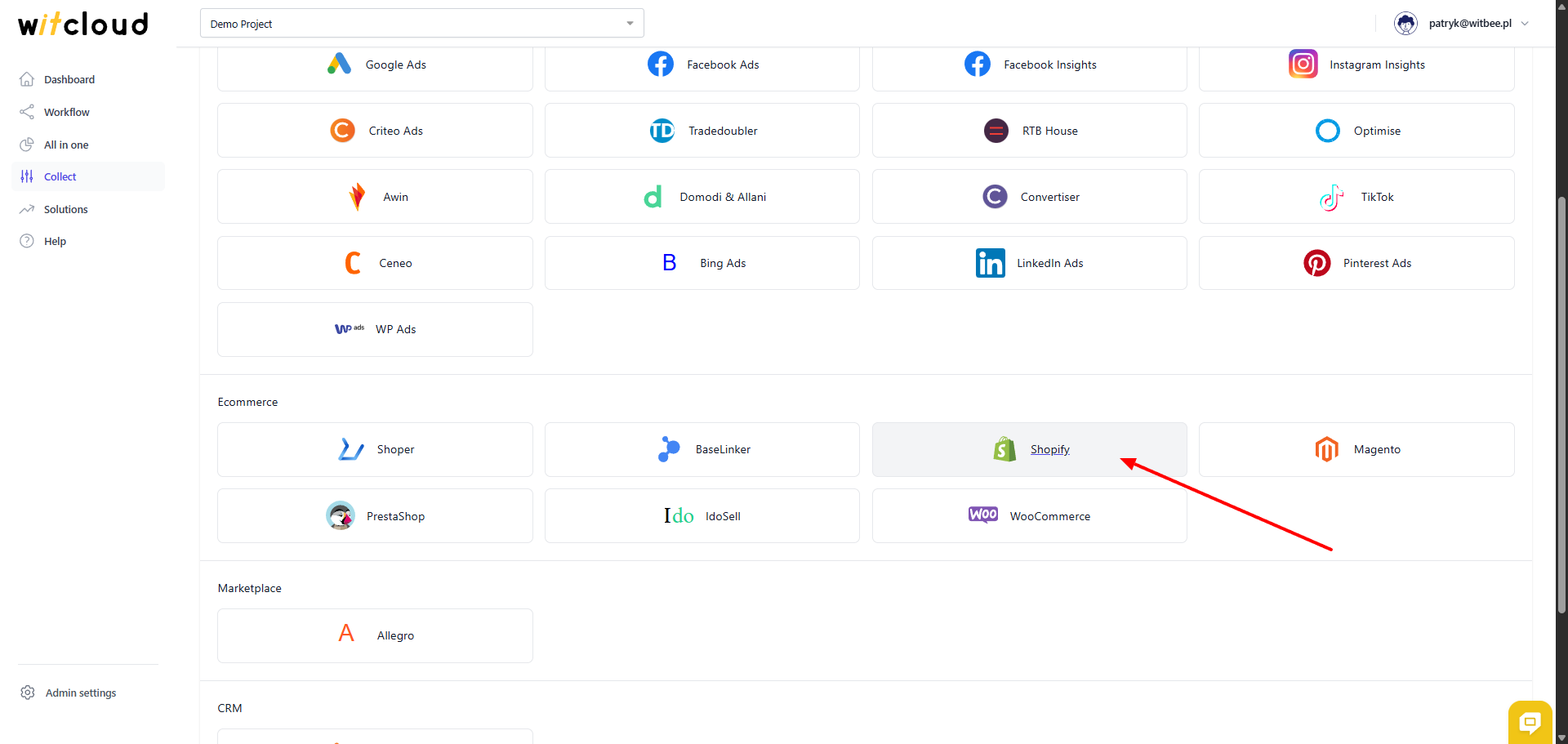
Select Shopify from the list of available integrations.
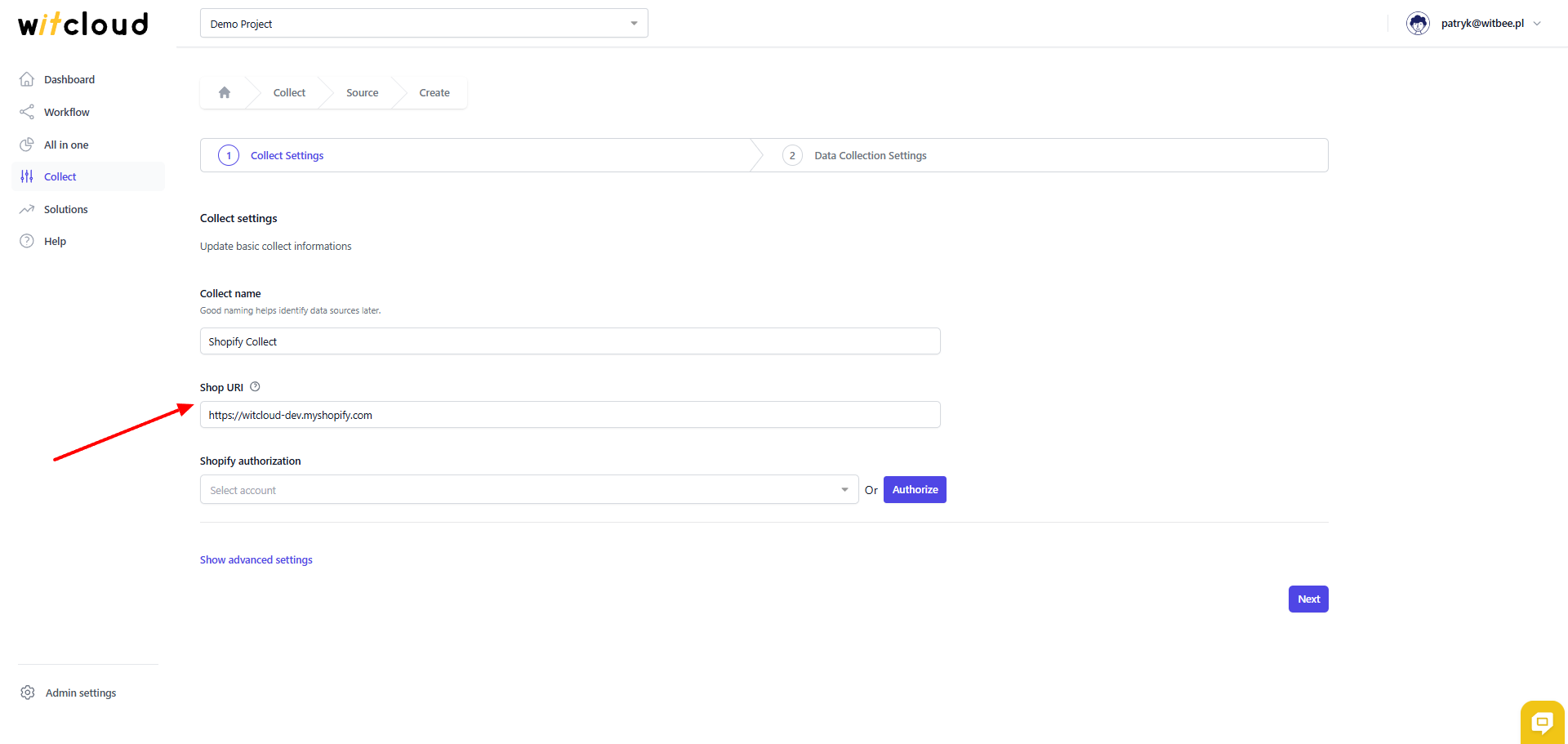
Enter the Collect Name, e.g., "Shopify Collect".
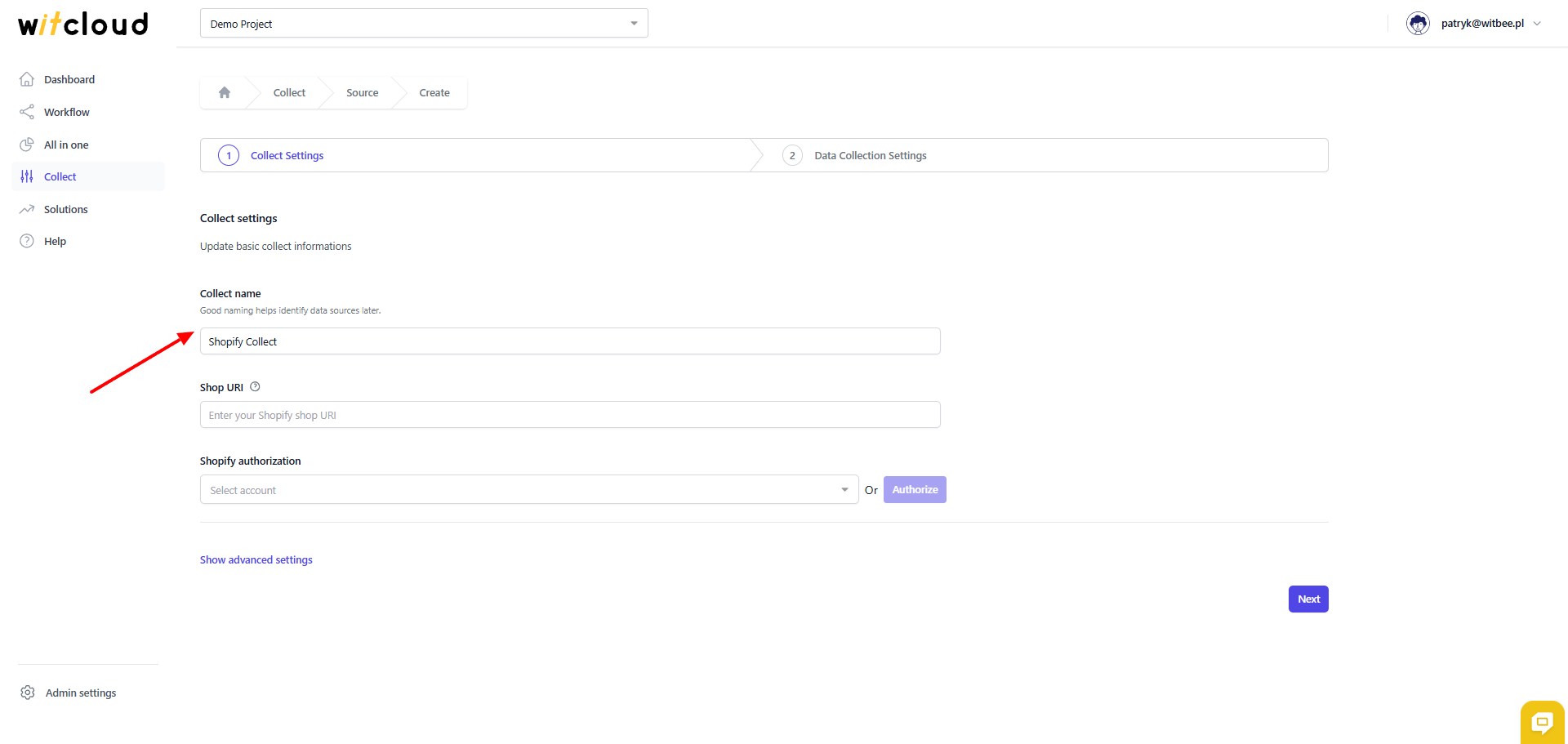
Enter the Shop url — your ecommerce platform website url
🔑 Authorization
💡 Tip: If you have previously authorized the Shopify module and do not require additional permissions, you can skip this step.
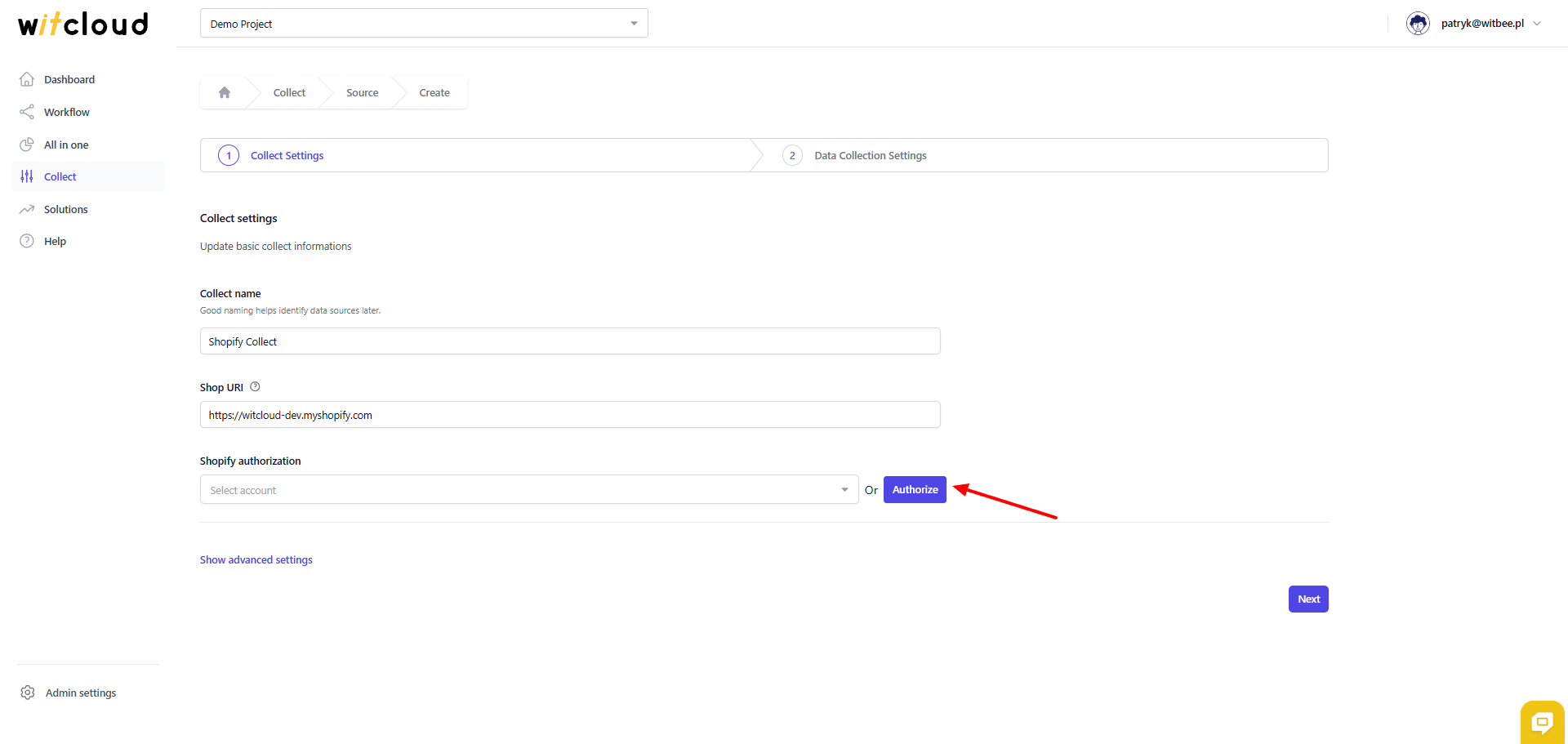
Click Authorize.
Fill out the authorization form.
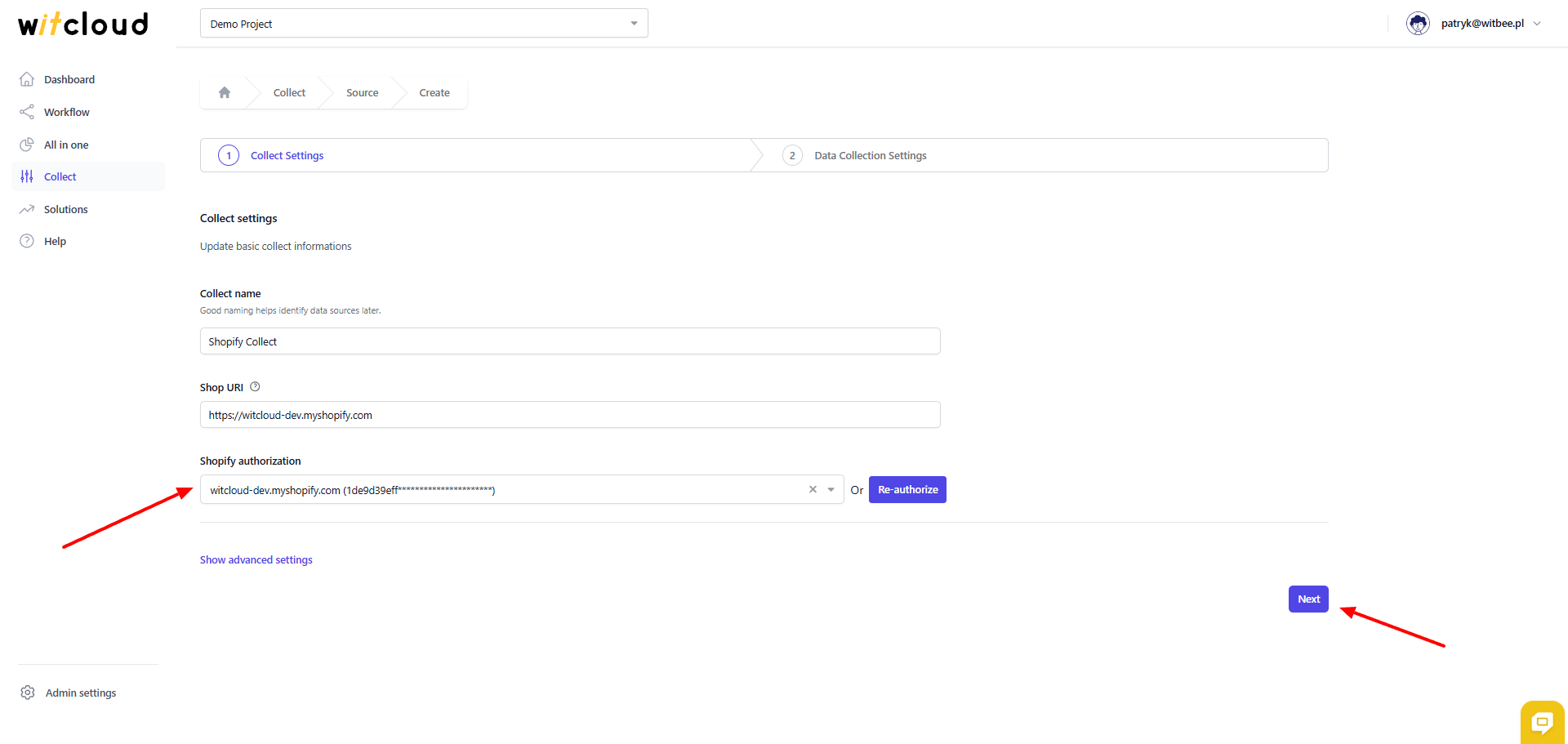
Select the appropriate token from the dropdown list.
Advanced settings
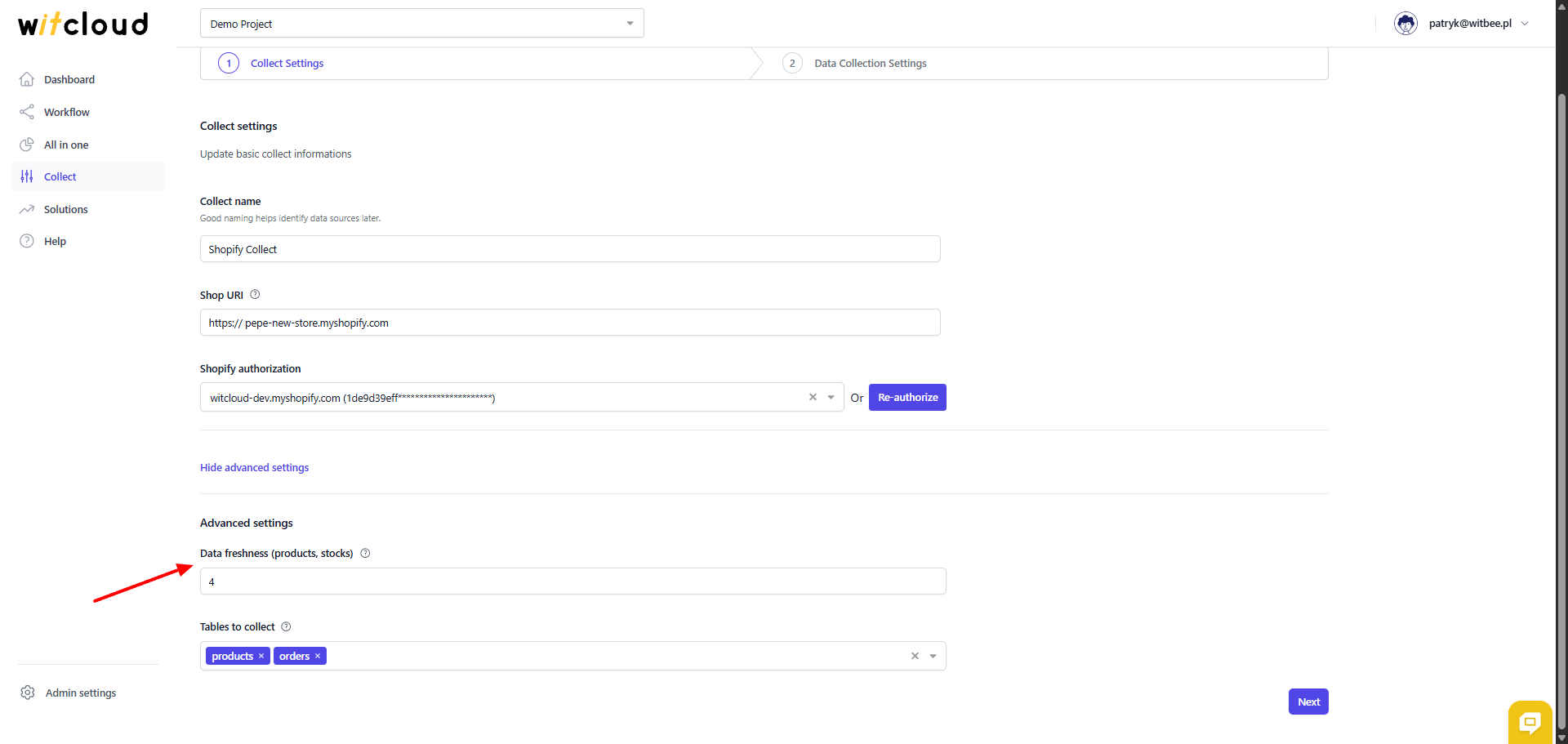
Some tables that store the entire data history — such as products or stocks — are refreshed less frequently; you can adjust this setting in Data freshness field.
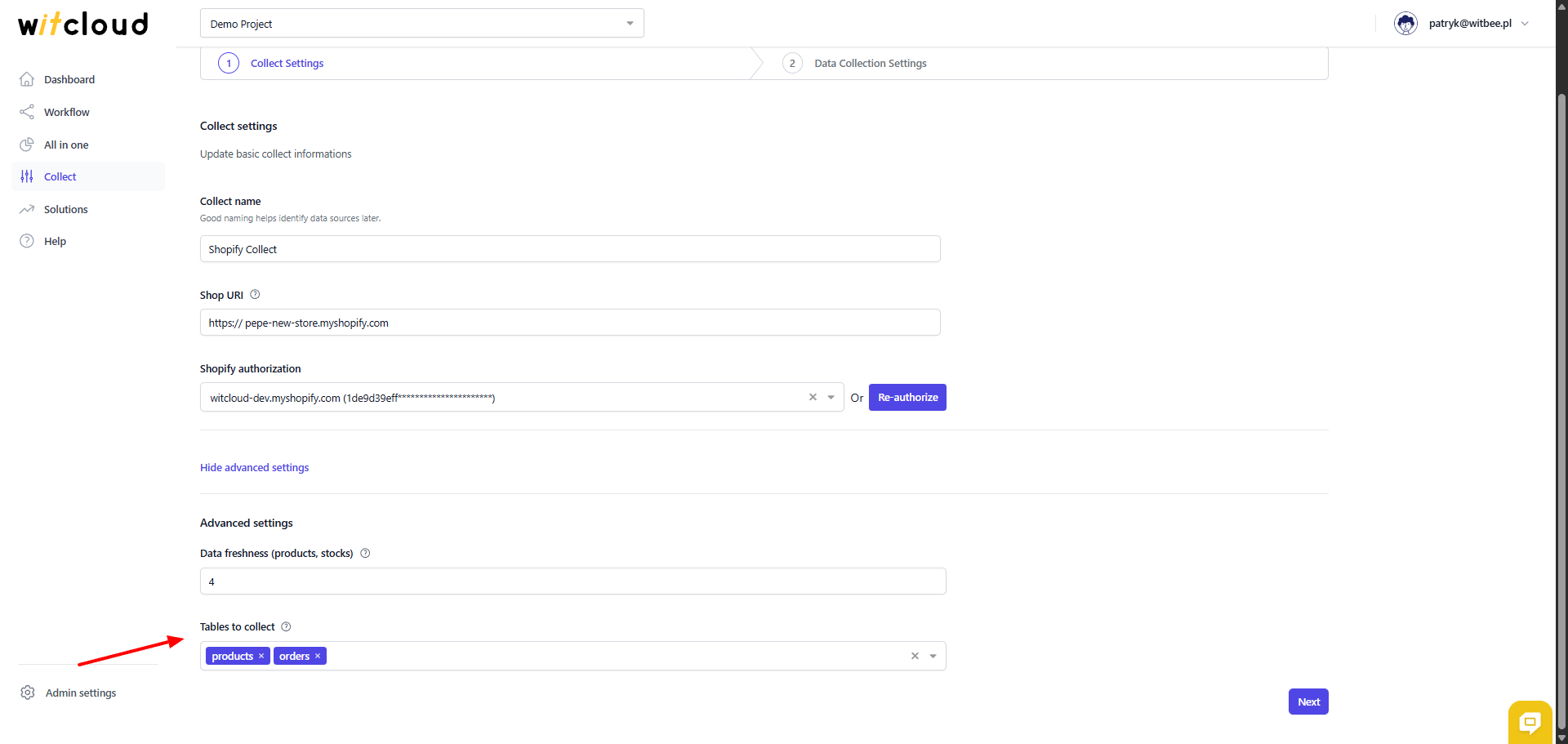
In the Tables to collect field, you can exclude certain tables from being collected. This will affect the speed of data retrieval.
⏳ Historical Data and Scheduling
Select the date range for which you want to fetch historical data.
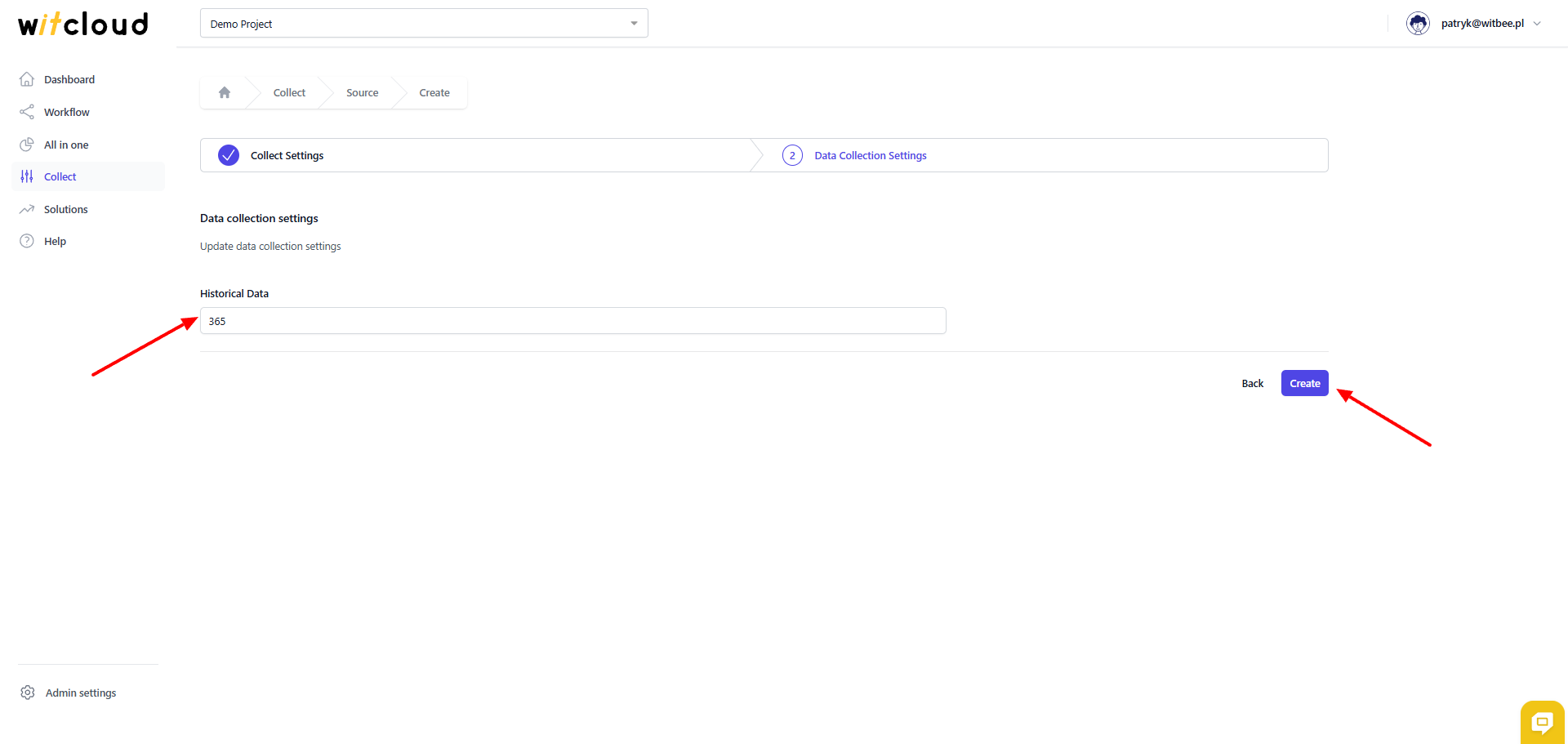
During the initial setup, you can retrieve data going back up to 12 months, with the possibility of importing older data.
A data synchronization schedule will be created automatically. More information on this topic can be found here.
Click Create to complete the configuration.
✅ Done! Your Shopify data will now be synchronized with BigQuery, providing you with detailed insights into the performance of your ecommerce platform.
📊 Data Schema
Expand the tables below to view the full data schema collected from Shopify.