
Account & Security
Change your name and password and protect your account with two-factor authentication — a code by e-mail or from an authenticator app.
Updated
Your own account: your name, your password and two-factor authentication (2FA). These settings belong to you, not to a project — they apply in every project you have access to.
Where to find it
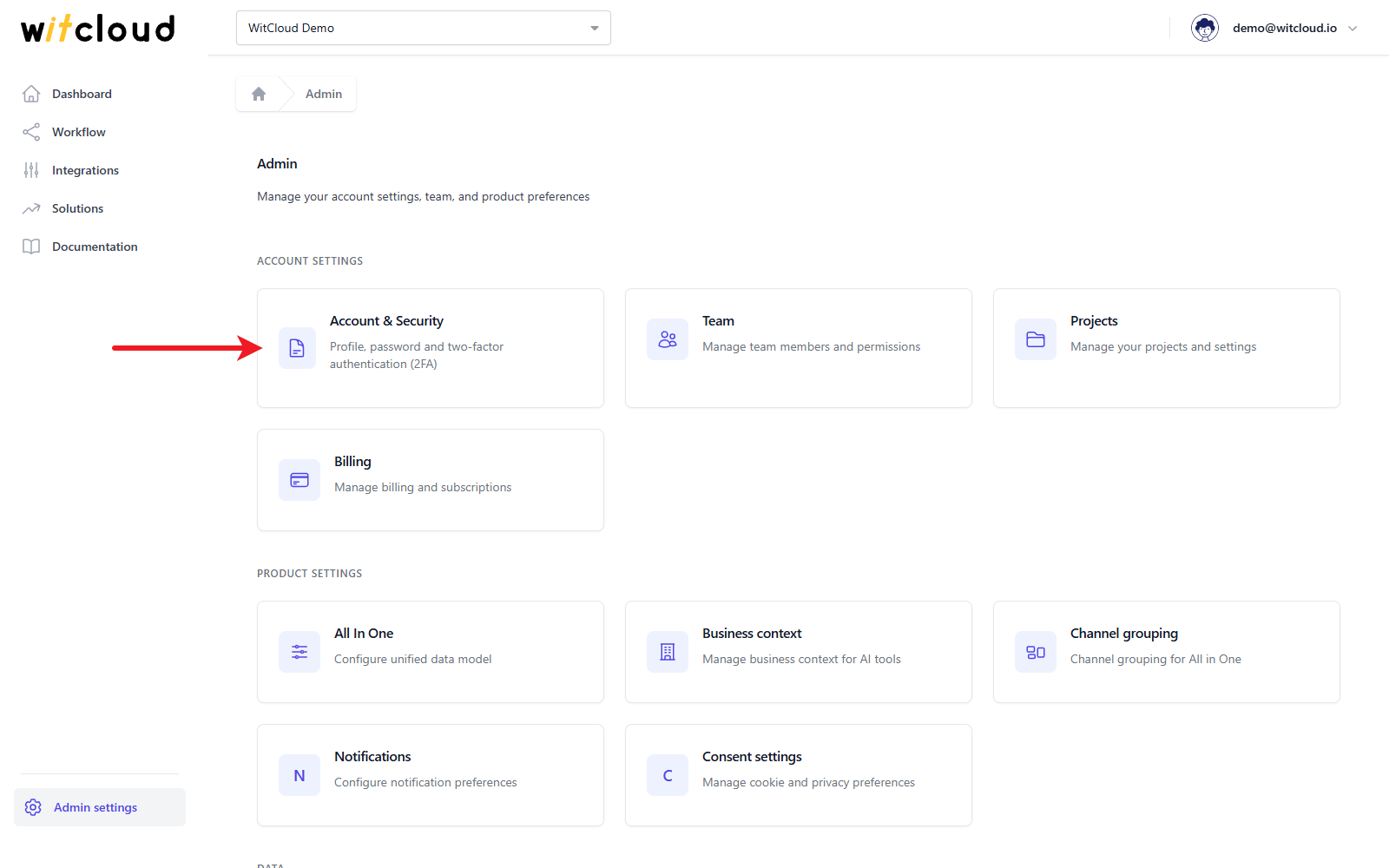
Go to Admin settings > Account & Security.
Profile
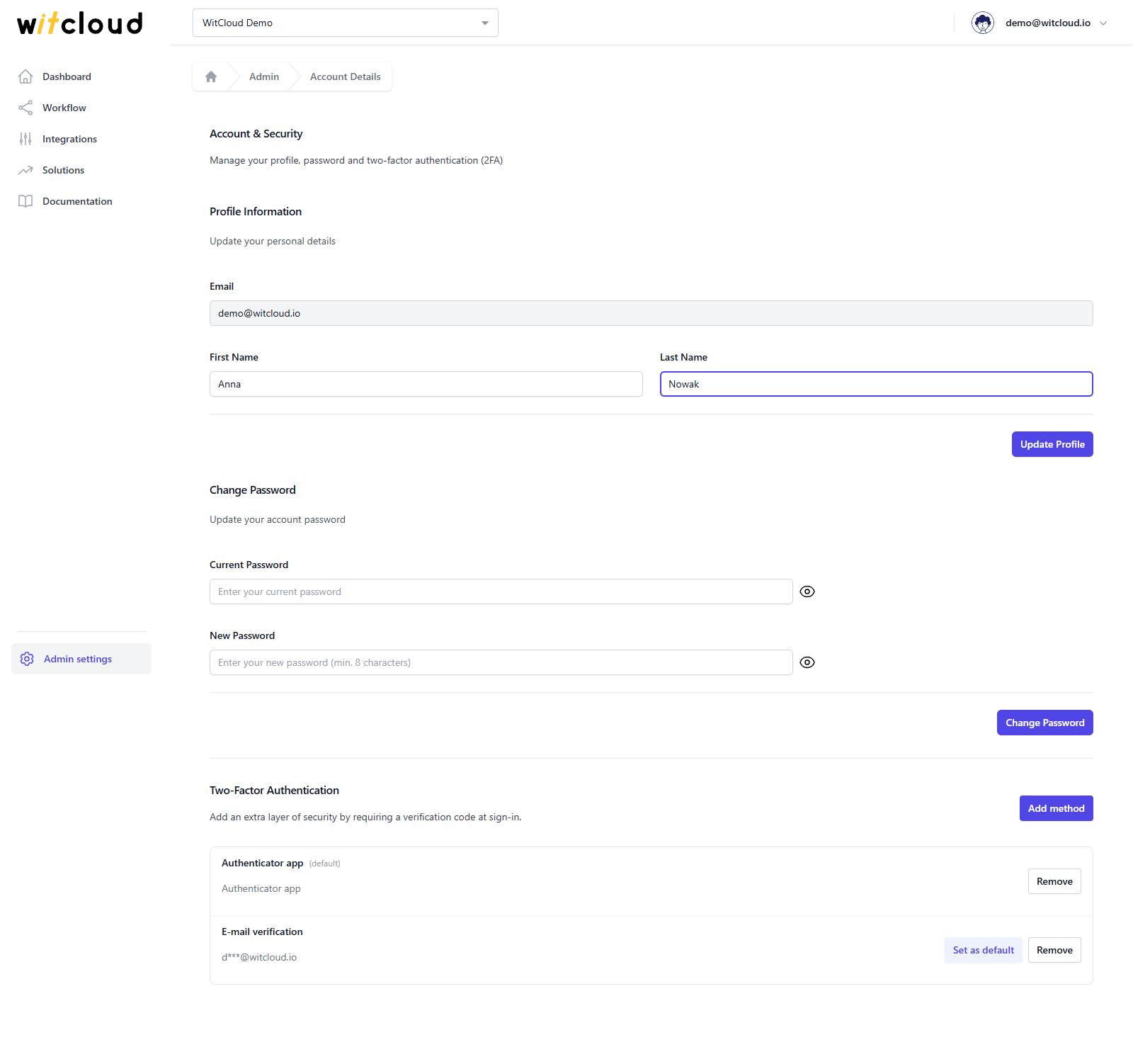
Under Profile Information, change your First Name and Last Name and click Update Profile. The Email you log in with cannot be changed here.
Change your password
Under Change Password, enter your Current Password and a New Password of at least 8 characters, then click Change Password.
If the current password is wrong, the panel says Current password is incorrect.
Two-factor authentication
With two-factor authentication, signing in needs a verification code on top of your password.
Add a method
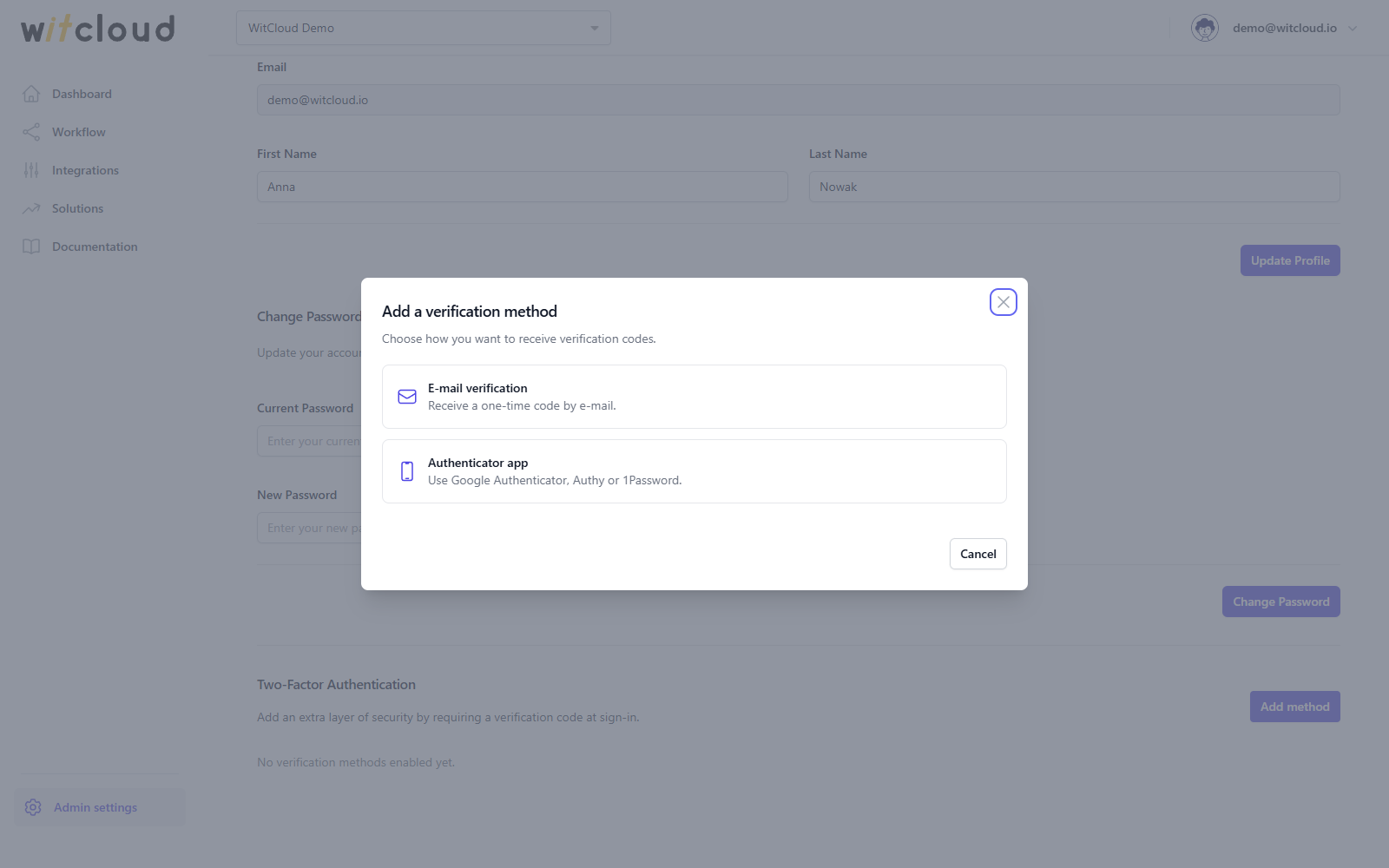
Click Add method and choose how you want to receive the codes:
- E-mail verification — a one-time code is sent to your e-mail.
- Authenticator app — codes from Google Authenticator, Authy or 1Password.
For E-mail verification, enter the code WitCloud sends to your e-mail. For Authenticator app, scan the QR code with the app — or type in the key shown under it — and enter the code the app generates. Click Confirm.
The method appears on the list. You can add both.
Default method and signing in
The (default) method is the one WitCloud uses first when you sign in. Click Set as default on another method to change it.
When you sign in, WitCloud asks for the Verification code after your password. On that screen you can also send the e-mail code again (Didn't get a code? Resend) or switch to your other method (Use … instead).
Remove a method
Click Remove next to the method, enter your password if your account has one, and click Remove again.
Troubleshooting
Invalid or expired code. Please try again.
The code was mistyped or is no longer valid. For an e-mail code, ask for a new one; for an authenticator app, enter the current code shown in the app.
Current password is incorrect
The Current Password does not match. Enter the password you sign in with.