
API keys
Create API keys that let your own scripts and systems call the WitCloud API for a project - choose what each key may do and when it expires, and revoke it when it is no longer needed.
Updated
An API key lets your own scripts and systems call the WitCloud API without signing in - for example, to start a workflow from your own scheduler and check when it has finished. A key belongs to the project, not to the person who created it: it acts on this project only, with the scopes you give it, and it keeps working when its creator leaves the project. Revoke it when it is no longer needed.
Where to find it
Go to Admin settings > API keys. The card is in the Product Settings section and is shown when a project is selected. The page shows the keys of the selected project; switch projects to see another project's keys.
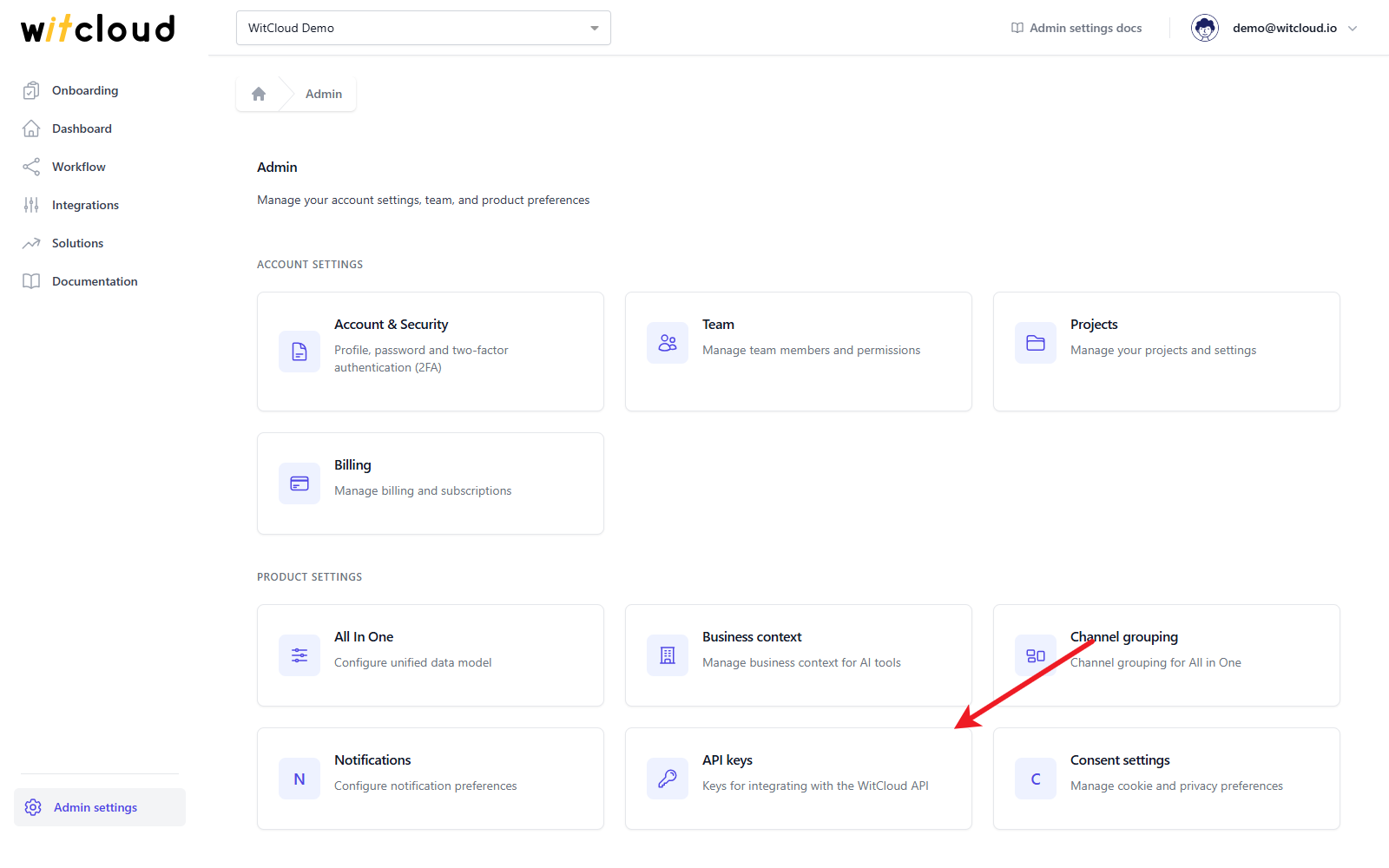
Only the project's Owner, Admins and Editors can see and manage its API keys (roles).
The API keys page
At the top, Using a key shows how to send a key, an example request and What you can do with the API. API documentation opens the description of every request a key can make. Below it is the list of the project's keys, the newest first.
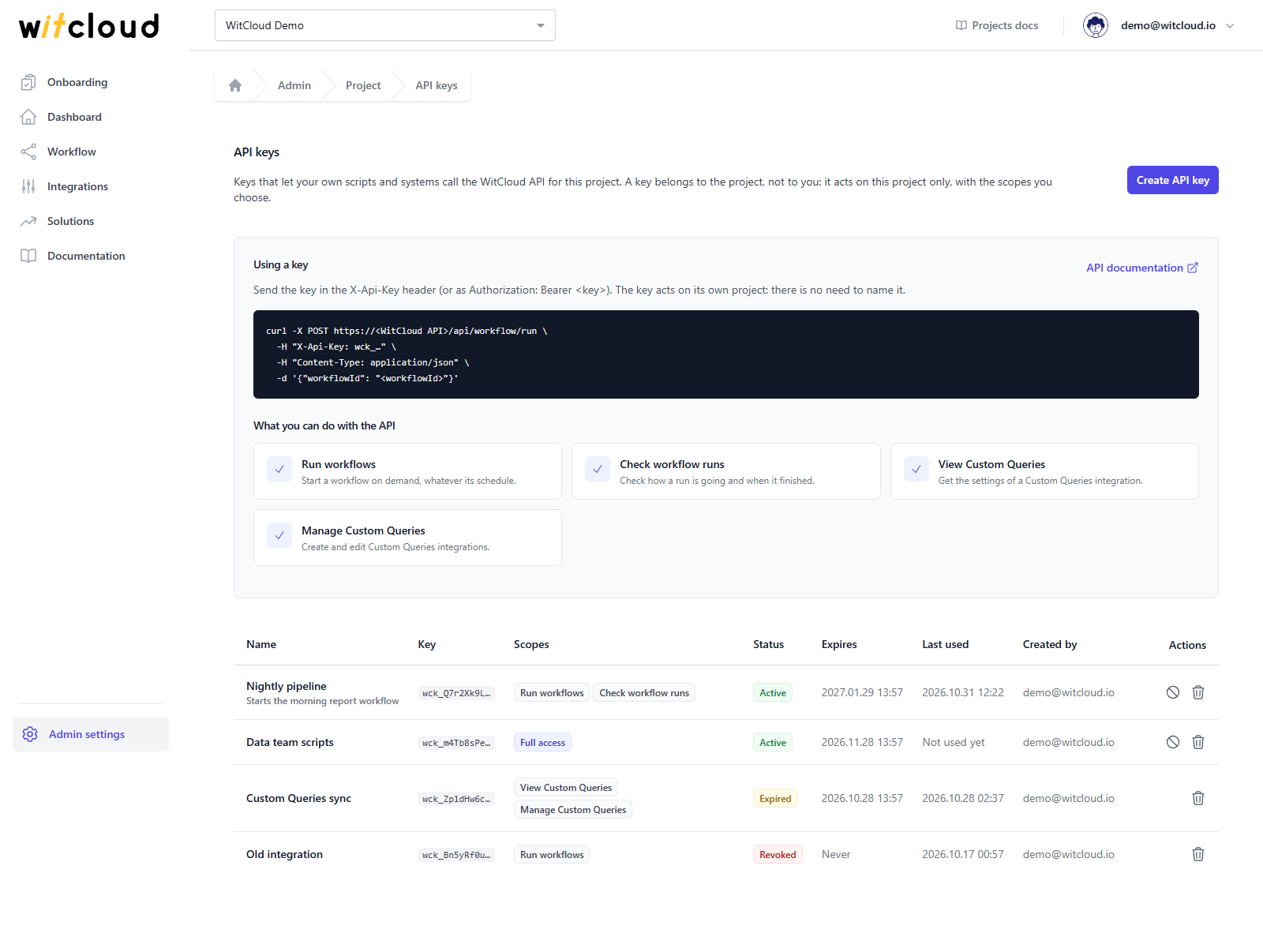
The list shows for each key:
- Name - with the description below it, if the key has one.
- Key - the first characters of the key, to tell keys apart. The full key is never shown again after it is created.
- Scopes - what the key may do (see Scopes).
- Status - Active, Expired or Revoked.
- Expires - the date the key stops working, or Never.
- Last used - when the key last made a request, or Not used yet. It is updated at most once a minute.
- Created by - who created the key.
Create an API key
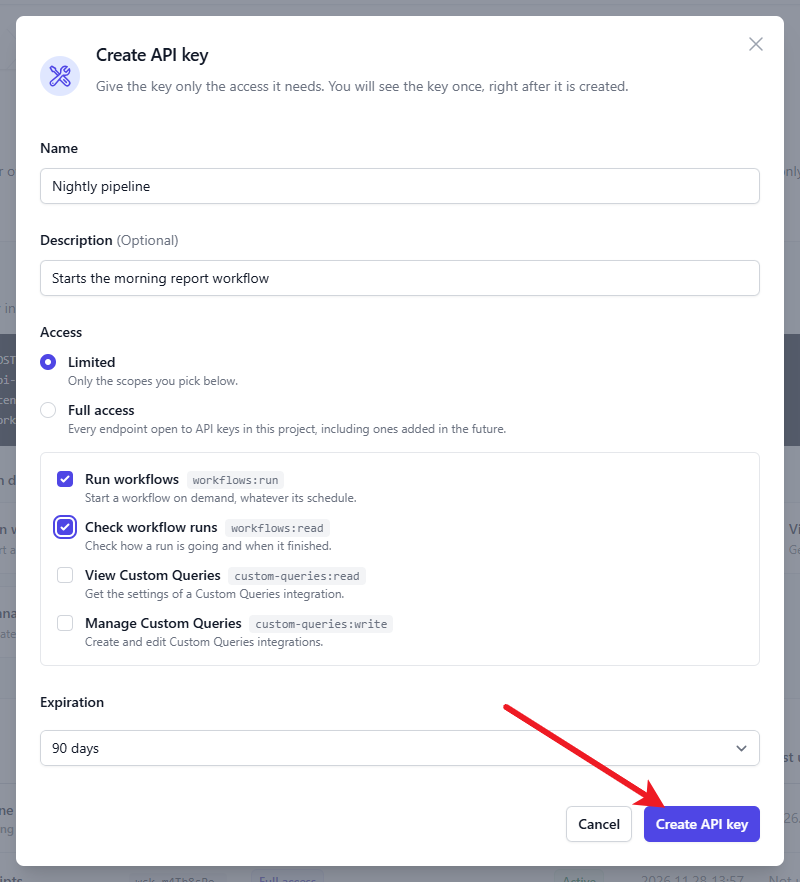
- Click Create API key.
- Enter a Name (up to 100 characters), for example the system that will use the key. A Description is optional (up to 500 characters).
- Under Access, choose:
- Limited - the key gets only the scopes you tick below. Tick at least one.
- Full access - the key may use every request open to API keys in this project, including ones added in the future.
- Choose the Expiration: 7 days, 30 days, 90 days (the default), 365 days, Custom date or Never. With Custom date, pick a day from tomorrow on: the key works until the end of that day in your time zone.
- Click Create API key.
Give a key only the access it needs, and prefer a key that expires: a key set to Never keeps working until you revoke it.
A project can have up to 25 active keys. Expired and revoked keys do not count.
Copy the key
API key created shows the new key. Click the copy icon next to it and keep the key somewhere safe - for security, it is shown only this once. Then click I have copied the key.
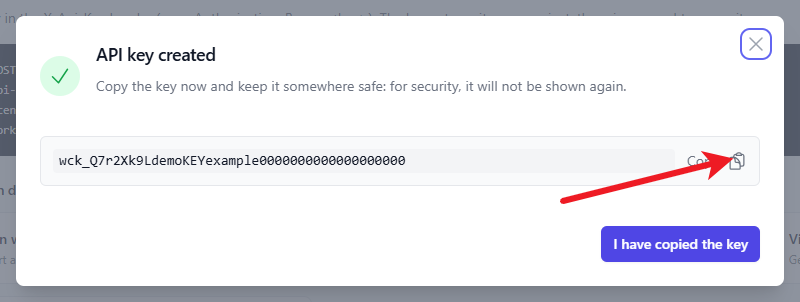
If you lose the key, it cannot be shown again: create a new one and revoke the old one.
Done! The key is in the list as Active and works straight away.
Use the key
Send the key in the X-Api-Key header of every request, or as Authorization: Bearer <key>.
The key acts on its own project, so you never name the project. Every key starts with wck_.
curl -X POST https://<WitCloud API>/api/workflow/run \
  -H "X-Api-Key: wck_…" \
  -H "Content-Type: application/json" \
  -d '{"workflowId": "<workflowId>"}'
Copy the address from the example on the API keys page, and see API documentation there for every request, its fields and its answers.
A key can only make the requests open to API keys - it cannot sign in to the panel, and it cannot create, list or revoke keys.
Scopes
| Scope | In the panel | What the key may do | Requests per minute |
|---|---|---|---|
workflows:run | Run workflows | Start a workflow now, whatever its schedule. The schedule is not changed. | 10 |
workflows:read | Check workflow runs | Check how a run is going and when it finished. | 60 |
custom-queries:read | View Custom Queries | Get the settings of a Custom Queries integration. | 60 |
custom-queries:write | Manage Custom Queries | Create and edit Custom Queries integrations. | 30 |
Full access (*) includes every scope above.
The limits are per project: all of a project's keys share them, so more keys do not mean
more requests. Every answer says how many requests are left in the X-RateLimit-Limit,
X-RateLimit-Remaining and X-RateLimit-Reset headers. Over a limit, the API answers 429
and the Retry-After header says how many seconds to wait.
Revoke or delete a key
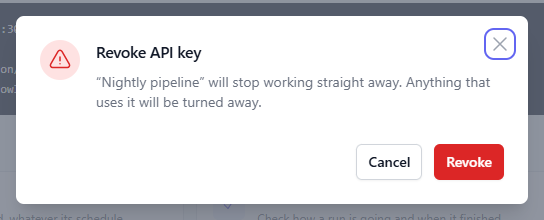
- Revoke (the crossed-circle icon, on active keys) - the key stops working straight away and anything that uses it is turned away. It stays in the list as Revoked.
- Delete (the trash icon) - the key is revoked and removed from the list. This cannot be undone.
Both ask you to confirm first.
A revoked or expired key cannot be turned on again or extended - create a new key instead.
Troubleshooting
Give the key a name. / Pick at least one scope, or give the key full access. / Pick the expiration date.
A field in Create API key is missing: enter a Name, tick at least one scope (or choose Full access), or pick the day for Custom date.
A project can have at most 25 active API keys
Revoke or delete a key that is no longer used, then create the new one.
Invalid API key / API key has been revoked / API key has expired
The API answers 401: the key is wrong (check that it was copied whole), was revoked or
deleted, or has passed its Expires date. Check its Status in the list, and create a new
key if needed.
API key does not have the "…" scope
The API answers 403: the key has no scope for this request. Keys cannot be changed - create
a key with the scope it needs and revoke the old one.
This endpoint does not accept API keys
The request is not open to API keys. See API documentation on the API keys page for the requests that are.
Rate limit exceeded
The API answers 429: the project's keys have made too many requests of this kind in the
last minute. Wait the number of seconds in Retry-After, then try again.