
Notifications
Send the team regular e-mail reports on whether the integrations collect data as expected, or only an alert when they fail.
Updated
Notifications send e-mail reports on the integrations of the current project: whether they run correctly and collect data as expected. Use them to learn about a failing integration before it shows in your reports.
Where to find it
Go to Admin settings > Notifications.
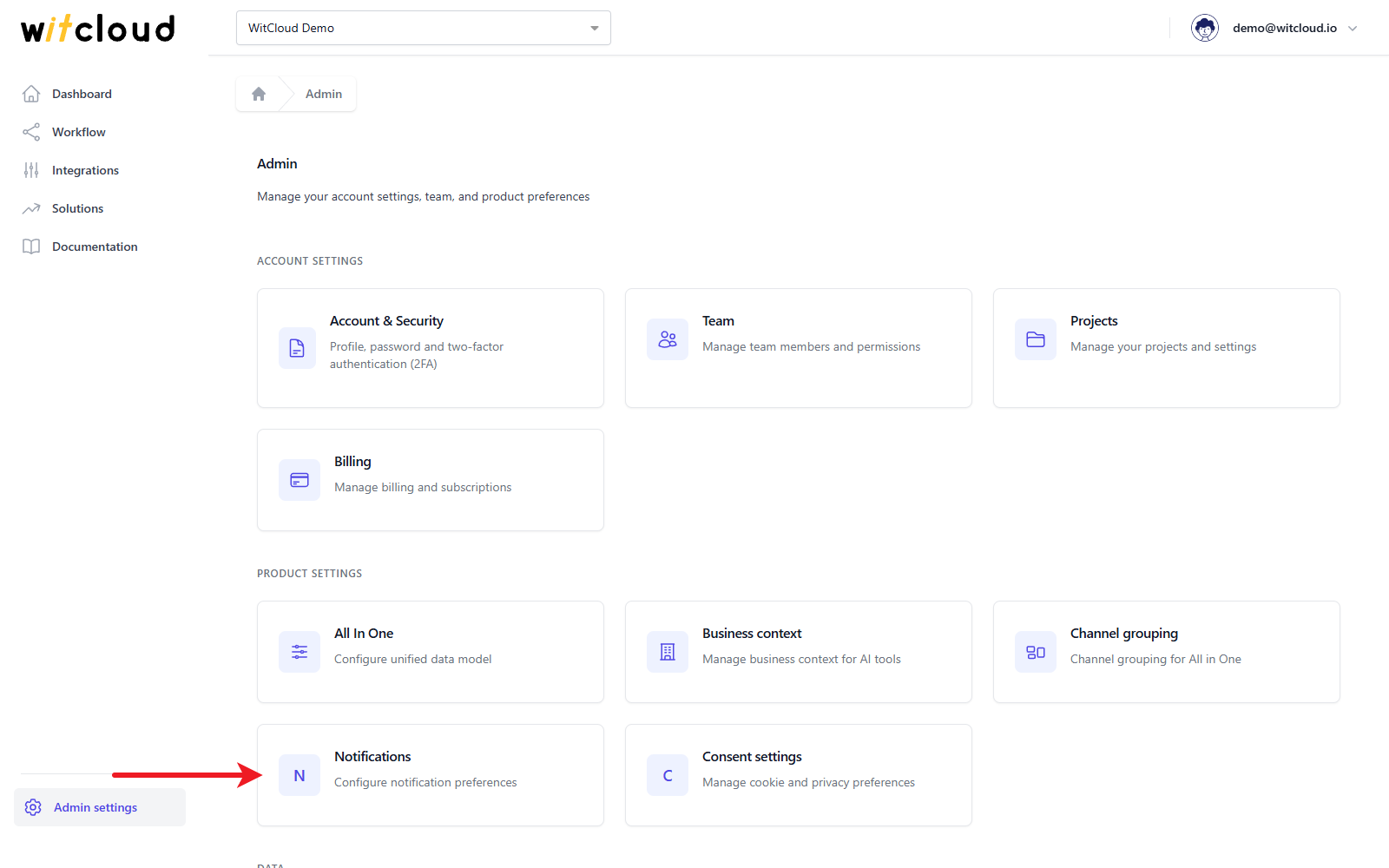
Set up the reports
Switch on Enabled. The rest of the form appears.
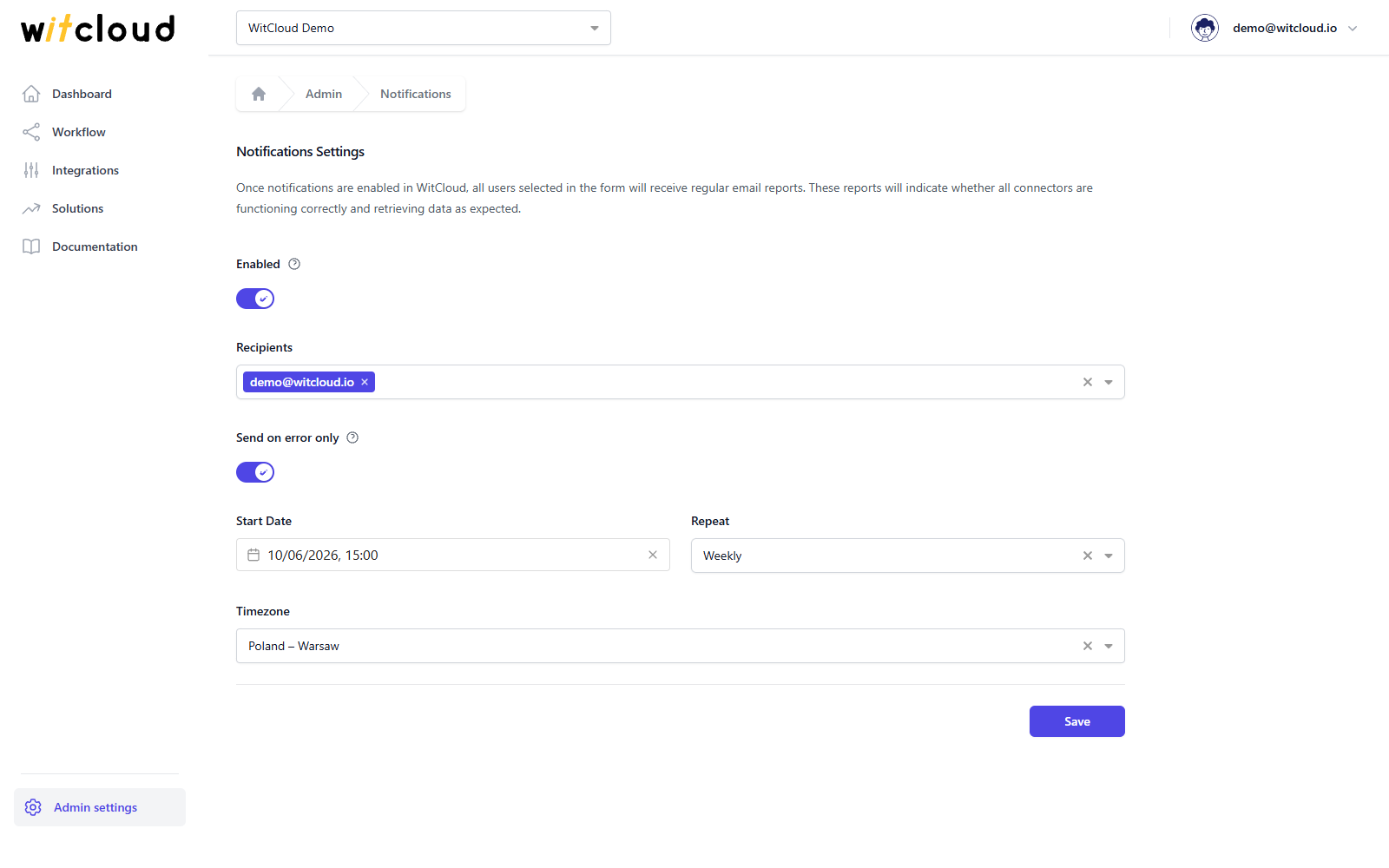
| Field | What it does |
|---|---|
| Recipients | Who gets the reports. Pick them from the members of the project's team — to add someone, first give them access on the Team page. |
| Send on error only | Off: every report is sent. On: a report is sent only when an integration is failing badly — most of its runs in the period failed, or a large share of the recent ones. |
| Start Date | When the reports start. |
| Repeat | How often a report is sent: Daily, Weekly or Monthly. Each report covers the last day, 7 days or 30 days. |
| Timezone | The timezone the schedule follows. |
Click Save. Done! From the start date the recipients get the reports on the schedule you chose.
To stop the reports, switch off Enabled and click Save.
Viewers can see the notification settings but cannot change them (roles).