
Connect Gemini CLI
Connect Gemini CLI to WitCloud MCP - one entry in settings.json, sign in, and ask about your data.
Updated
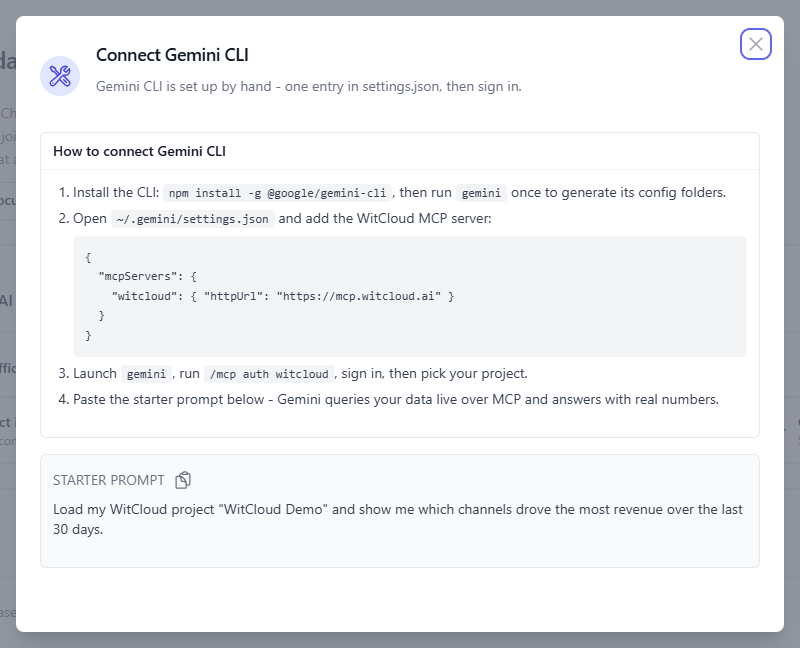
Gemini CLI has no app directory, so you connect it by hand: one entry in its settings file, then you sign in. The same steps are in the panel - on the WitCloud MCP page, click Gemini CLI in Connect your AI client.
Before you start
- A WitCloud account with access to the project you want to analyse.
- AI access turned on for that project - it is on unless someone turned it off in the WitCloud MCP settings.
- Node.js installed, to install Gemini CLI with npm.
More with WitCloud
Discover the next steps
Create a WitCloud account to read the full guide, including setup instructions, examples and practical tips.
Create an accountAlready have an account? Sign in