
Data limits
Cap how much data WitCloud may process for a project per day and per month - for integrations, All in One and solutions, and separately for the AI assistant - see the usage and change the limits.
Updated
Data limits cap how much data WitCloud may process in BigQuery for the current project — per day and per month. When an integration, an All in One run or a solution would push the project past a limit, processing stops until the next period. The queries of the WitCloud MCP assistant have a pool of their own on the same page.
Where to find it
Go to Admin settings > Data limits.
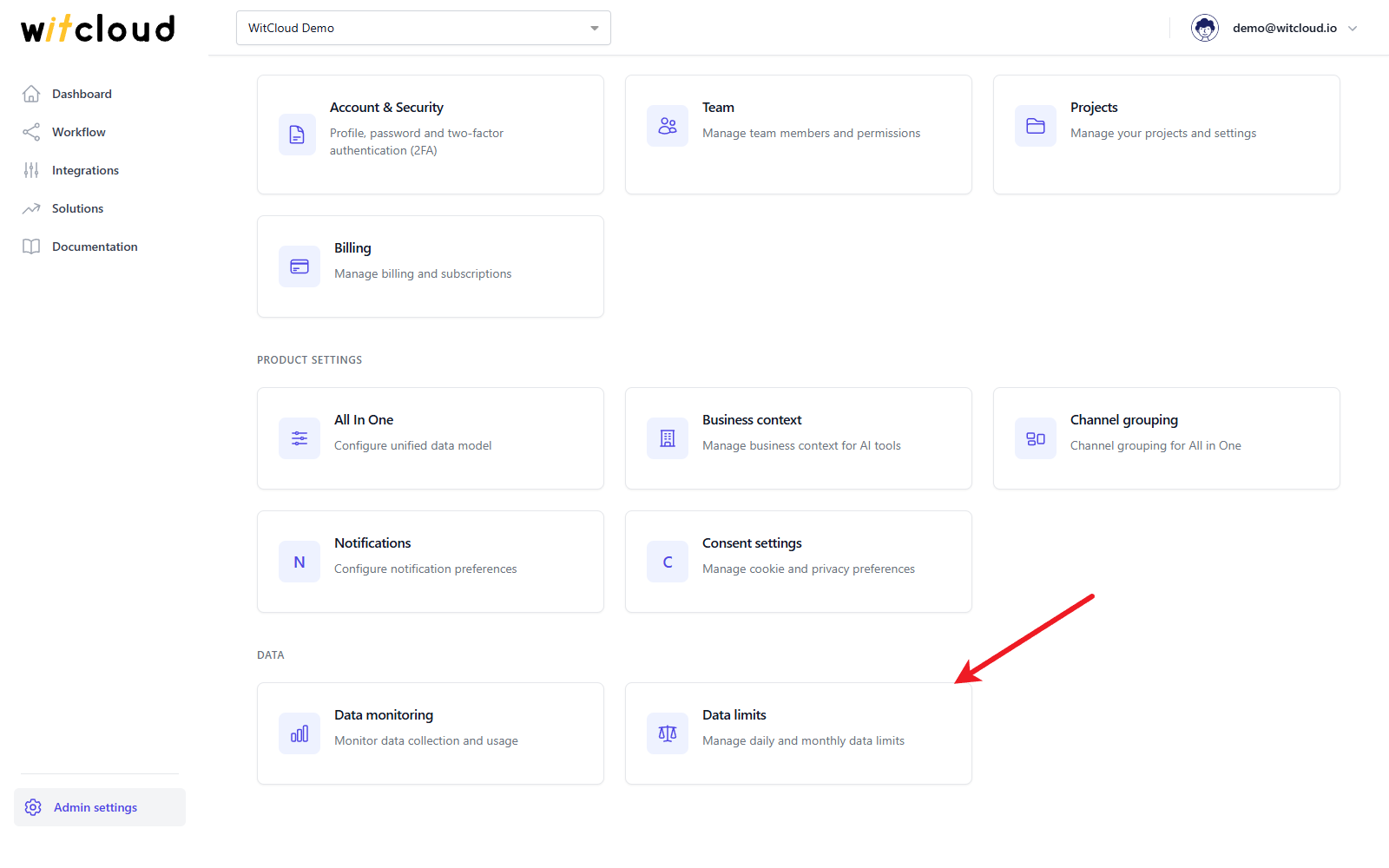
Everyone in the project can see the limits. The Owner, Admins and Editors can change the project's limits; only the Owner and Admins can change the AI assistant's pool (roles).
What counts
The usage is the amount of data the project's BigQuery queries process: integrations collecting data, All in One runs and solutions.
The queries the WitCloud MCP assistant runs do not count here — they count toward the AI assistant (MCP) pool, so an assistant can never stop your integrations or All in One.
Before each job starts, WitCloud checks the limits. When the usage has reached an enabled limit, the job does not run until the period starts again.
The periods follow UTC time: the daily usage starts again at midnight UTC, the monthly usage on the first day of the month.
The limits page
At the top, Integrations, All-in-One and solutions has a card for the project's Daily Limit and one for its Monthly Limit. Below them is the AI assistant (MCP) pool.
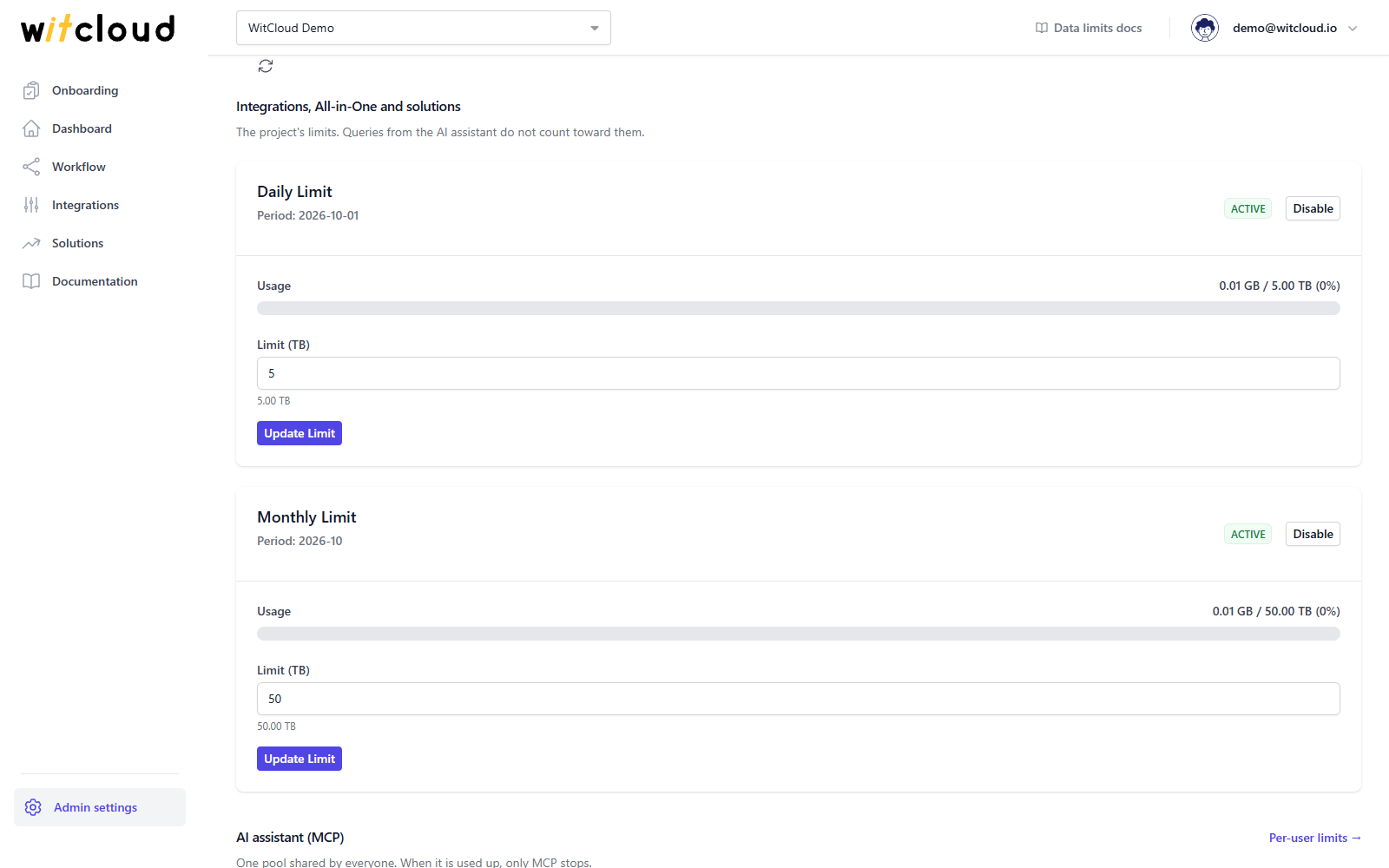
Each card shows:
- Period — the day or month the usage is counted for. The period moves on when the next job starts, so on a day nothing has run yet the card still shows the last day data was processed.
- The status — ACTIVE while the usage is below 80% of the limit, WARNING from 80%, and EXCEEDED when the limit is reached.
- Usage — how much data the project has processed in the period, out of the limit, with a bar.
Click the refresh icon at the top to load the current usage.
A new project starts with both limits enabled: 5 TB per day and 50 TB per month.
Change a limit
Enter the new value in Limit (TB) and click Update Limit. The value below the field shows it in TB or GB.
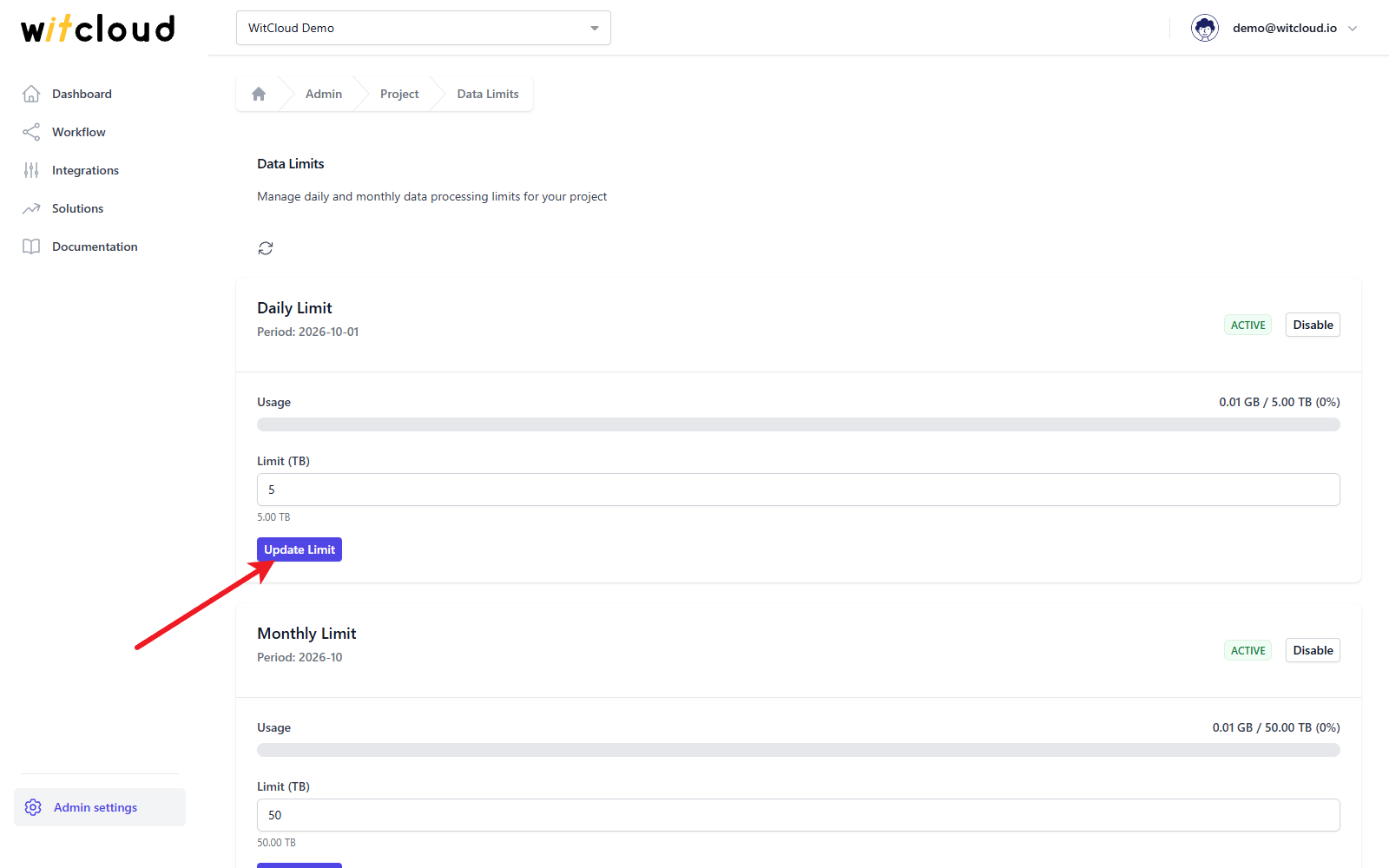
- The daily limit can be up to 10 TB, the monthly limit up to 100 TB.
- A limit must be greater than 0.
- The daily limit cannot be higher than the monthly limit.
Turn a limit off or on
Click Disable on a card to switch that limit off — jobs are no longer stopped by it, and the usage for it is not counted while it is off. Click Enable to switch it back on.
AI assistant (MCP)
AI assistant (MCP) is one pool shared by everyone in the project who uses the WitCloud MCP assistant. When it is used up, only the assistant's queries stop — integrations, All in One and solutions keep running.
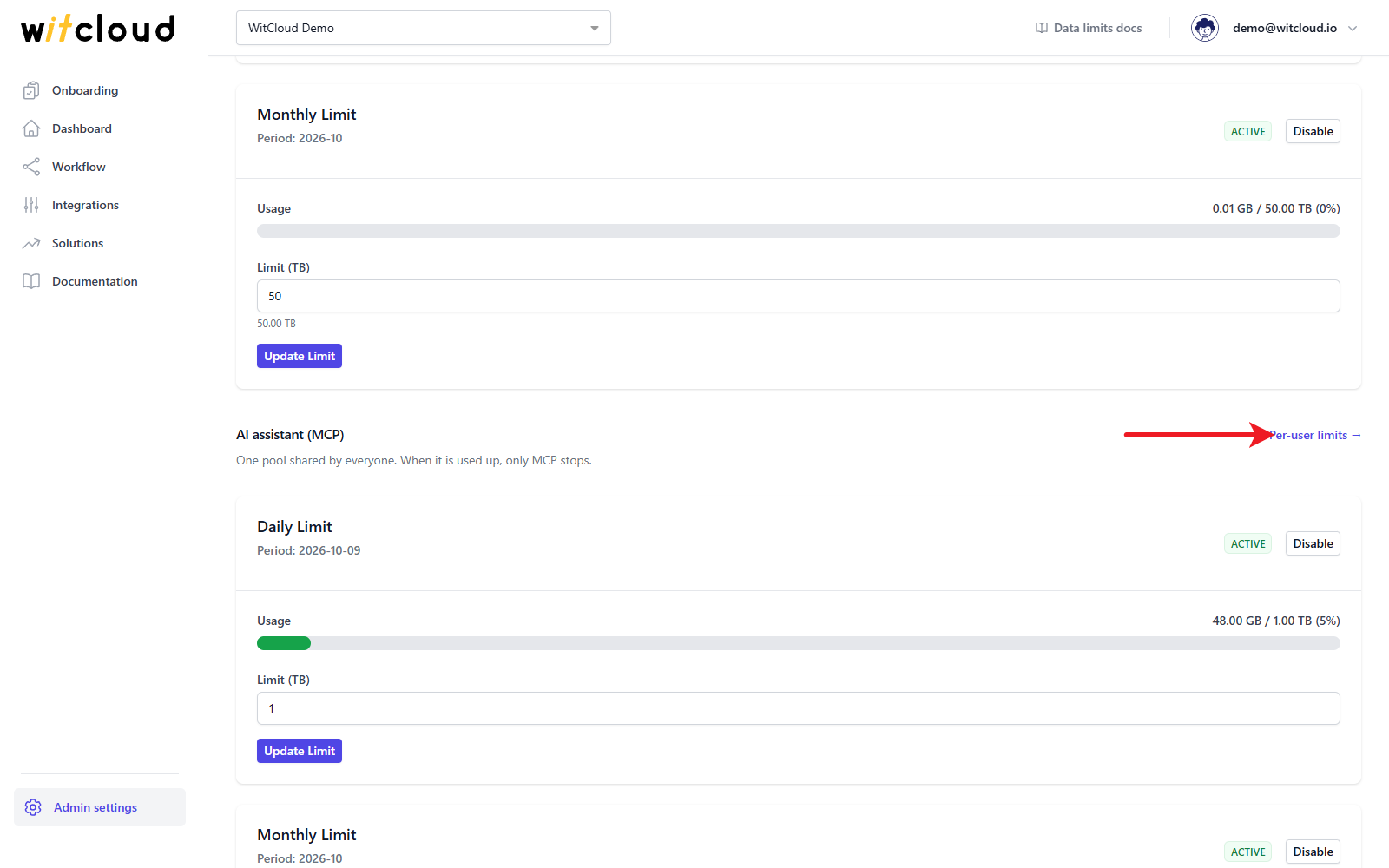
- The pool is set up with the project's first assistant query, at 1 TB per day and 10 TB per month. Until then the cards show Set up on the first MCP query.
- Its cards work like the project's: Limit (TB) and Update Limit, Disable and Enable. The daily pool can be up to 10 TB, the monthly pool up to 100 TB.
- Per-user limits opens the Users tab of the WitCloud MCP settings, where each person can get a daily and a monthly limit of their own inside the pool.
Troubleshooting
Daily limit cannot exceed 10 TB / Monthly limit cannot exceed 100 TB
The value is above the maximum. Enter a lower one.
Daily limit cannot exceed monthly limit
Raise the monthly limit first, or keep the daily limit at or below it.
Limit must be greater than 0
Enter a positive value. To stop limiting, click Disable instead.
Integrations or All in One stopped processing data
Check the cards: an EXCEEDED status means the limit for that day or month is used up. Wait for the next period, or raise the limit.
The assistant says the data limit is used up
Check the AI assistant (MCP) cards: an EXCEEDED status means the pool for that day or month is used up for everyone. If the pool is not exceeded, the person has used up their own limit — see their row in Users. Wait for the next period, or raise the limit.