
Integration of Domodi & Allani with BigQuery
Learn how to connect Domodi and Allani to Google BigQuery using WitCloud. Collect daily category statistics of your shops - clicks, transactions, revenue and cost - and analyze them next to the rest of your data.
Updated
Introduction
This integration connects the Domodi and Allani fashion platforms to Google Cloud BigQuery. For every day it collects the category statistics of your shops: clicks, transactions, average basket, revenue, cost, COS and conversion rate. Domodi and Allani data land in separate tables.
Configuration guide
Follow the steps below to connect Domodi & Allani with BigQuery. Once the setup is complete, your data will be transferred to your BigQuery project.
Module setup
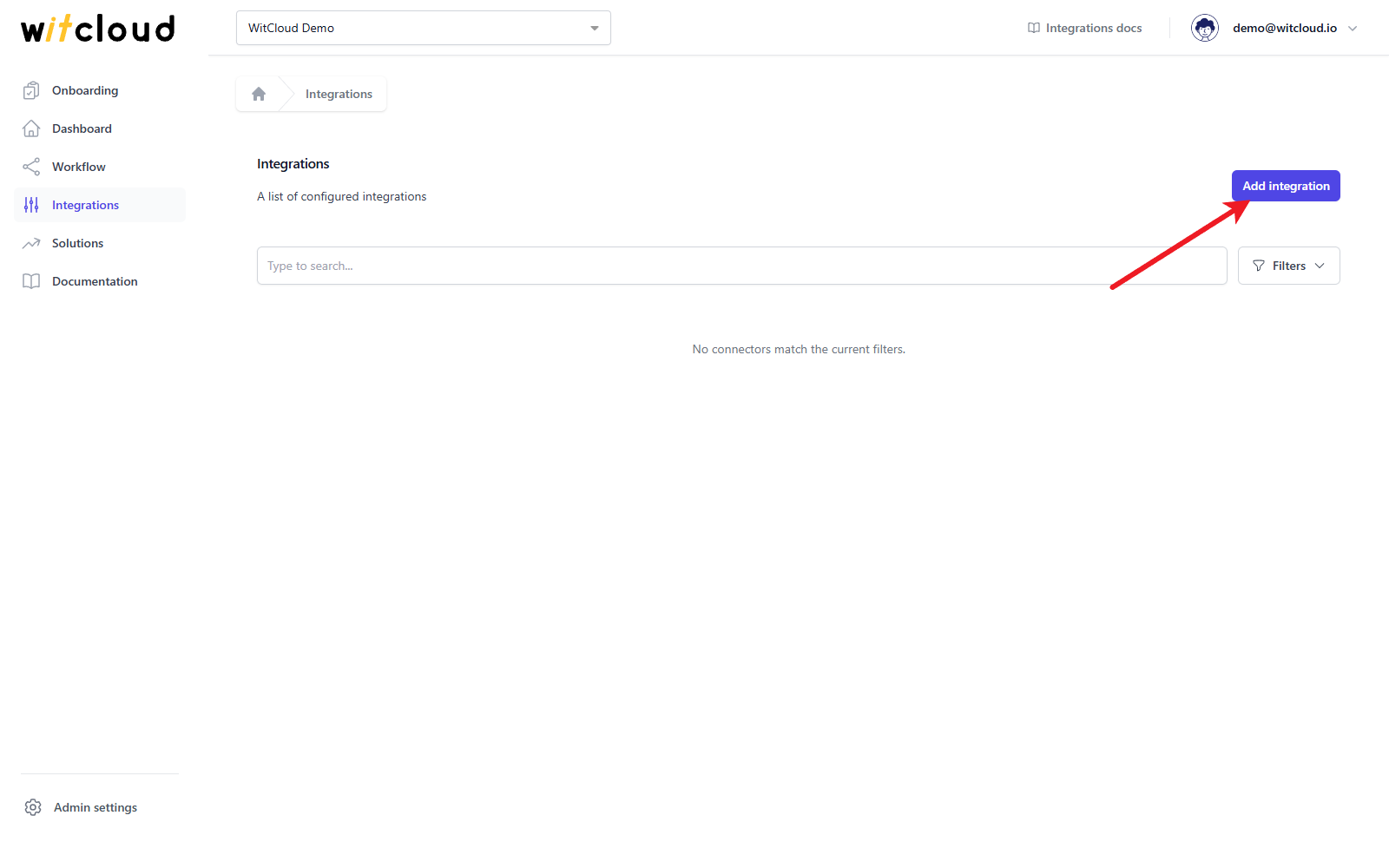
Go to Integrations in the menu and click Add integration.
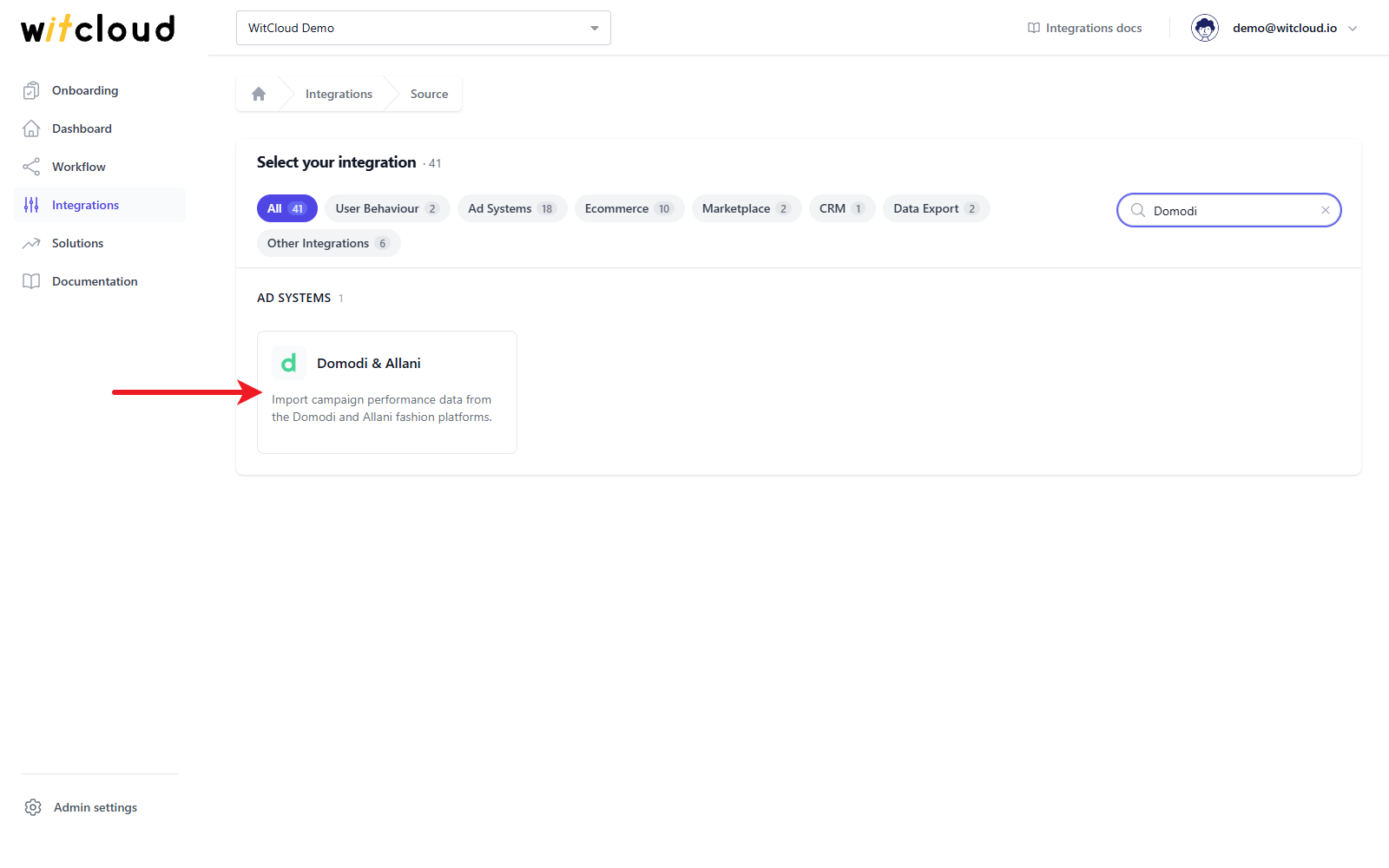
Select Domodi & Allani from the list of available integrations.
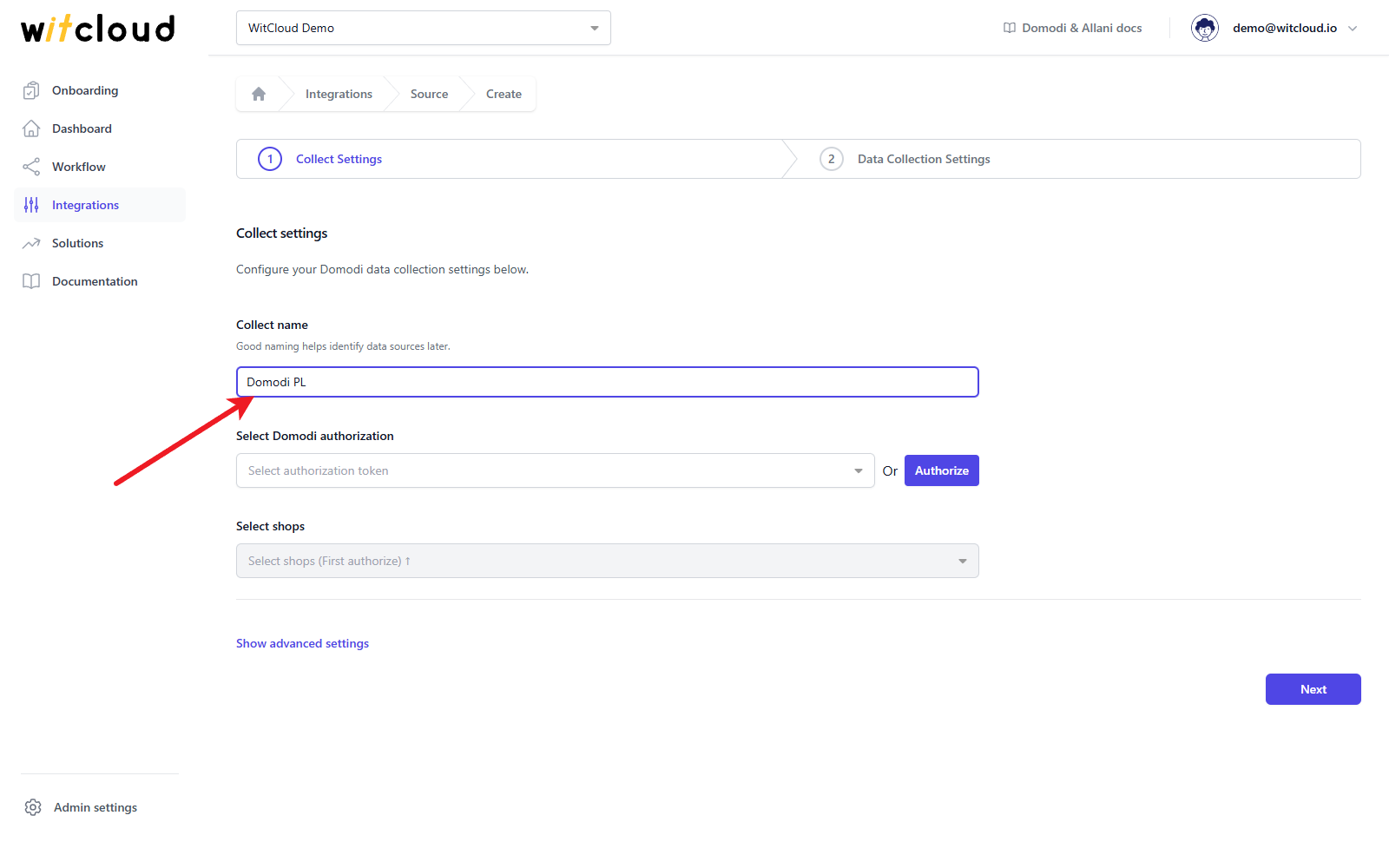
Enter the Collect name, e.g., "Domodi PL".
Authorization
If you have previously authorized the Domodi & Allani module, you can skip this step and pick the existing authorization from the Select Domodi authorization drop-down.
WitCloud connects to Domodi with an API token. To generate it, open the API integration page of the Domodi panel using this link, set the date the token is valid until and click Generuj (Generate). The token expires on that date or when the user's password is reset - then generate a new one.
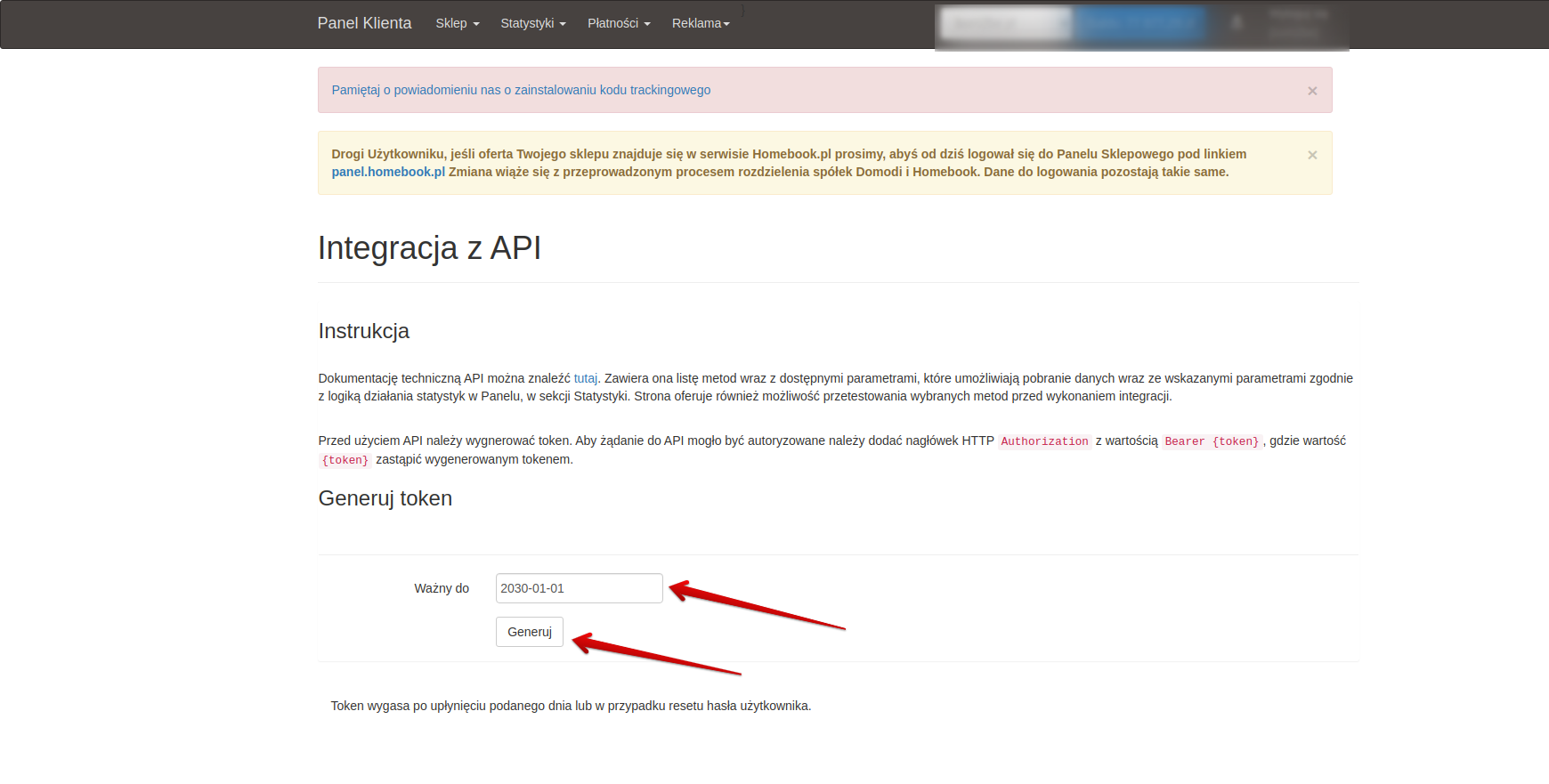
Copy the generated token, go back to WitCloud and click Authorize.
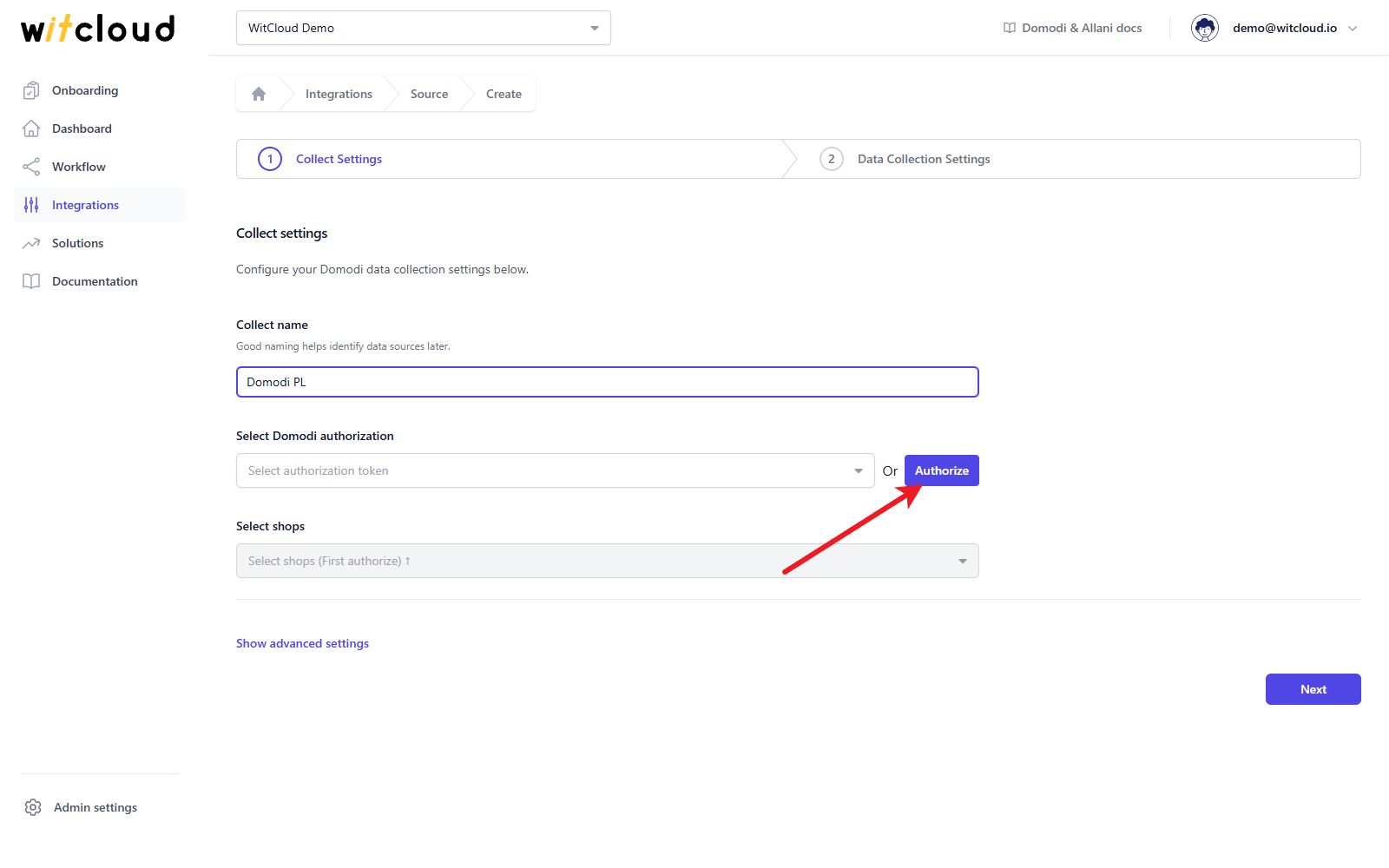
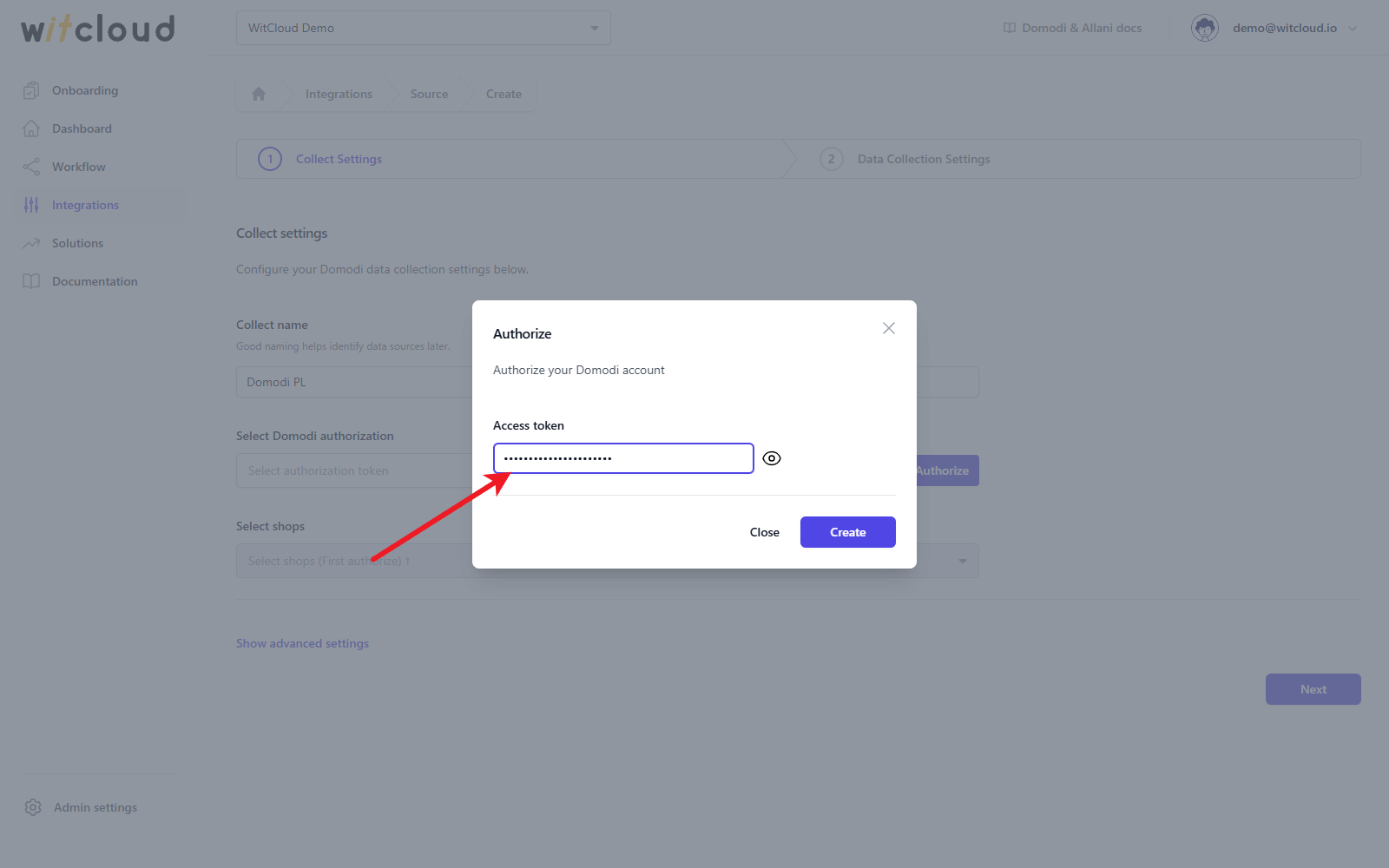
Paste the token into the Access token field of the Authorize form and click Create.
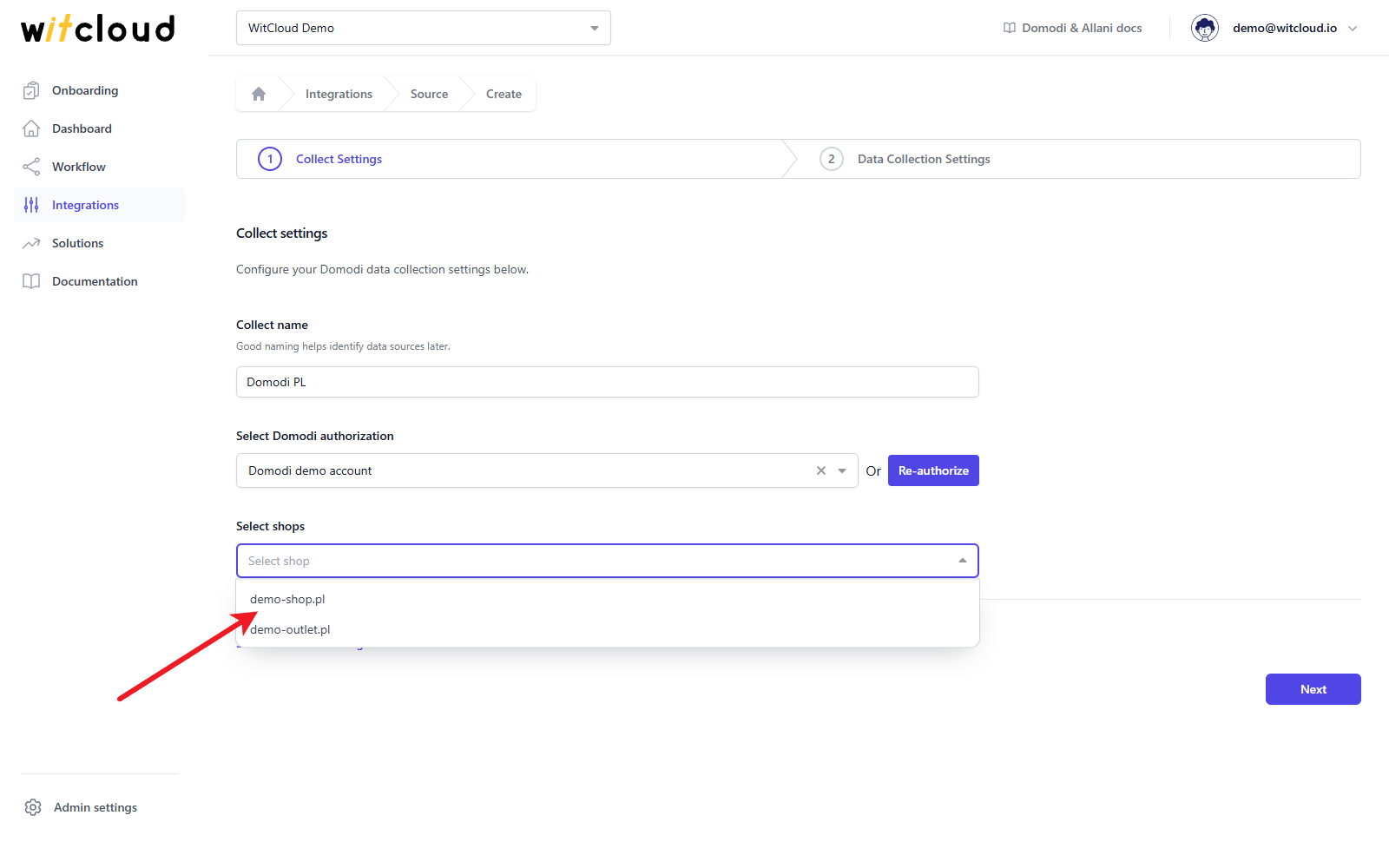
Once an authorization is selected, the button changes to Re-authorize. Use it when your token has expired: paste the new token and it replaces the old one.
Shop selection
Select one or more shops from the Select shops drop-down. Each selected shop becomes its own data collect, named after the collect name and the shop, e.g. "Domodi PL - demo-shop.pl".
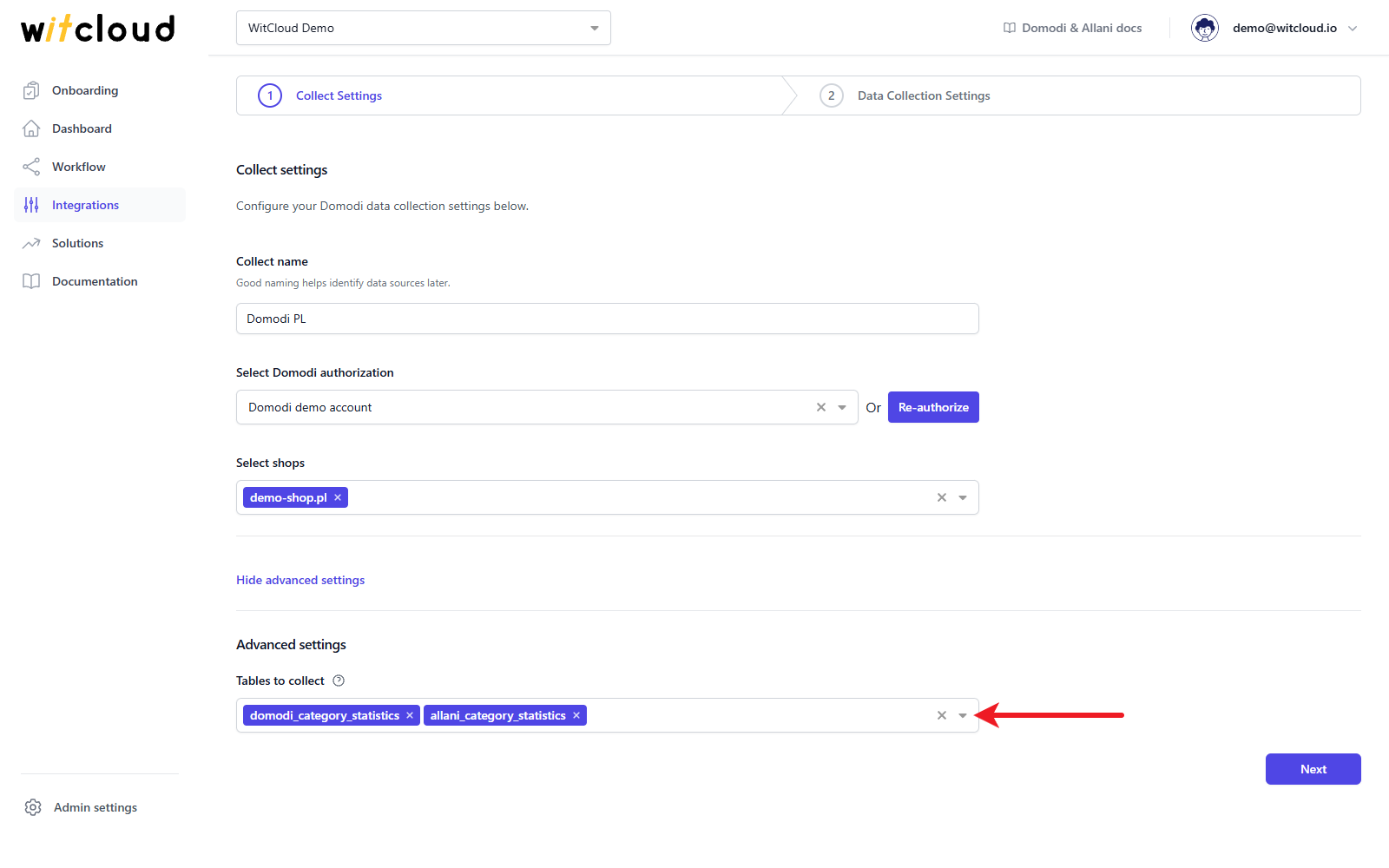
Optionally, click Show advanced settings. Tables to collect lets you filter the tables you want to collect: domodi_category_statistics and allani_category_statistics. By default both are selected, and at least one table is required.
Click Next.
Historical data and scheduling
In Historical Data, enter the number of days for which you want to fetch historical data. You can enter up to 365 days.
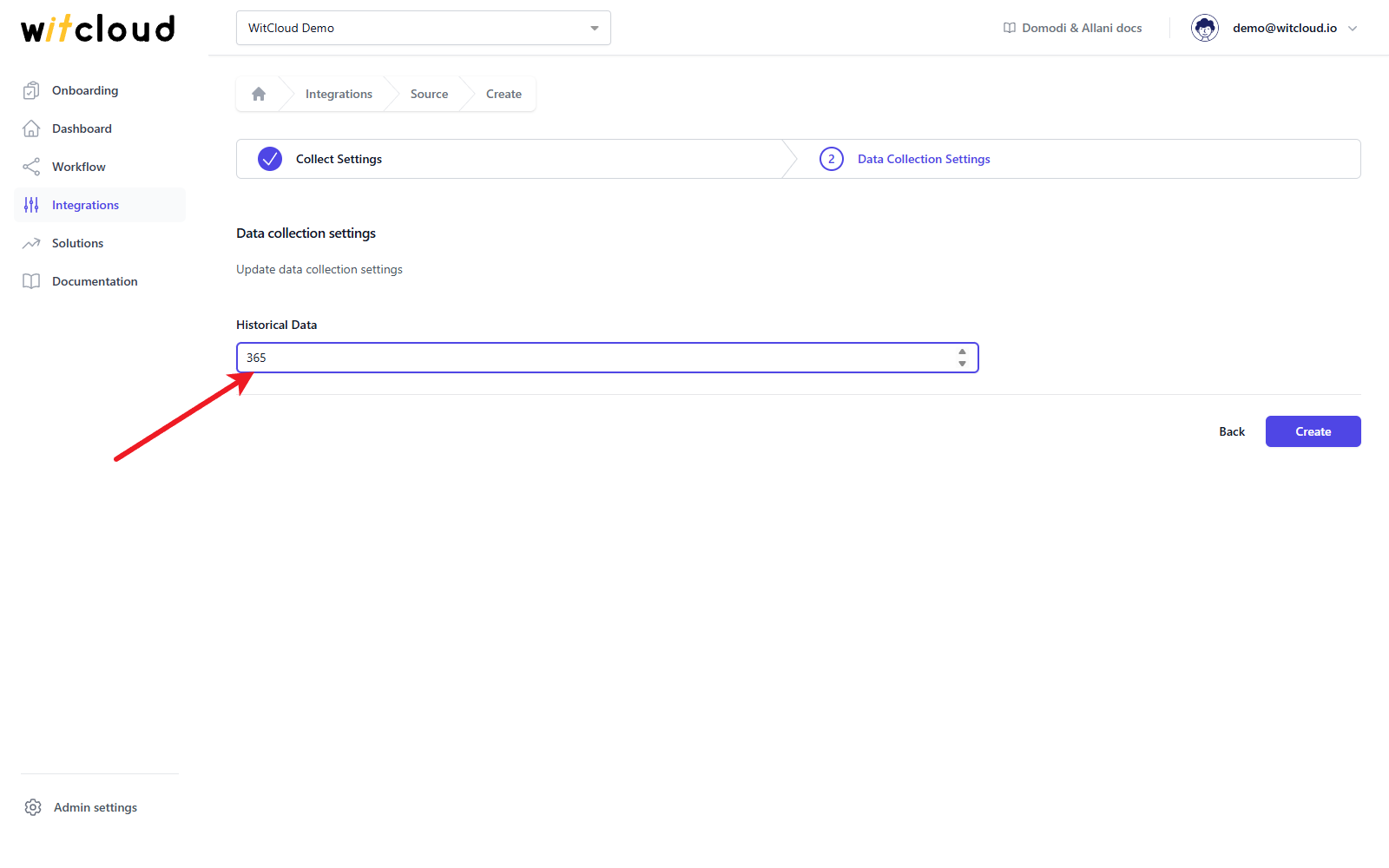
A data synchronization schedule will be created automatically. More information on this topic can be found here.
Click Create to complete the configuration.
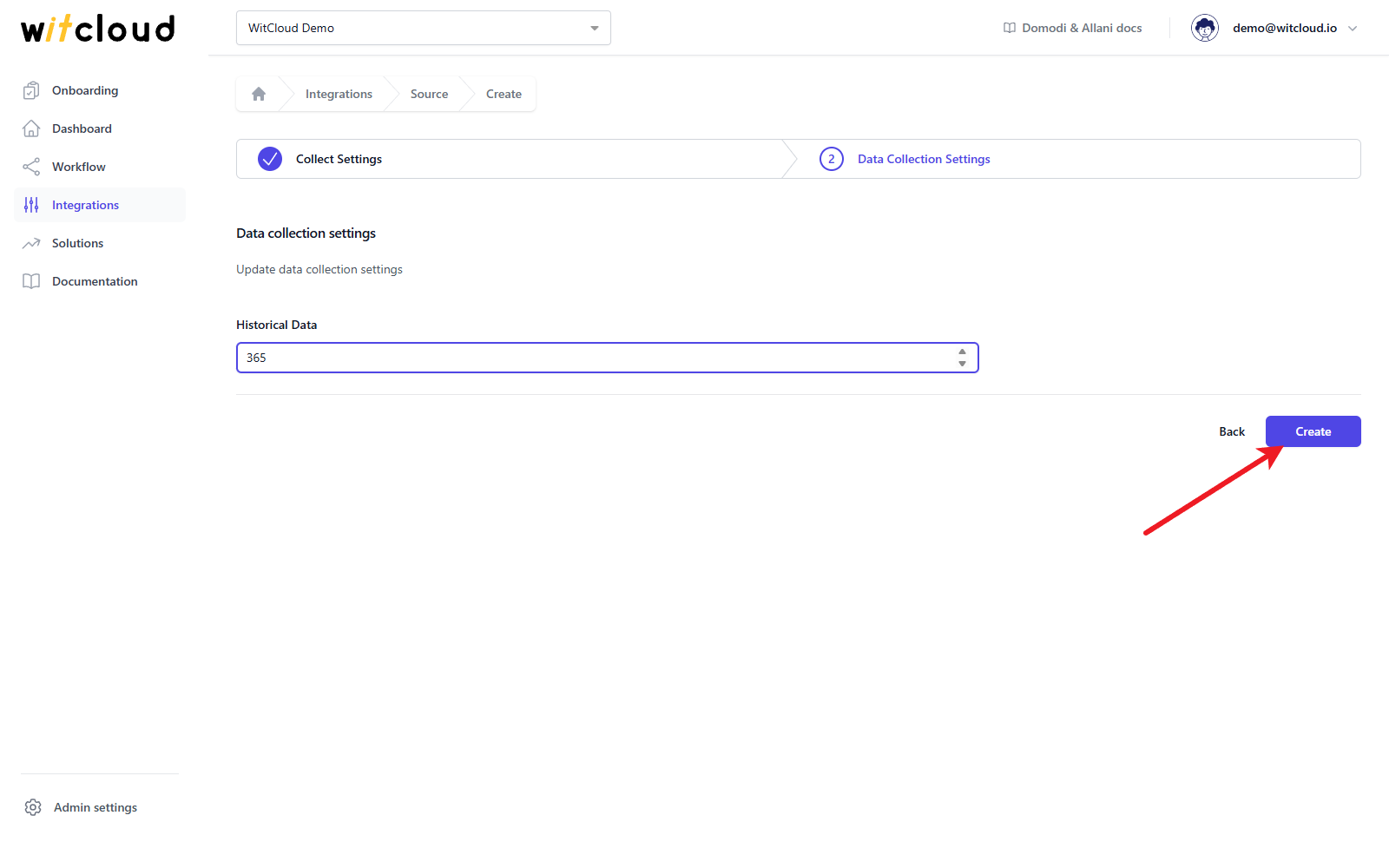
Done! Your Domodi and Allani data will now be synchronized with BigQuery.
Data schema
Expand the tables below to view the full data schema collected from Domodi & Allani. Both tables have the same schema: one row is one category of one shop on a given day.
Data schema for domodi_category_statistics
| Field Name | Mode | Type |
|---|---|---|
| date | NULLABLE | DATE |
| category | NULLABLE | STRING |
| shopName | NULLABLE | STRING |
| clicks | NULLABLE | INTEGER |
| transactions | NULLABLE | INTEGER |
| averageBasket | NULLABLE | FLOAT |
| transactionRevenue | NULLABLE | FLOAT |
| cost | NULLABLE | FLOAT |
| COS | NULLABLE | STRING |
| CR | NULLABLE | STRING |
Data schema for allani_category_statistics
| Field Name | Mode | Type |
|---|---|---|
| date | NULLABLE | DATE |
| category | NULLABLE | STRING |
| shopName | NULLABLE | STRING |
| clicks | NULLABLE | INTEGER |
| transactions | NULLABLE | INTEGER |
| averageBasket | NULLABLE | FLOAT |
| transactionRevenue | NULLABLE | FLOAT |
| cost | NULLABLE | FLOAT |
| COS | NULLABLE | STRING |
| CR | NULLABLE | STRING |