
XML feed from BigQuery
Generate an XML file, such as a product feed for Google Merchant Center, from a BigQuery table with a template you write, and refresh it on a schedule.
Updated
Introduction
The Feed integration turns the rows of a BigQuery table into an XML file. You write the template of the file once; every run of the feed writes each row of the table as one item. Use it for product feeds (Google Merchant Center, Facebook Catalog and other marketing platforms) or any other system that reads XML - from the data of your ecommerce integrations or from a table you prepared yourself.
The file is saved in your project's storage bucket and is public, so the platform that reads the feed can download it from its link.
Configuration guide
Creating a feed needs an active billing account (or a trial) on the project.
Module setup
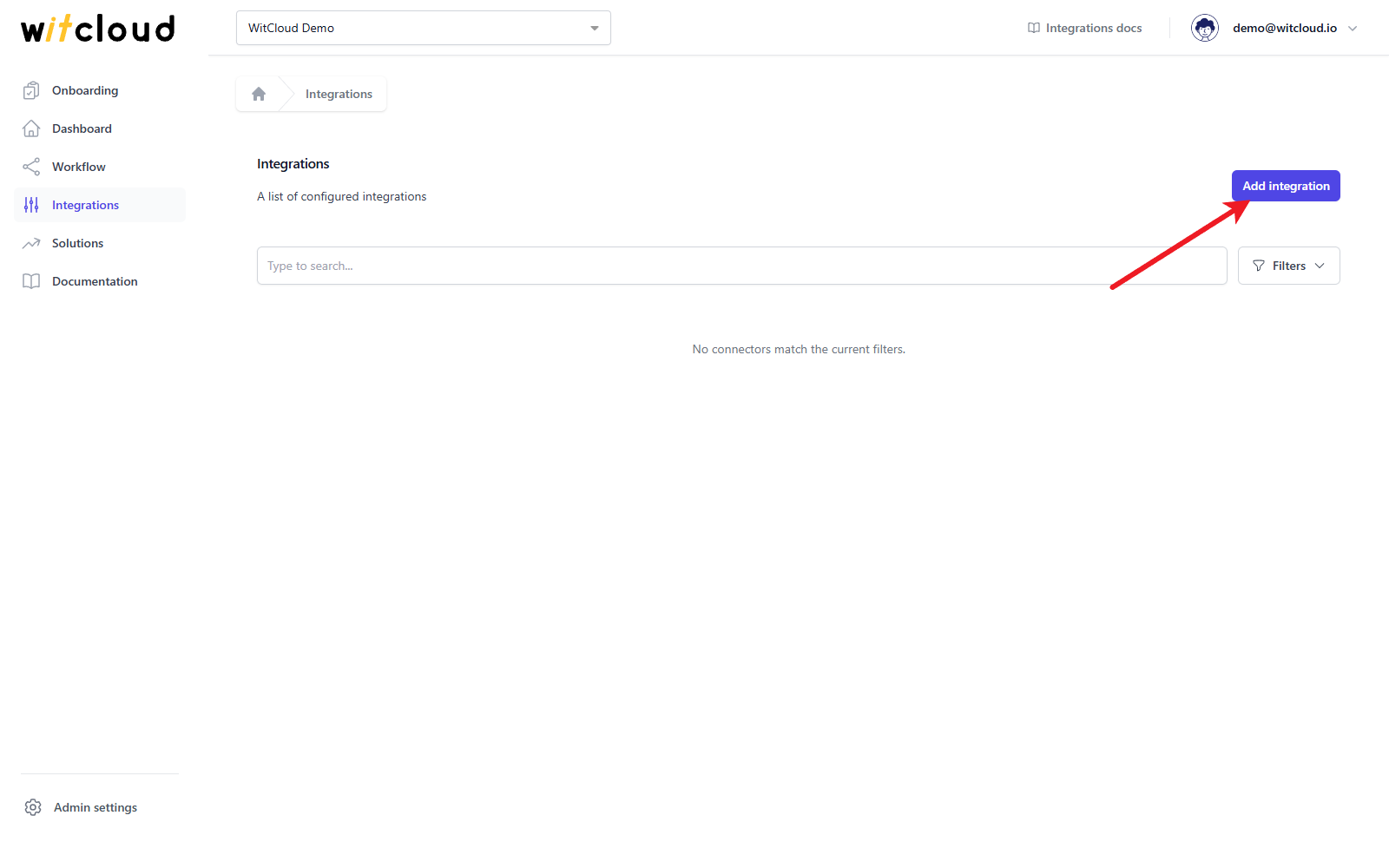
Go to Integrations and click Add integration.
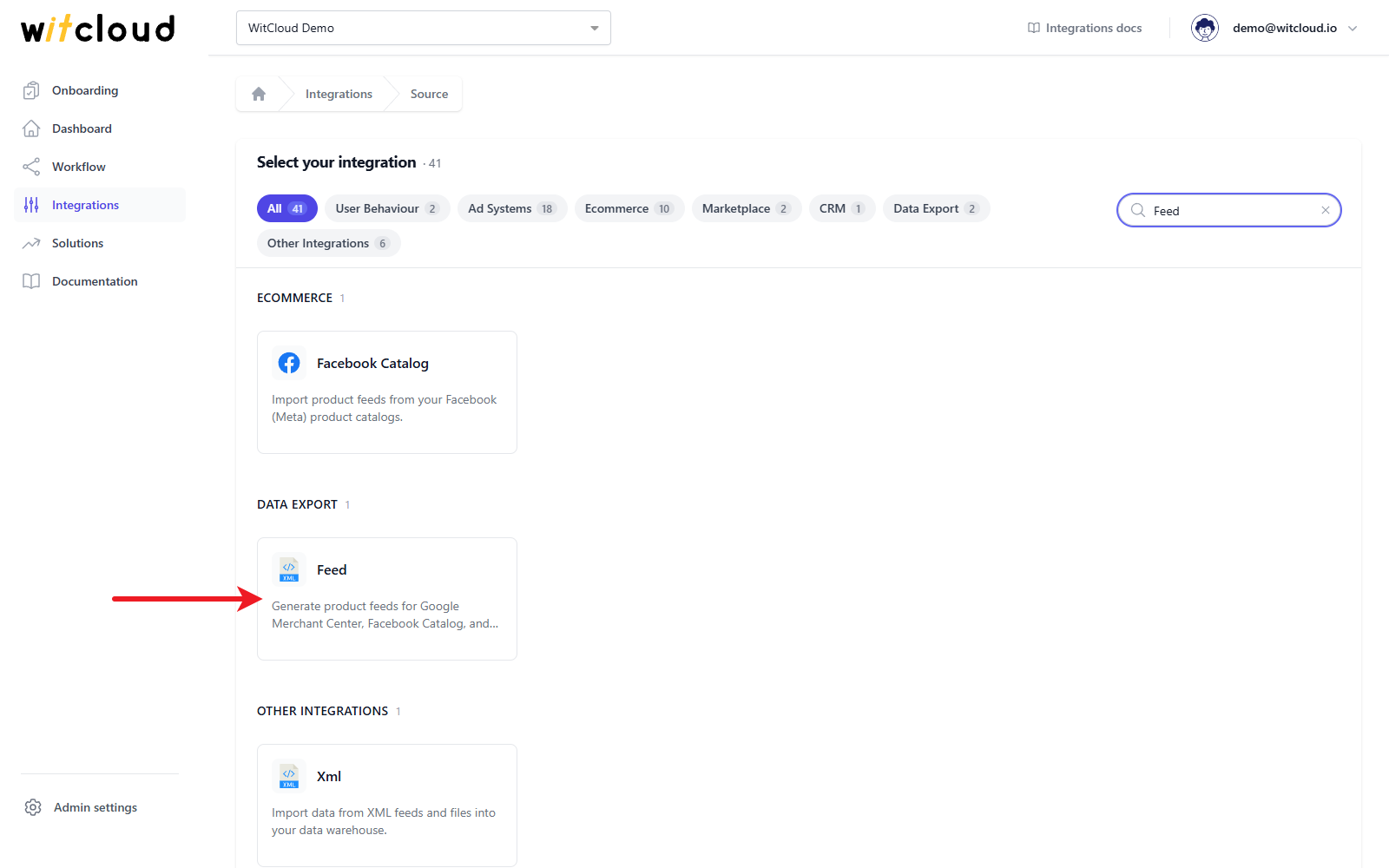
Find Feed (in the Data Export category) and click it.
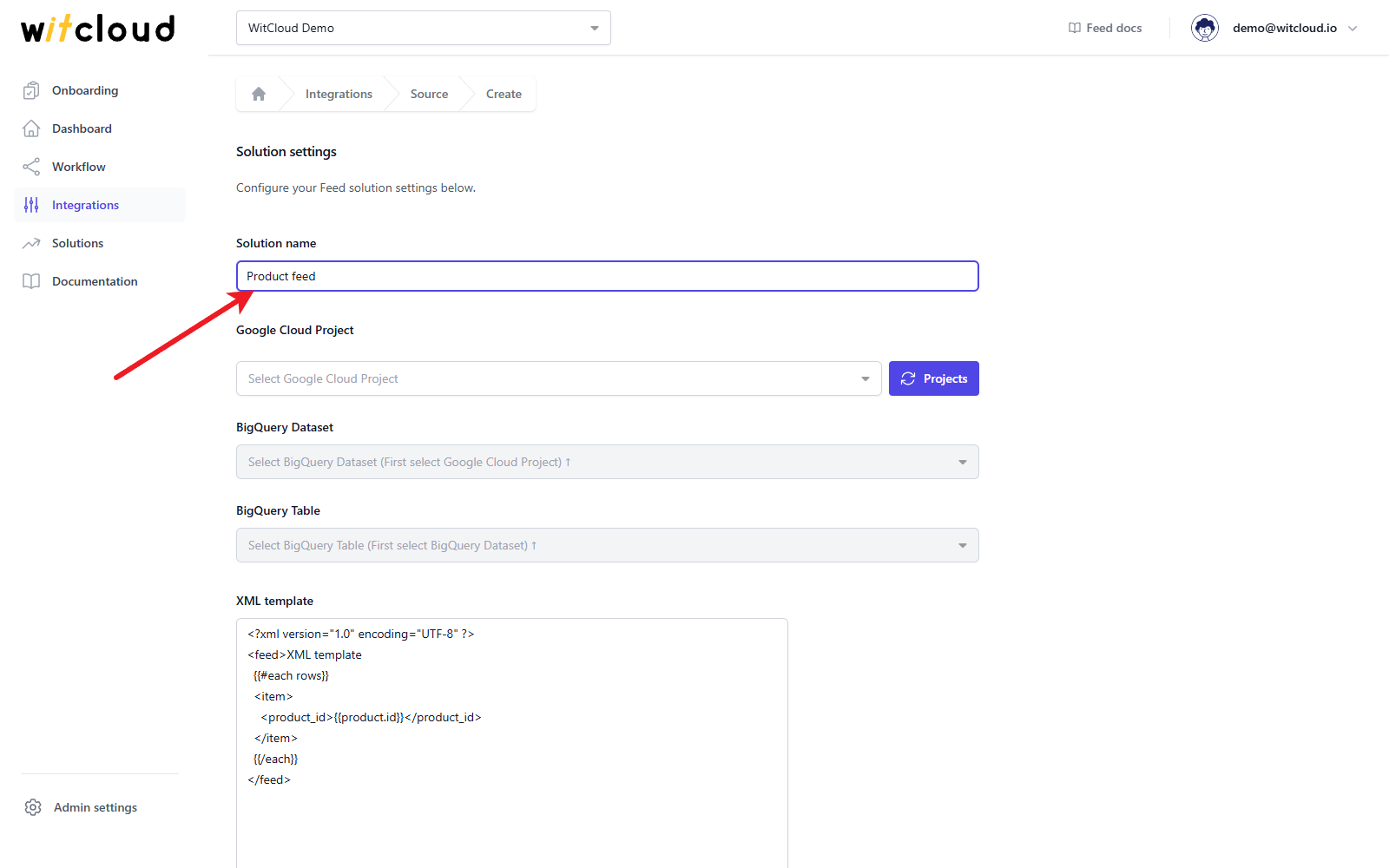
Enter the Solution name, e.g. Product feed. The name also names the XML file.
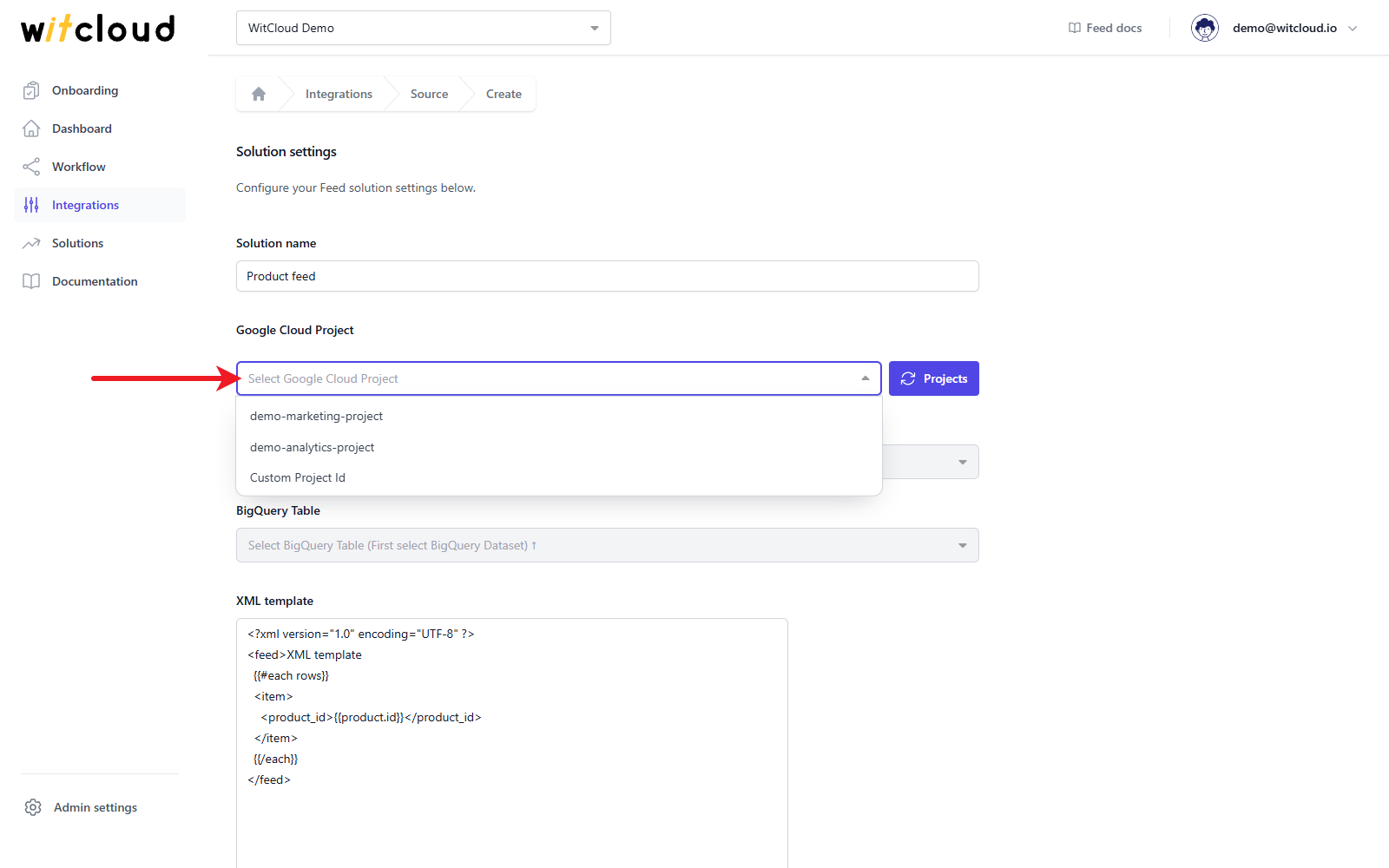
Source table
Select the Google Cloud Project where the table is stored. Custom Project Id at the end of the list lets you type the ID of a project that is not on the list.
Pick the BigQuery Dataset that contains the table.
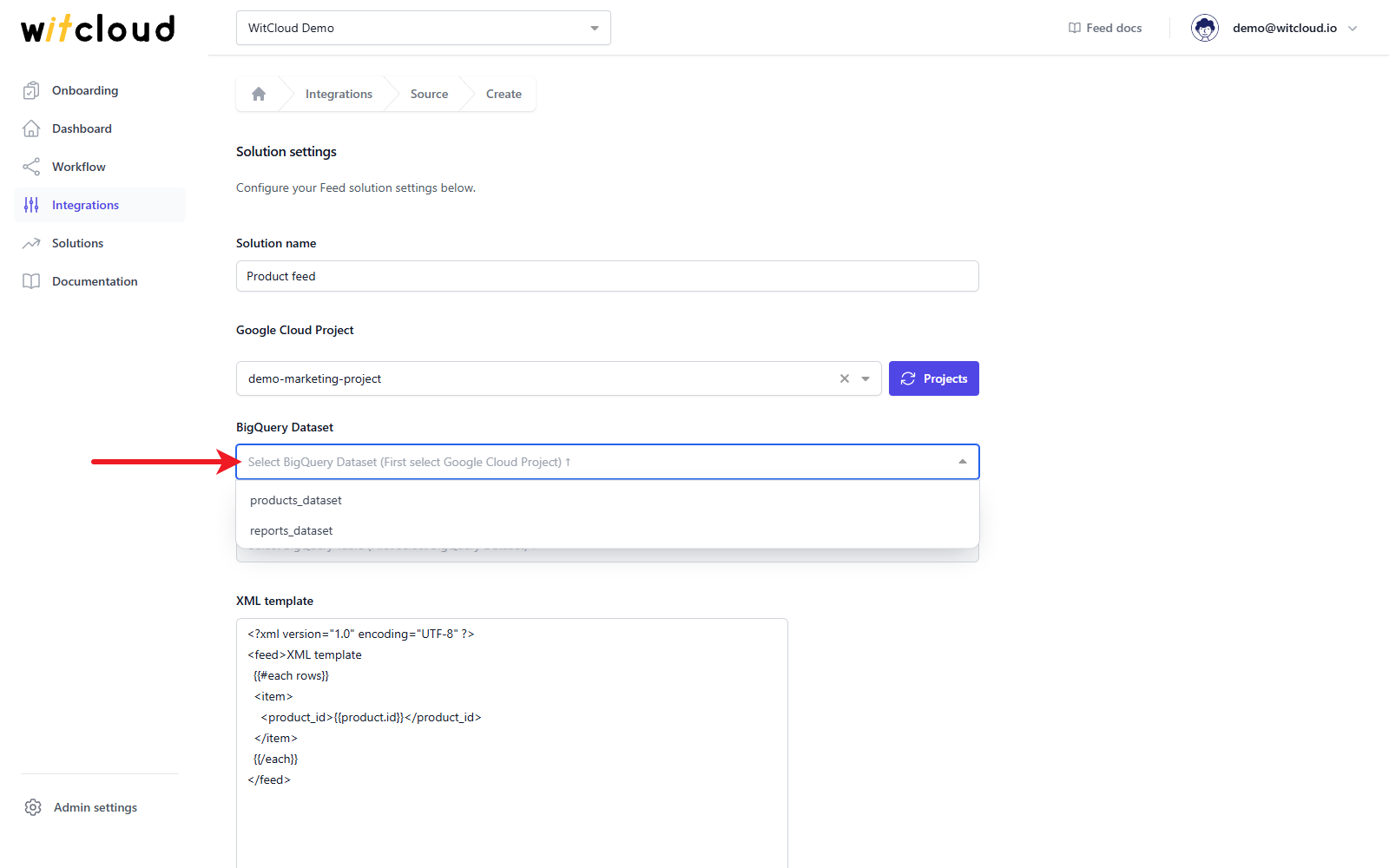
Choose the BigQuery Table to build the feed from.
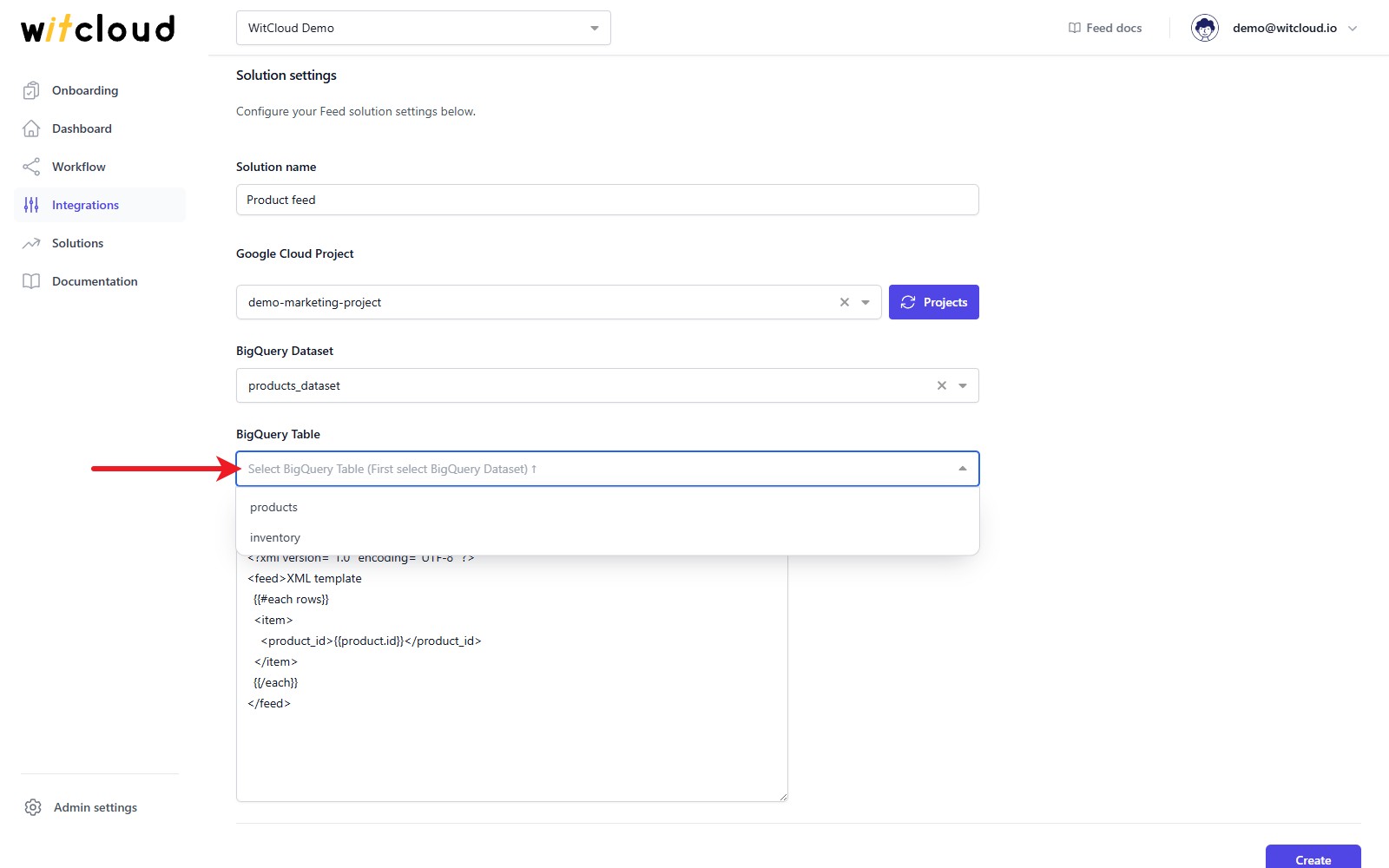
If the table is partitioned by day, each run takes only the partition of the date the run processes. Otherwise it takes the whole table.
XML template
In the XML template field, write the structure of the file. Once a table is selected, Available fields on the right lists its columns.
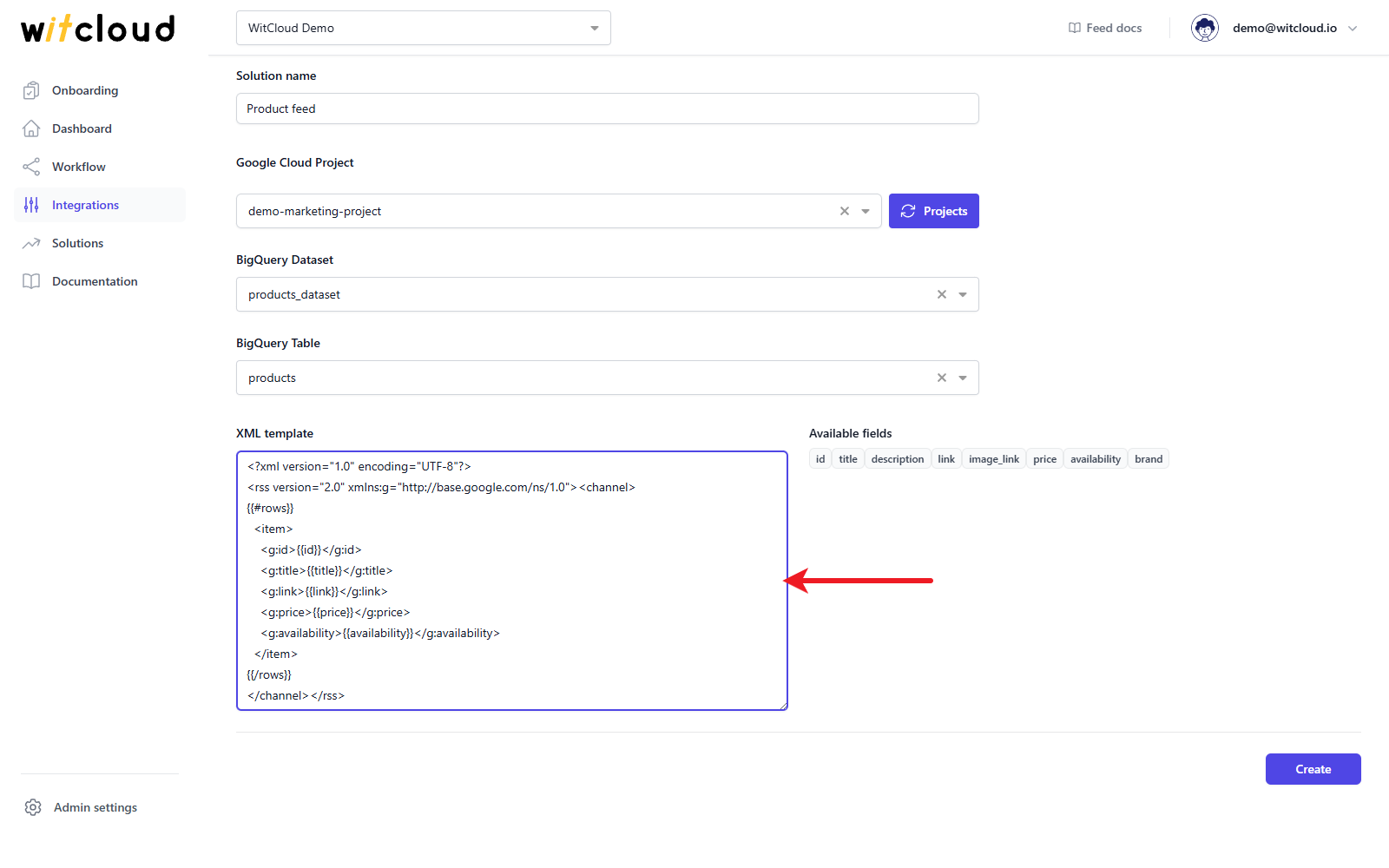
The template has three parts:
- the text before
{{#rows}}- written once, at the start of the file; - the text between
{{#rows}}and{{/rows}}- written once for every row of the table; - the text after
{{/rows}}- written once, at the end of the file.
Between {{#rows}} and {{/rows}}, put a column name in double braces to insert its value,
e.g. {{title}}. For a column with nested fields, use a dot: {{product.id}}. Values are
escaped for XML (& becomes &); use triple braces, {{{description}}}, to insert a value
as it is.
<?xml version="1.0" encoding="UTF-8"?>
<rss version="2.0" xmlns:g="http://base.google.com/ns/1.0"><channel>
{{#rows}}
  <item>
    <g:id>{{id}}</g:id>
    <g:title>{{title}}</g:title>
    <g:link>{{link}}</g:link>
    <g:price>{{price}}</g:price>
    <g:availability>{{availability}}</g:availability>
  </item>
{{/rows}}
</channel></rss>
Click Create.
Execution and scheduling
A feed does not run by itself: add it as a task to a workflow, run the workflow and give it a schedule to keep the file up to date - see Create a workflow. The file appears after the first successful run.
Where to find the file
Every run replaces the file. It is saved in your project's storage bucket, in a folder that
starts with feed-, as <solution name>.xml (the name in lower case, with spaces replaced by
hyphens - product-feed.xml). Open the bucket with Open bucket on the Dashboard; the
file's details in Google Cloud Storage show its public link, which you give to the platform
that reads the feed.
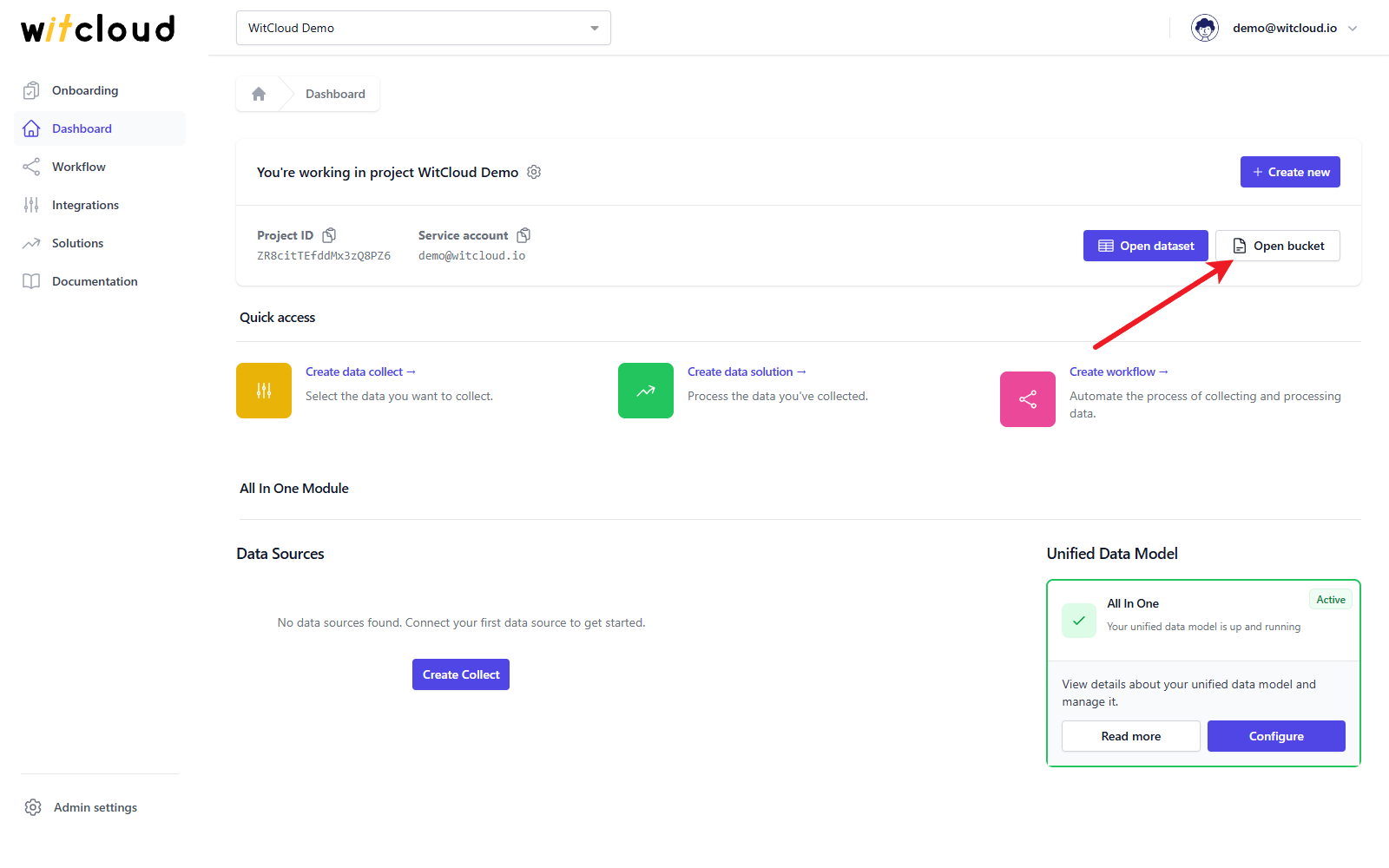
Renaming the feed changes the file name, and so its link. Update the link on the platform that reads the feed after a rename.