
Integration of Custom Data with BigQuery
Learn how to transfer custom data, such as costs or budgets, from Google Sheets or BigQuery to Google BigQuery using WitCloud. Simplify data analysis with flexible integration.
Updated
Introduction
This module lets you collect any data of your own - from a Google Spreadsheet or from a BigQuery table - and store it in Google Cloud BigQuery.
If you have cost or budget data that is not covered by our connectors, you can submit it using this module in our predefined schema. Later, it can be combined with the rest of your data in WitCloud.
Configuration guide
Follow the steps below to connect Custom Data with BigQuery. Once the setup is complete, your data will be transferred to your BigQuery project.
Module setup
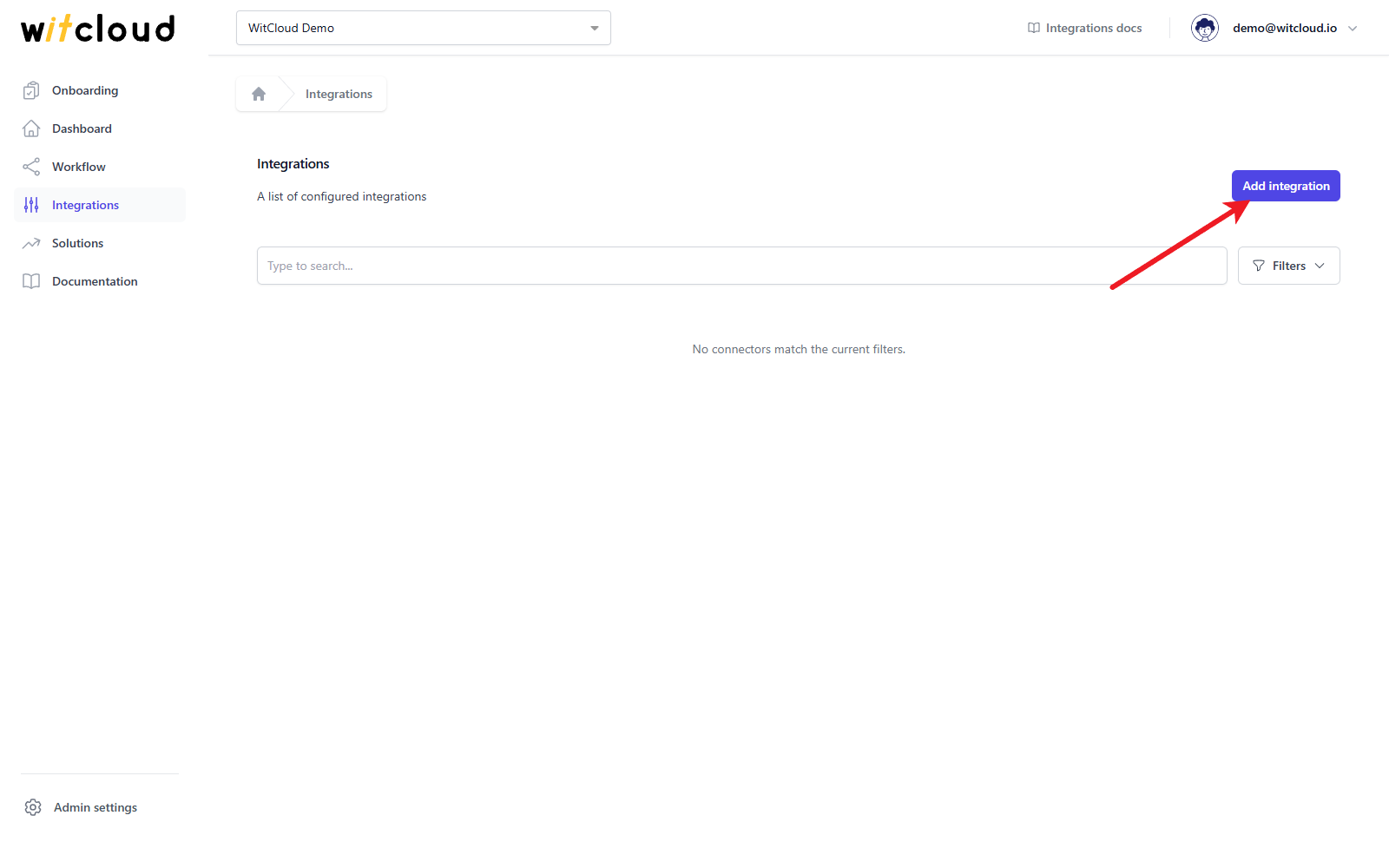
Go to Integrations in the menu and click Add integration.
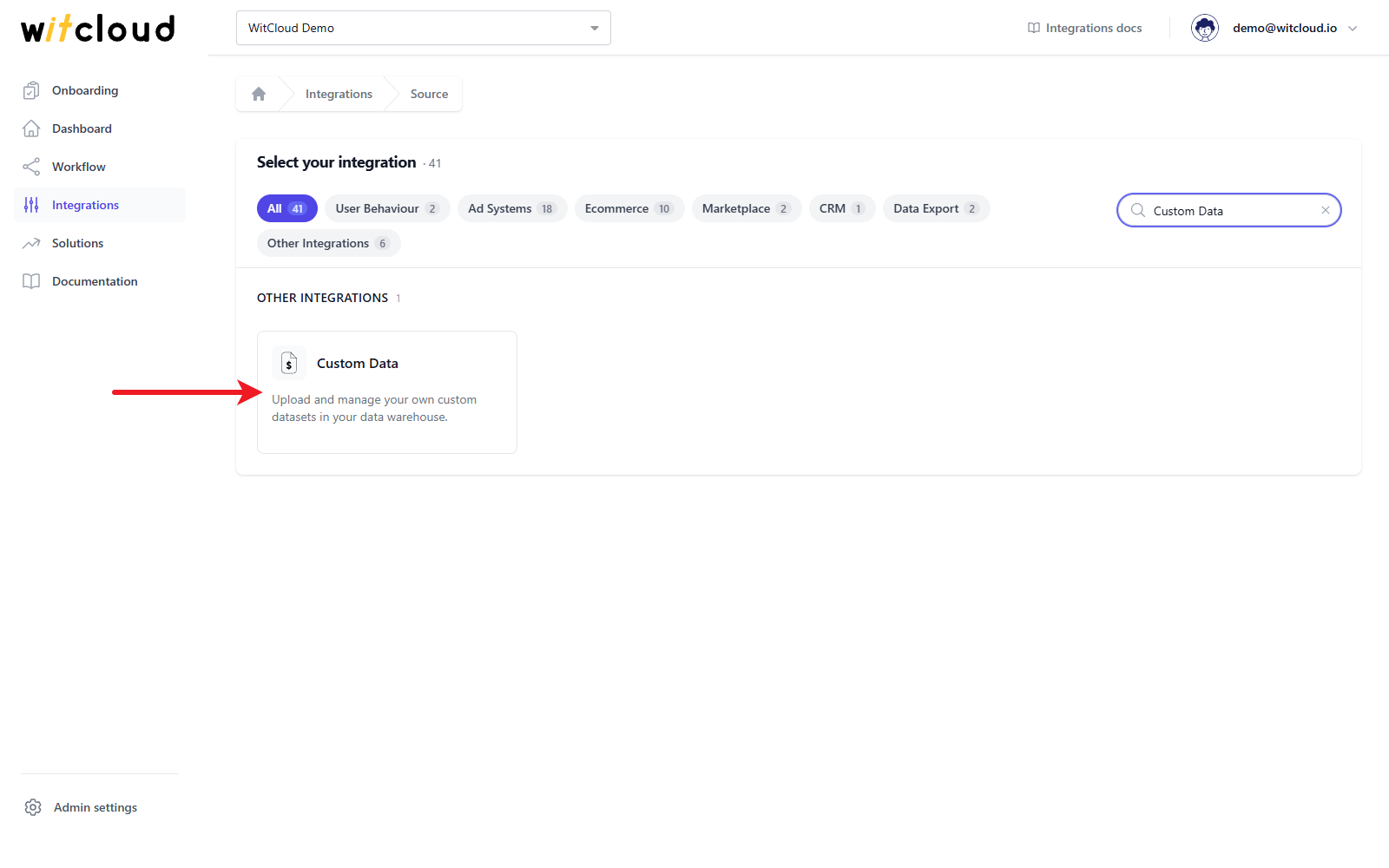
Select Custom Data from the list of available integrations.
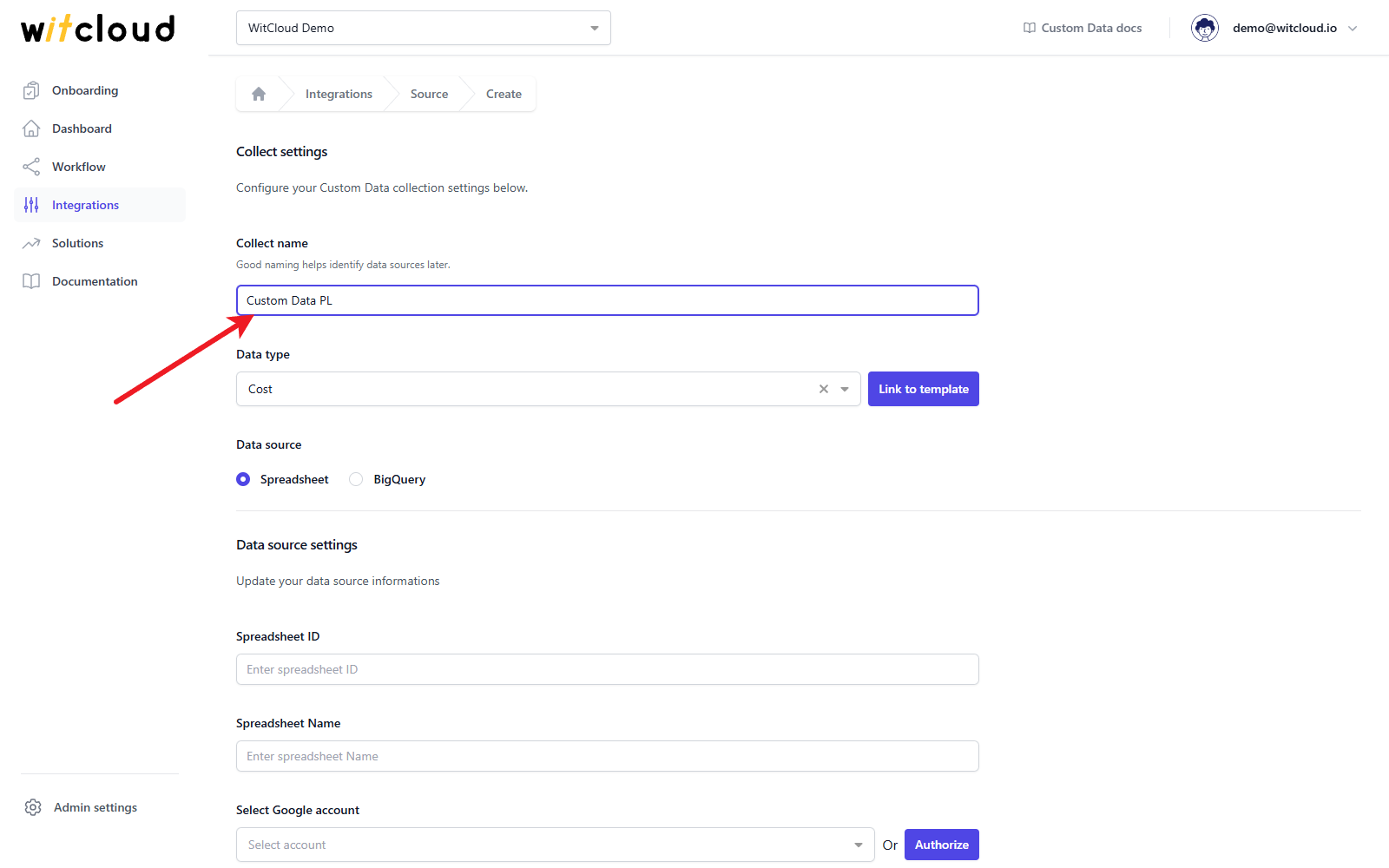
Enter the Collect name, e.g., "Custom Data PL".
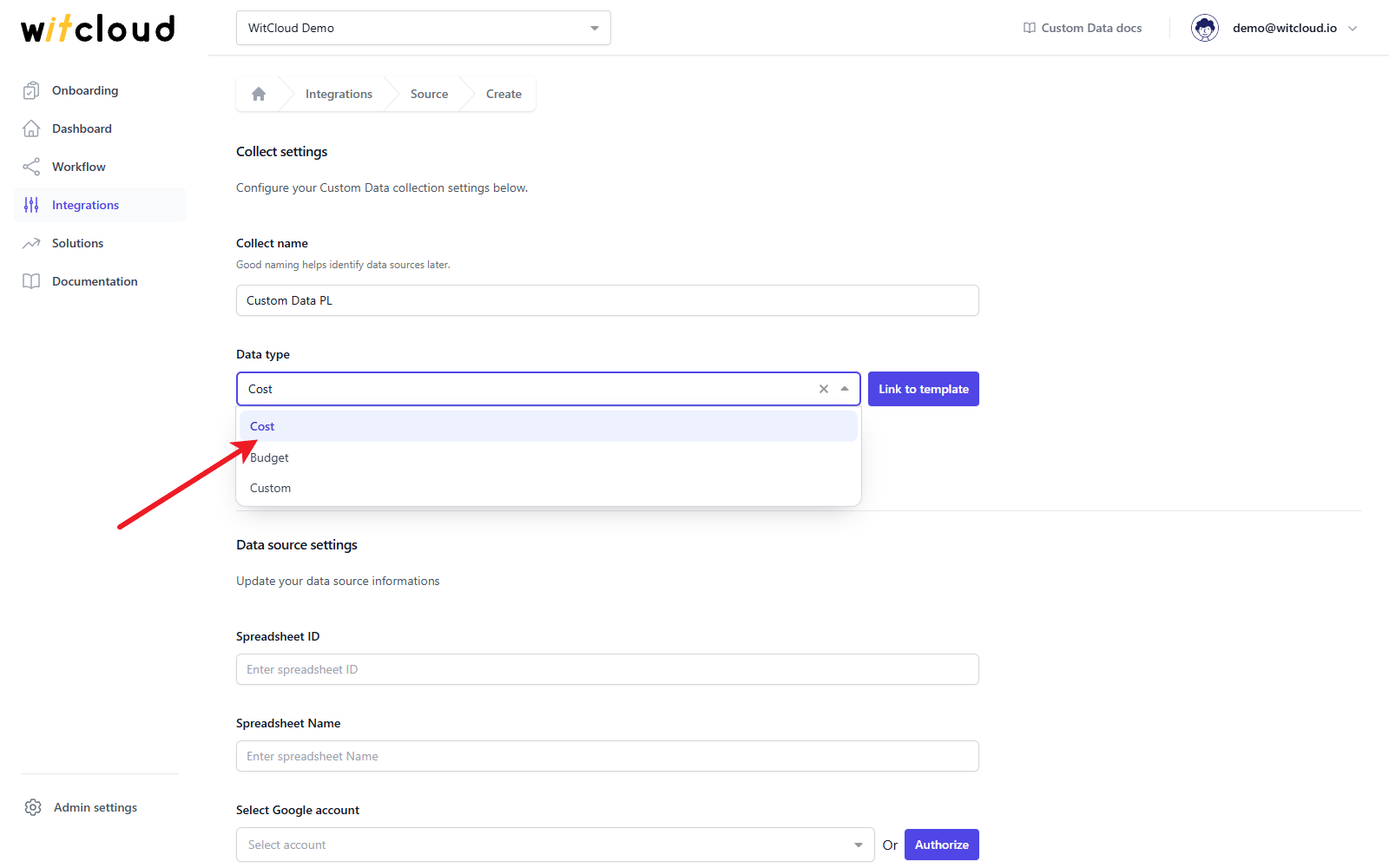
Data type
Select the Data type. There are 3 data types to choose from:
- Cost - cost data in a predefined schema.
- Budget - budget data in a predefined schema.
- Custom - your own data, without any predefined schema. The columns of the table are created from your data.
For Cost and Budget, click Link to template to open a Google Sheets template with the schema. Fill in your data in the same columns.
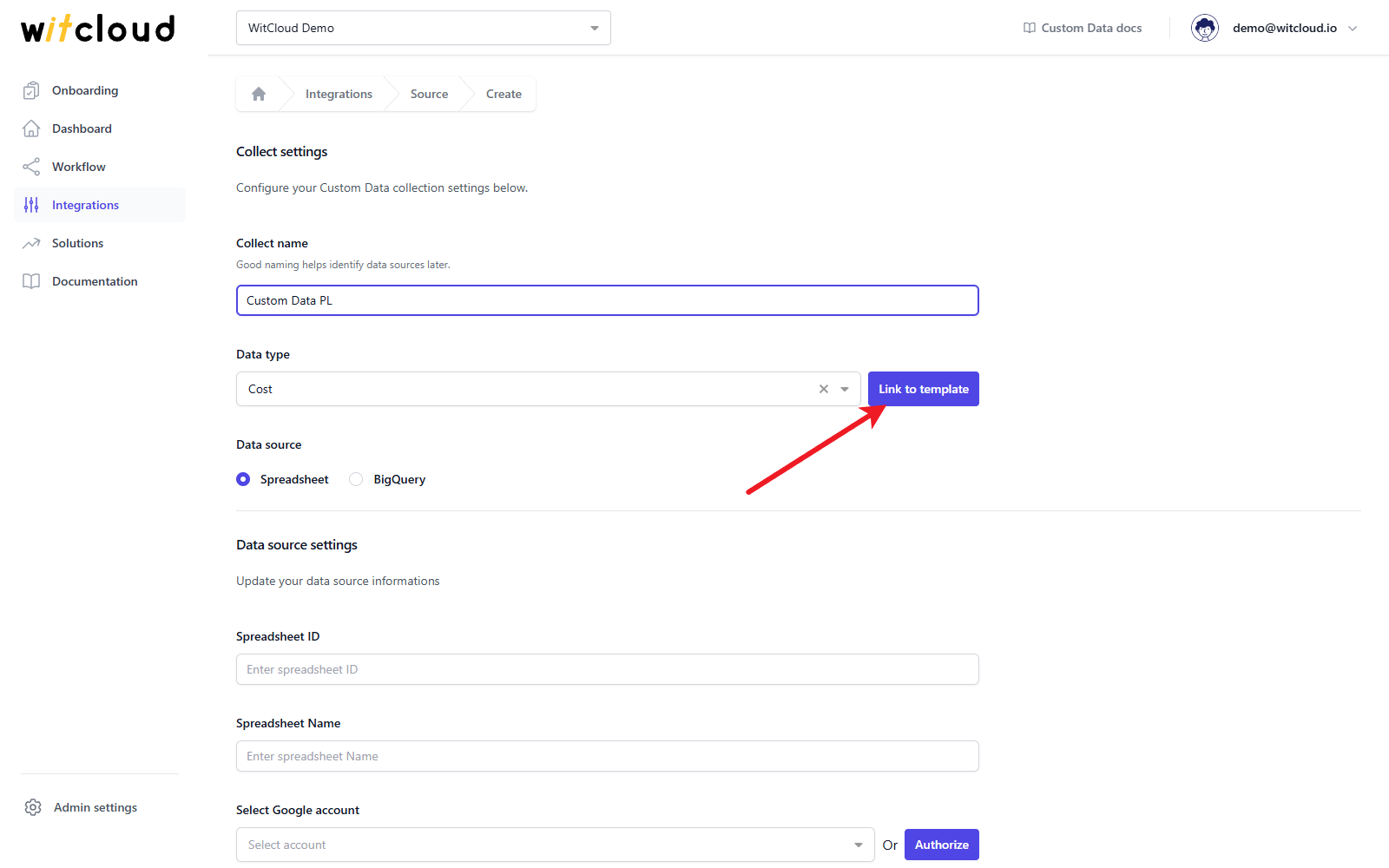
Data source
Select the Data source: Spreadsheet or BigQuery.
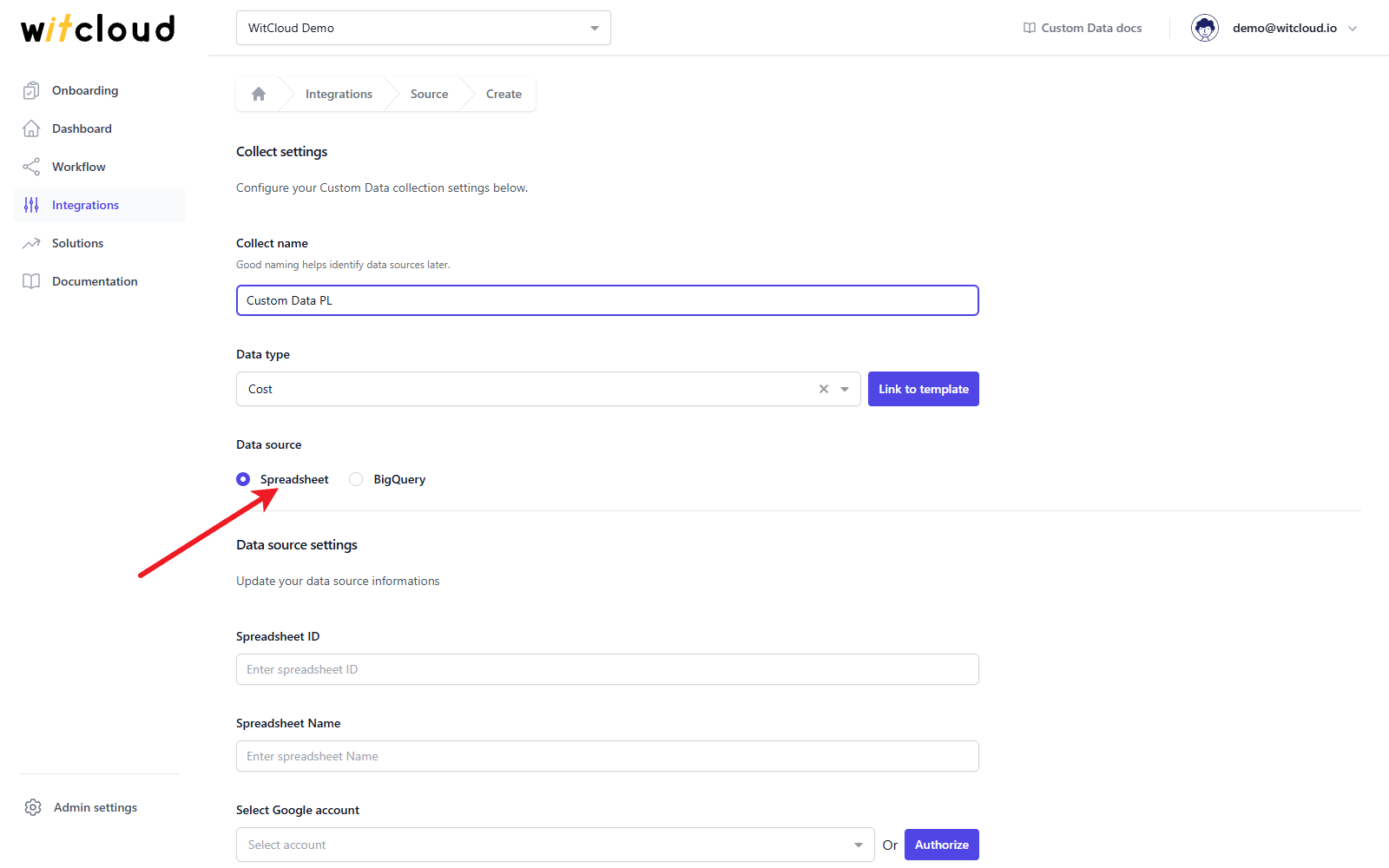
Spreadsheet data source
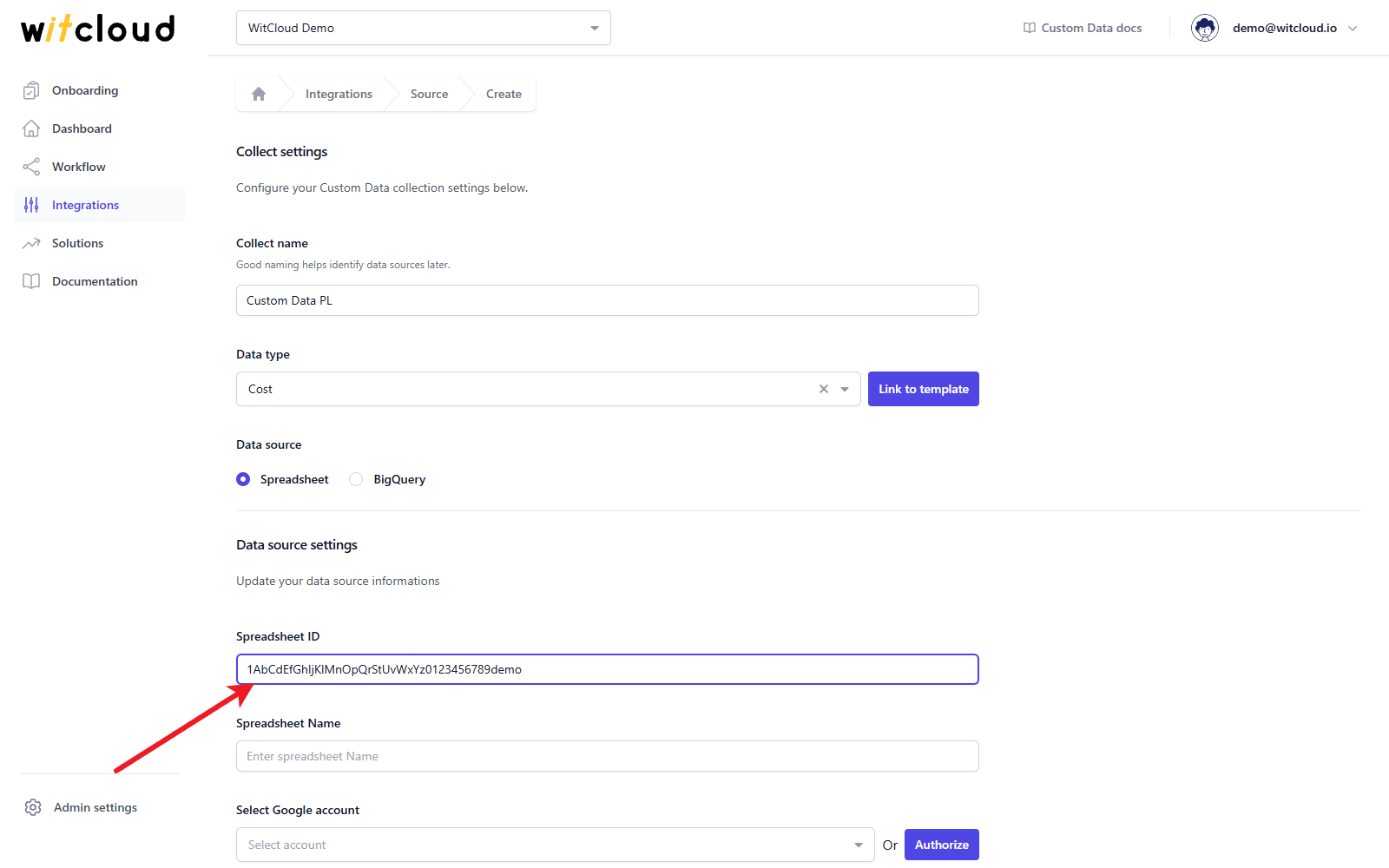
Enter the Spreadsheet ID - the part of the spreadsheet's address between /d/ and /edit.
Enter the Spreadsheet Name: the name of the sheet (the tab at the bottom of the spreadsheet) that holds your data, e.g. "Costs" - not the name of the file.
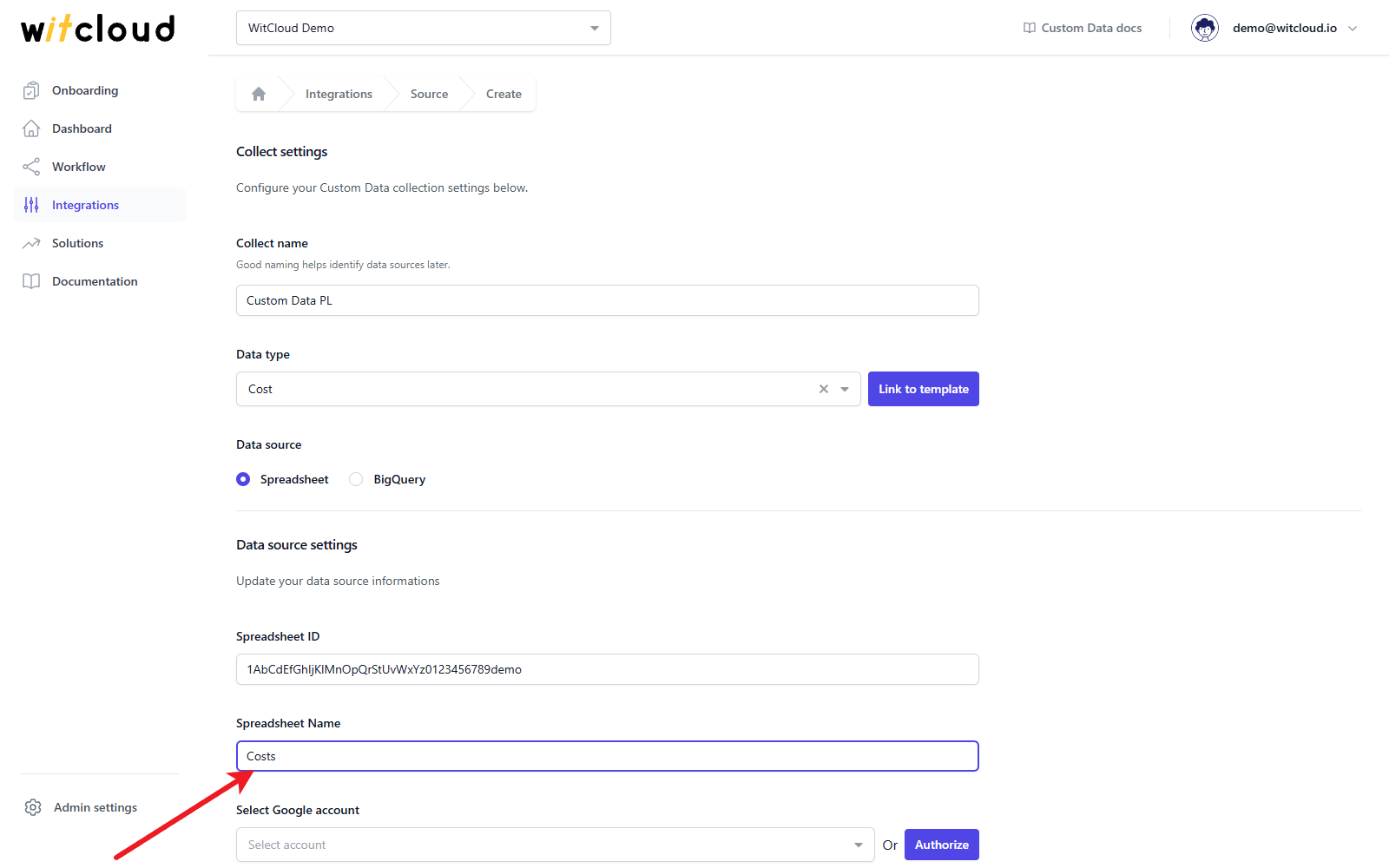
WitCloud reads columns A to Z of that sheet. The first row holds the column names: they are changed to lower case, with spaces replaced by underscores (Start Date becomes start_date). For Cost and Budget, name the columns as in the data schema.
Click Authorize and sign in with Google. WitCloud asks for access to your Google Sheets spreadsheets and your basic Google profile.
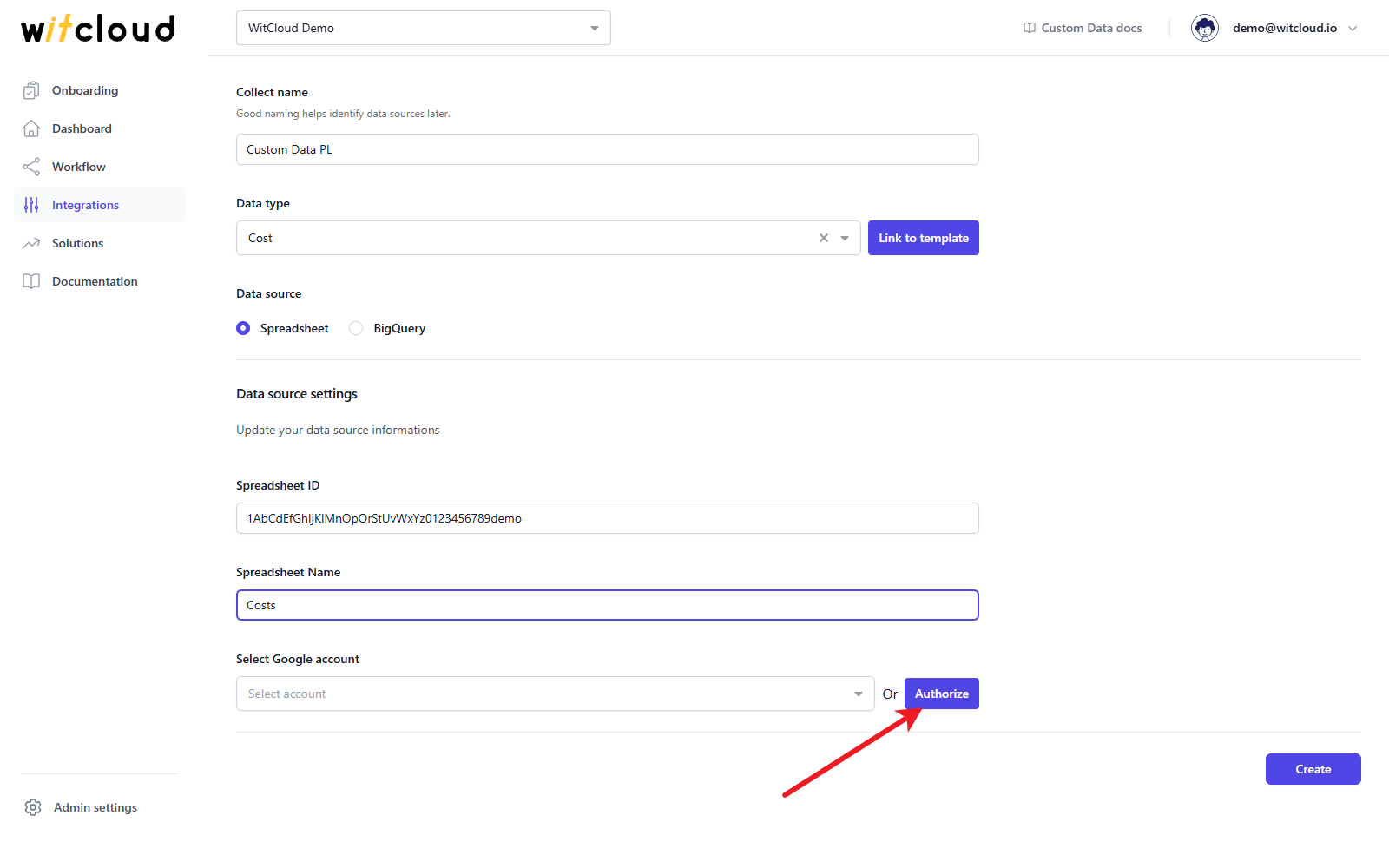
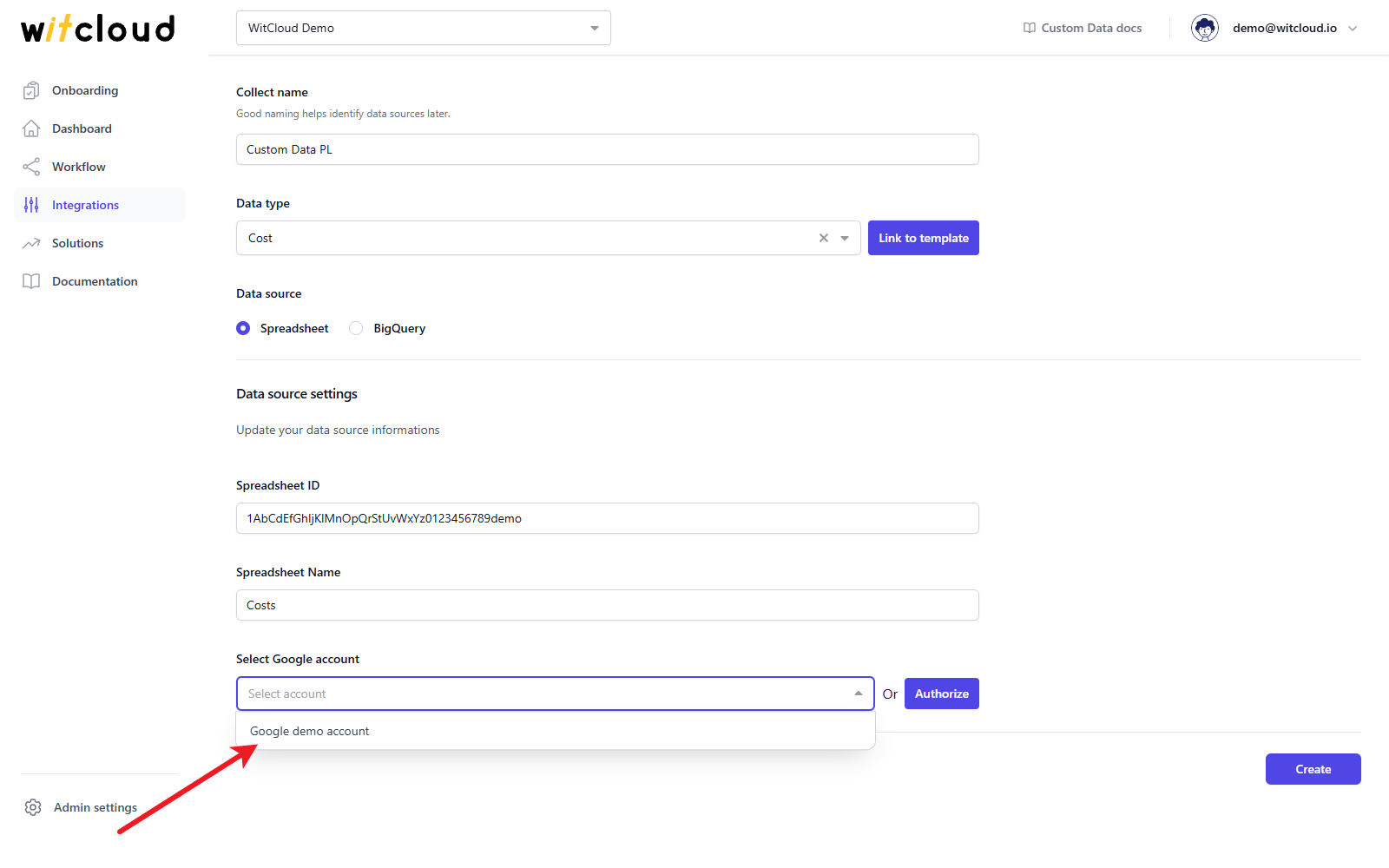
If you have already authorized Google for a spreadsheet, you can skip the authorization and select the existing account from the Select Google account list.
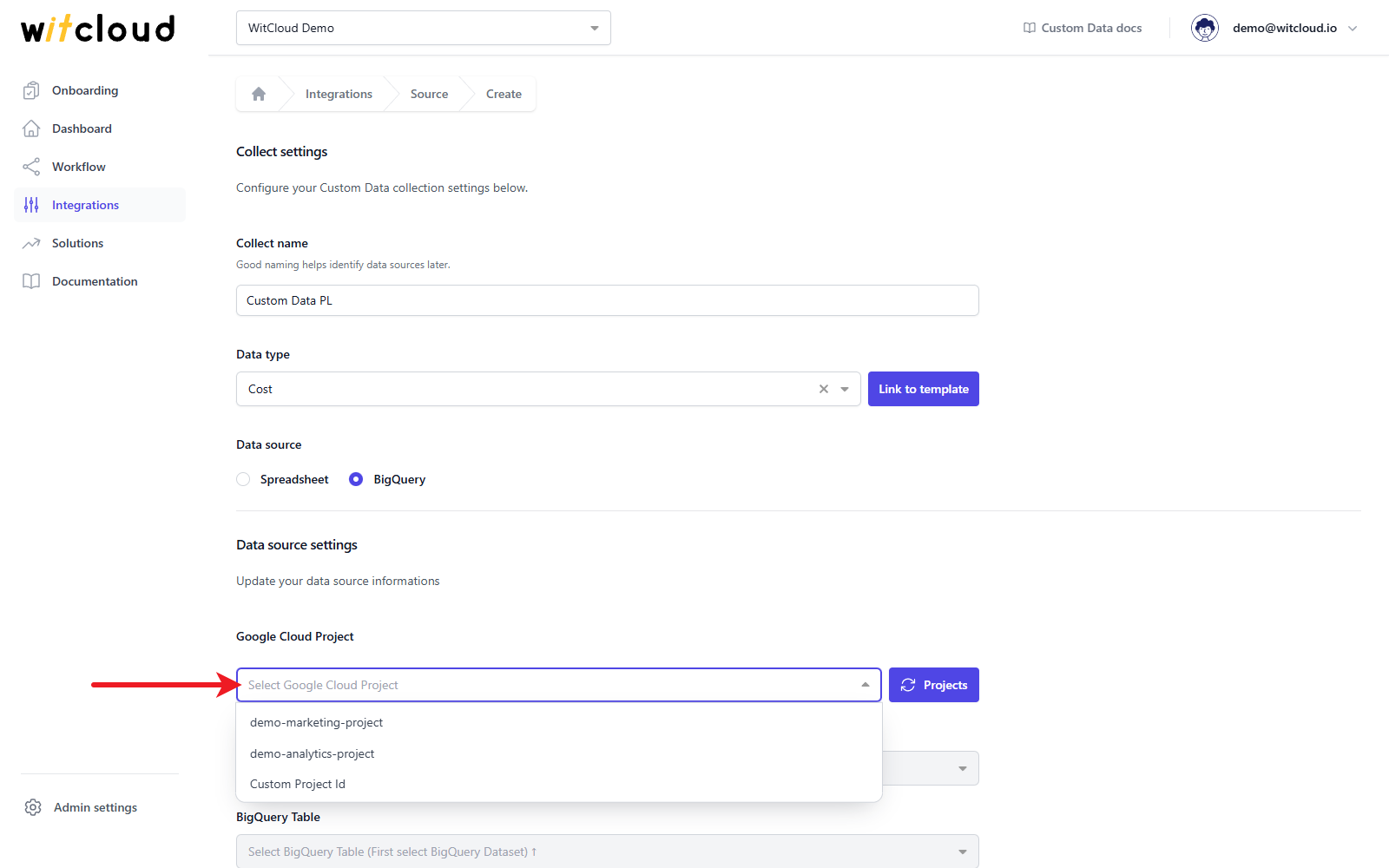
BigQuery data source
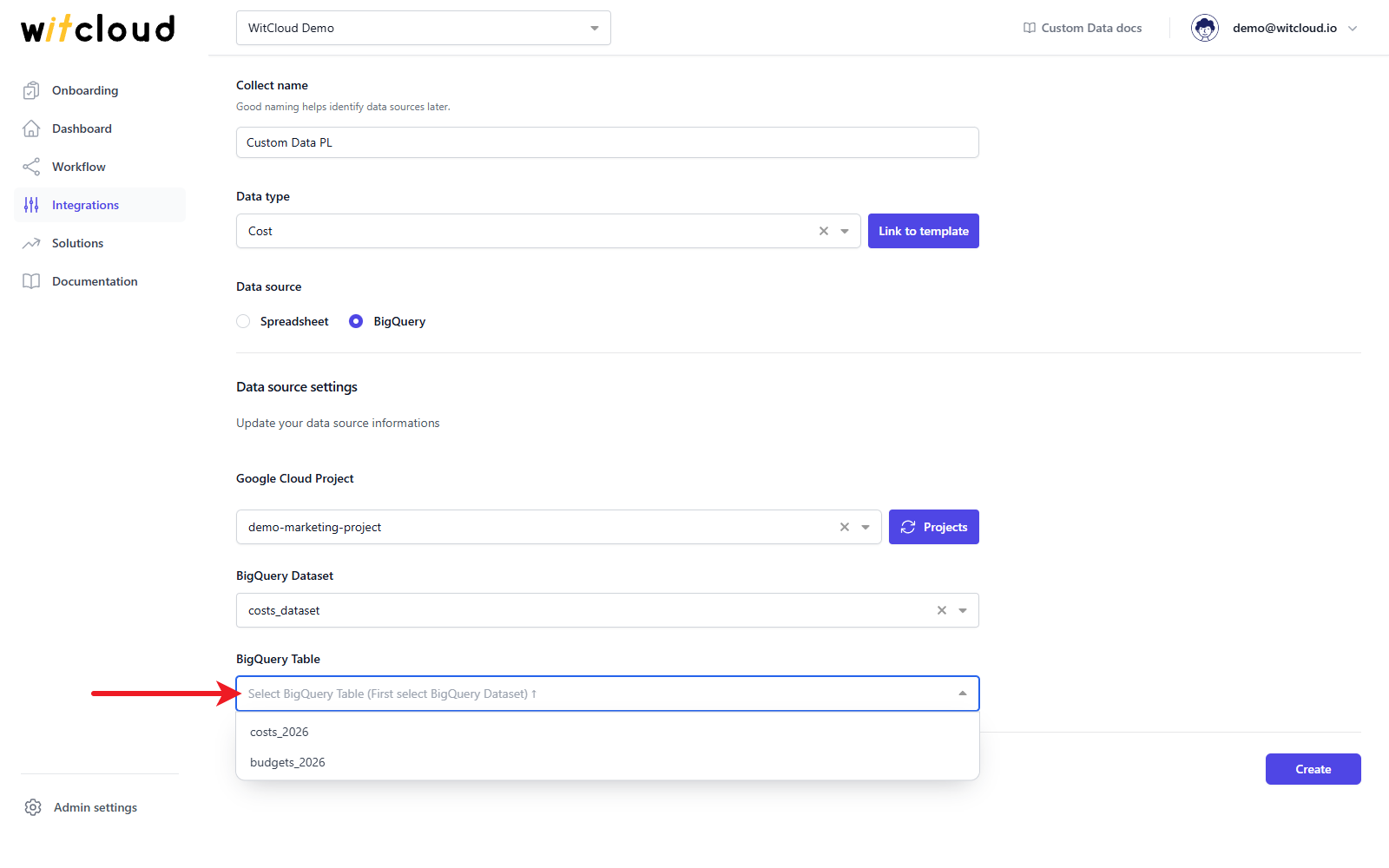
Select the Google Cloud Project. If your project is not on the list, click Projects to refresh it, or choose Custom Project Id and type the project id. For a custom project, share the data with the service account of your WitCloud project - click Copy service account to copy its address.
Select the BigQuery Dataset.
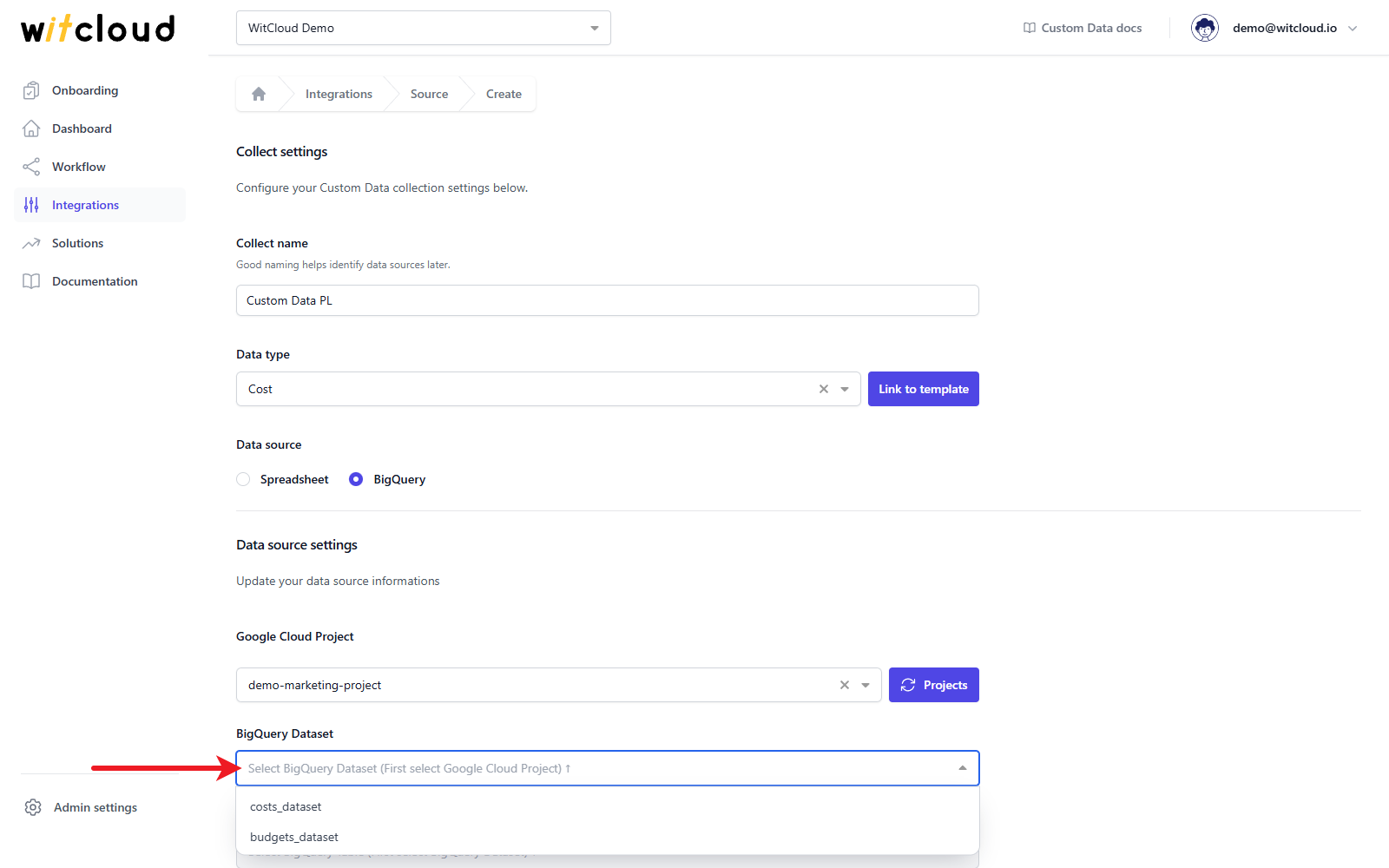
If the dataset is in a different location than your WitCloud project, a warning appears - the connector will not work as expected. Choose a dataset in the same location.
Select the BigQuery Table.
Create the data collect
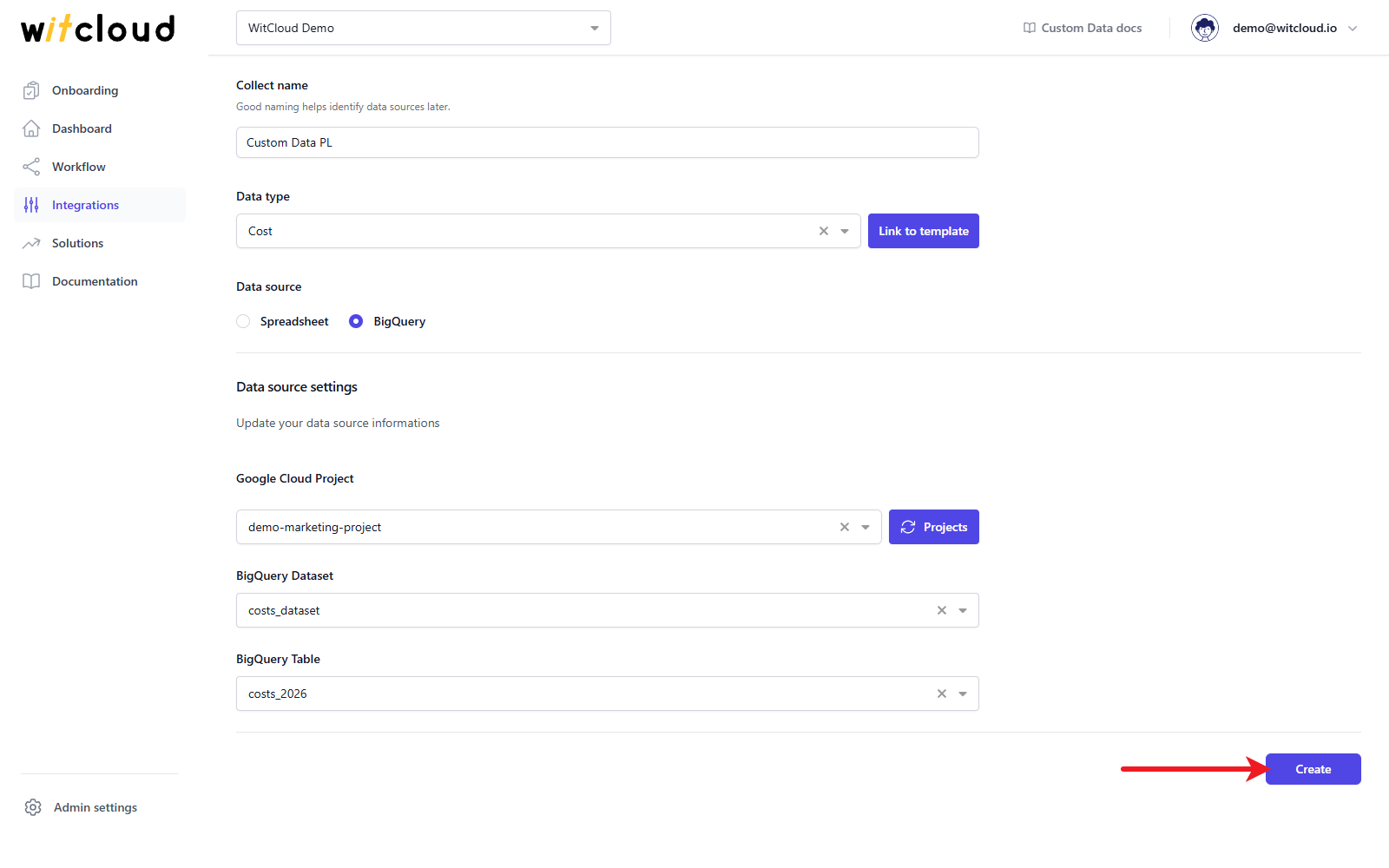
Click Create to complete the configuration. A data synchronization schedule will be created automatically - see Auto workflows.
Done! Your data will now be synchronized with BigQuery.
Data schema
Expand the tables below to view the schema of the Cost and Budget data types. The Custom type has no predefined schema - its columns come from your data.
Cost
Data schema for custom_data
| Field Name | Mode | Type |
|---|---|---|
| start_date | NULLABLE | DATE |
| end_date | NULLABLE | DATE |
| source | NULLABLE | STRING |
| medium | NULLABLE | STRING |
| campaign | NULLABLE | STRING |
| content | NULLABLE | STRING |
| keyword | NULLABLE | STRING |
| channel_group | NULLABLE | STRING |
| market | NULLABLE | STRING |
| currency | NULLABLE | STRING |
| cost | NULLABLE | FLOAT |
| clicks | NULLABLE | INTEGER |
| impressions | NULLABLE | INTEGER |
Budget
Data schema for custom_data
| Field Name | Mode | Type |
|---|---|---|
| start_date | NULLABLE | DATE |
| end_date | NULLABLE | DATE |
| channel_group | NULLABLE | STRING |
| market | NULLABLE | STRING |
| currency | NULLABLE | STRING |
| budget | NULLABLE | FLOAT |
| target_conversion | NULLABLE | FLOAT |
| target_value | NULLABLE | FLOAT |