
Team
Give people access to your WitCloud project, invite people without an account, change their role or remove their access.
Updated
The Team page shows who has access to the current project and with which role. Here you give access to colleagues who already have a WitCloud account, invite people who do not have one yet, change roles and remove access. Access is set per project: to share several projects, add the person in each of them.
Where to find it
Go to Admin settings > Team.
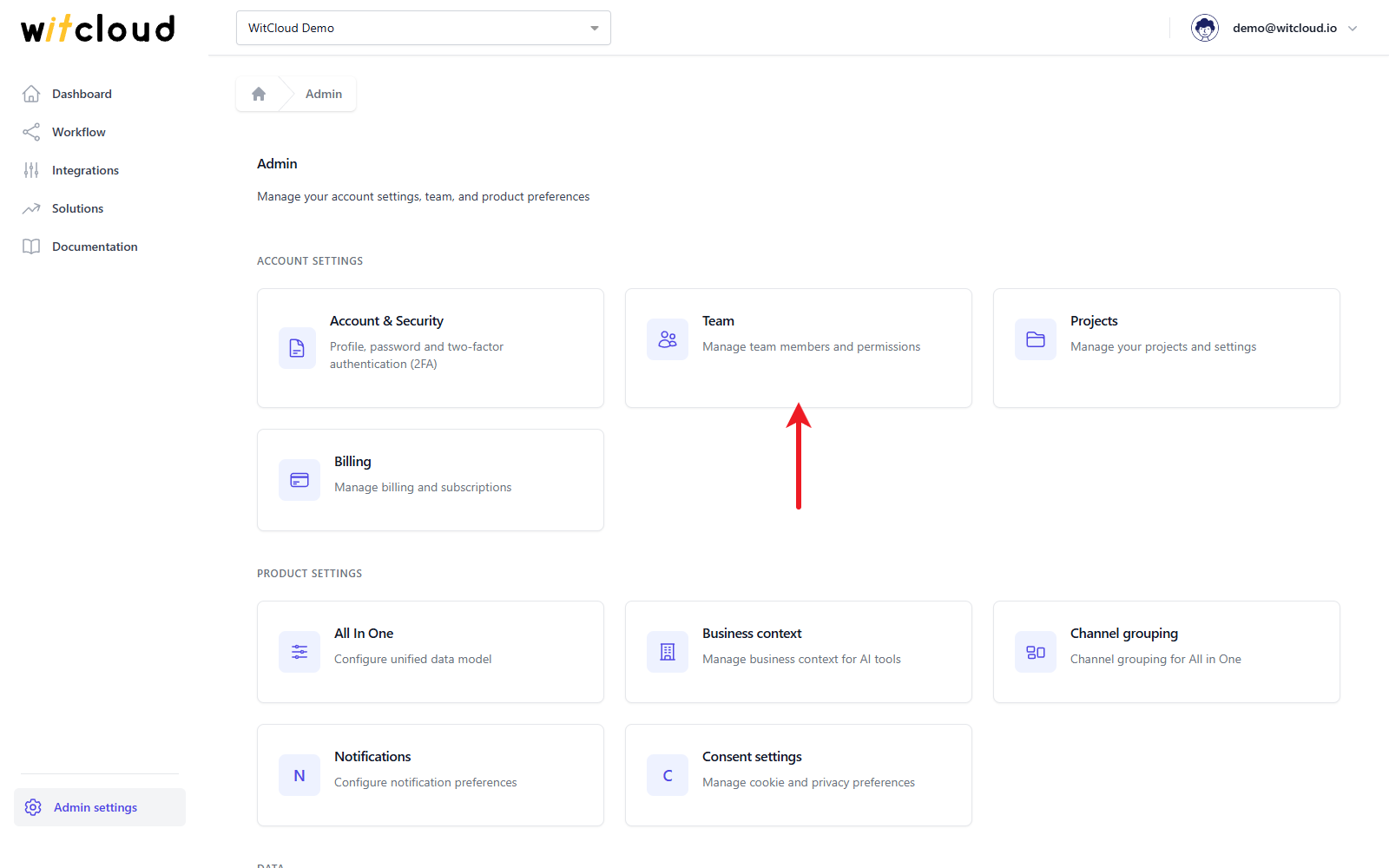
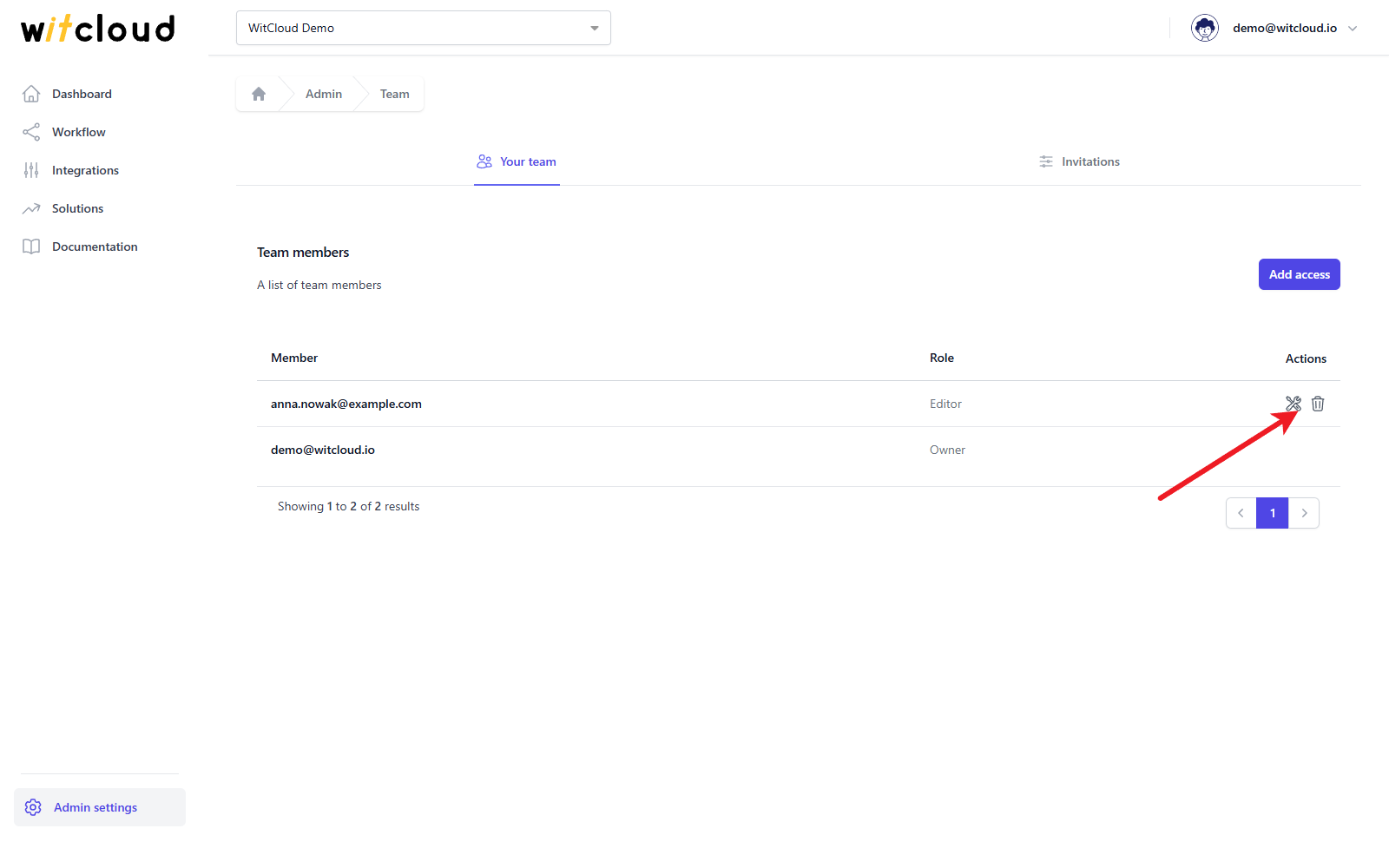
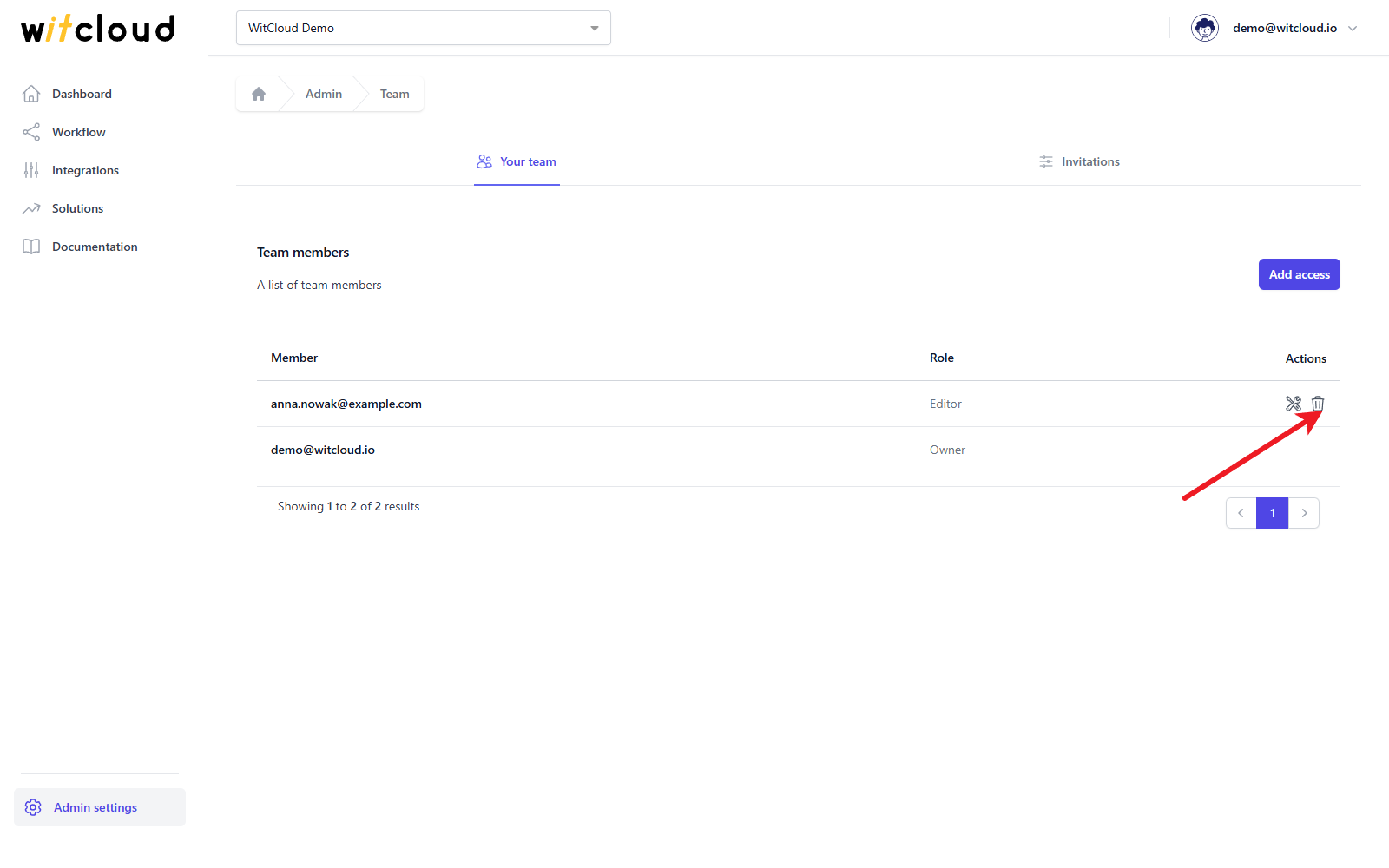
The Your team tab lists the team members with their roles. The project owner is always on the list and cannot be edited or removed here.
Roles
| Role | What they can do |
|---|---|
| Owner | The person who created the project. Everything an Admin can do, and delete the project. |
| Admin | Everything an Editor can do, plus manage the team and invitations and change billing. |
| Editor | Add and change integrations, workflows, solutions and project settings such as All in One, business context, channel grouping and data limits. |
| Viewer | See the project, its data and settings, without changing them. |
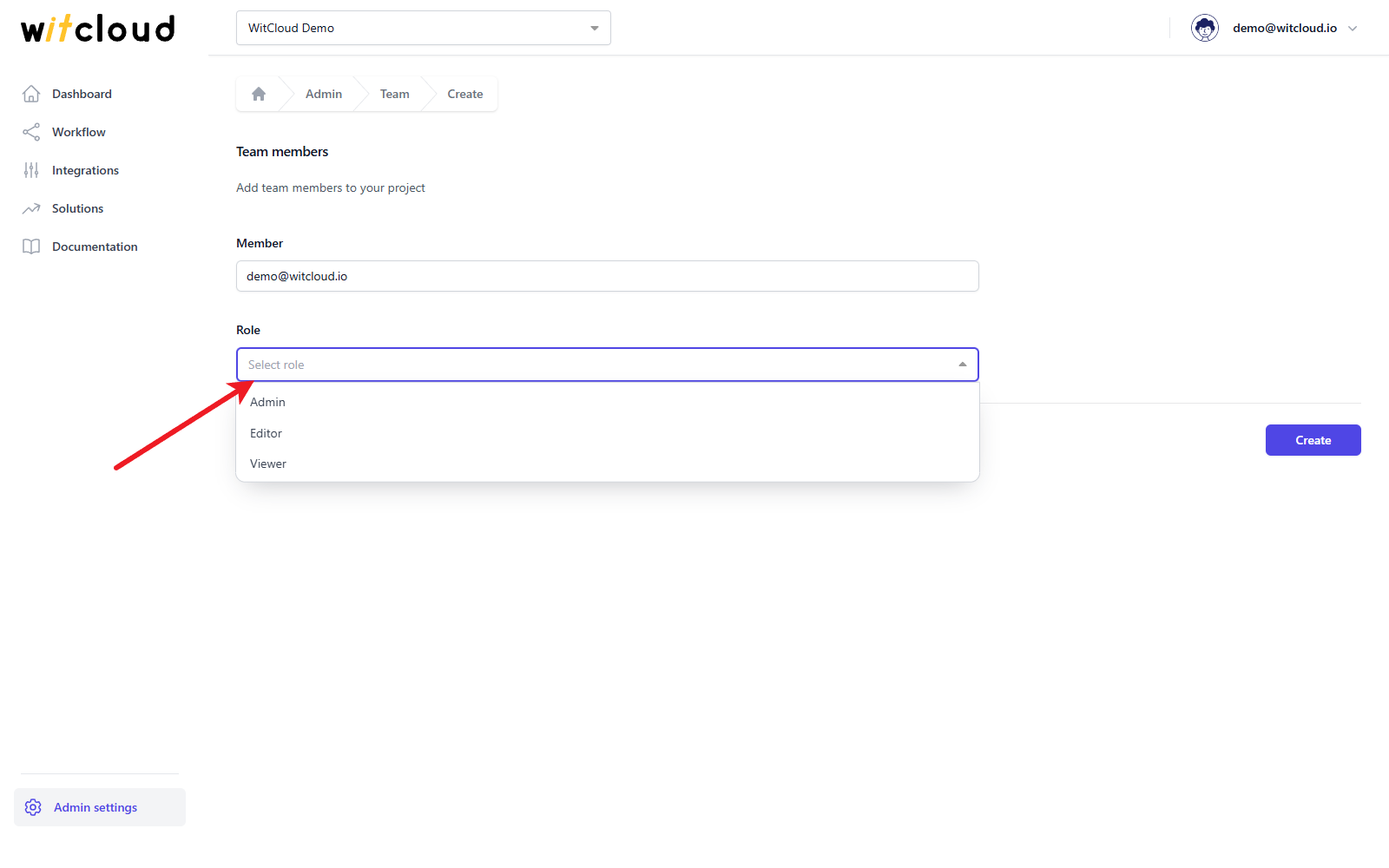
You pick Admin, Editor or Viewer when you give access. Only the Owner and Admins can add, change or remove access and send or delete invitations; Editors and Viewers can see the list, but their changes are refused.
Give access to someone with a WitCloud account
Click Add access.
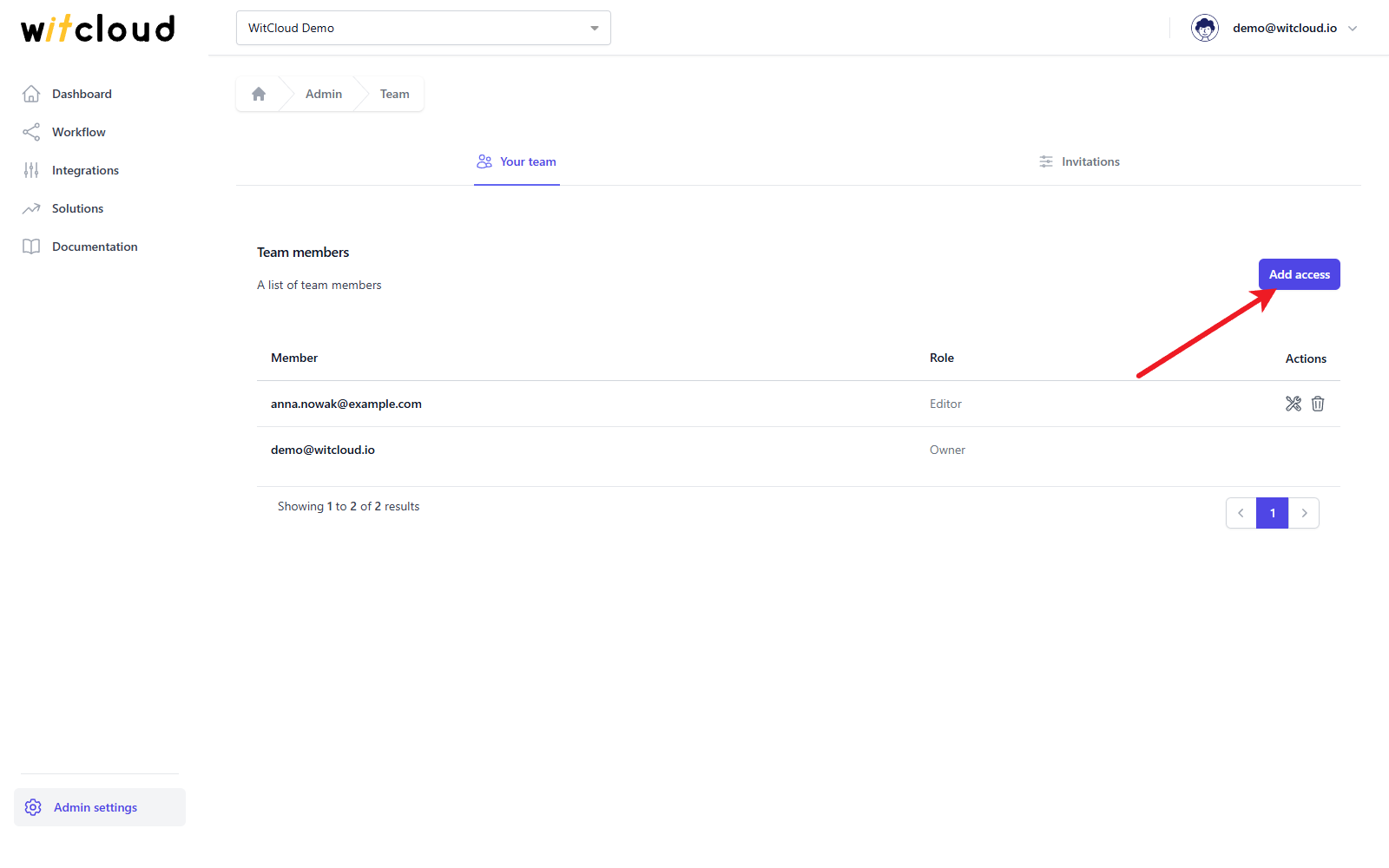
In Member, enter the email address the person uses to log in to WitCloud, and choose a Role.
Click Create.
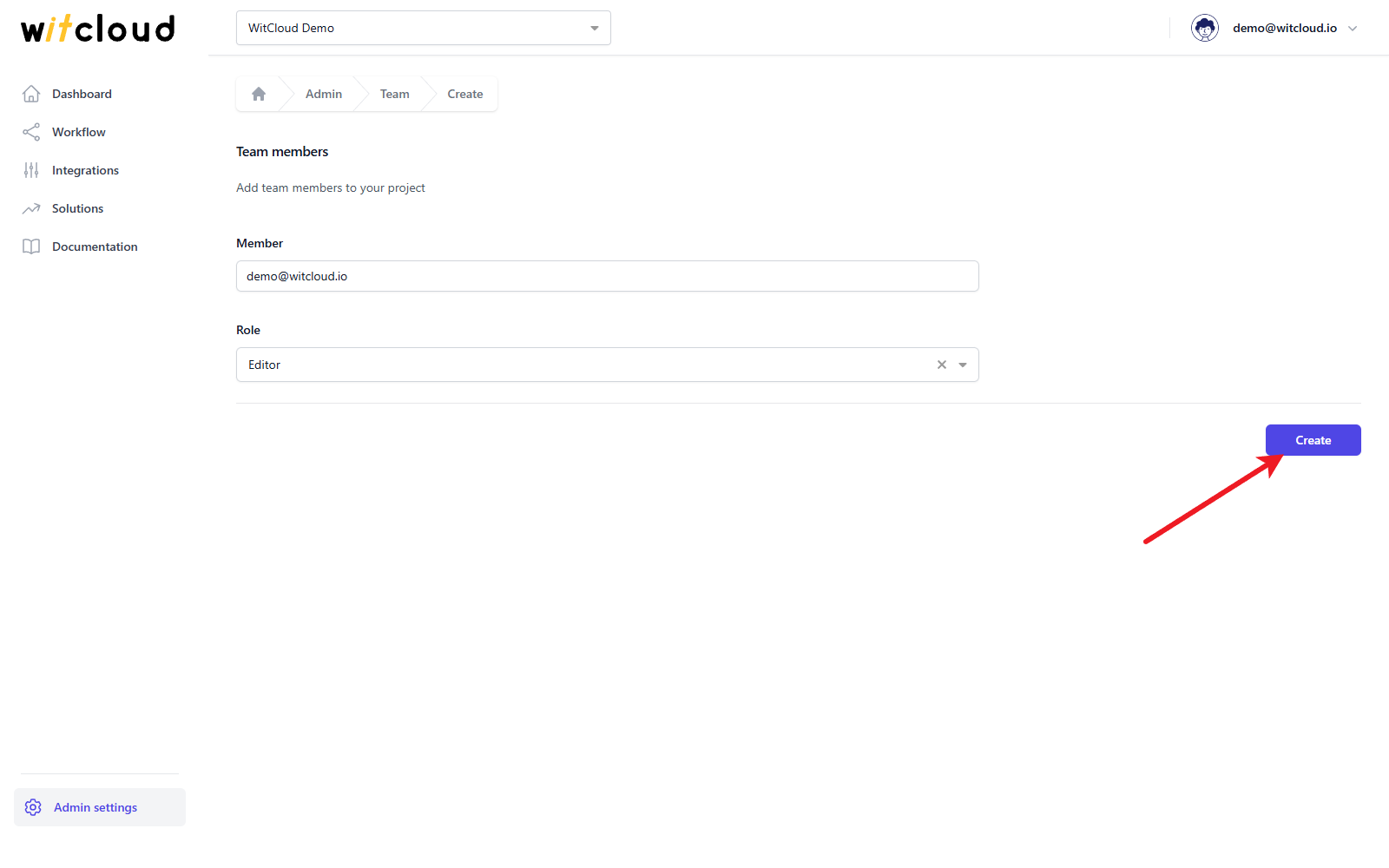
Done! The person appears on the Your team list and gets an email that they have been given access to the project.
Invite someone without an account
If no WitCloud account uses the email address you entered, clicking Create opens the Want to send an invite? pop-up. Click Send invite.
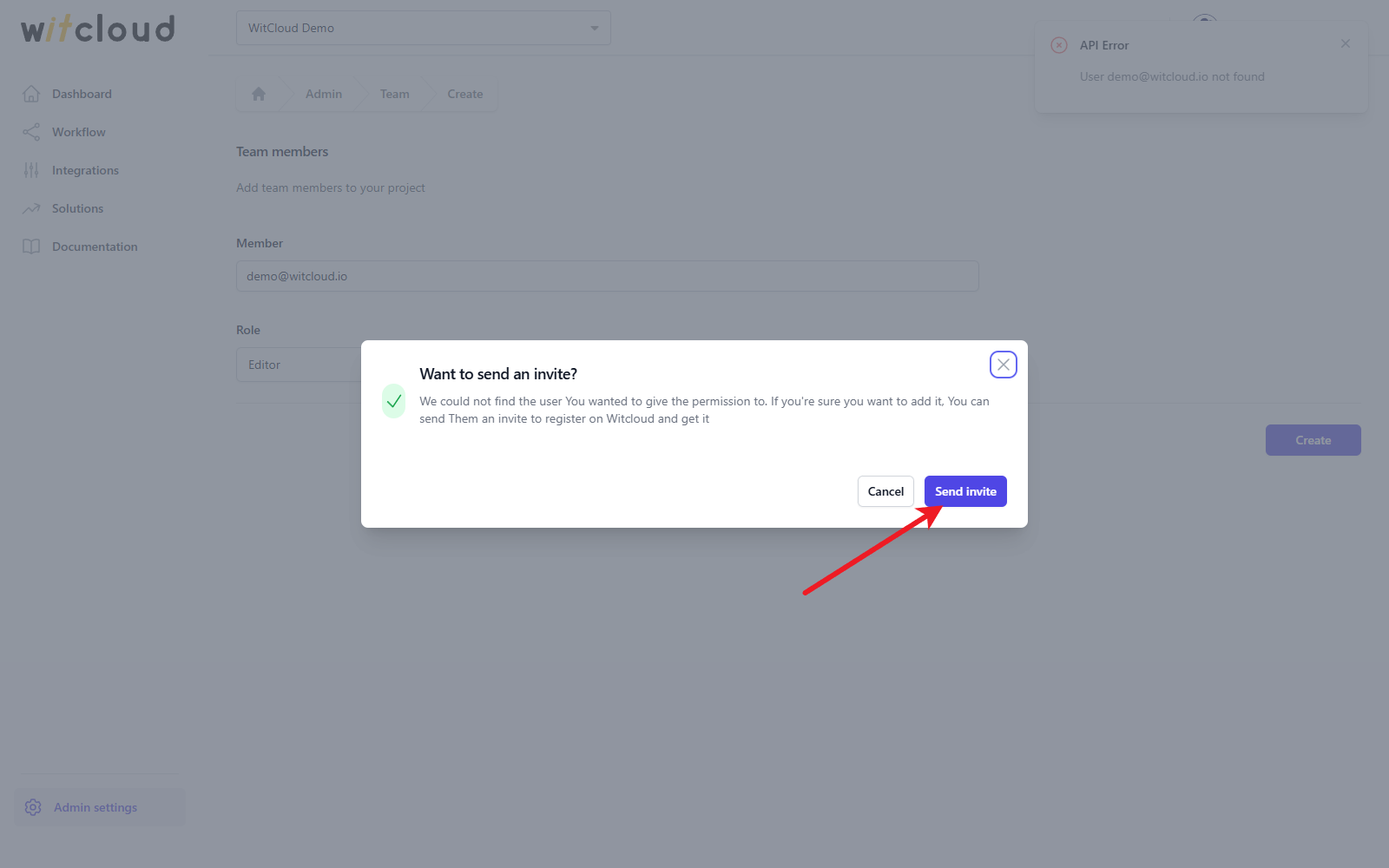
The person gets an email with a link to sign up. When they create their account with that address, they join the project with the role you chose and the invitation disappears from the list. An invitation is valid for 30 days.
Pending invitations
The Invitations tab lists the invitations nobody has accepted yet, with the invited email, the role and the Expires At date. Click the trash bin icon to withdraw an invitation.
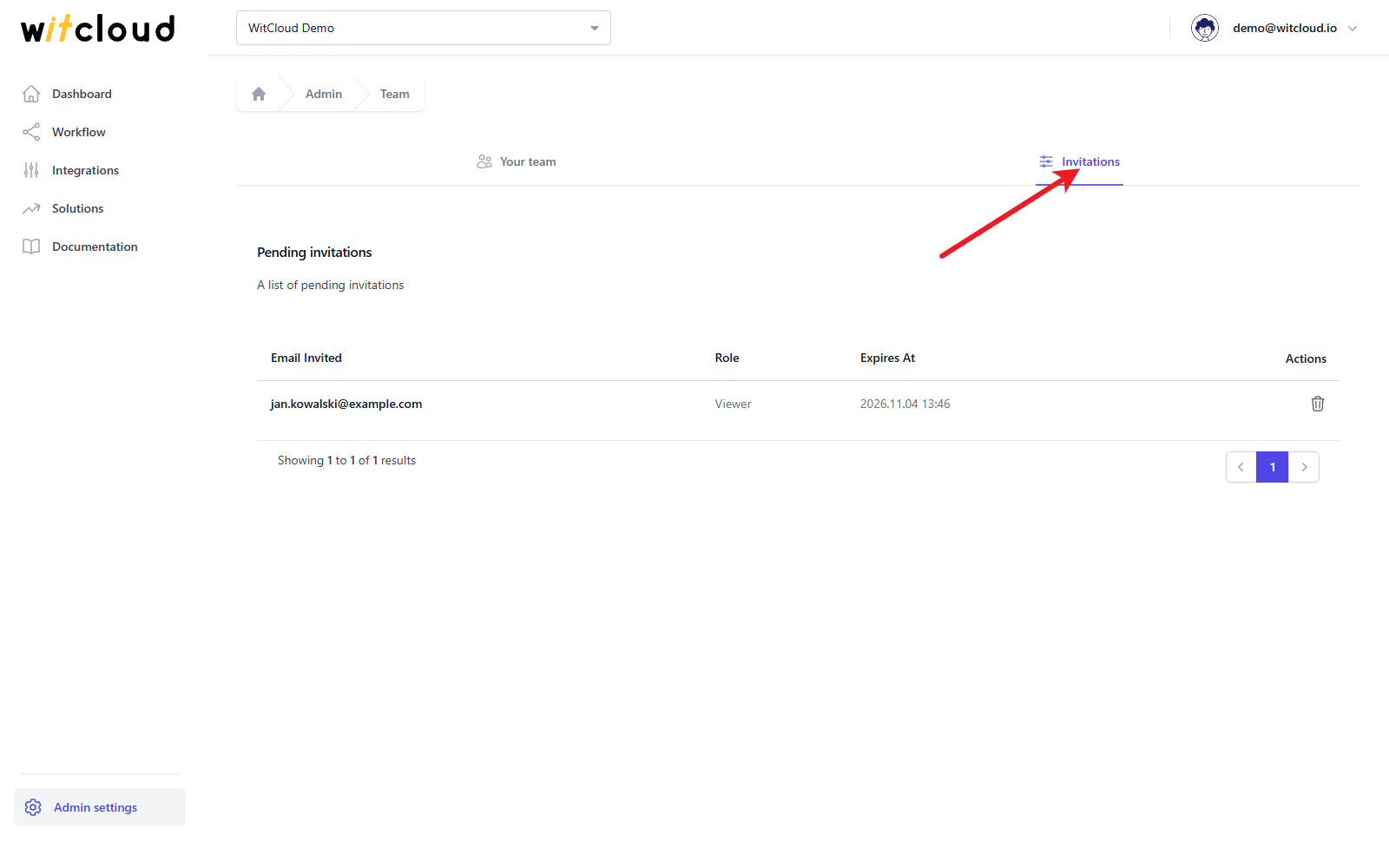
An invitation cannot be edited. To change its role, or to invite someone again after their invitation expired, delete it and send a new one — an address can have only one invitation per project.
Change a member's role
Click the edit icon next to the person on the Your team list.
Choose the new Role and click Save. The email address cannot be changed here.
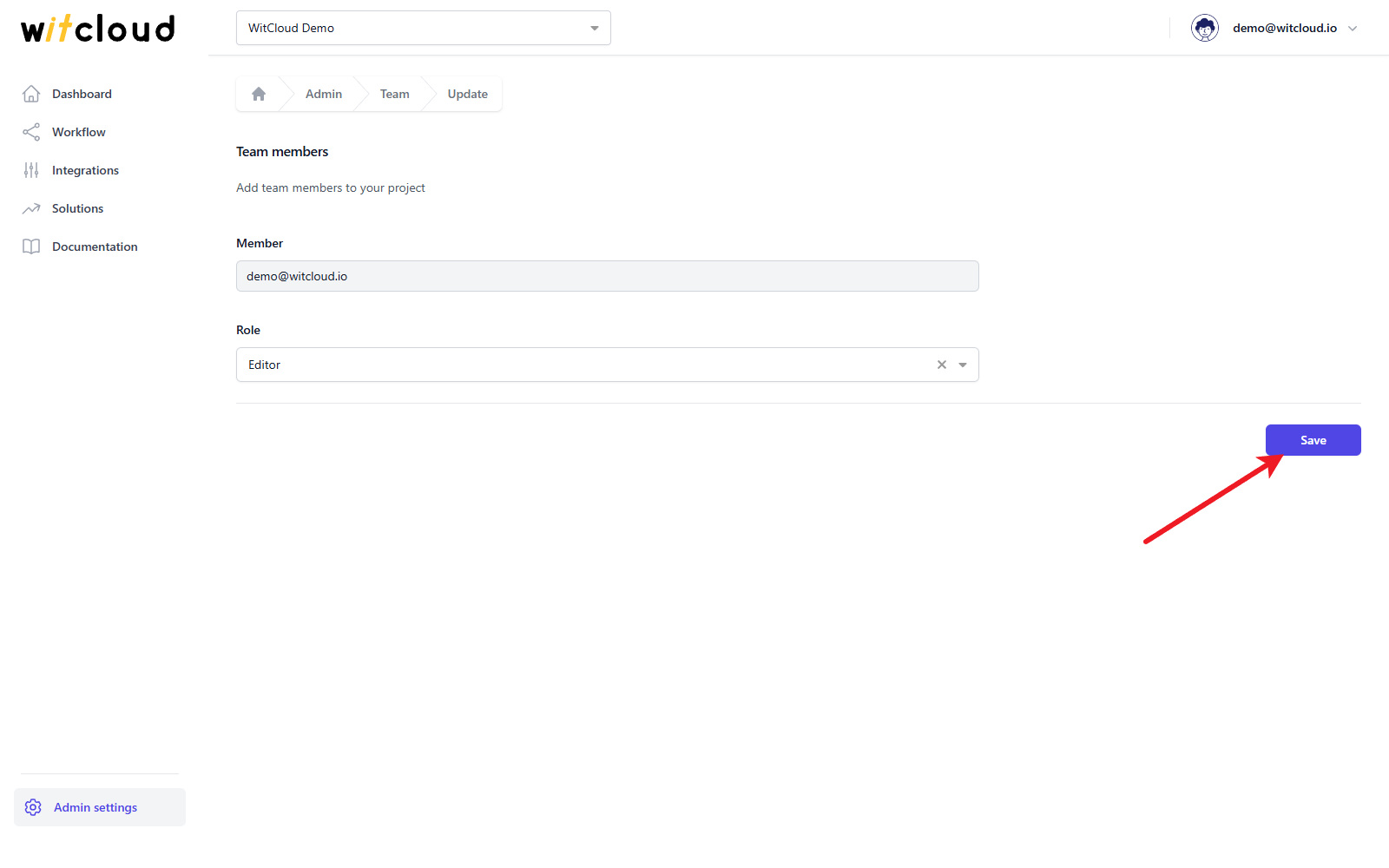
You cannot change your own role — ask another Admin or the Owner.
Remove access
Click the trash bin icon next to the person on the Your team list.
In the Delete team member pop-up, click Delete.
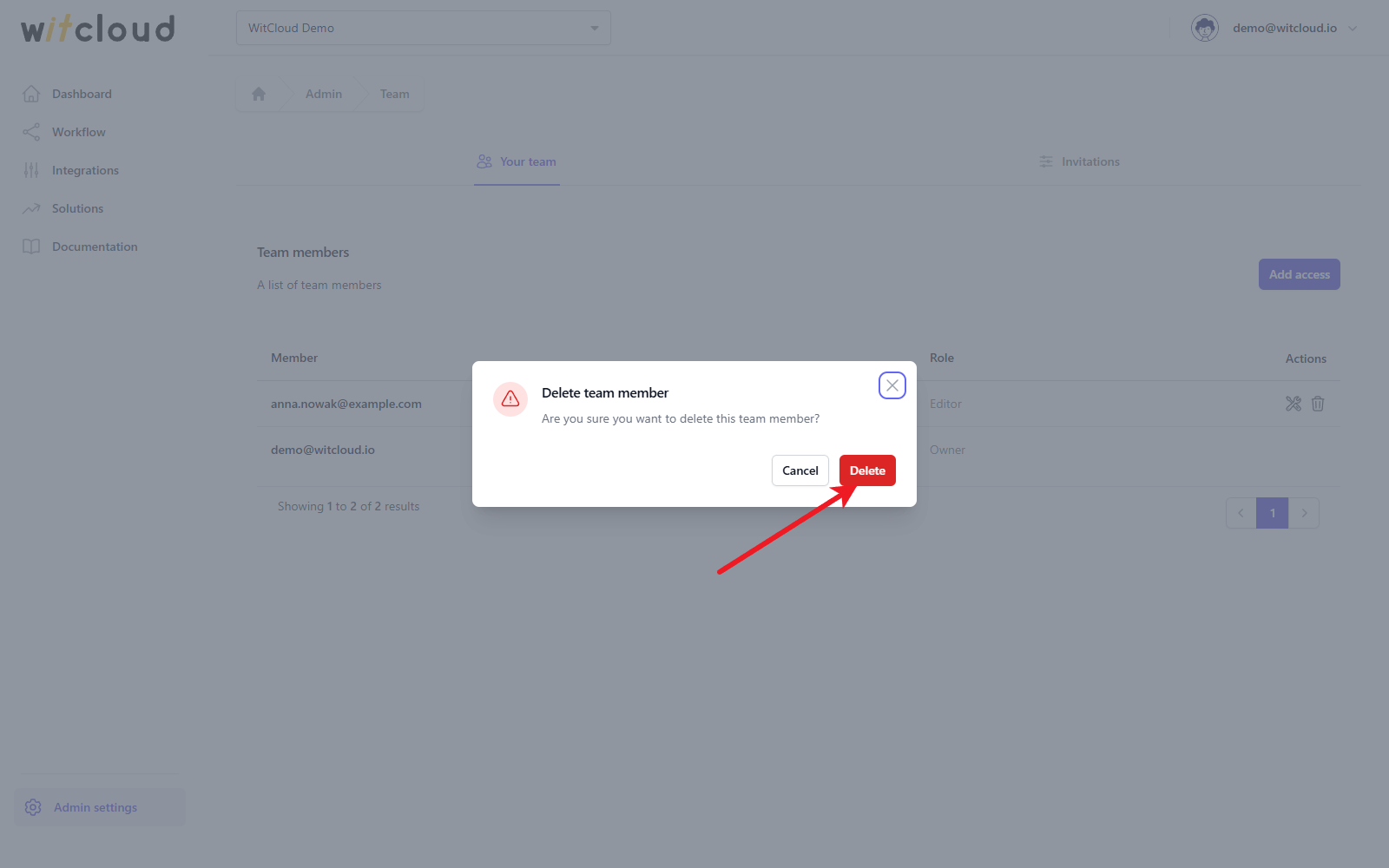
The person loses access to this project. Their WitCloud account and their access to other projects stay as they are.
Troubleshooting
User … is the owner of the project …
The address belongs to the project owner, who already has full access. There is nothing to add.
Permission already exists
The person is already on the Your team list. To give them a different role, edit their access instead.
This email has been already invited to the project
There is already an invitation for this address on the Invitations tab. Wait for the person to accept it, or delete it and send a new one.
You cannot update access to yourself
You tried to change your own role. Another Admin or the Owner has to do it.