
Integration of XML with BigQuery
Import the items of an XML feed or file, available under a URL, into Google BigQuery with WitCloud - one row per item, refreshed on a schedule.
Updated
Introduction
This module reads an XML feed or file that is available under a web address and stores its items in Google Cloud BigQuery. Use it for product feeds and other XML sources that have no dedicated connector, so you can analyze them next to the rest of your data in WitCloud.
Every repeating element of the file (for example every <item> or <product>) becomes one row, and the whole element is saved as JSON in a single column. The columns are not fixed - what is inside the JSON depends on your file.
Configuration guide
Follow the steps below to connect XML with BigQuery. Once the setup is complete, the content of your file will be transferred to your BigQuery project.
The file must be reachable from the internet under a URL. If it is protected with a username and password (basic authentication), you can enter them in the advanced settings.
Module setup
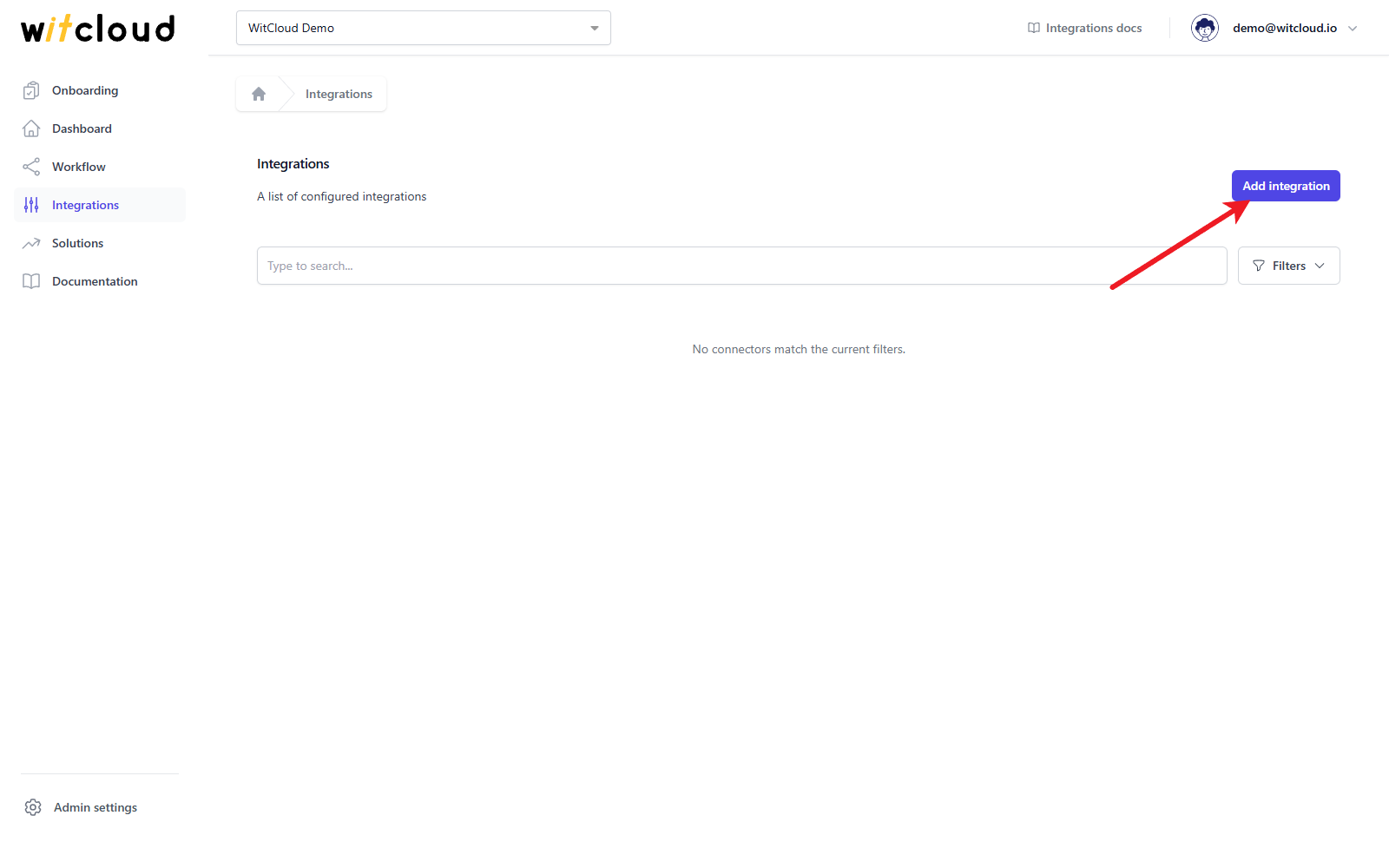
Go to Integrations in the menu and click Add integration.
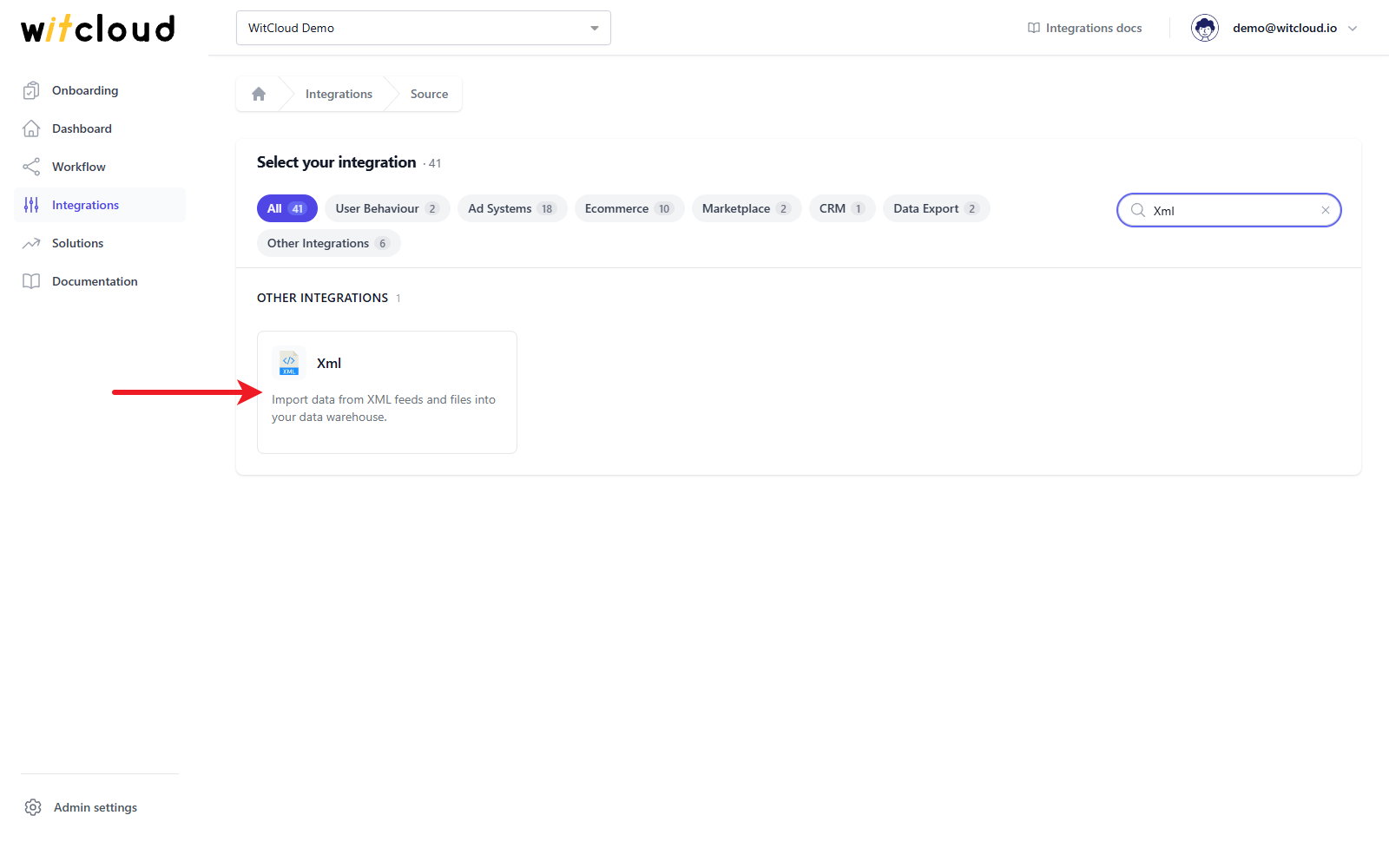
Select Xml from the list of available integrations.
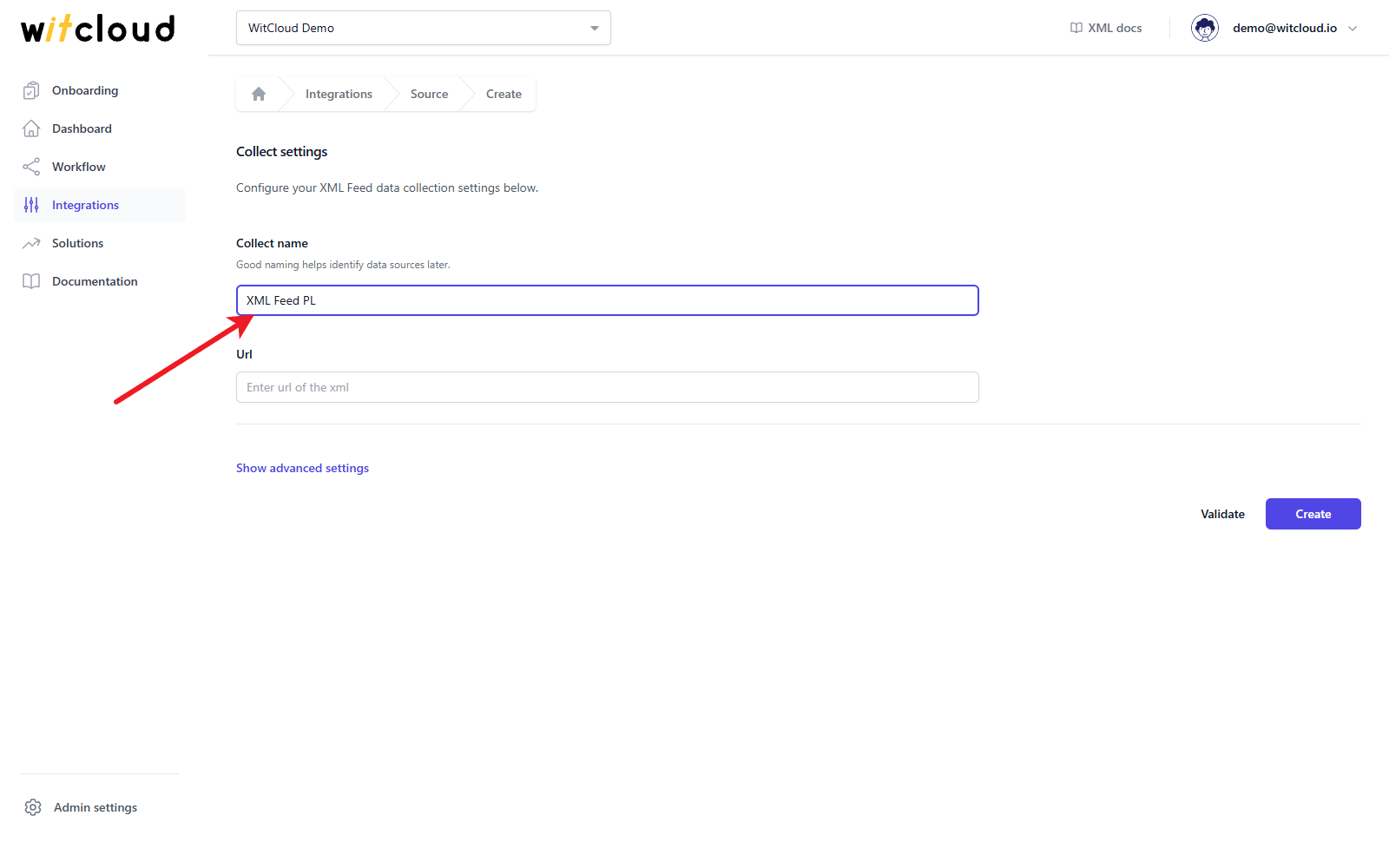
Enter the Collect name, e.g. "XML Feed PL".
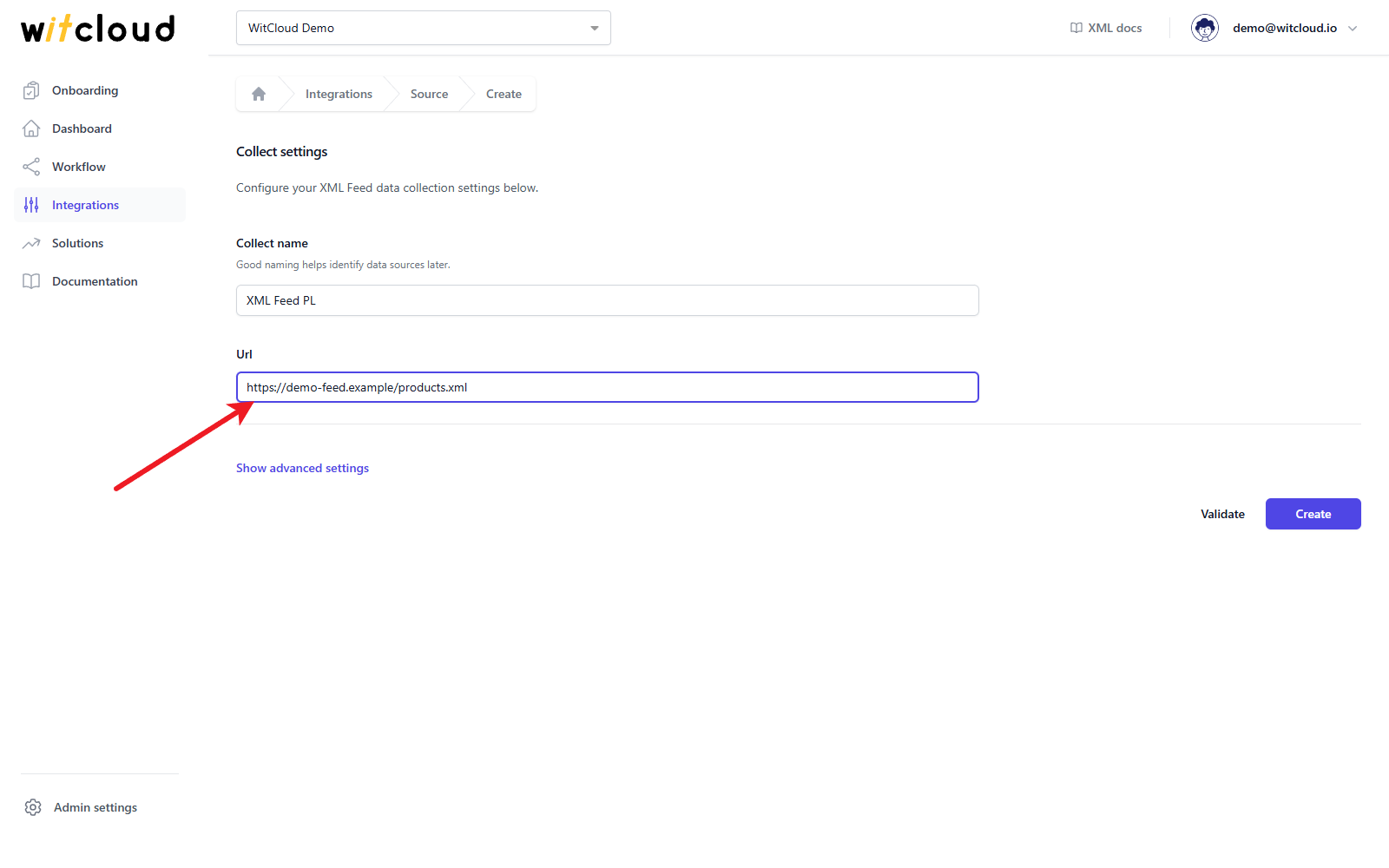
Enter the Url of your XML file.
Advanced settings
Click Show advanced settings to open the optional settings.
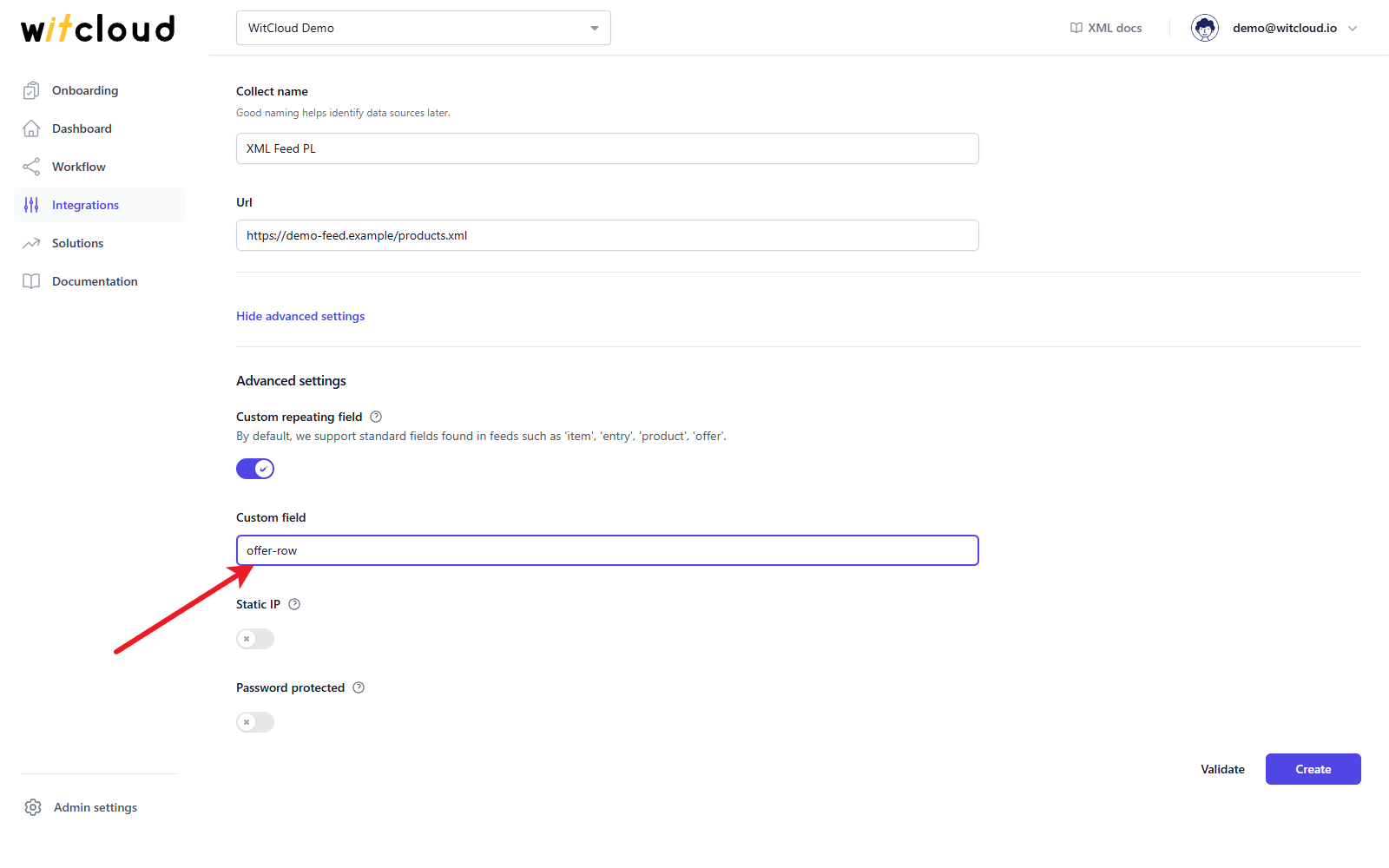
By default, WitCloud looks for the repeating elements item, entry, product and offer. If your file uses a different element name for its items, switch on Custom repeating field and enter the name in the Custom field. Only that element is then read.
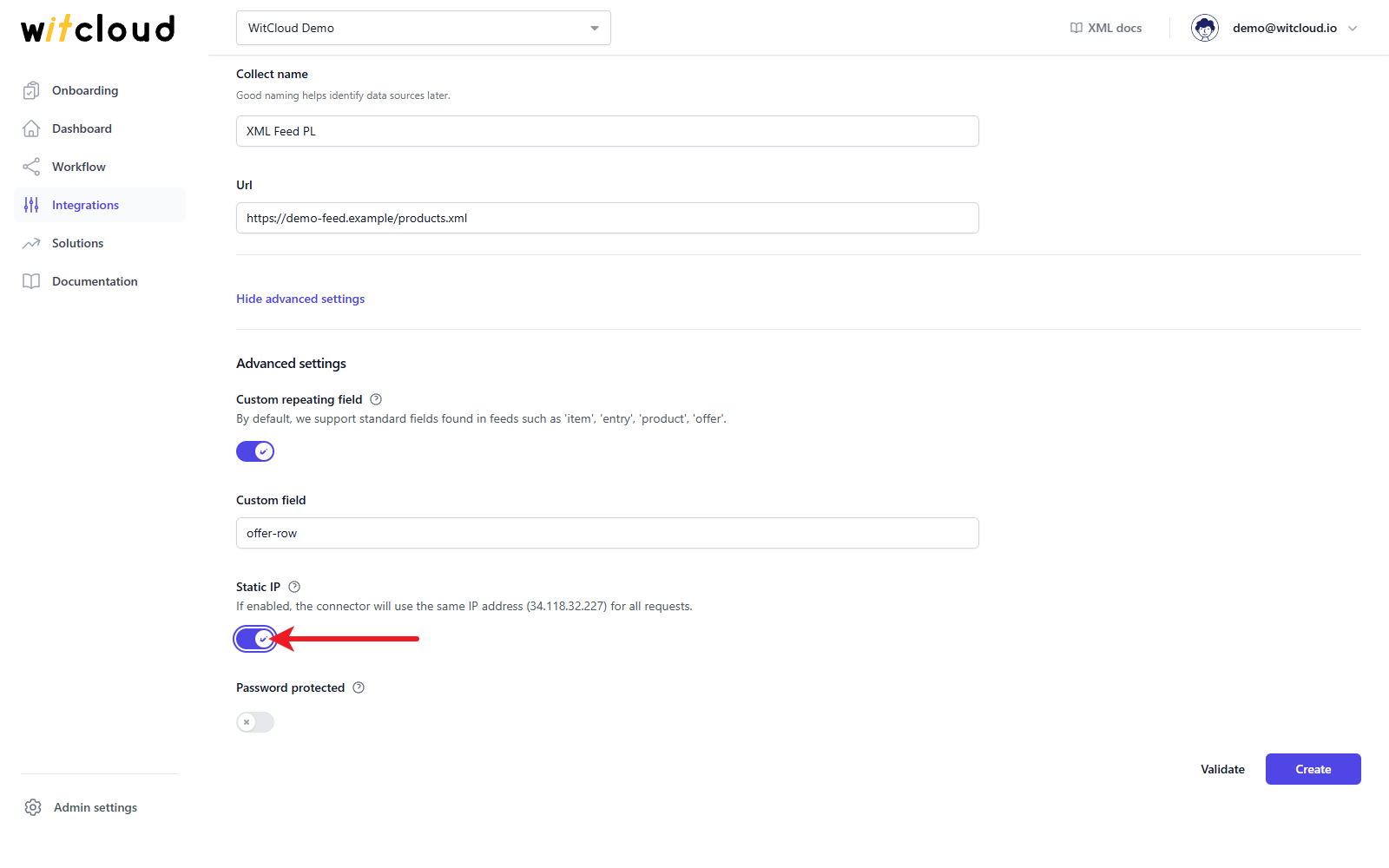
If the server hosting your file blocks unknown visitors (for example with Cloudflare), switch on Static IP. All requests then come from the address 34.118.32.227, which you can add to the allow list of your server.
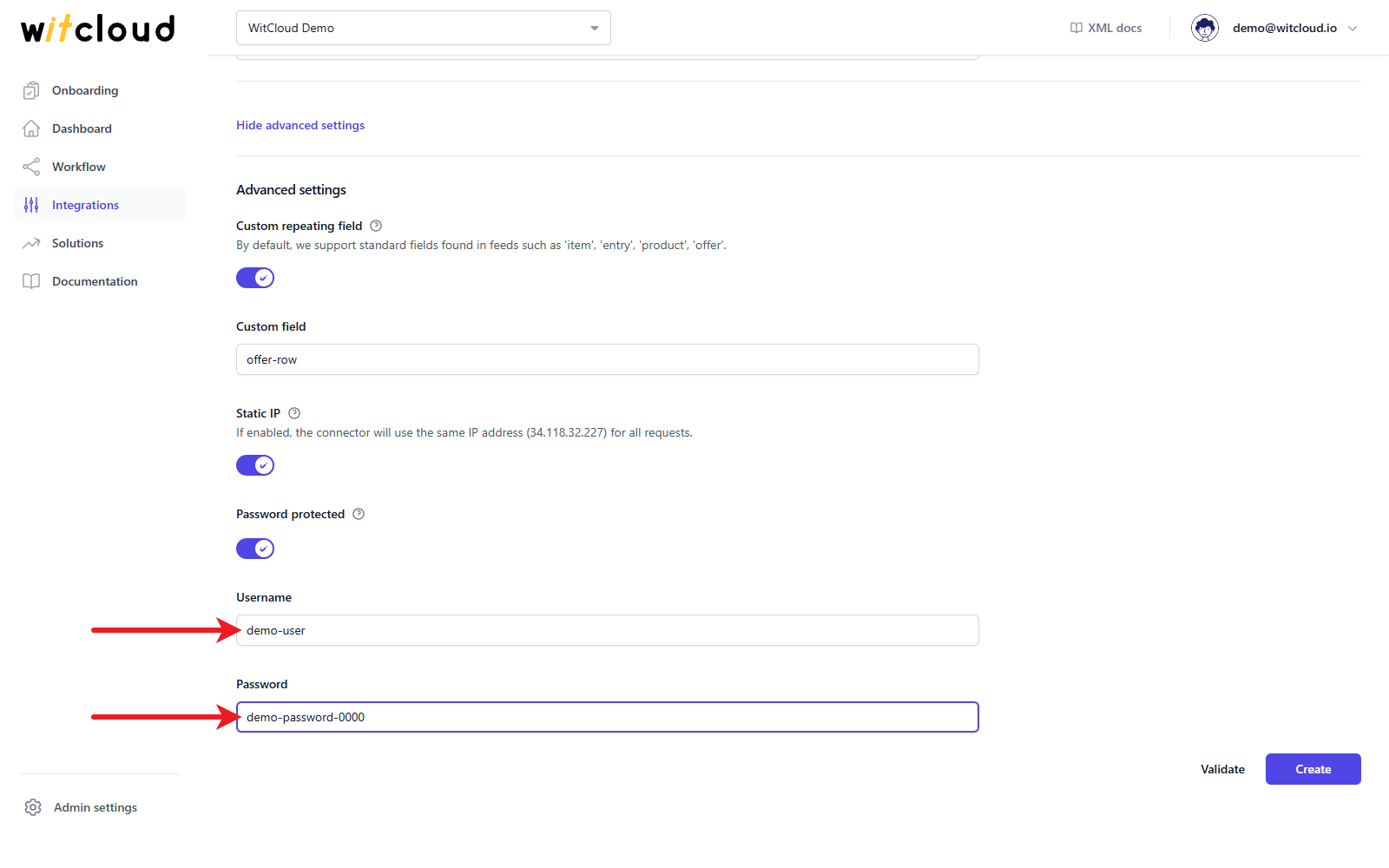
If your file is protected with a username and password (basic authentication), switch on Password protected and enter the Username and the Password.
Validate and create
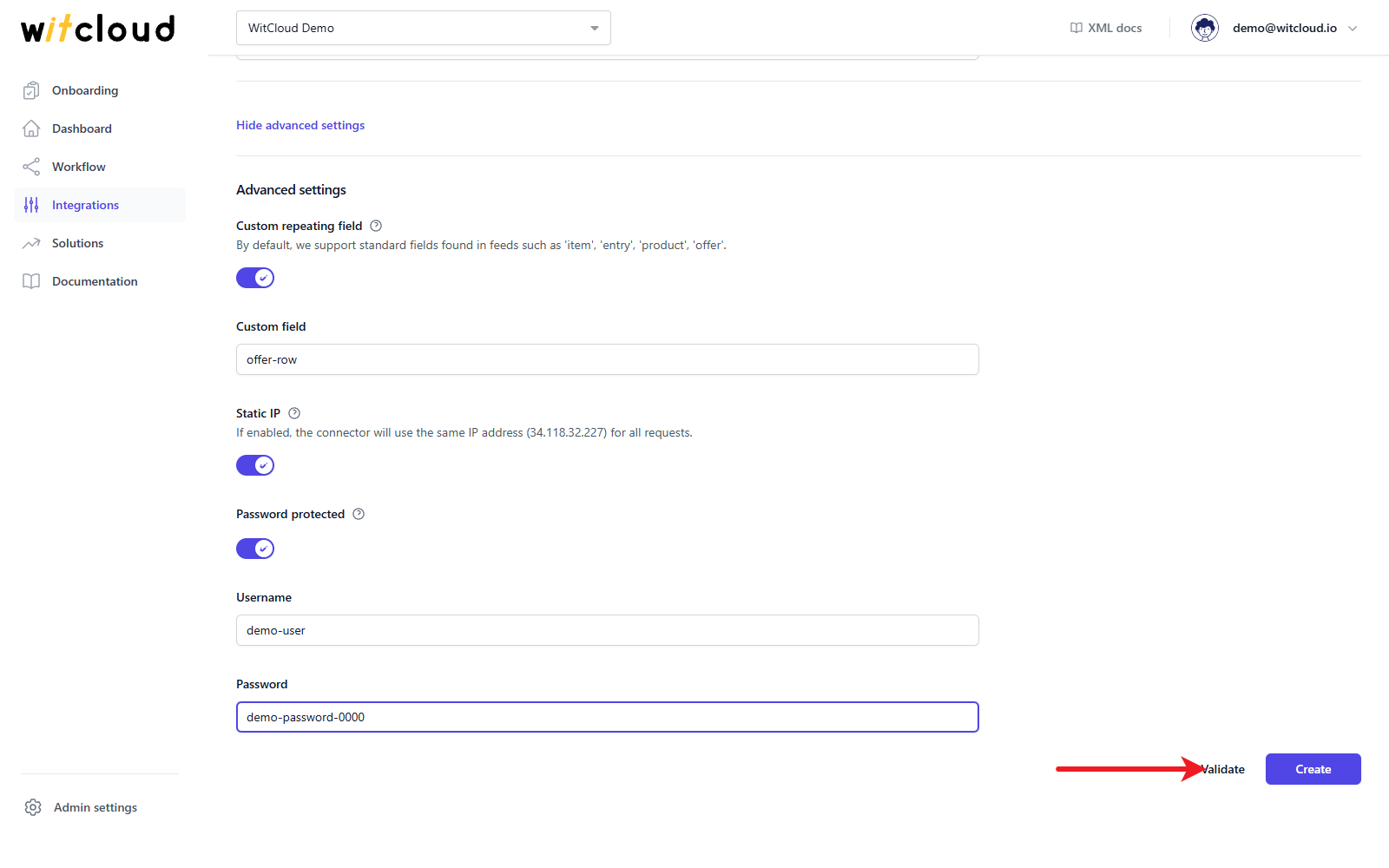
Click Validate to check that the file can be read. The check succeeds when the file can be downloaded and contains at least one repeating element within 5 seconds. Otherwise you see an error and should check the URL, the repeating field and the password.
Click Create to complete the configuration. WitCloud runs the same check before it saves the integration, so a file that cannot be read is not added. A data synchronization schedule will be created automatically - see Auto workflows.
Done! Your XML data will now be synchronized with BigQuery.
Data synchronization
Each run downloads the whole file again and replaces the data of the day with its current content - it does not add rows to earlier runs. A run that takes longer than 30 minutes is stopped.
Edit the integration
Open the integration from the Integrations list to change its settings (the same fields as above, saved with Save) and to use Validate again. The second panel shows the status of the data collection and the logs of the runs.
Data schema
The table has one column. The structure inside the JSON depends on your file: nested elements and attributes of an item stay inside it.
Data schema for xml_data
| Field Name | Mode | Type |
|---|---|---|
| xml | NULLABLE | JSON |