
Integration of Tradedoubler with BigQuery
Learn how to connect Tradedoubler to Google BigQuery using WitCloud. Automatically fetch daily statistics and transactions with their commission data for one of your Tradedoubler programs, and analyze your affiliate marketing results.
Updated
Introduction
This integration connects Tradedoubler to Google Cloud BigQuery. For the Tradedoubler program you choose, it collects daily statistics (impressions, clicks, leads, sales and commissions) and individual transactions with their commission data, in the currency you select. You can analyze the results of your affiliate marketing next to the rest of your data in WitCloud.
Configuration guide
Follow the steps below to connect Tradedoubler with BigQuery. Once the setup is complete, your Tradedoubler data will be transferred to your BigQuery project.
You connect with your Tradedoubler API client (a Client ID and a Client secret) and the username and password of your Tradedoubler account. Create the API client in Tradedoubler's own tool, at solutions.tradedoubler.com/tools/api-client. That tool is Tradedoubler's interface, not WitCloud's, and may change.
Module setup
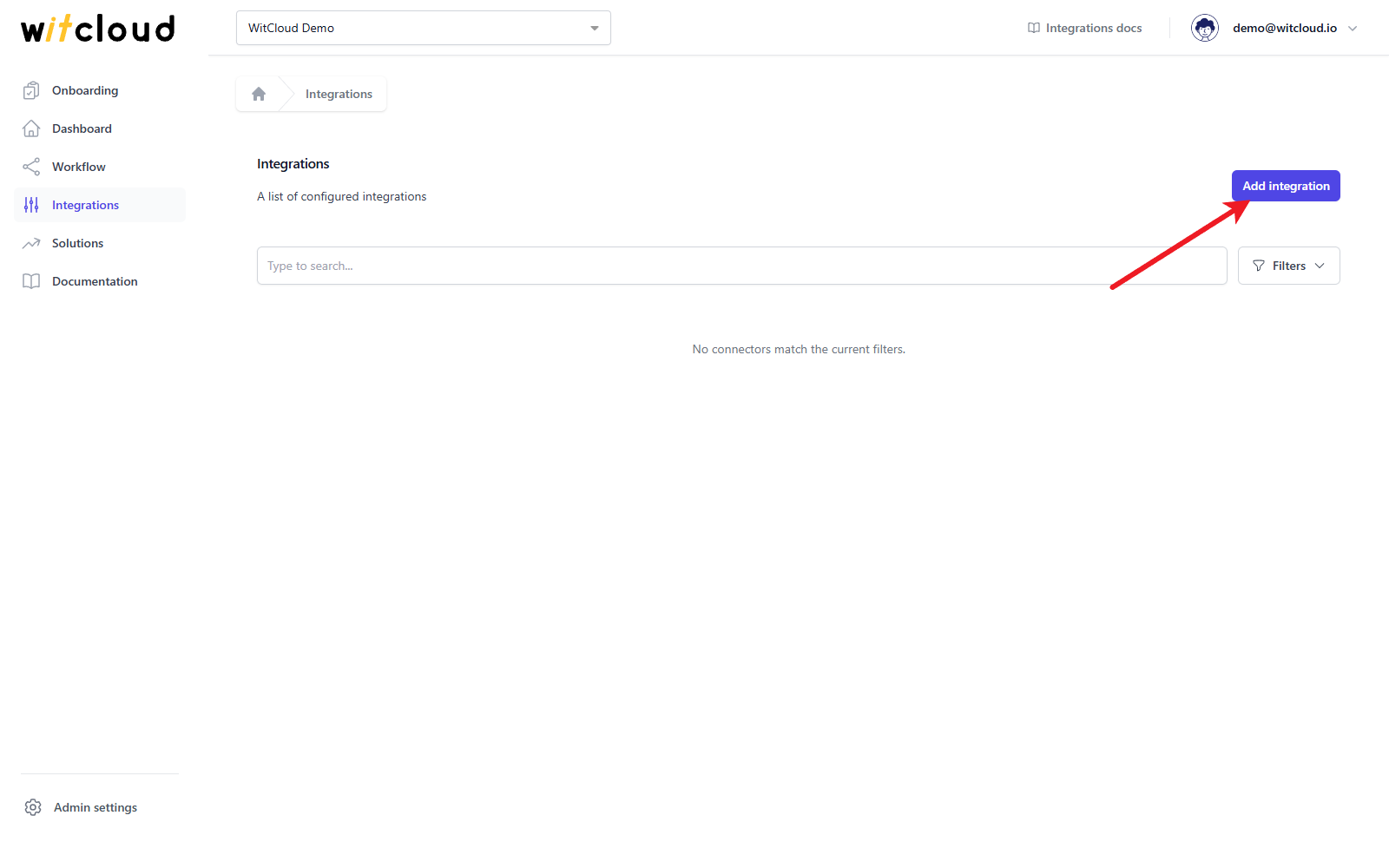
Go to Integrations in the menu and click Add integration.
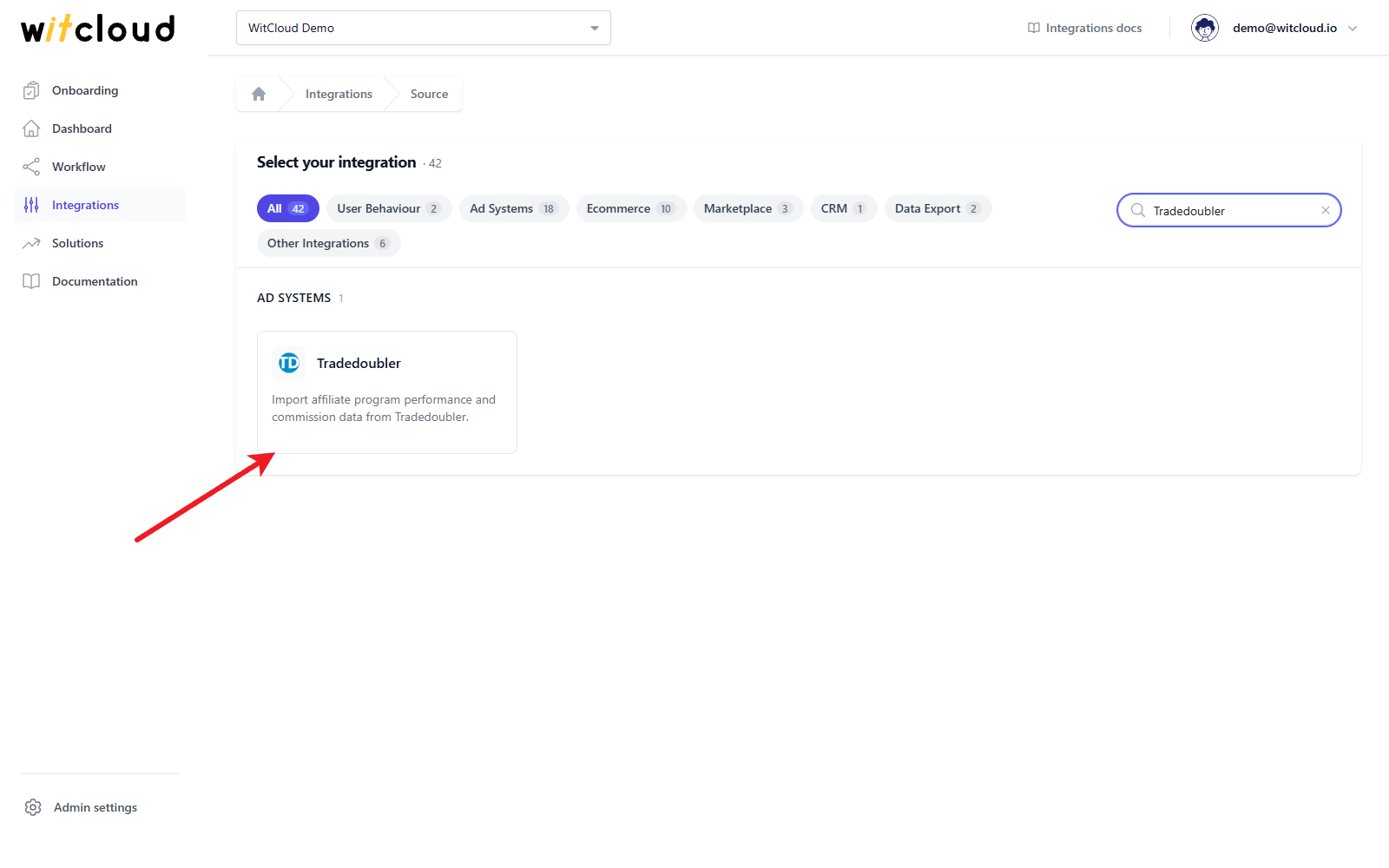
Select Tradedoubler from the list of available integrations.
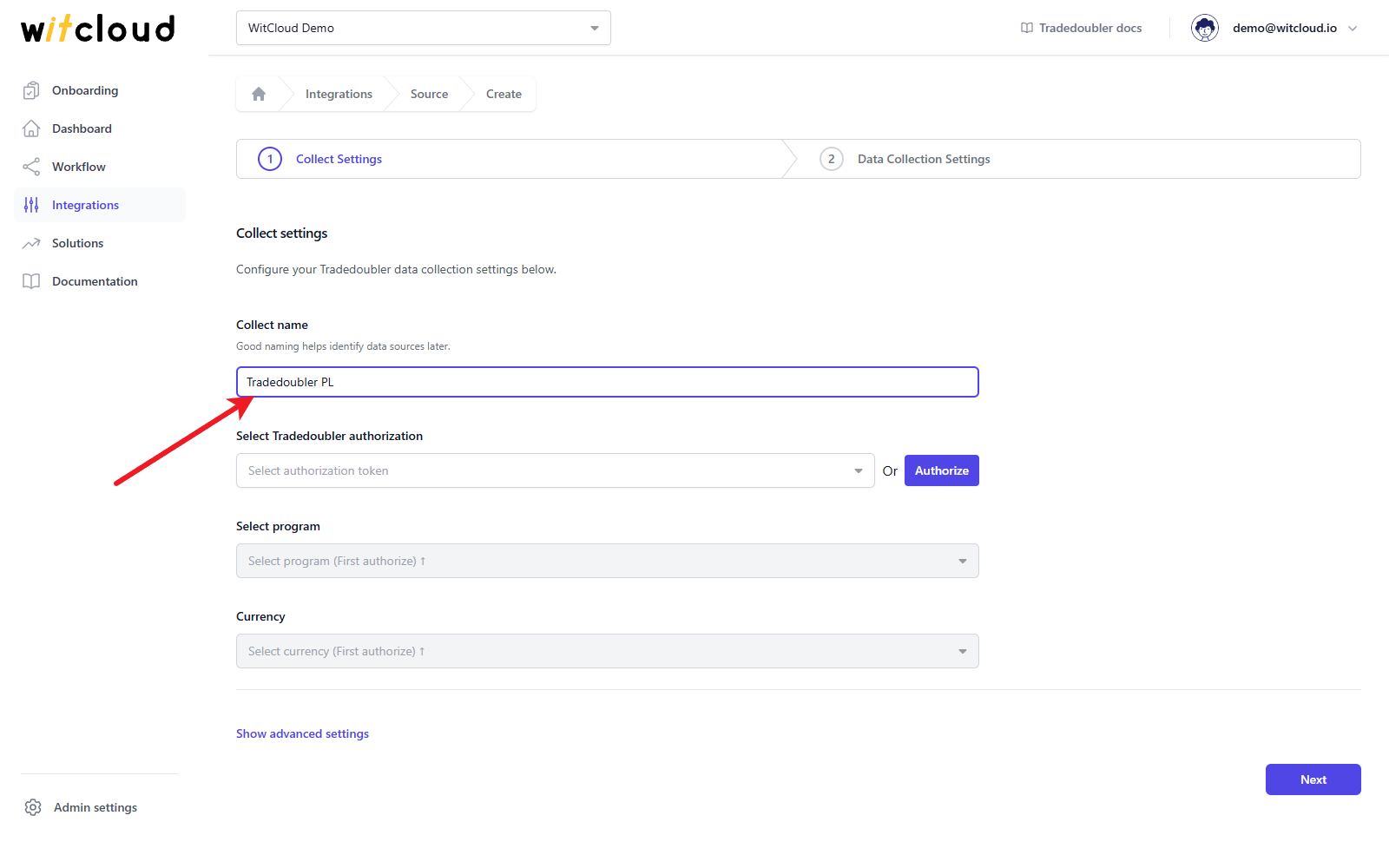
Enter the Collect name, e.g., "Tradedoubler PL".
Authorization
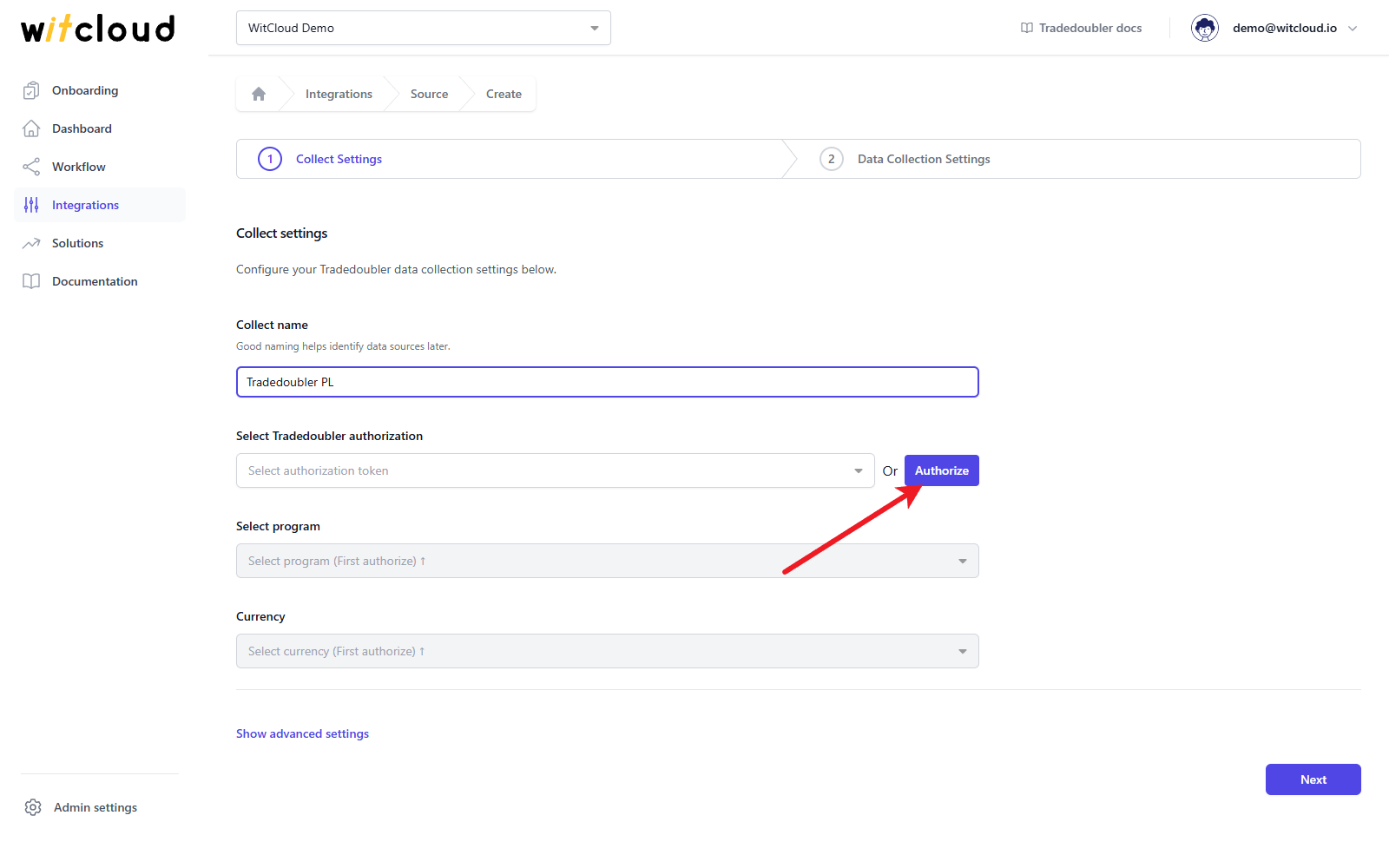
If you have previously authorized the Tradedoubler module and do not require additional permissions, you can skip this step and pick the existing authorization from the Select Tradedoubler authorization drop-down.
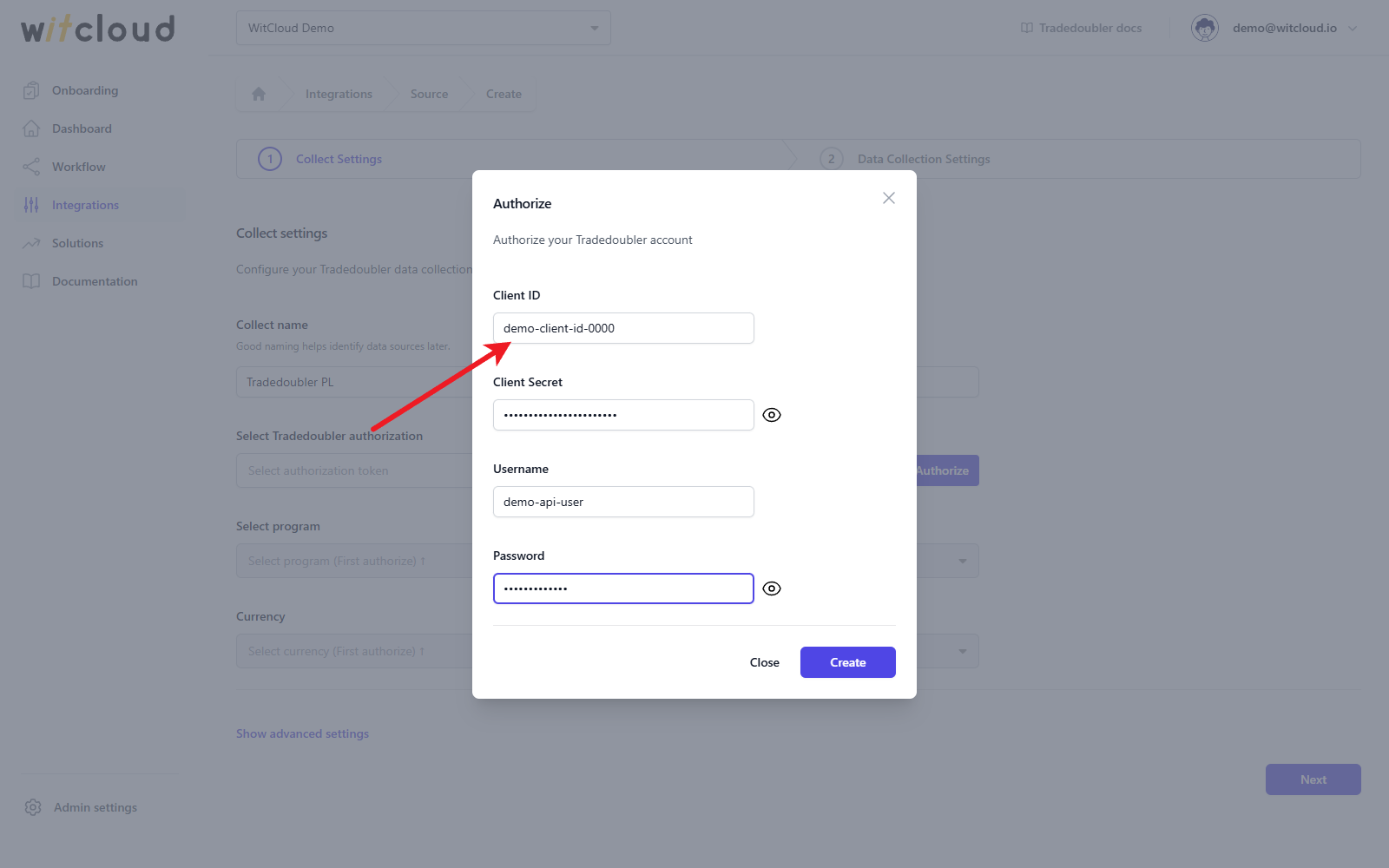
Click Authorize.
Fill in the Authorize form with the Client ID and Client Secret of your API client, and the Username and Password of your Tradedoubler account, then click Create. WitCloud checks the credentials with Tradedoubler; if they are rejected, the form shows an error and nothing is saved.
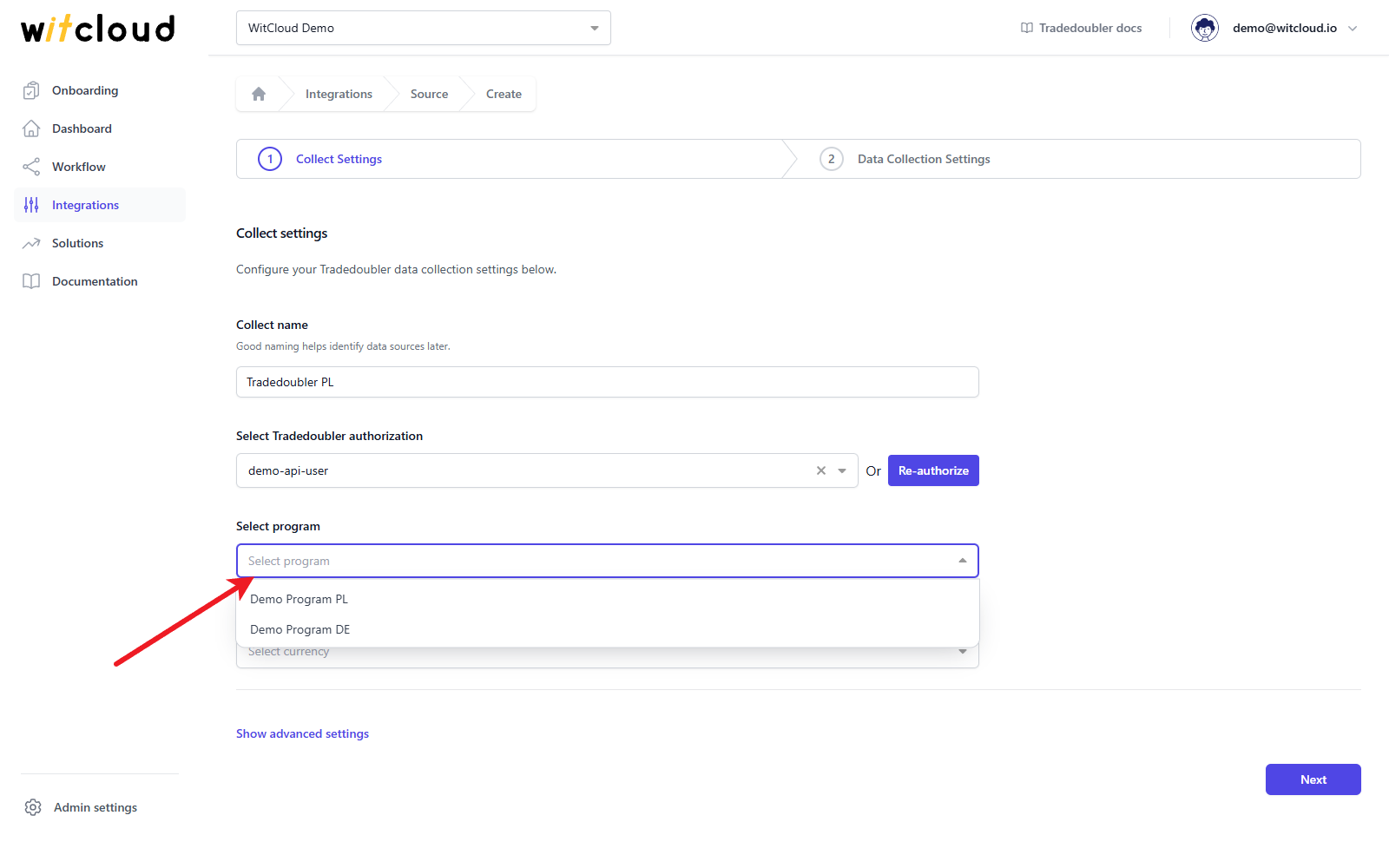
Select the Tradedoubler program from the Select program drop-down list. It lists the active programs available to your account.
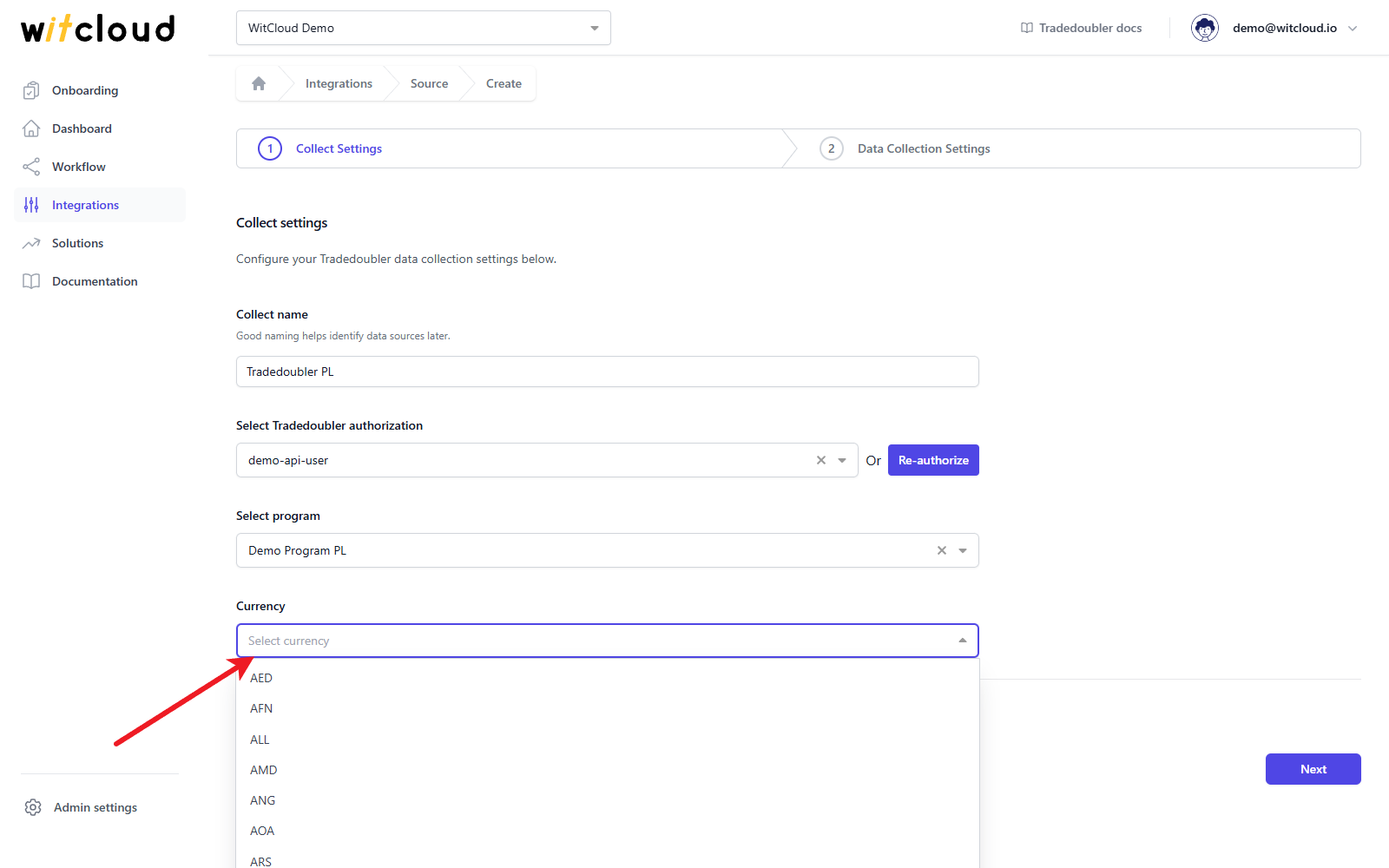
Choose the Currency in which you want your data to be retrieved.
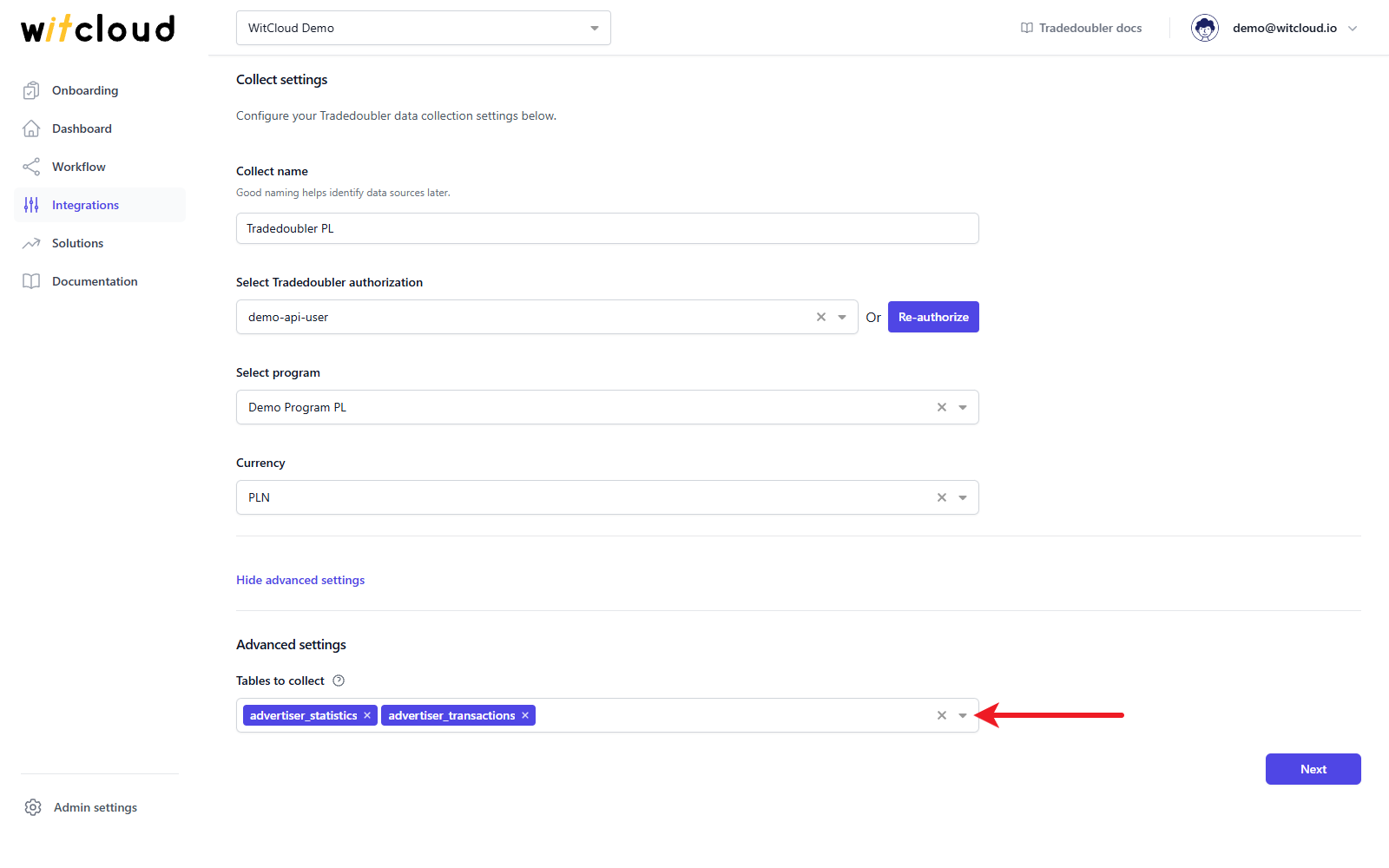
Optionally, click Show advanced settings. Tables to collect lets you filter the tables you want to collect; by default all of them are selected, and at least one table is required.
Click Next.
Historical data and scheduling
In Historical Data, enter the number of days for which you want to fetch historical data. You can enter up to 365 days.
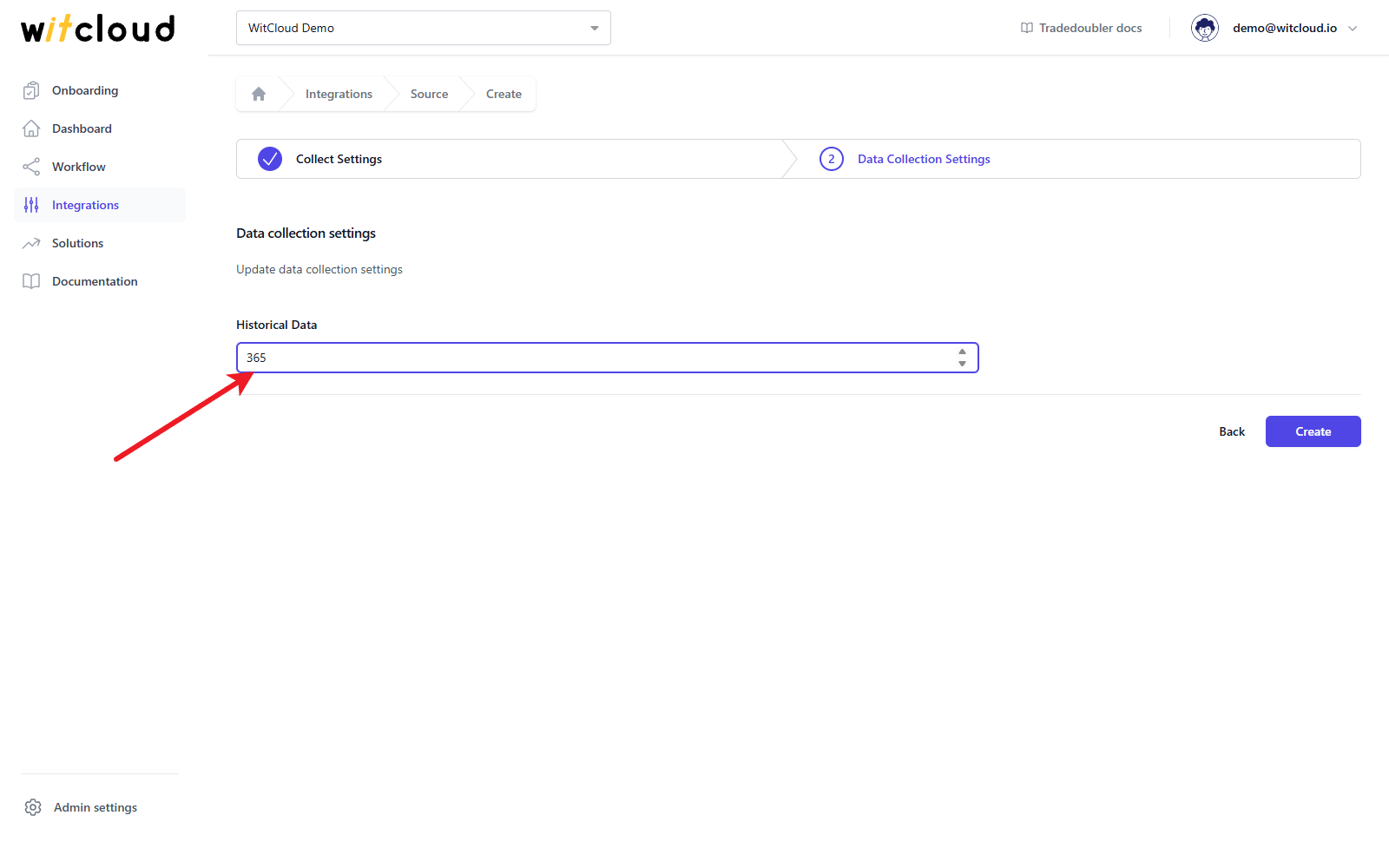
A data synchronization schedule will be created automatically. More information on this topic can be found here.
Click Create to complete the configuration.
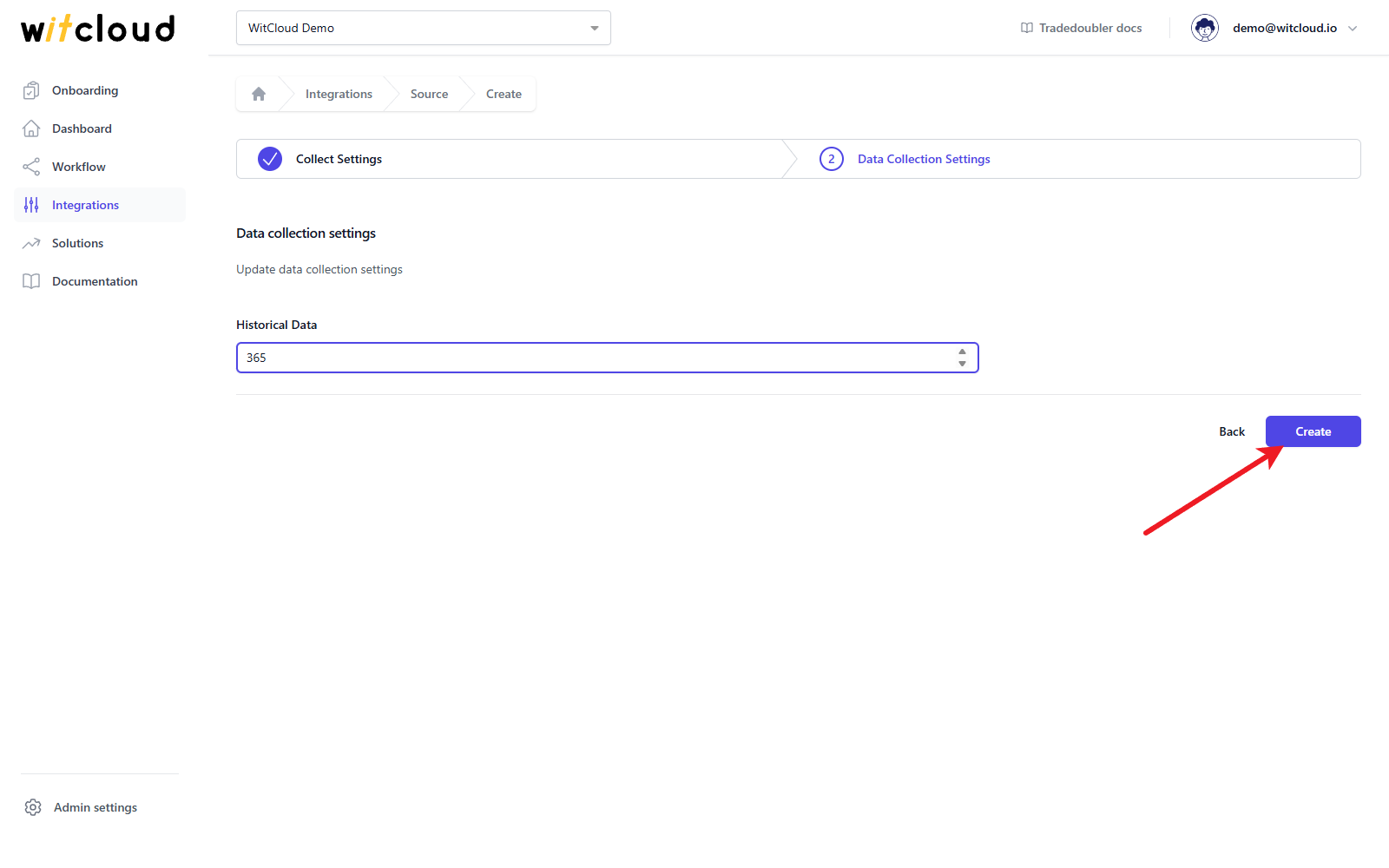
Done! Your Tradedoubler data will now be synchronized with BigQuery.
Data schema
Expand the tables below to view the full data schema collected from Tradedoubler.
Data schema for td_advertiser_statistics
| Field Name | Mode | Type |
|---|---|---|
| date | NULLABLE | TIMESTAMP |
| impressions | NULLABLE | INTEGER |
| impressionsCommission | NULLABLE | RECORD |
| impressionsCommission.publisherCommission | NULLABLE | FLOAT |
| impressionsCommission.tdCommission | NULLABLE | FLOAT |
| clicks | NULLABLE | INTEGER |
| clicksCommission | NULLABLE | RECORD |
| clicksCommission.publisherCommission | NULLABLE | FLOAT |
| clicksCommission.tdCommission | NULLABLE | FLOAT |
| uniqueVisitors | NULLABLE | INTEGER |
| uvCommission | NULLABLE | RECORD |
| uvCommission.publisherCommission | NULLABLE | FLOAT |
| uvCommission.tdCommission | NULLABLE | FLOAT |
| leads | NULLABLE | INTEGER |
| leadsCommission | NULLABLE | RECORD |
| leadsCommission.publisherCommission | NULLABLE | FLOAT |
| leadsCommission.tdCommission | NULLABLE | FLOAT |
| ileads | NULLABLE | INTEGER |
| ileadsCommission | NULLABLE | RECORD |
| ileadsCommission.publisherCommission | NULLABLE | FLOAT |
| ileadsCommission.tdCommission | NULLABLE | FLOAT |
| sales | NULLABLE | INTEGER |
| salesCommission | NULLABLE | RECORD |
| salesCommission.publisherCommission | NULLABLE | FLOAT |
| salesCommission.tdCommission | NULLABLE | FLOAT |
| isales | NULLABLE | INTEGER |
| isalesCommission | NULLABLE | RECORD |
| isalesCommission.publisherCommission | NULLABLE | FLOAT |
| isalesCommission.tdCommission | NULLABLE | FLOAT |
| commission | NULLABLE | RECORD |
| commission.publisherCommission | NULLABLE | FLOAT |
| commission.tdCommission | NULLABLE | FLOAT |
| orderValue | NULLABLE | FLOAT |
| ctr | NULLABLE | FLOAT |
| cr | NULLABLE | FLOAT |
| lr | NULLABLE | FLOAT |
| epc | NULLABLE | FLOAT |
| adId | NULLABLE | STRING |
| adName | NULLABLE | STRING |
| adCategoryId | NULLABLE | STRING |
| adCategoryName | NULLABLE | STRING |
| currency | NULLABLE | STRING |
Data schema for td_advertiser_transactions
| Field Name | Mode | Type |
|---|---|---|
| transactionId | NULLABLE | STRING |
| programId | NULLABLE | STRING |
| programName | NULLABLE | STRING |
| sourceName | NULLABLE | STRING |
| sourceId | NULLABLE | STRING |
| adId | NULLABLE | STRING |
| eventId | NULLABLE | STRING |
| eventName | NULLABLE | STRING |
| eventTypeId | NULLABLE | STRING |
| status | NULLABLE | STRING |
| timeofLastClick | NULLABLE | TIMESTAMP |
| timeofCreate | NULLABLE | TIMESTAMP |
| timeofTransaction | NULLABLE | TIMESTAMP |
| timeofLastModified | NULLABLE | TIMESTAMP |
| leadNumber | NULLABLE | STRING |
| orderNumber | NULLABLE | STRING |
| orderValue | NULLABLE | FLOAT |
| commission | NULLABLE | FLOAT |
| tdCommission | NULLABLE | FLOAT |
| paid | NULLABLE | BOOLEAN |
| productInfo | REPEATED | RECORD |
| productInfo.productID | NULLABLE | STRING |
| productInfo.productName | NULLABLE | STRING |
| productInfo.quantity | NULLABLE | INTEGER |
| productInfo.productValue | NULLABLE | FLOAT |
| productInfo.productGroup | NULLABLE | INTEGER |
| voucherCode | NULLABLE | STRING |
| productsApi | NULLABLE | RECORD |
| productsApi.productId | NULLABLE | STRING |
| productsApi.productName | NULLABLE | STRING |
| crossDevice | NULLABLE | STRING |
| pendingRule | NULLABLE | STRING |
| deviceObject | NULLABLE | RECORD |
| deviceObject.deviceType | NULLABLE | STRING |
| deviceObject.operatingSystem | NULLABLE | STRING |
| deviceObject.browser | NULLABLE | STRING |
| modified | NULLABLE | BOOLEAN |
| currency | NULLABLE | STRING |