
Activity history
See who changed the project's configuration, when and from where - integrations, workflows, team, limits and more - and compare the values before and after each change.
Updated
Activity history is the log of configuration changes in the current project: who created, changed or deleted an integration, a workflow, a team member, a data limit and so on, when it happened, and whether it was done in the panel, by the WitCloud MCP assistant or by WitCloud itself. For a change you can see the previous and the new value of each field.
Where to find it
Go to Admin settings > Activity history. The card is in the Data section and appears when a project is selected — the history always shows the project selected at the top of the panel.
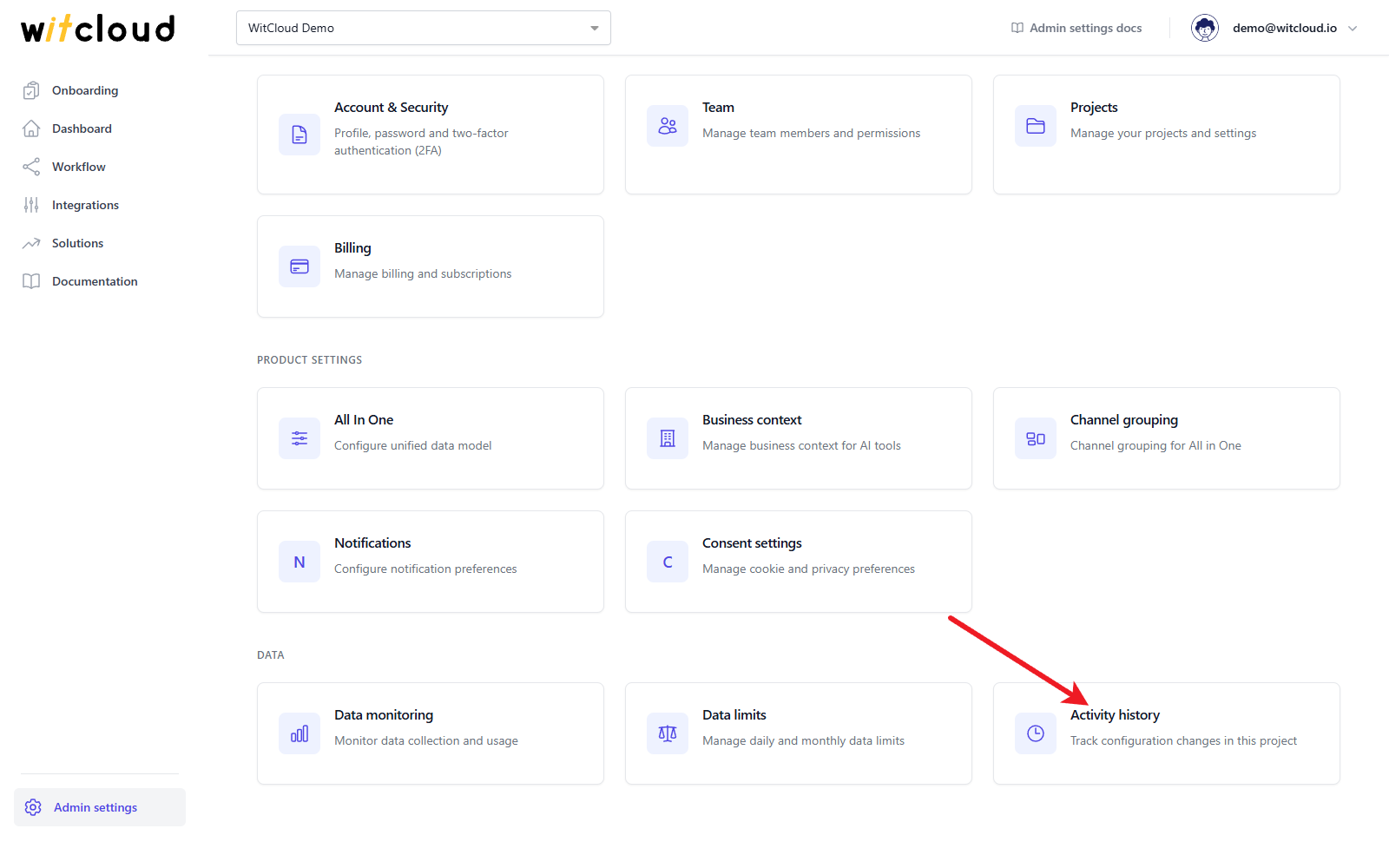
Everyone in the project can open the history: the Owner, Admins, Editors and Viewers (roles). Entries cannot be edited or removed in the panel.
What is recorded
A new entry appears whenever someone saves a change to the project's configuration:
- integrations, workflows and solutions;
- the project's own settings;
- team members and invitations;
- All in One settings, custom rows and field mappings;
- data limits, and the AI assistant's access, limits, data sources and documentation folders;
- channel groupings and business contexts;
- notifications, reports, onboarding, and KPI trees with their metrics, alerts, goals, comparisons and views.
Not recorded:
- what runs on the configuration — data collection runs, workflow runs, processed data and usage counters (see Data monitoring for runs);
- account-wide settings that do not belong to one project, such as your profile;
- saving something without changing it.
The history starts on the day the feature was turned on; changes from before that are not in it.
The history list
The newest changes are at the top, 50 at a time. Click the double arrow below the list (Load more) to load the next ones.
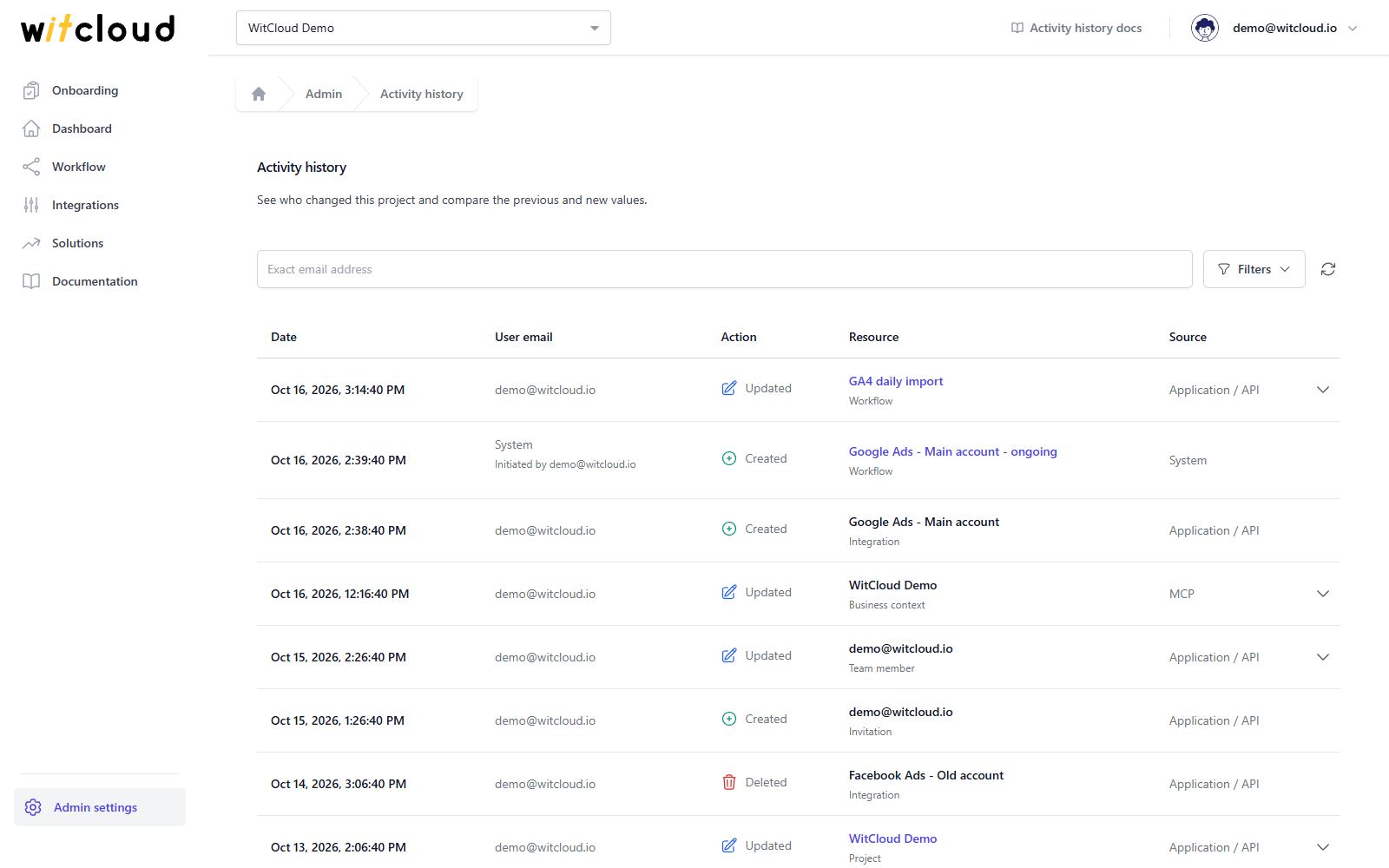
| Column | What it shows |
|---|---|
| Date | When the change was saved, in your time zone. |
| User email | Who made the change. System when WitCloud made it on its own; Initiated by below it names the person whose action started it — for example the workflows WitCloud sets up after someone adds an integration. |
| Action | Created, Updated or Deleted. |
| Resource | The name of what was changed, and its kind below (Integration, Workflow, Team member, Data limit…). The name of a workflow or a project is a link to it, unless it was deleted. Team members are listed by their email. |
| Source | Application / API — the panel or the API; MCP — the AI assistant, acting for the user in User email; System — WitCloud itself. |
See what changed
Click the arrow at the end of an Updated row to open its details: each changed field with its value Before and After. Click it again to close them.
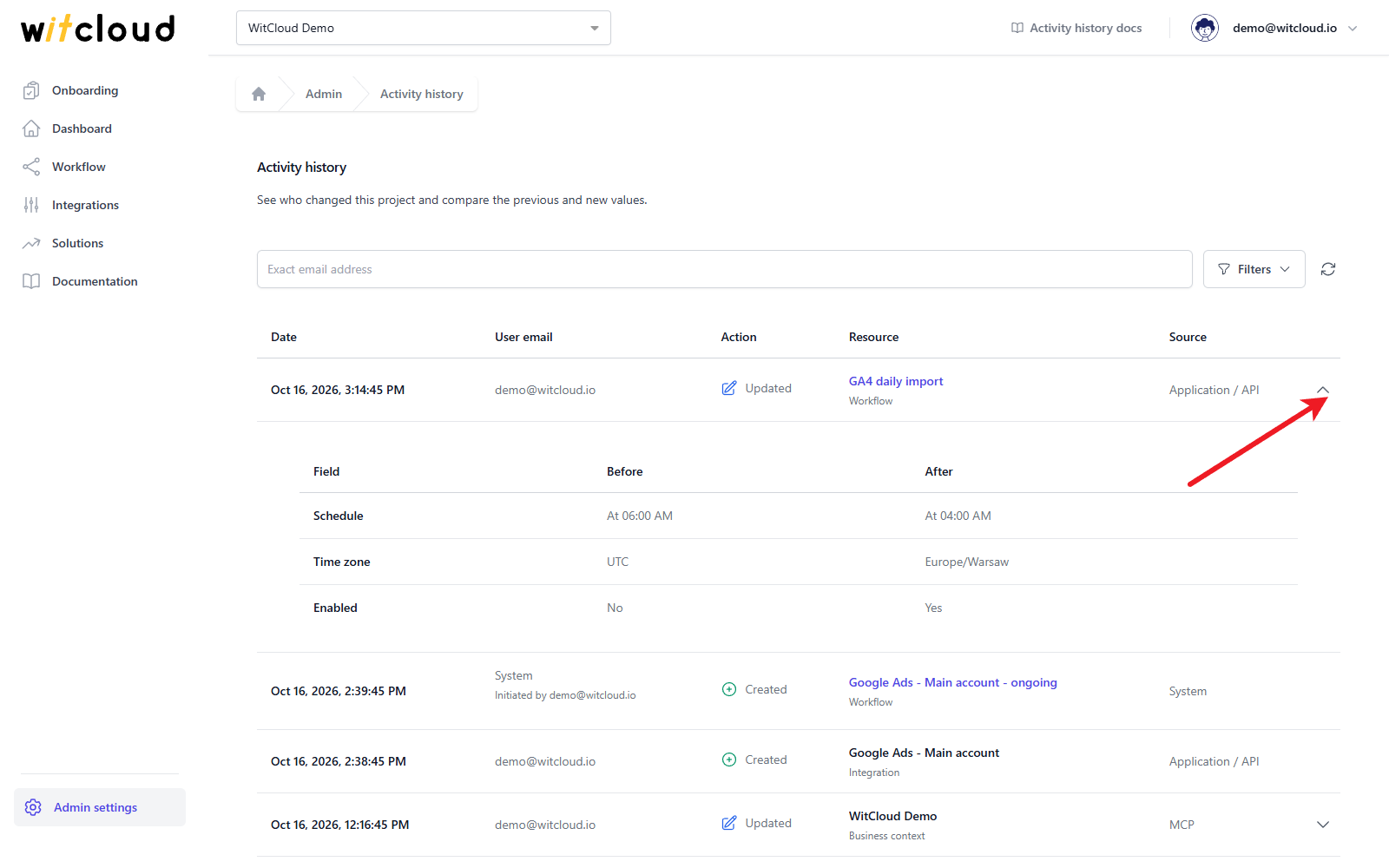
- Only fields that mean something to users are listed. Technical fields (identifiers, order, internal flags) are left out, and so are sensitive values such as passwords, tokens and keys — and the contents of documentation folders.
- When none of the changed fields can be shown, the row says Settings were updated. No additional details are shown in this view. — the change happened, but its values are hidden.
- Long lists show their first five items and +N more; nested settings show as Configuration or Items: N; schedules are written out in words.
- Details shortened due to size means the change was too large to keep in full.
- N related changes means the change was part of one action that changed several things at once; each of them has an entry of its own in the list.
Created and Deleted rows have no details: the row itself says what was added or removed. The name is kept, so you can still see what was deleted.
Find a change
Type an email address in the search box to show only that person's changes. The address must be complete — the search does not match parts of it — but upper and lower case do not matter. The list updates as you stop typing, or when you press Enter.
Click Filters to narrow the list further:
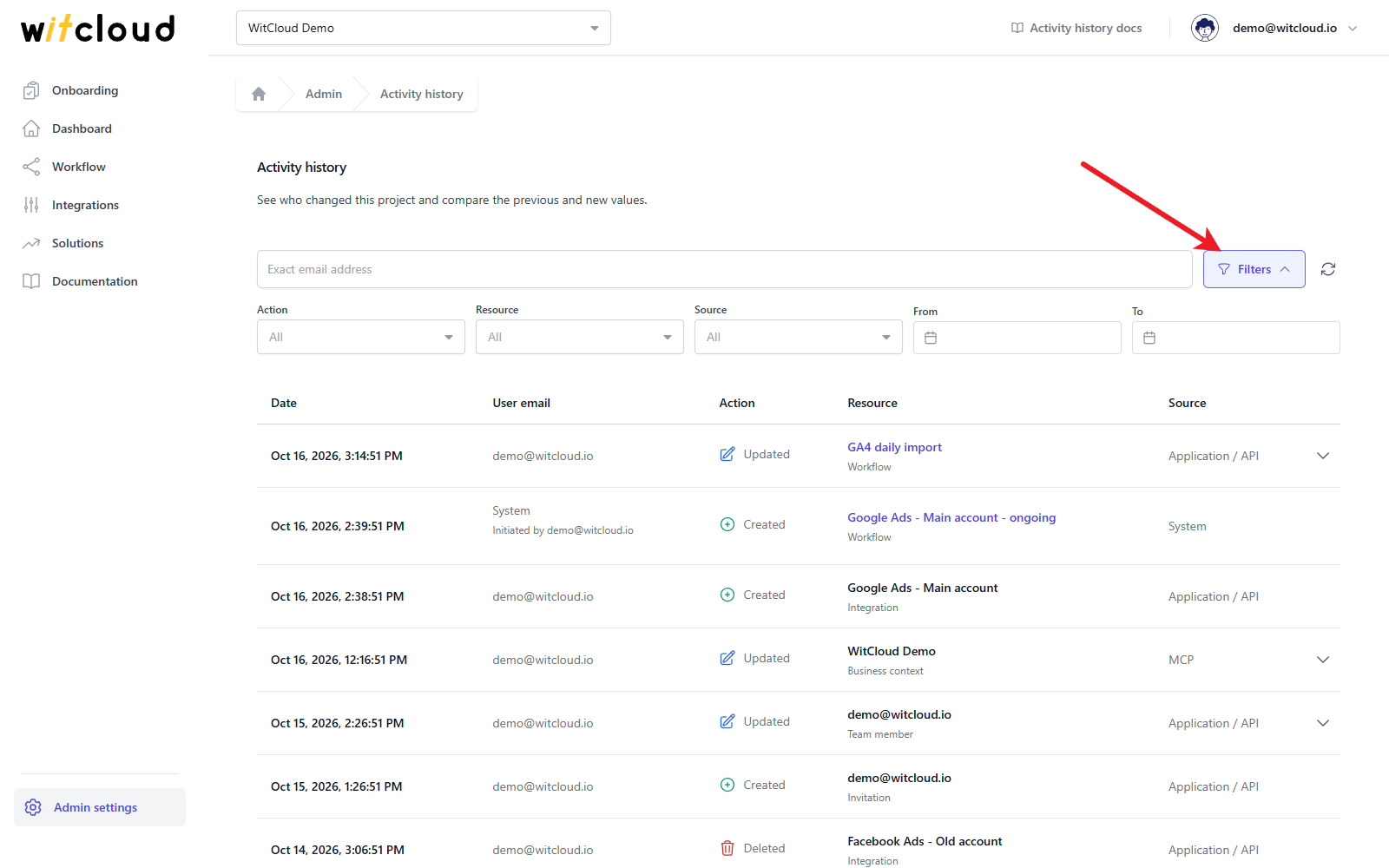
- Action — Created, Updated or Deleted.
- Resource — one kind, such as Integration, Workflow or Team member.
- Source — Application / API, MCP or System.
- From and To — the first and the last day to show, both included.
The number on Filters says how many filters are set. Click the clear icon (Clear filters) next to it to remove them all, and the refresh icon (Refresh) to load changes made since you opened the page.
Troubleshooting
Could not load activity history. Check your access and try again.
The history could not be loaded — usually because you no longer have access to the project. Click Try again; if it keeps failing, ask the project's Owner or an Admin to check your role in Team.
Select a project to view its history.
No project is selected. Choose one at the top of the panel.
A change is missing
Check that it is the kind of change the history records (What is recorded) and that it was made after the history was turned on. Then check the filters — a set filter shows a number on Filters.