
Business context
Describe your business for the AI tools — a company description from a Google Doc or typed in, and a Context Log of business events kept in a Google Sheet.
Updated
A business context tells the AI tools — such as the WitCloud MCP assistant — what your company does, so they can read your data with that in mind. A project can have several contexts of two types:
- Text Context — a description of the company and its products, linked from a Google Doc or typed in.
- Context Log — a timeline of business events (rebrands, launches, campaigns, structural changes) kept in a Google Sheet, so a change in the numbers can be matched with what happened at the time.
Where to find it
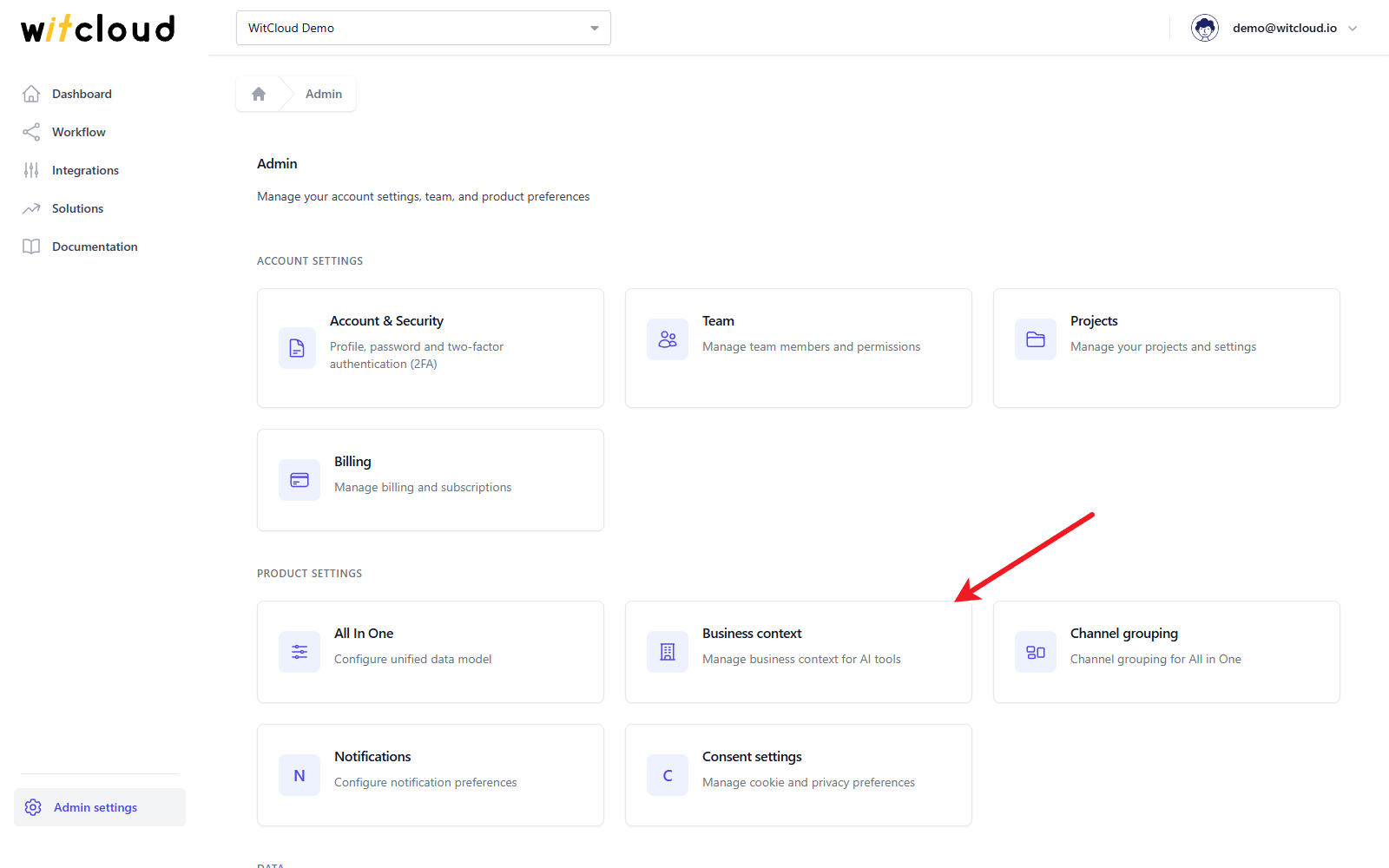
Go to Admin settings > Business context.
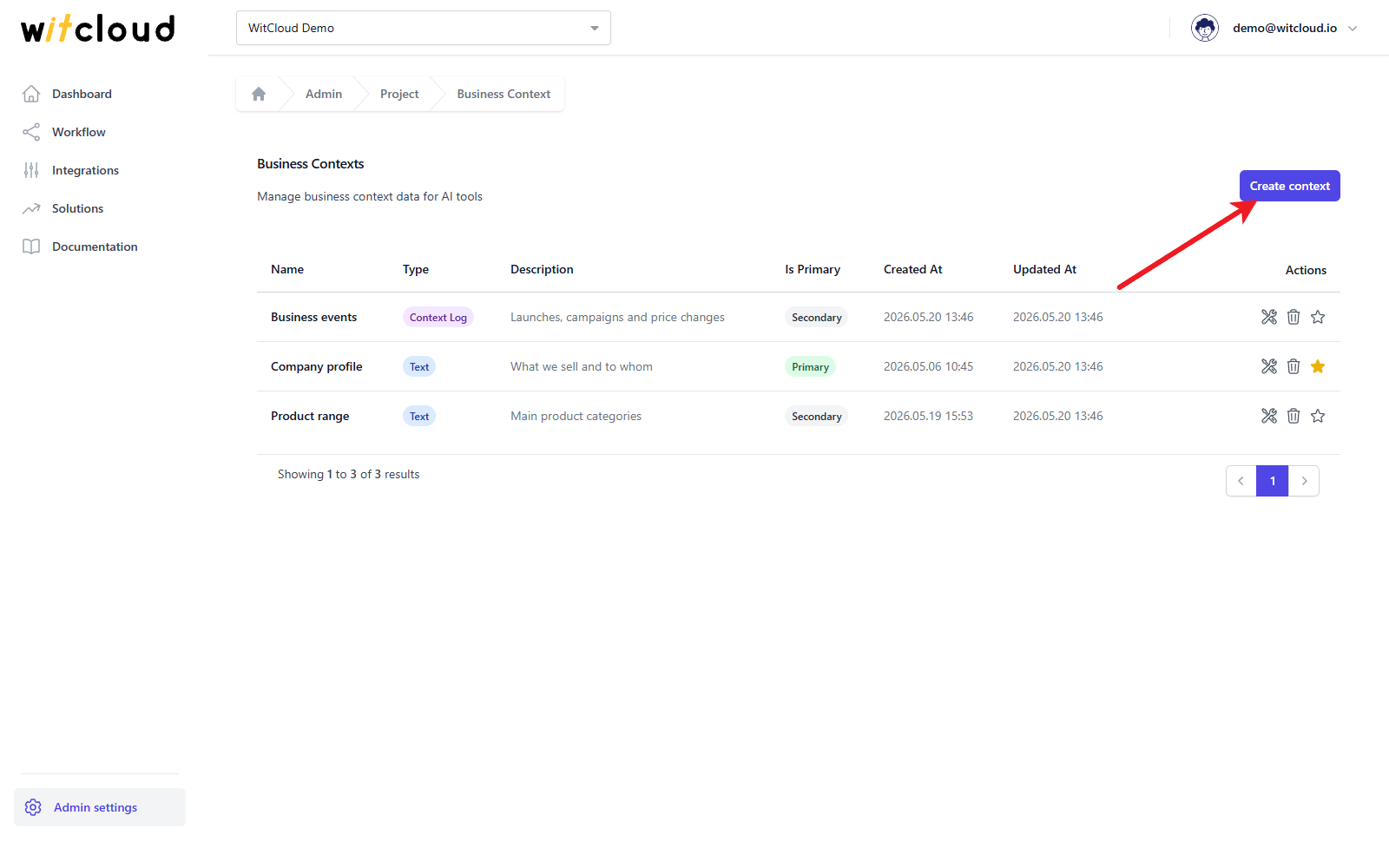
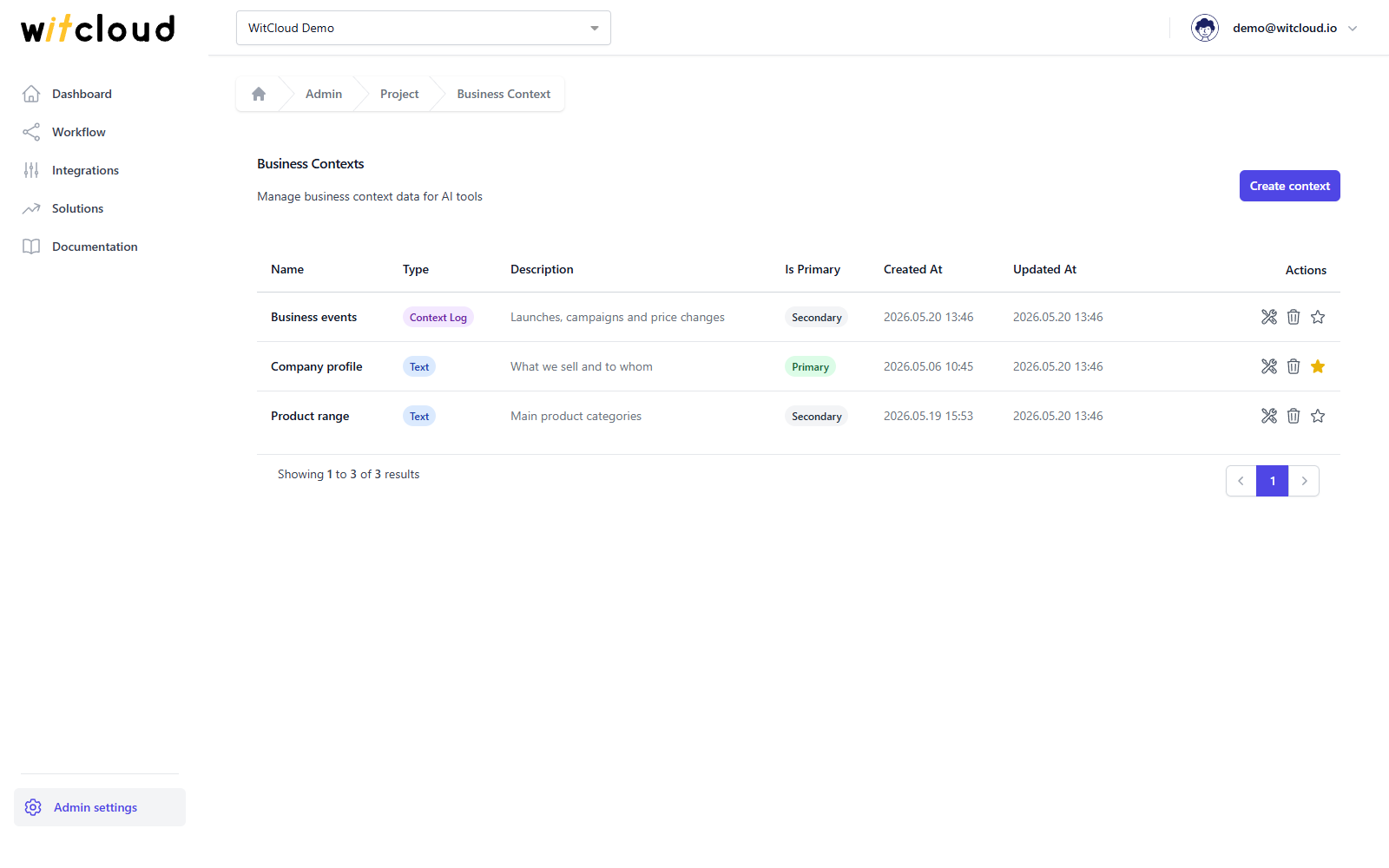
The Business Contexts list shows each context with its name, type, description, whether it is Primary or Secondary, and when it was created and last updated.
Everyone in the project can see the contexts; only the Owner, Admins and Editors can create, change or delete them (roles).
Create a text context
Click Create context.
Leave Type on Text Context, enter a Name and, optionally, a short Description. Then add the content in one of two ways.
From a Google Doc
On the Google Docs tab:
- Share the document with the project service account with Viewer access. Click Copy service account to copy its address.
- Paste the link into Google Docs URL and click Verify. Connected means WitCloud can read the document.
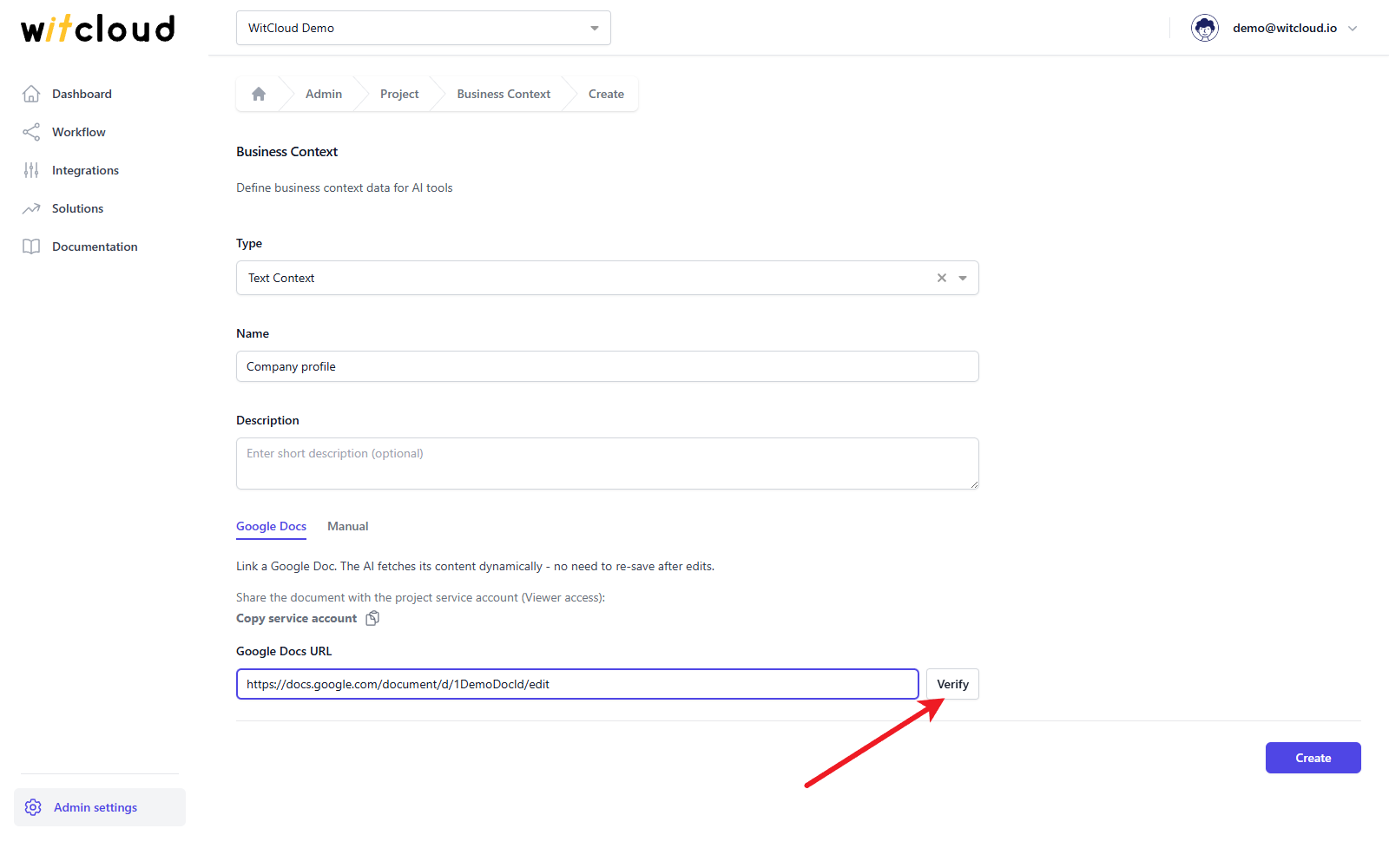
The AI tools read the document each time they need it, so later edits in the document count without saving the context again.
Typed in
On the Manual tab, write the description in Content — up to 5000 characters.
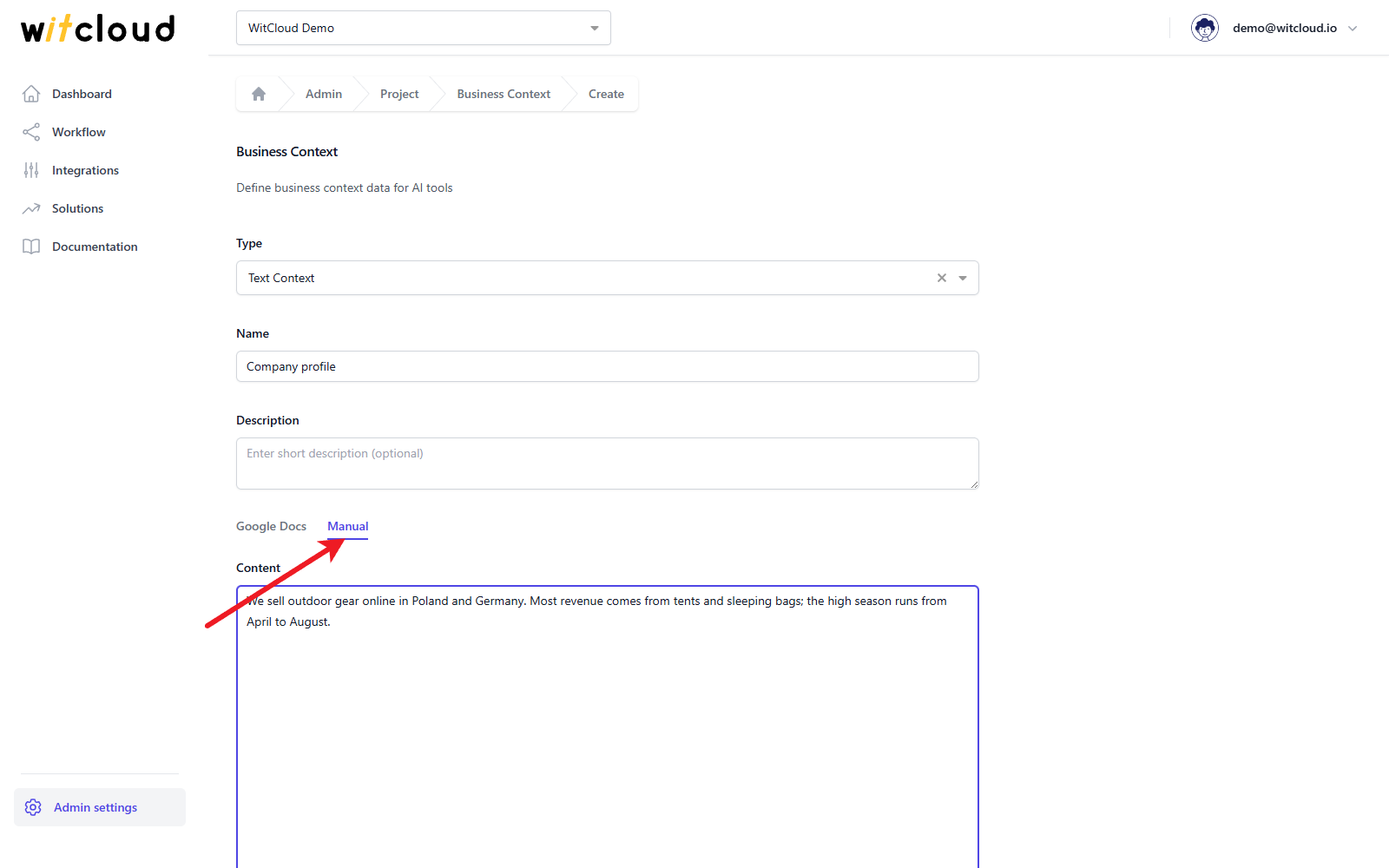
Click Create. Done! The context appears on the list.
The first context of a project becomes the primary one automatically.
Create a context log
Click Create context and choose Context Log as the Type. Enter a Name and, optionally, a Description, then:
- Click Copy template link, open the template and make a copy on your Google Drive.
- Share the copy with the project service account with Editor access — Copy service account copies its address. Editor access lets the AI assistant add new events to the sheet when you tell it about them.
- Paste the link into Spreadsheet URL and click Verify. The panel shows how many entries it found.
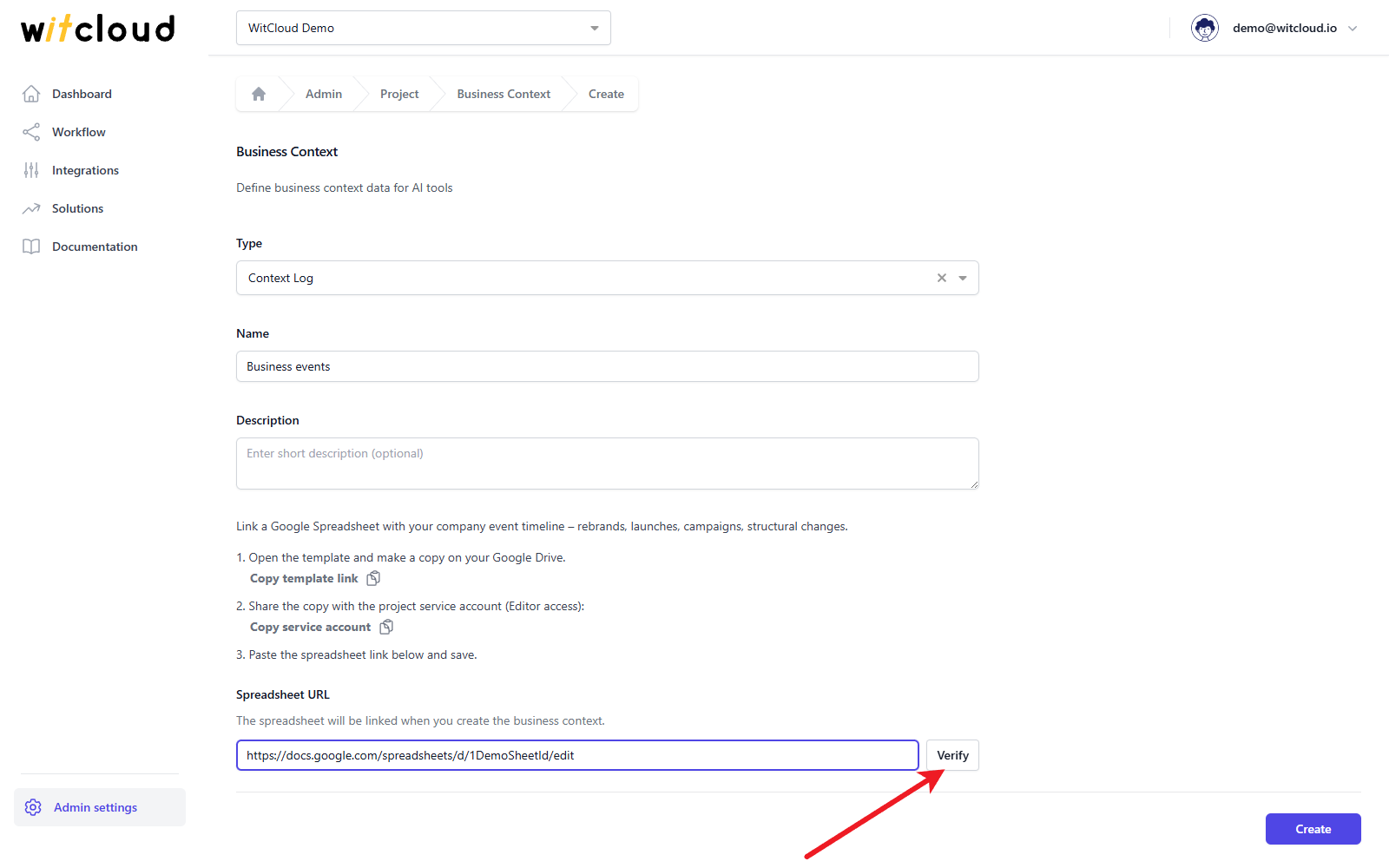
Click Create.
The first row of the sheet must hold the column names: log_name, start_date, end_date, category, tags, description and comment. The template already has them.
Manage contexts
On the Business Contexts list:
- Click the edit icon to change a context, then Save. The Type cannot be changed after the context is created.
- Click the star to make a context the Primary one. Only one context per project is primary. The assistant sees which context is primary, but still asks you which one to use.
- Click the trash bin icon and confirm with Delete to remove a context. If you delete the primary one, another context becomes primary.
Troubleshooting
Provide a Google Docs URL or enter content manually.
A text context needs content: either a Google Docs link or text on the Manual tab.
Cannot access document. Make sure it is shared with the project service account.
WitCloud cannot open the document. Share it with the address from Copy service account (Viewer access is enough) and click Verify again.
Cannot connect. Make sure the spreadsheet is shared with the project service account.
The same for a Context Log sheet — it needs Editor access.
Spreadsheet schema is invalid. Missing columns: …
The first row of the sheet lacks the listed columns. Add them, or start again from the template.
Spreadsheet is empty – missing header row.
The sheet has no column names in its first row. Copy them from the template.