
Projects
See the WitCloud projects you have access to, create a new one, rename a project or delete it.
Updated
WitCloud keeps data and settings in projects. Each project is a separate workspace with its own integrations, workflows, solutions and team, and its own BigQuery dataset in your Google Cloud project — useful when you manage several markets, clients or businesses.
The project you work in is the one picked in the selector at the top of the panel.
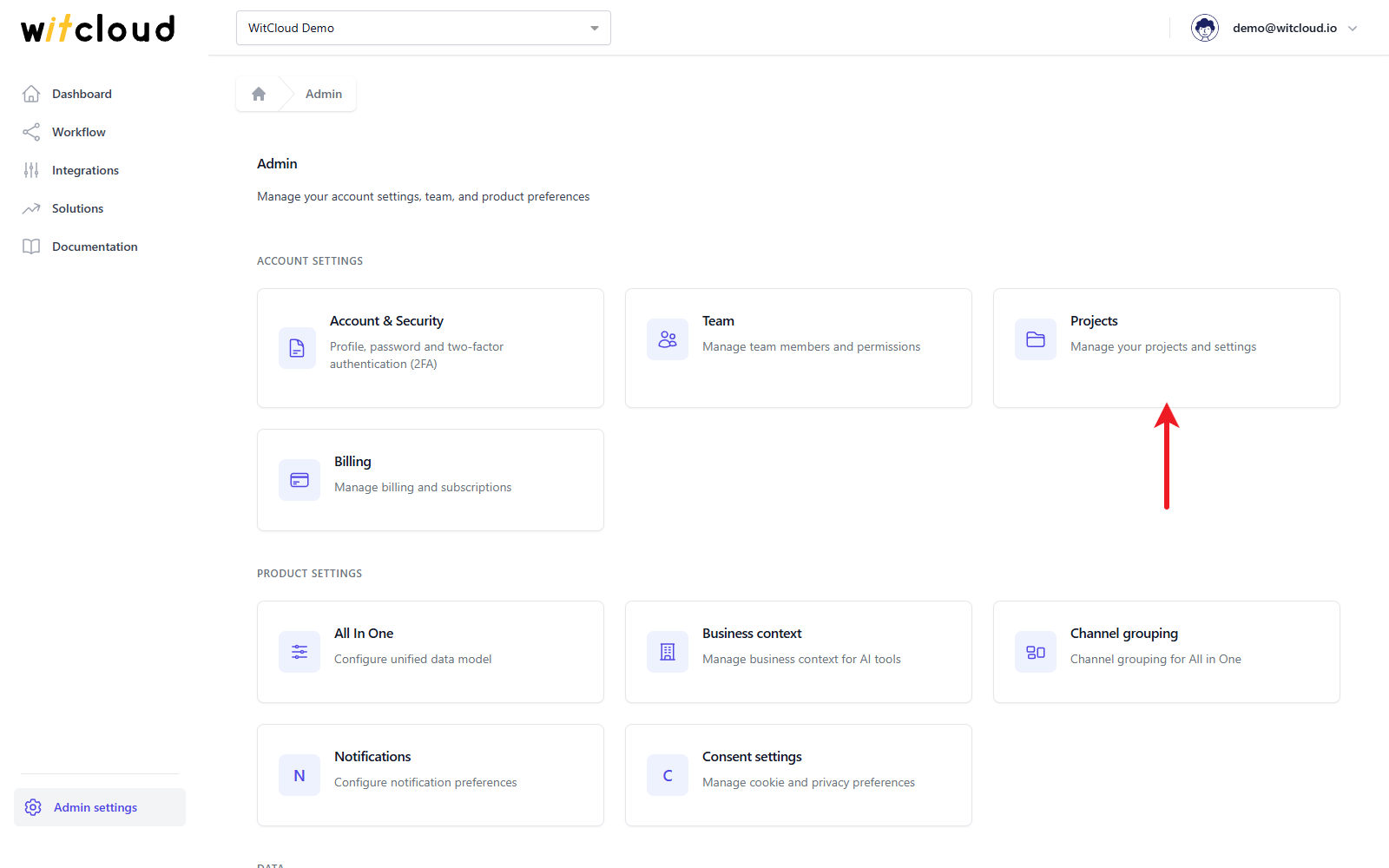
Where to find it
Go to Admin settings > Projects.
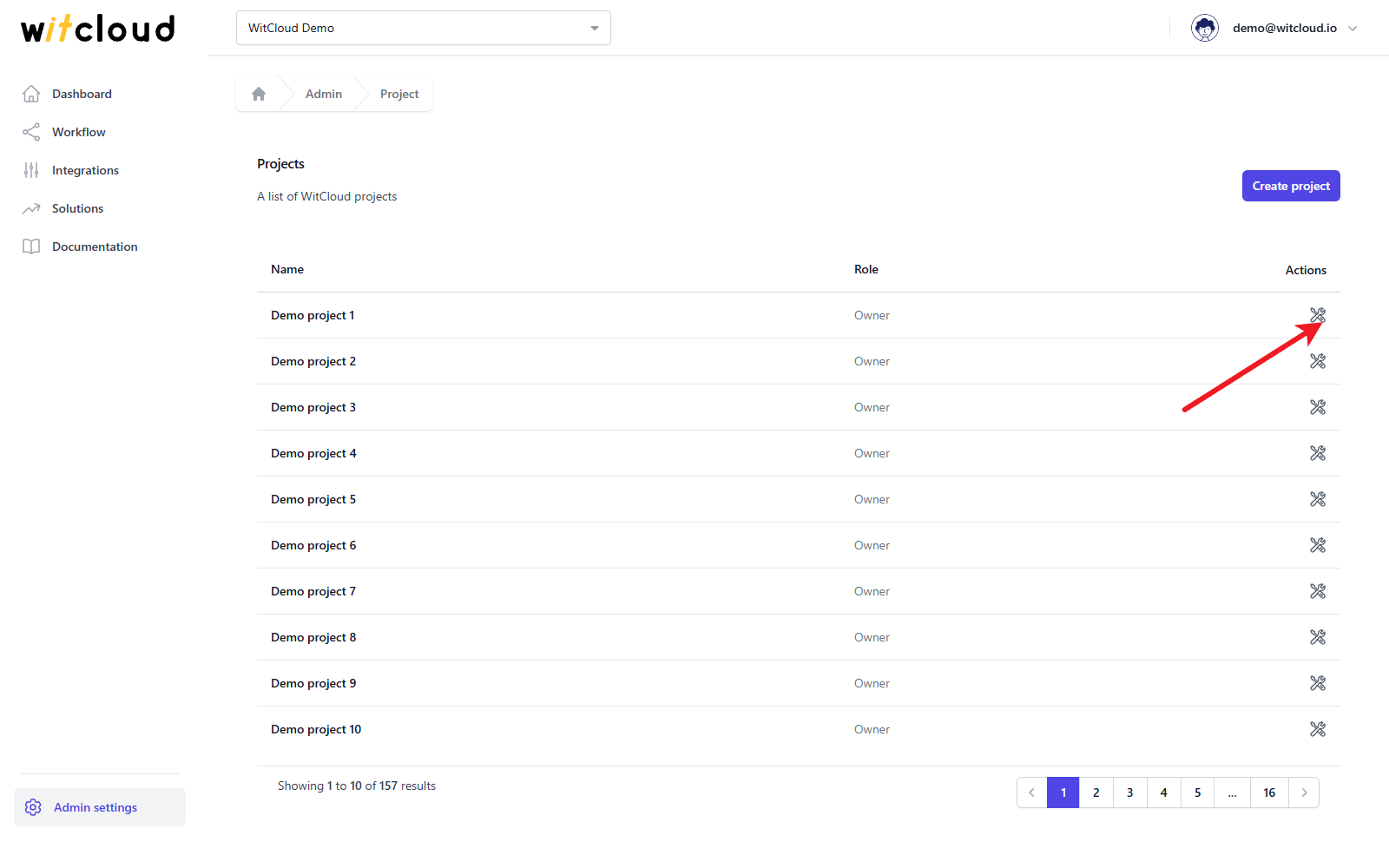
The list shows every project you have access to, with your Role in it (roles).
Create a project
Click Create project. WitCloud opens the setup wizard: you choose where the data is kept, connect your Google Cloud project and go on to the first integrations — the steps are described in How to start.
Change a project
Click the edit icon next to the project, change its Name and click Save.
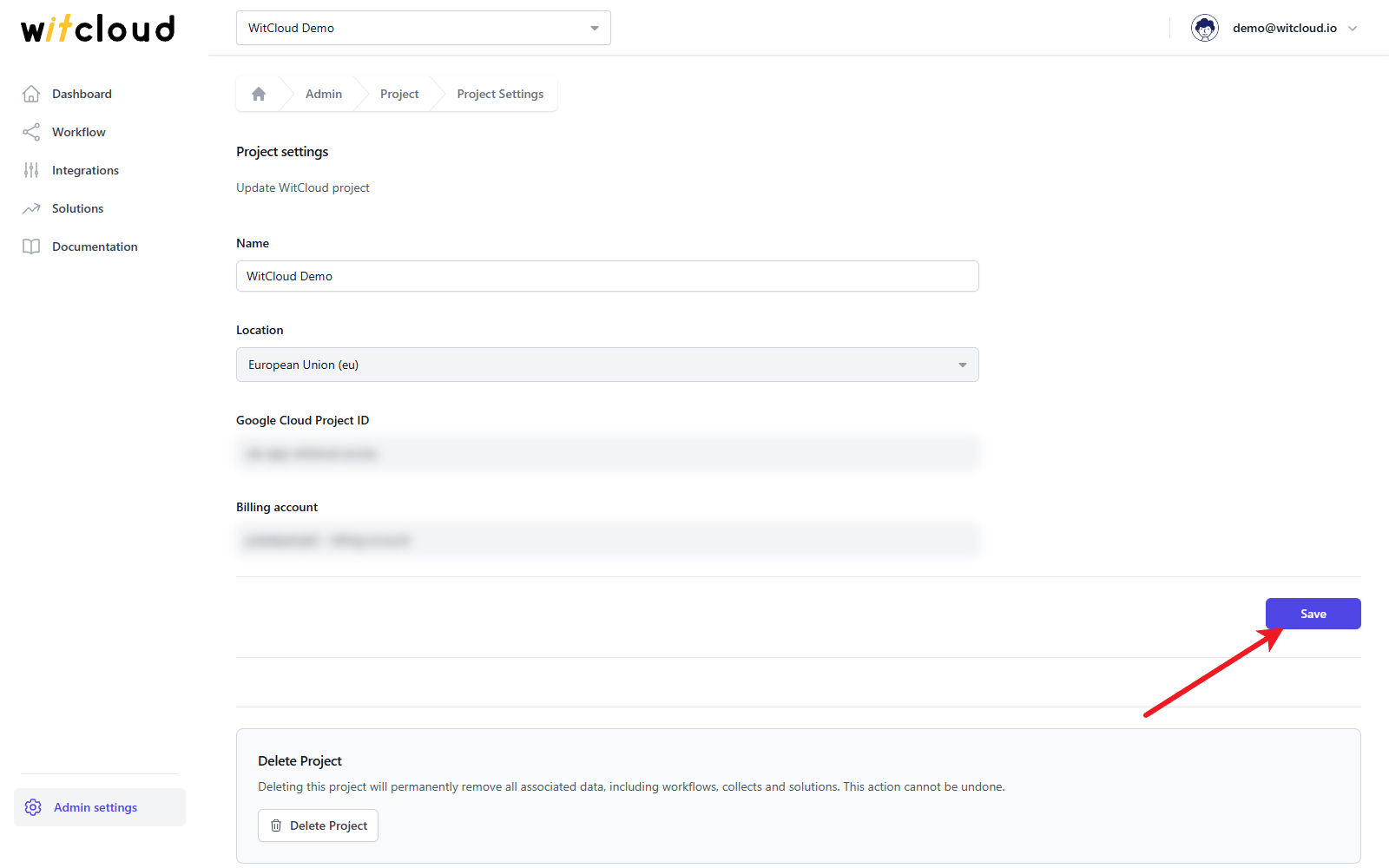
Location, Google Cloud Project ID and Billing account are shown for reference and cannot be changed — the location is fixed when the project's dataset is created.
Only the Owner, Admins and Editors can change a project.
Delete a project
Only the project's Owner can delete it.
- Open the project with the edit icon.
- Under Delete Project, click Delete Project.
- Confirm with Delete Project in the pop-up.
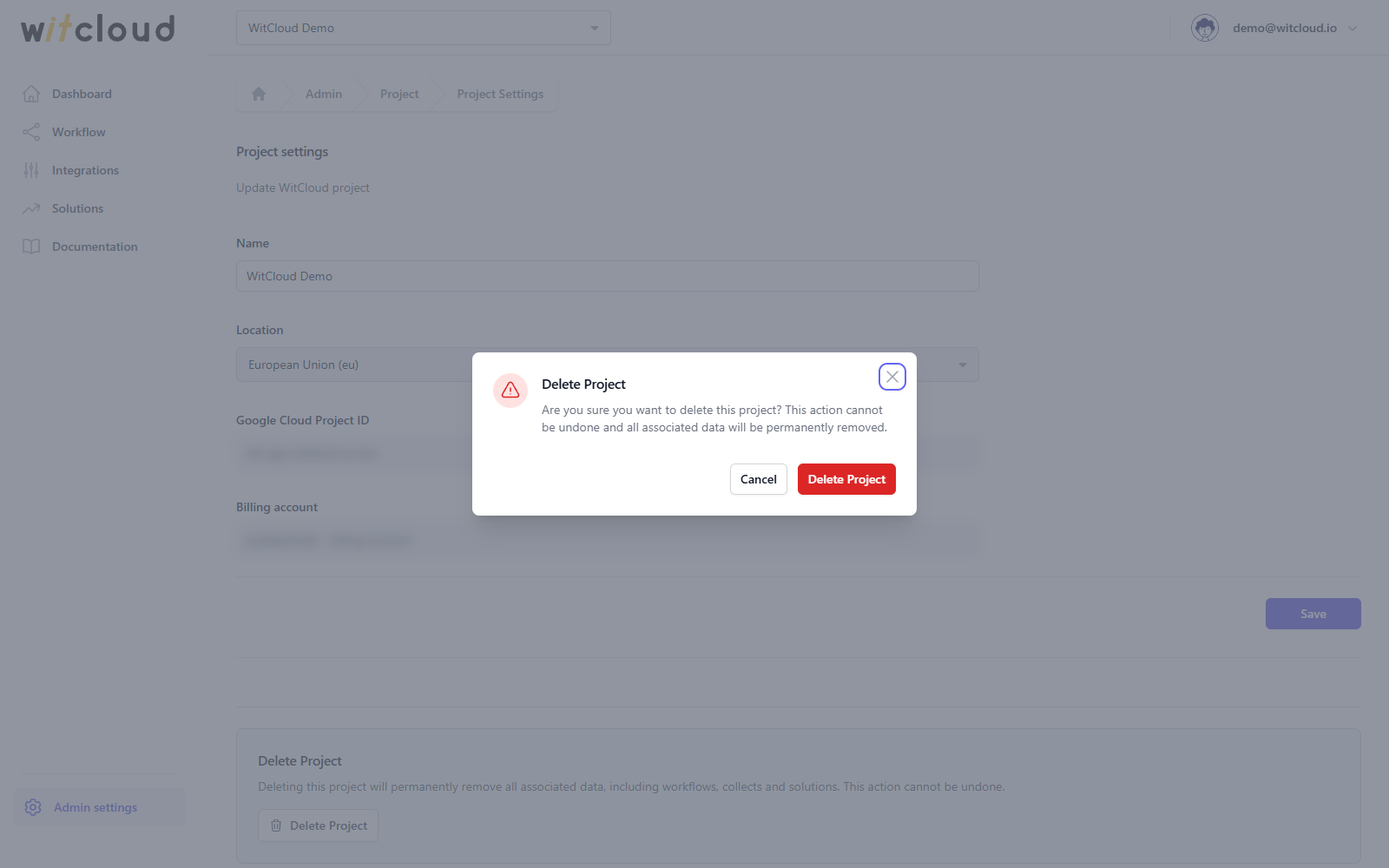
Deleting a project permanently removes all its data, including workflows, collects and solutions. This cannot be undone. You are signed out afterwards.