
Integration of Custom Stream with BigQuery
Learn how to set up Custom Stream in WitCloud to send custom data, such as user events, logs, or webhooks, directly to Google BigQuery using HTTP requests.
Updated
Introduction
The Custom Stream integration lets you send any custom data to Google Cloud BigQuery through a dedicated collector URL. Whether you capture user actions, form submissions, logs or events from third-party systems, you decide what you send; every request is saved as a new row in your BigQuery dataset.
Configuration guide
Follow the steps below to create a Custom Stream. Once it is created, you get a collector URL you can send data to.
Module setup
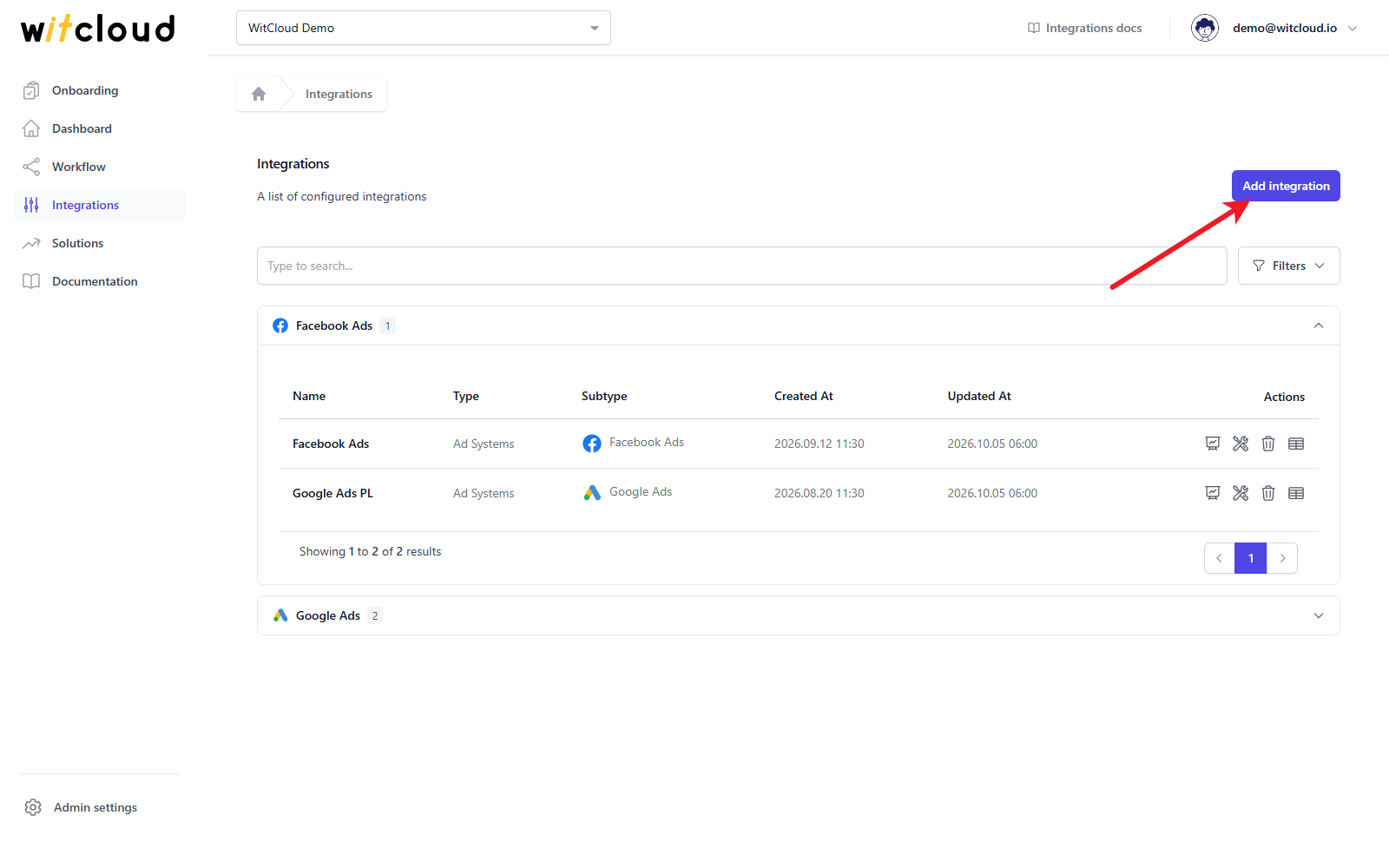
Go to Integrations in the menu and click Add integration.
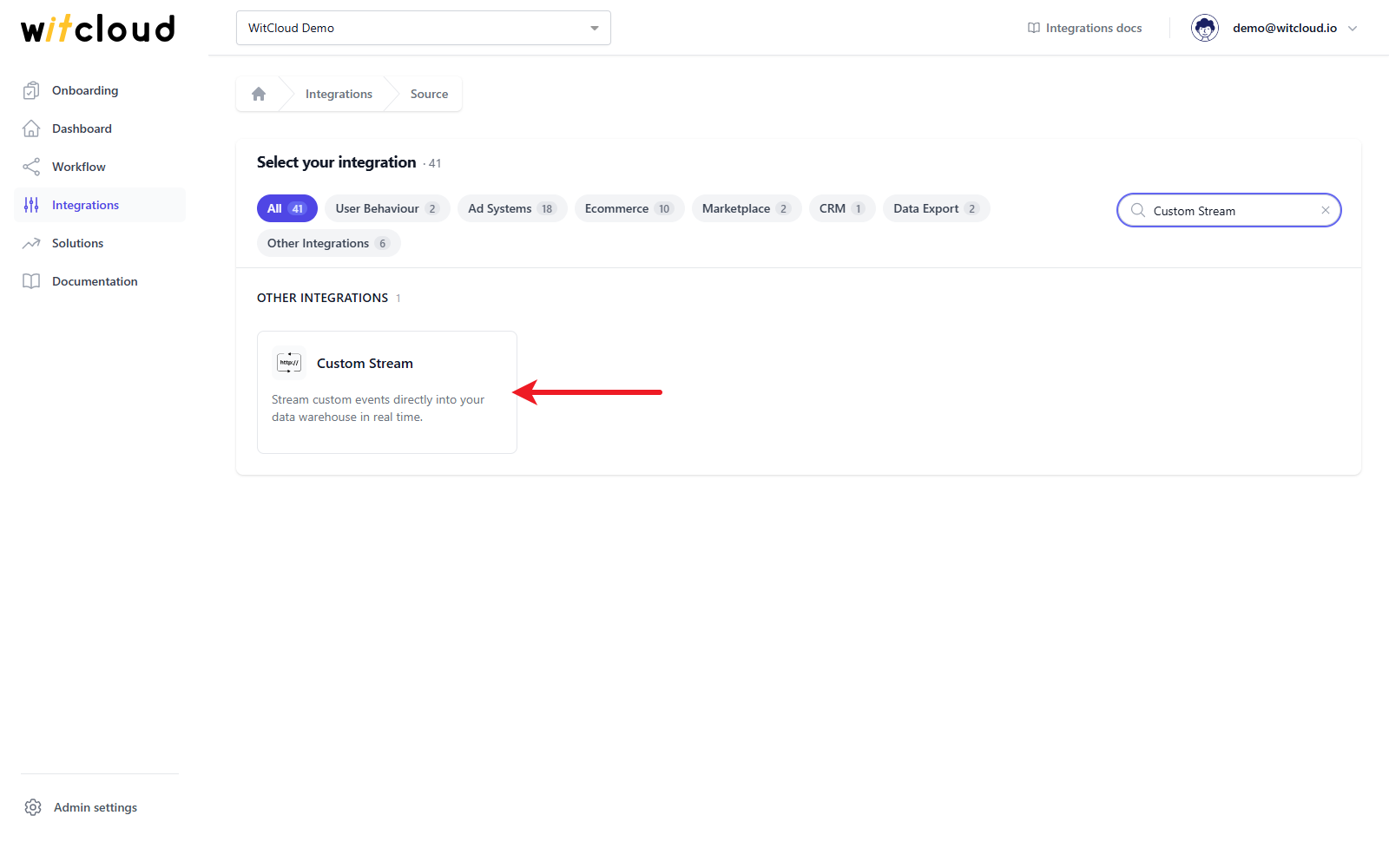
Select Custom Stream from the list of available integrations.
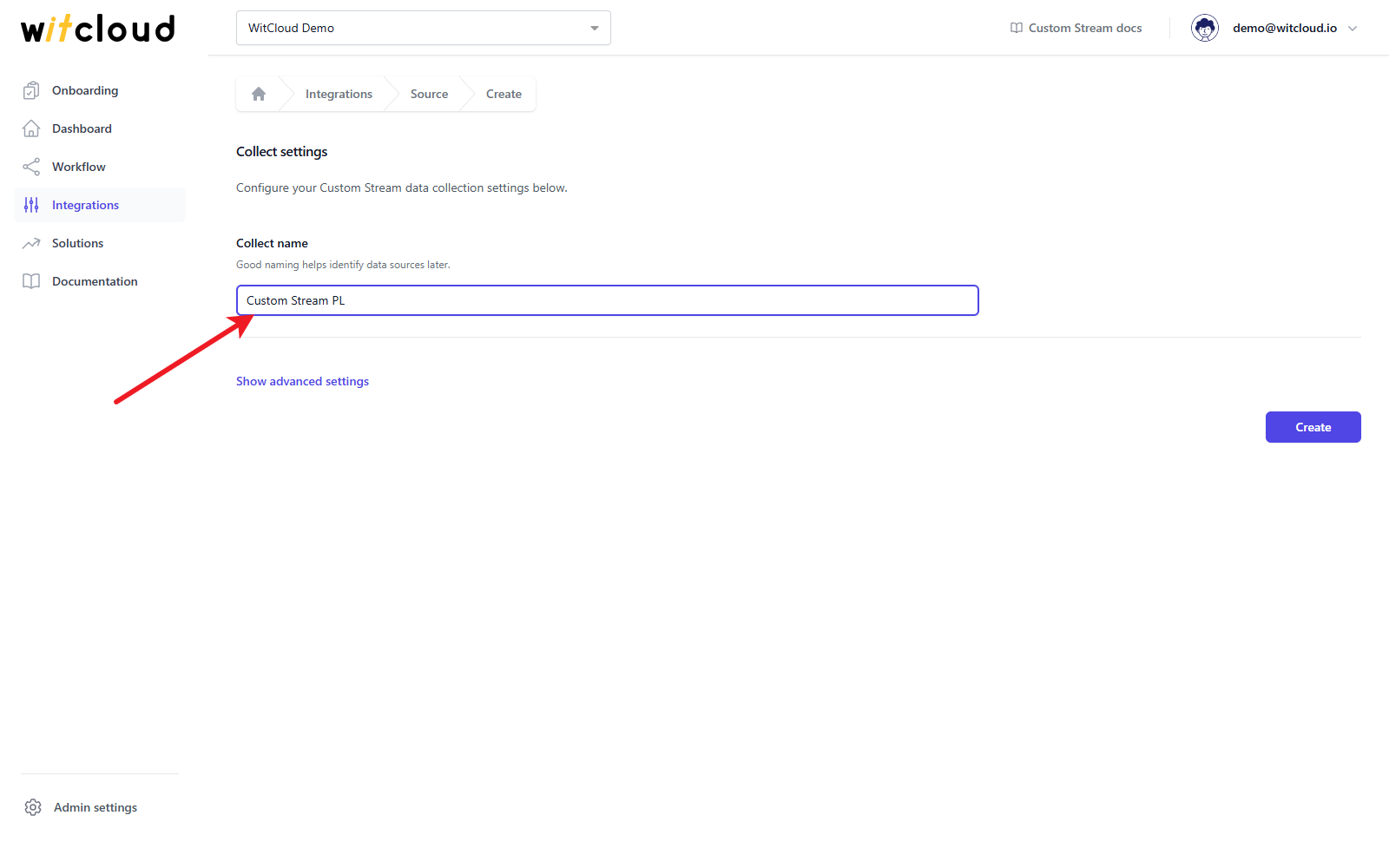
Enter the Collect name, e.g., "Custom Stream PL".
Click Show advanced settings. With the Client IP option you decide what happens with the IP address of the sender: Full saves it as it is (the default), Masked saves a masked version of it and None does not save it.
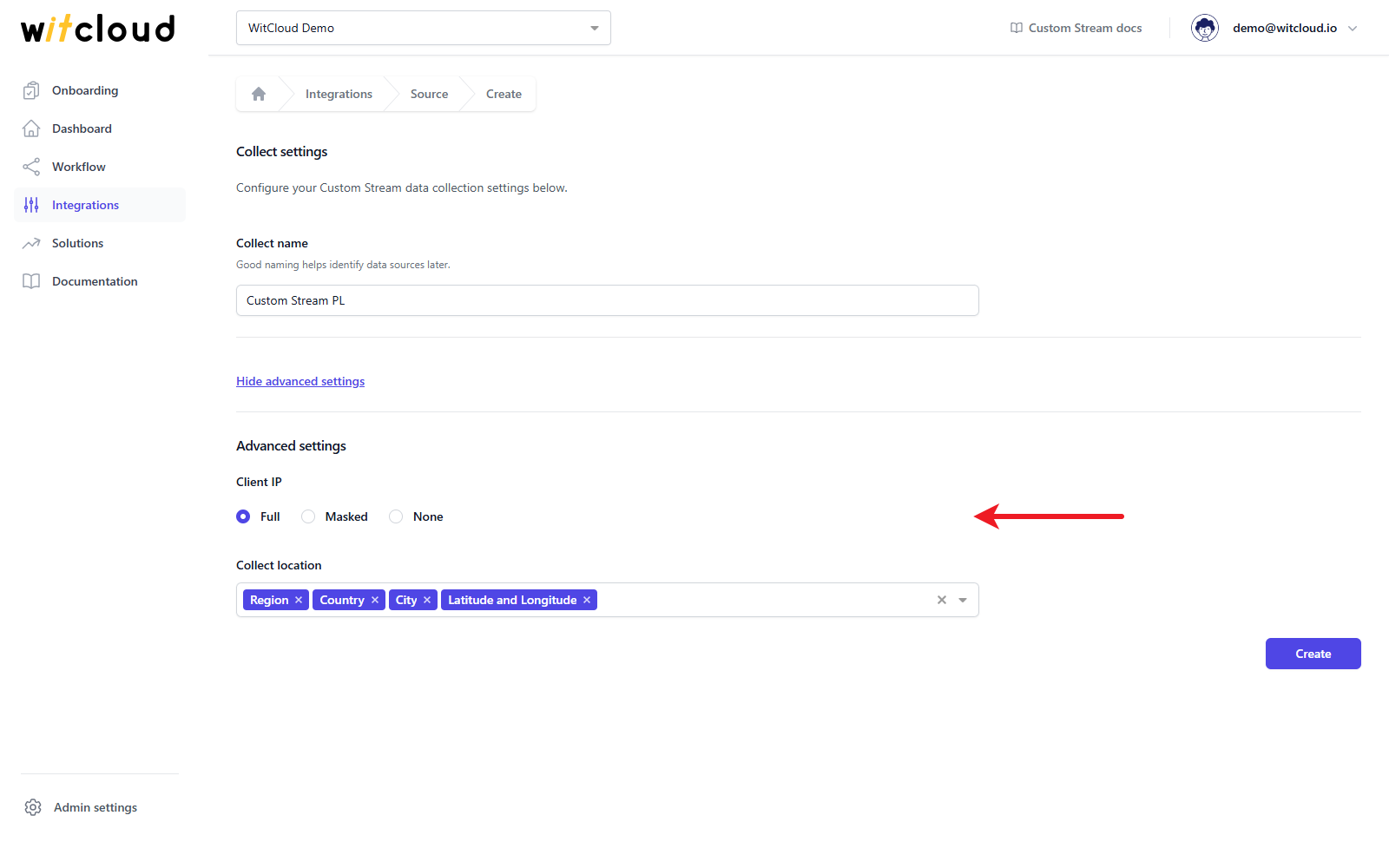
With the Collect location option you choose which geographic data is saved with each row: Region, Country, City and Latitude and Longitude. All four are selected by default; remove the ones you do not want to collect.
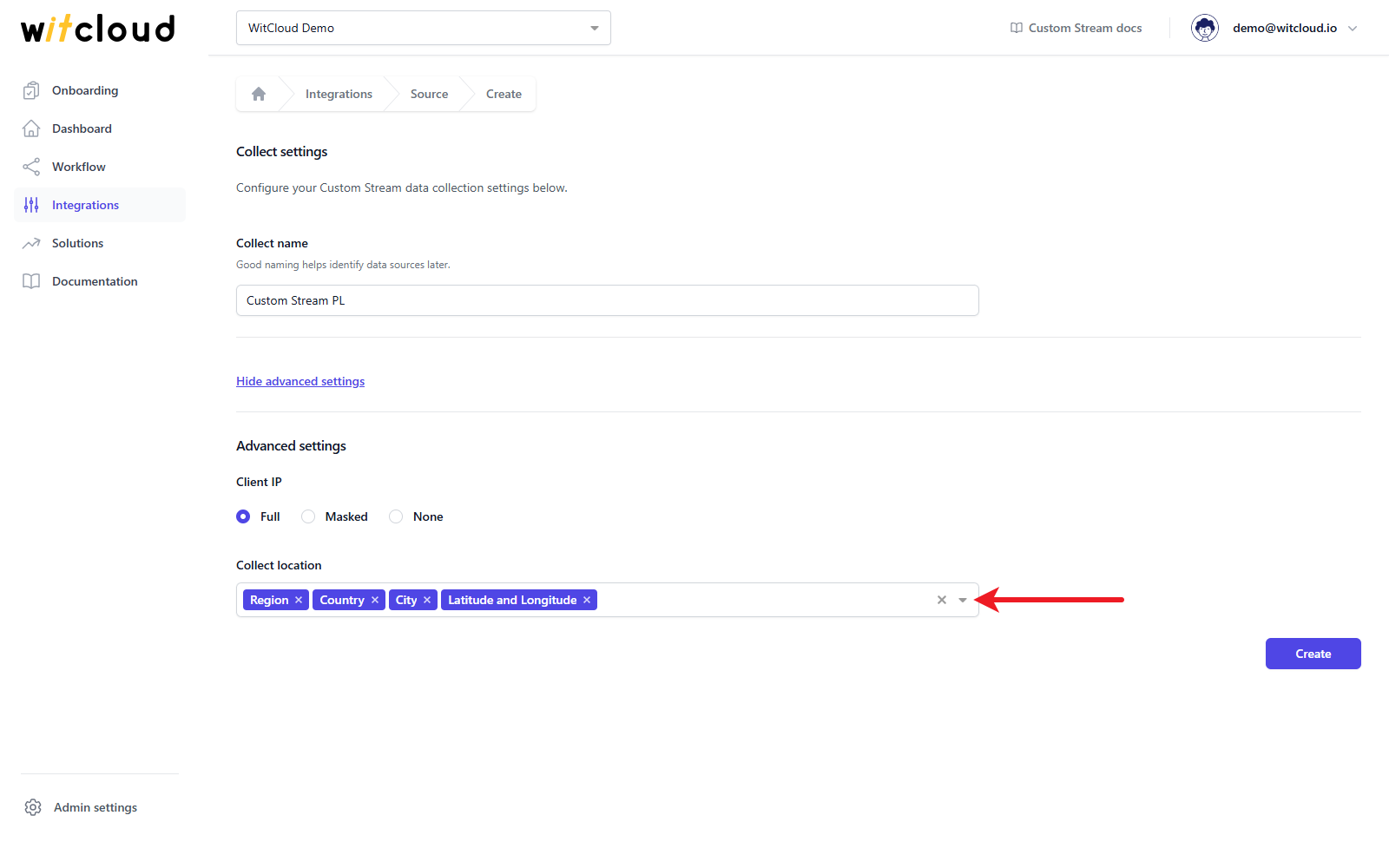
Click Create.
How to use the stream
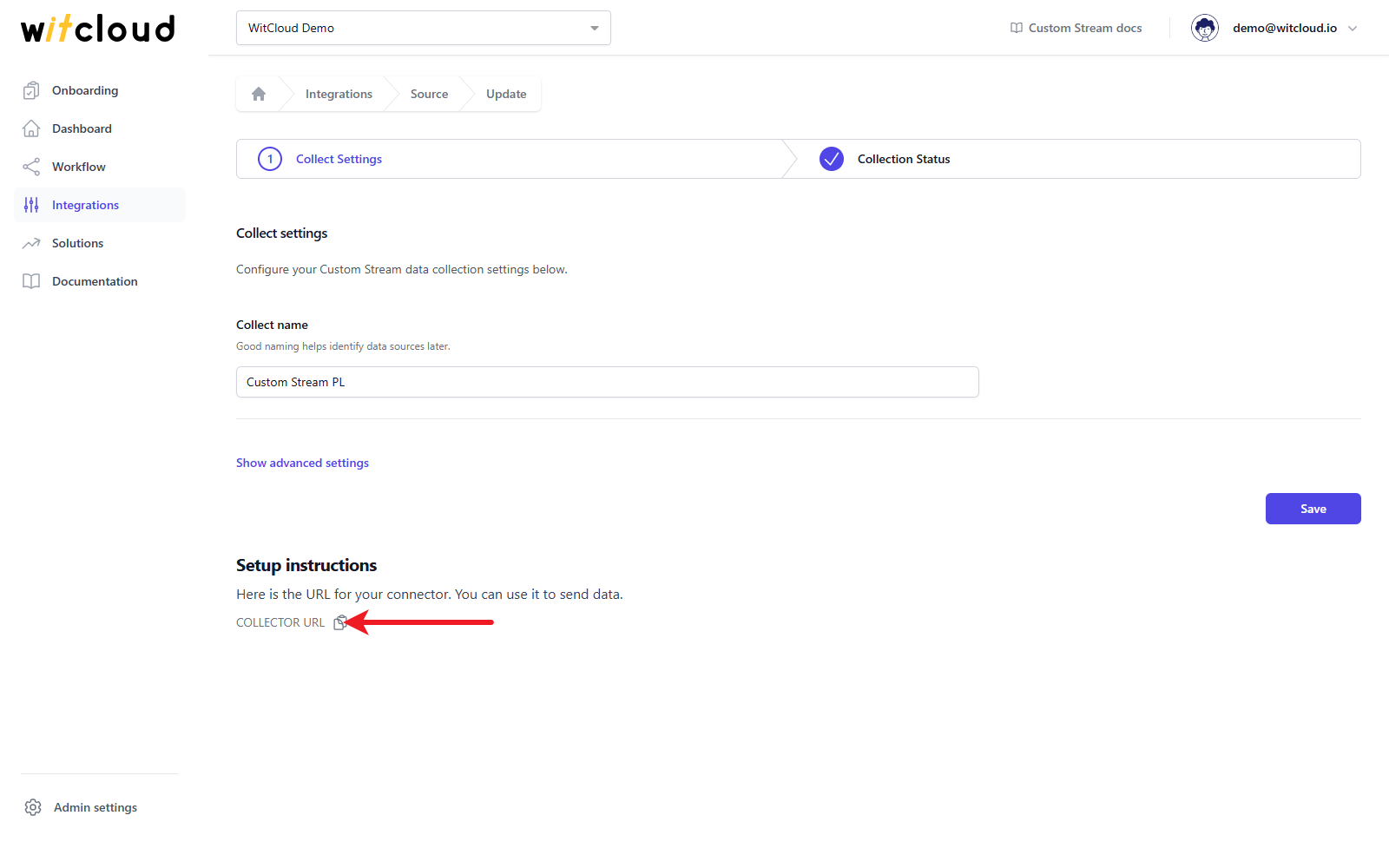
After you create the stream, its page opens. In the Setup instructions section, click the copy icon next to Collector URL to copy the address of your stream. You can open this page again at any time from the Integrations list.
Sending data
To send data, make a POST request to your collector URL with a JSON body. Each request is saved as a new row in the stream's table in your BigQuery dataset. You can also send the data as query parameters in a GET request.
The whole body is saved as text in the payload column, so you can send any fields you like. The only field with a special meaning is eventId: if you send it as a string, it is saved in the eventId column; otherwise a unique identifier is generated for the row. The timestamp column holds the time the request was received.
The URL is unique to your stream. Keep it secure and do not expose it publicly.
Example request
Here is a sample curl request:
curl -X POST https://stream.cloud.witbee.com/custom/your-unique-id \
  -H "Content-Type: application/json" \
  -d '{
        "event": "form_submitted",
        "email": "john@example.com",
        "source": "landing_page"
      }'
Data schema
Expand the table below to view the full data schema collected from Custom Stream.
Data schema for custom_stream
| Field Name | Mode | Type |
|---|---|---|
| eventId | NULLABLE | STRING |
| payload | NULLABLE | STRING |
| timestamp | NULLABLE | TIMESTAMP |
| ip | NULLABLE | STRING |
| geo | NULLABLE | RECORD |
| ├─ geo.city | NULLABLE | STRING |
| ├─ geo.region | NULLABLE | STRING |
| ├─ geo.country | NULLABLE | STRING |
| ├─ geo.cityLatitude | NULLABLE | STRING |
| ├─ geo.cityLongitude | NULLABLE | STRING |